Connect IBM Bob
Connect Adri MCP Server in IBM Bob
IBM Bob supports token-based authentication. First create a token, then add Adri MCP Server in Bob settings.
Authenticate using token
Some coding agents do not support full OAuth browser login.
In those tools, use an Adri personal access token in the Authorization header.
In every screenshot, the red box shows where to focus.
1. Open Access Tokens in Project Settings
- Log in to Adri AI at https://www.getadri.ai/login.
- Open your project from https://www.getadri.ai/projects.
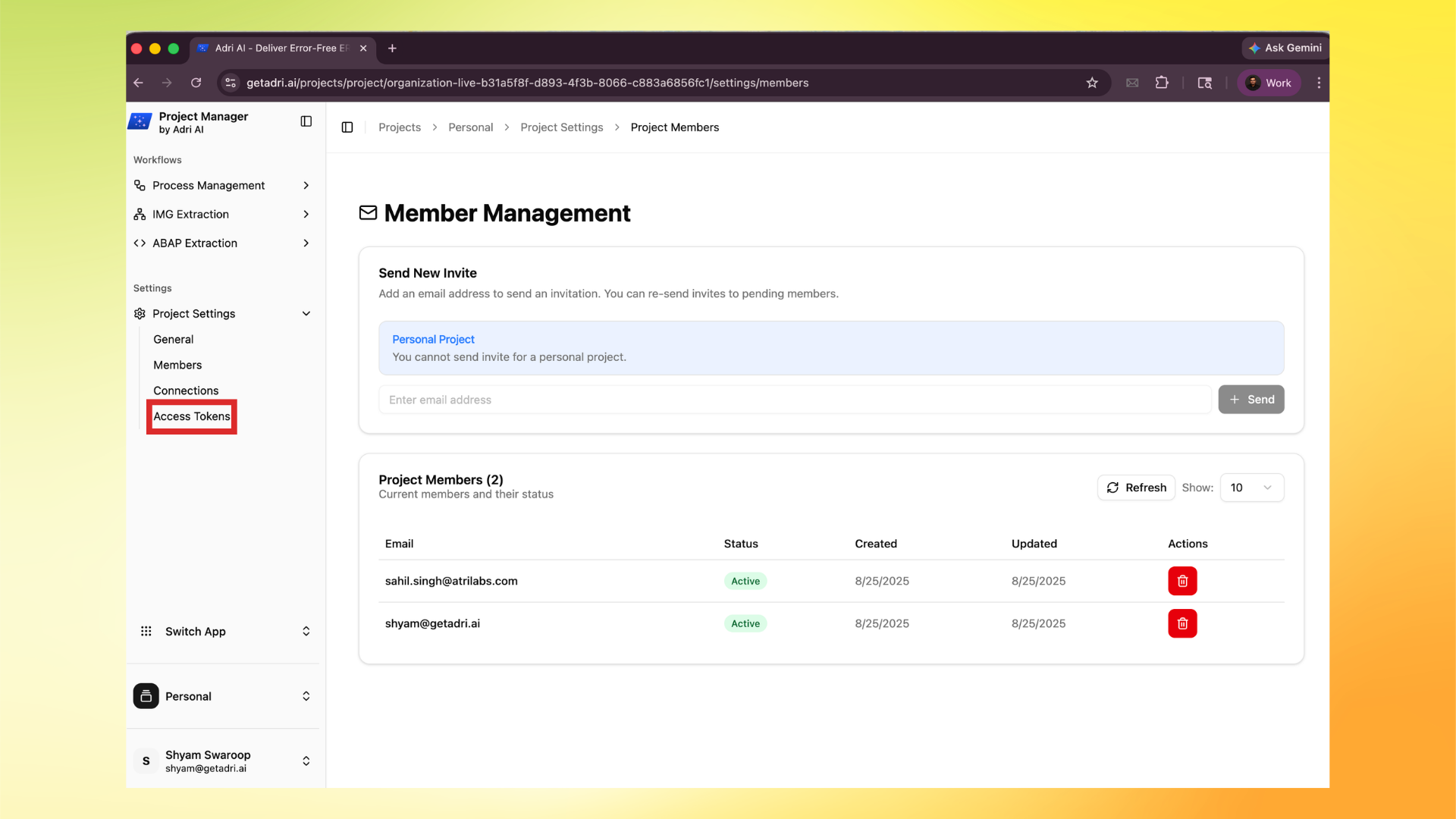
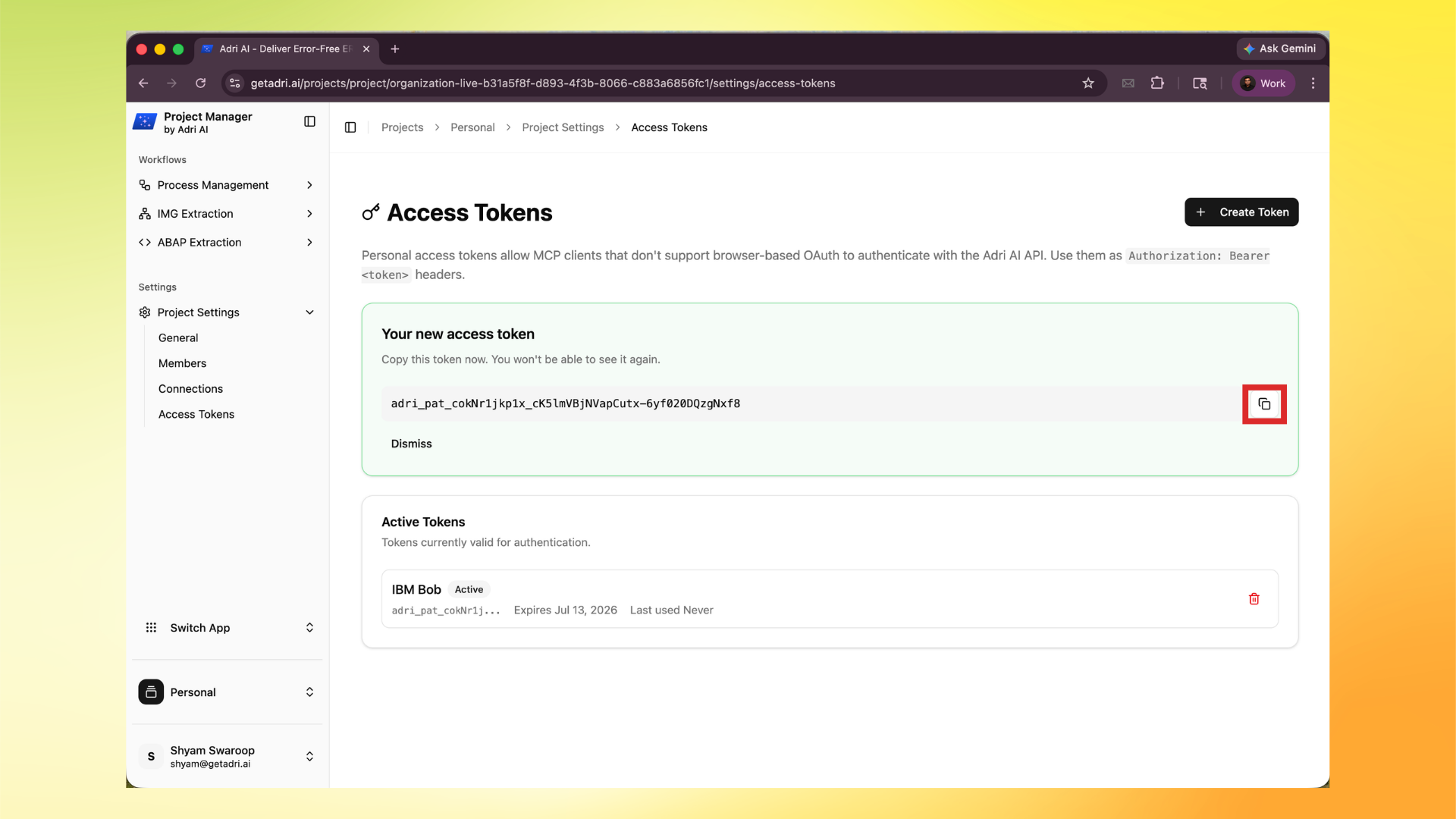
- In the left menu, open Project Settings, then click Access Tokens.
2. Create a new token
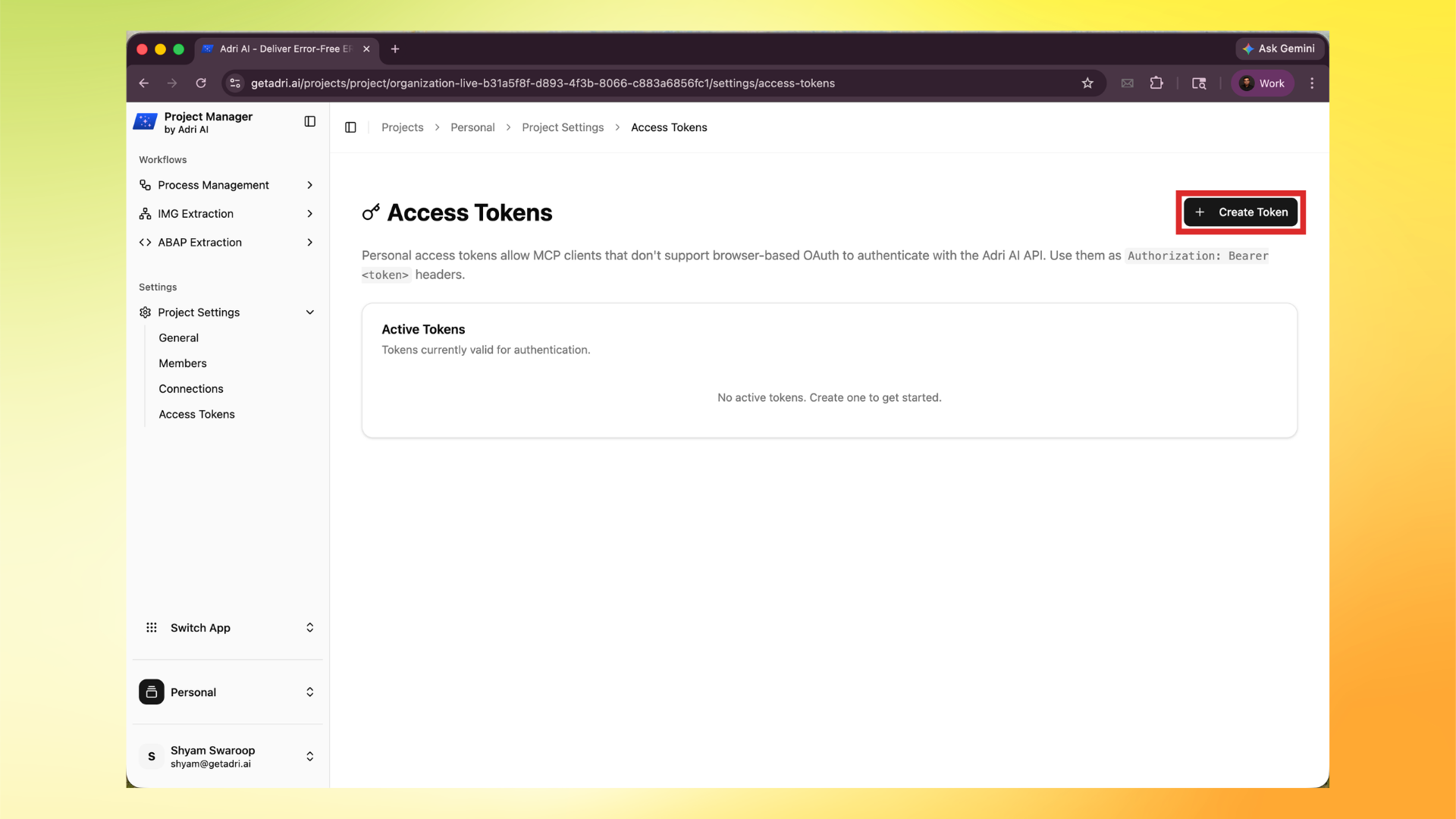
- Click Create Token.
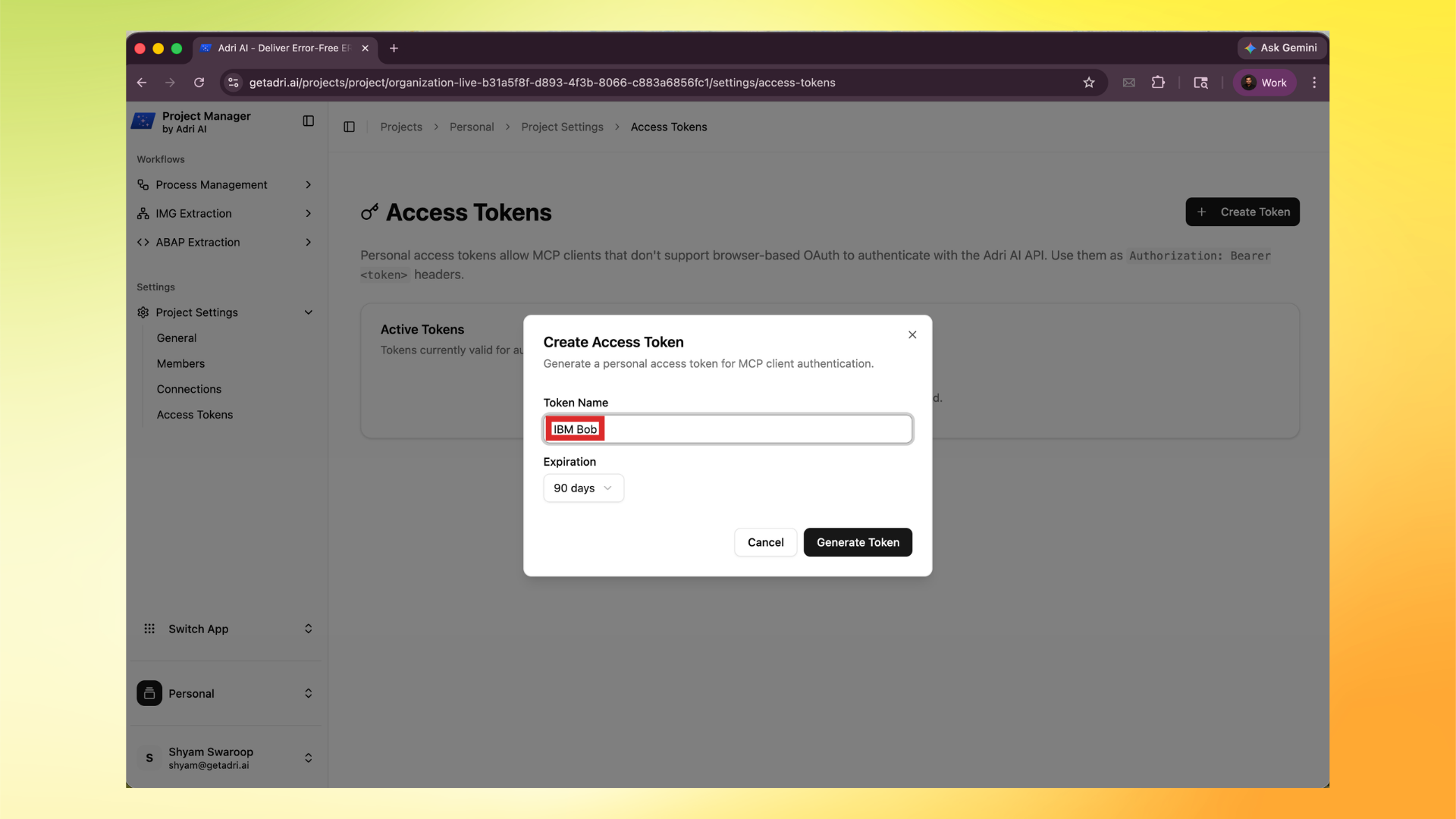
- Enter a token name, choose expiry, and click Generate Token.
- Copy the token immediately.
Important:
- You can only see the full token once.
- Store it securely.
3. Use the token as Bearer auth
Use this HTTP header format:
Authorization: Bearer <your_access_token>
IBM Bob specific setup
1. Open Bob settings
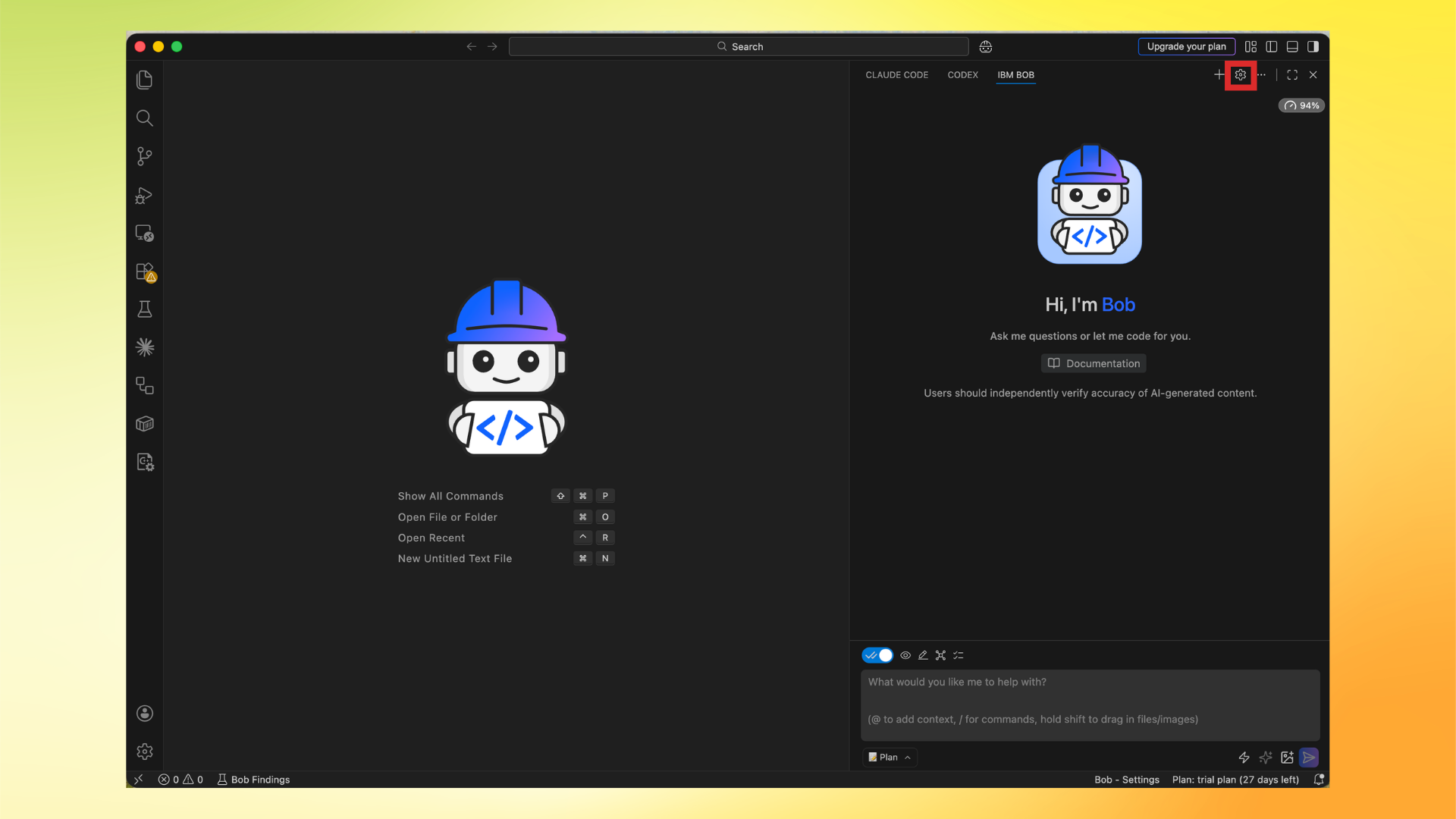
- Open IBM Bob in VS Code.
- Click the Settings icon.
2. Open MCP settings
- In settings, click MCP.
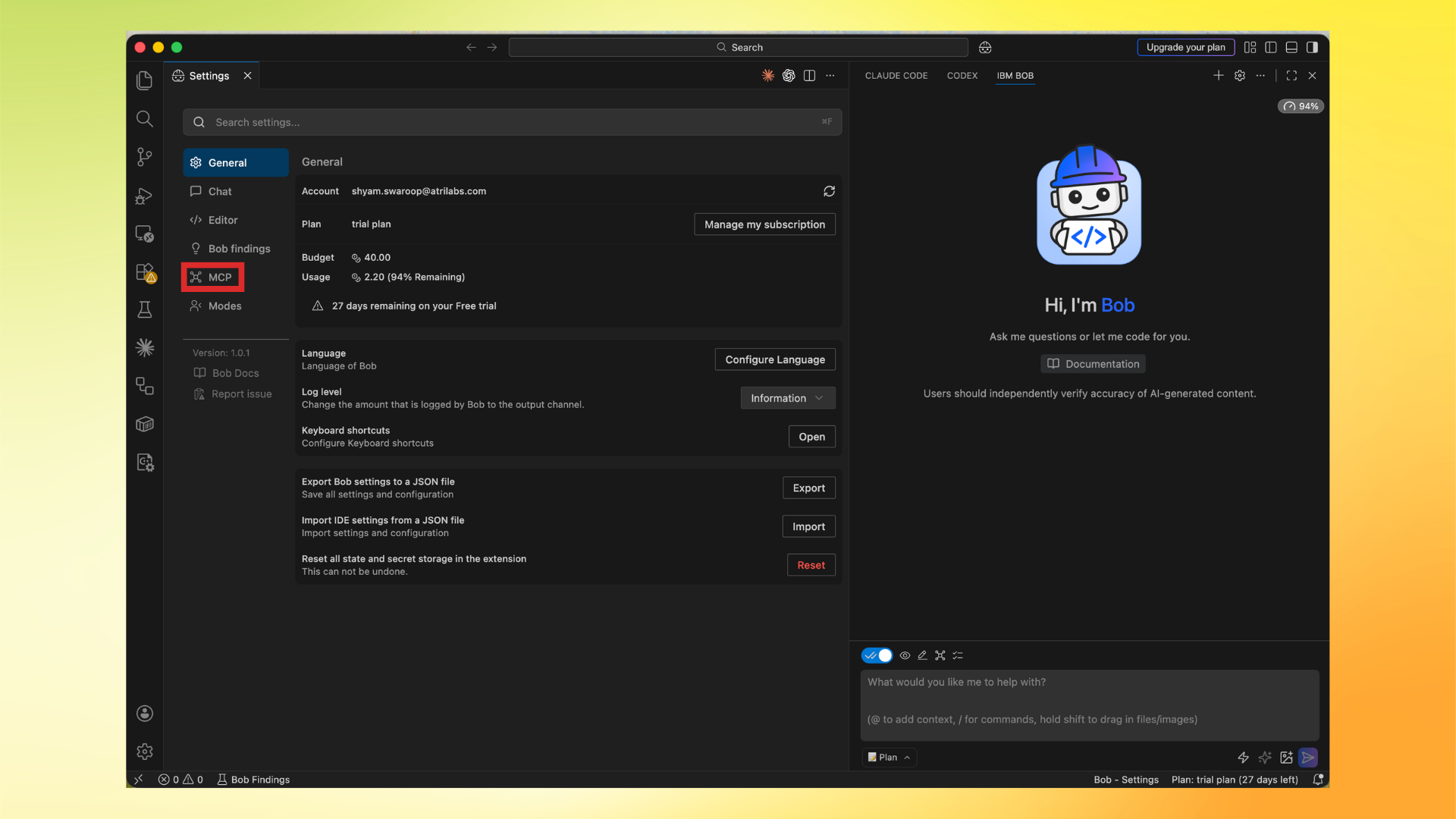
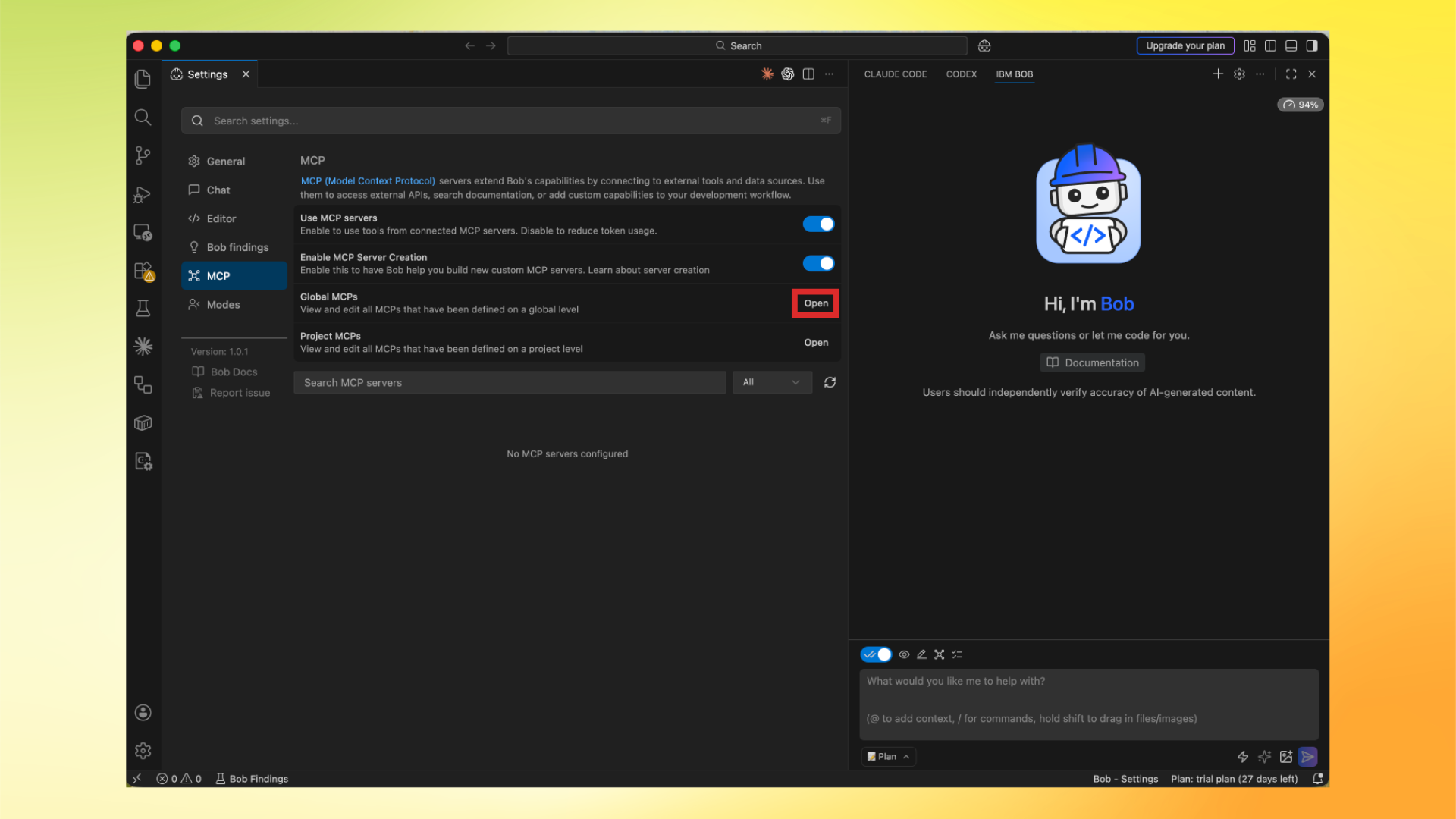
- Make sure Use MCP servers is enabled.
- Under Global MCPs, click Open.
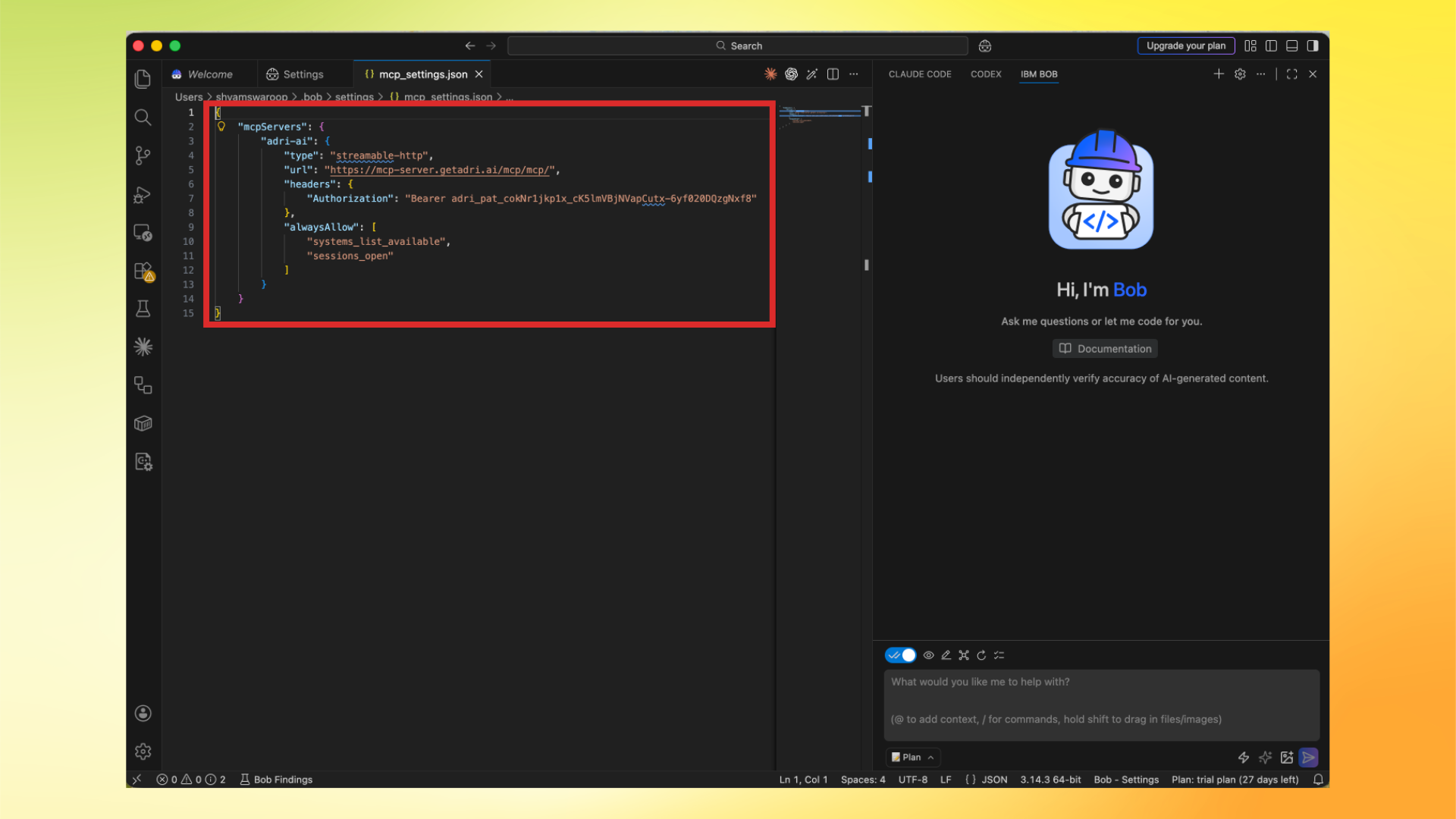
3. Add Adri MCP config
Paste this in Bob's mcp_settings.json and replace <your_access_token> with the token you copied earlier.
Then save the file (Cmd+S on macOS or Ctrl+S on Windows/Linux).
{
"mcpServers": {
  "adri-ai": {
    "type": "streamable-http",
    "url": "https://mcp-server.getadri.ai/mcp/mcp/",
    "headers": {
      "Authorization": "Bearer <your_access_token>"
    },
    "alwaysAllow": [
      "systems_list_available",
      "sessions_open"
    ]
  }
}
}
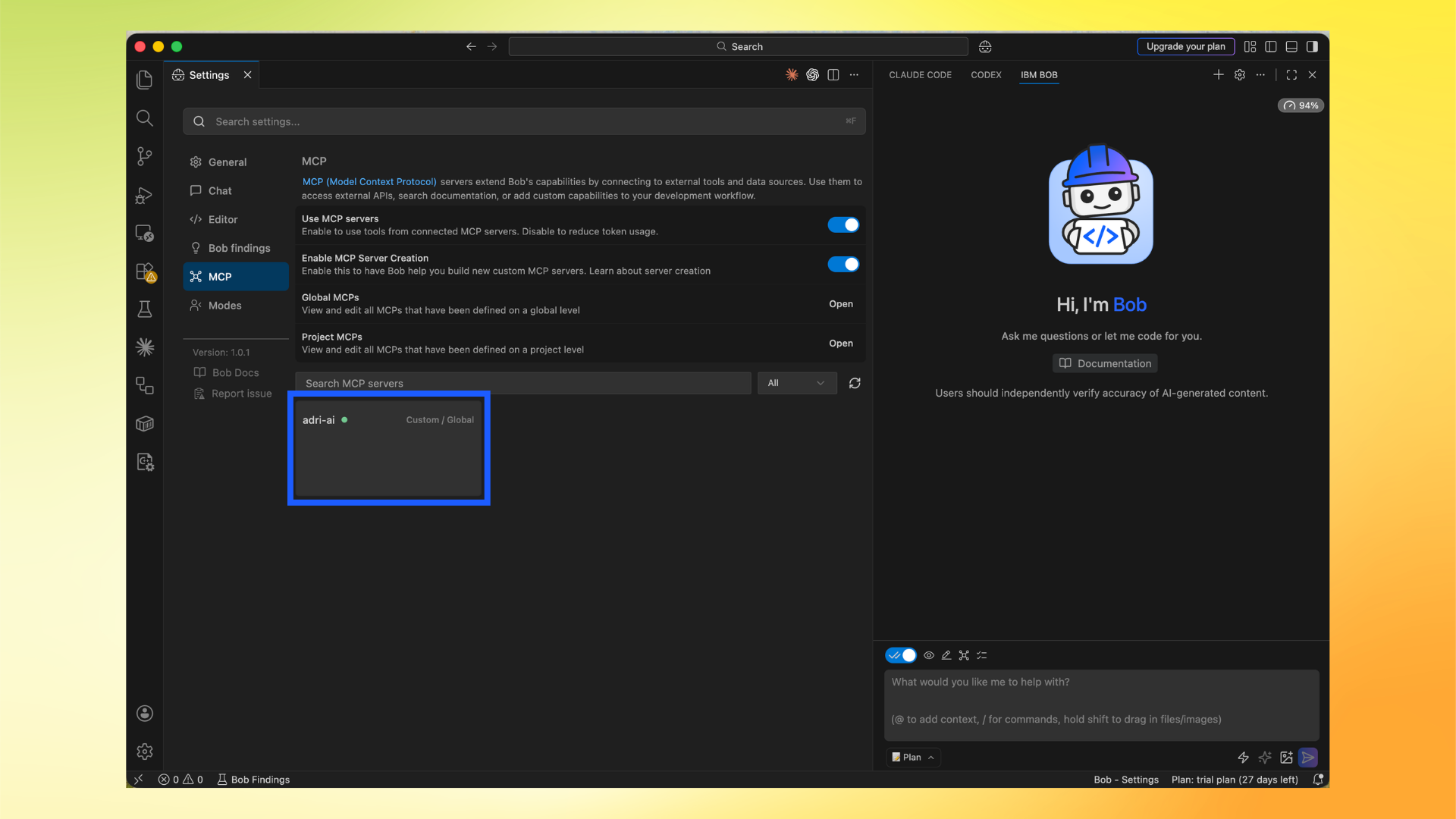
4. Confirm MCP server is available
Return to MCP settings and confirm adri-ai appears in the server list.
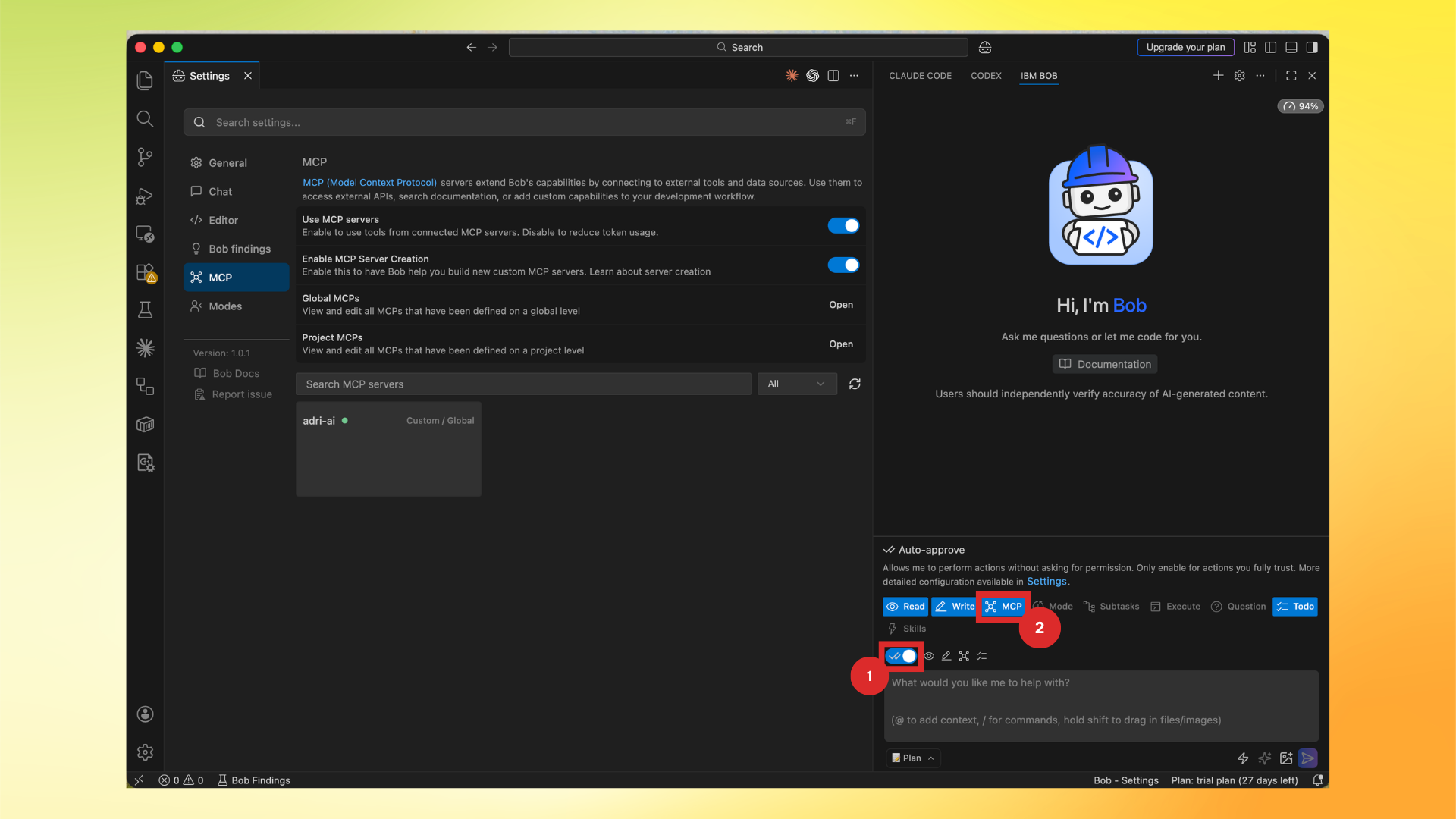
5. Enable MCP in your chat
In the chat panel, keep both controls ON (blue):
- The left switch.
- The MCP button.
Important:
- In this screenshot there are two red boxes.
- Both highlighted controls must be blue.
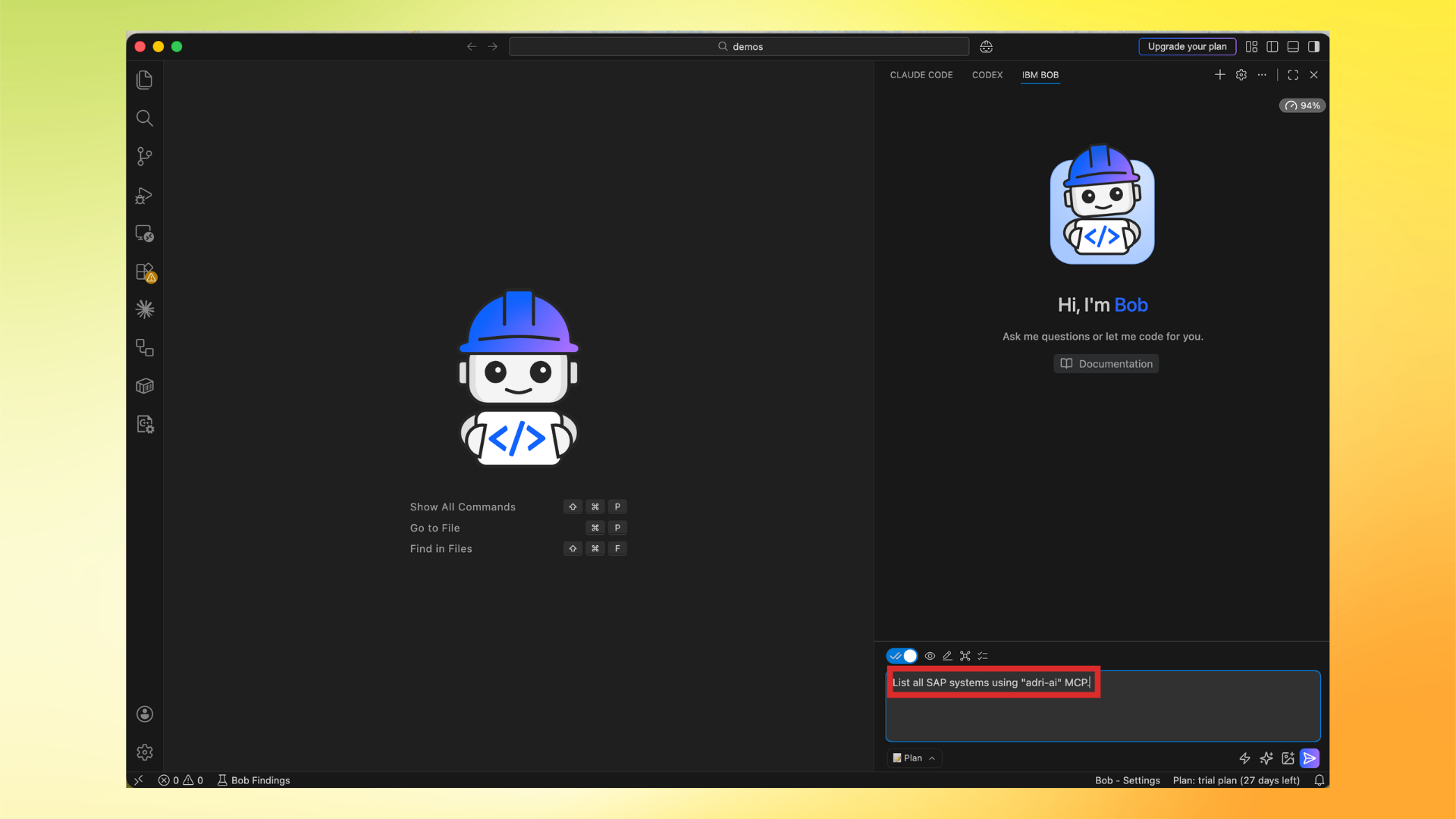
6. Run first prompt in IBM Bob
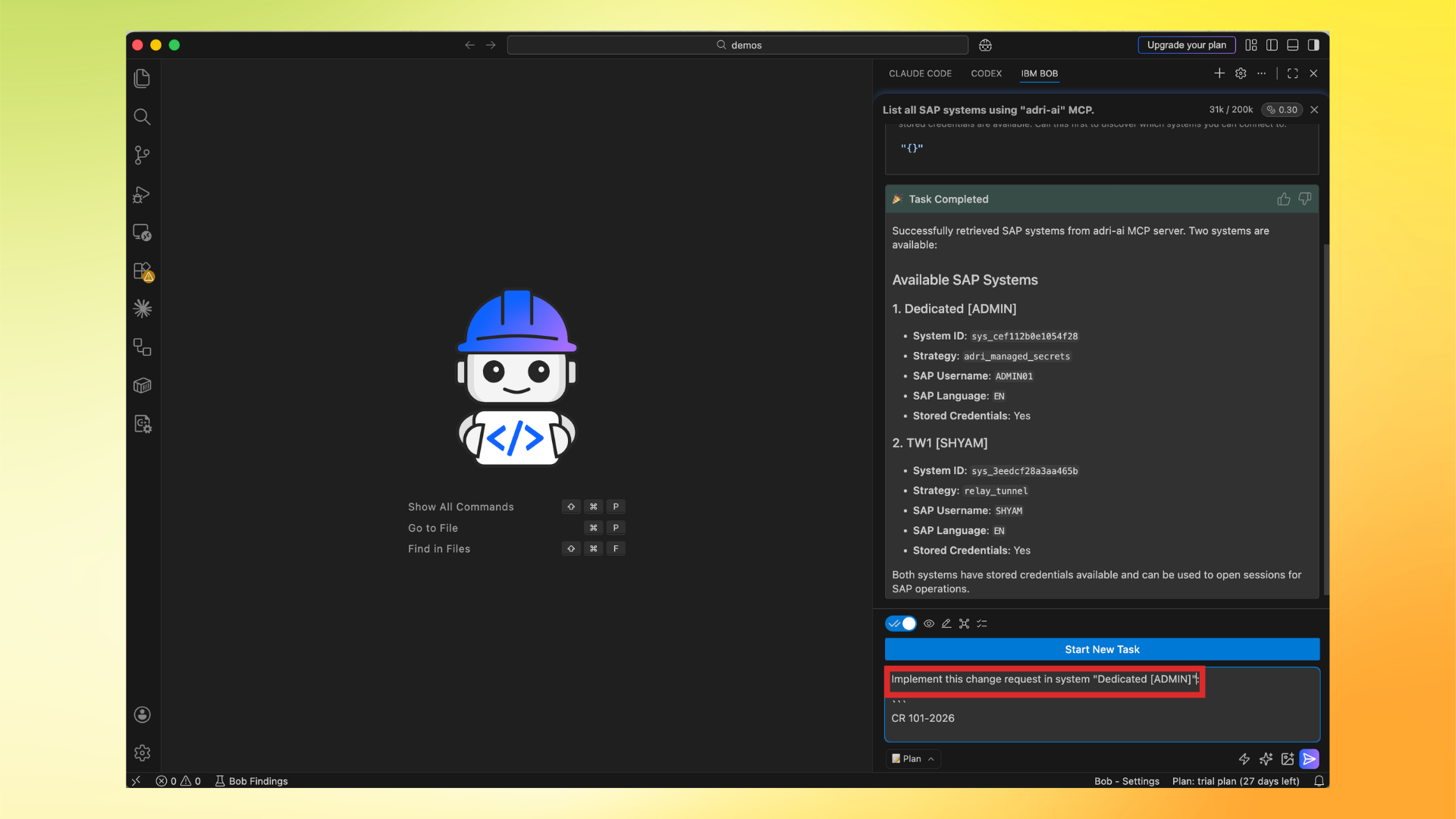
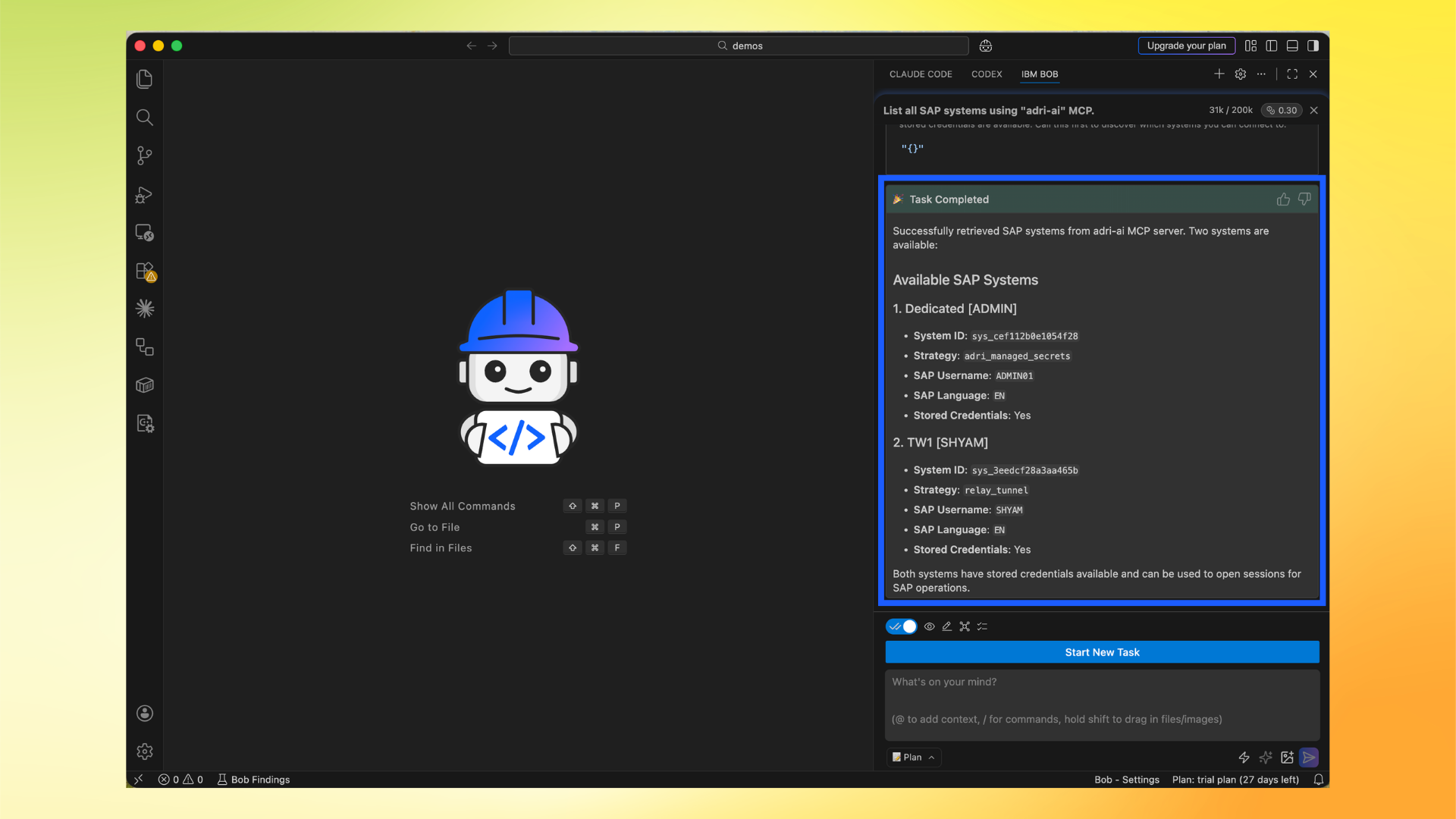
Ask: List all SAP systems using "adri-ai" MCP.
7. Verify response
Confirm IBM Bob returns SAP systems from Adri MCP Server.
8. Continue with your task
Now you can ask your SAP development request in IBM Bob.