Switch Models in Web Chat
Pick a model for a conversation (web)
Every conversation can run on its own provider and model. You switch from the model picker in the chat composer — no settings page needed.
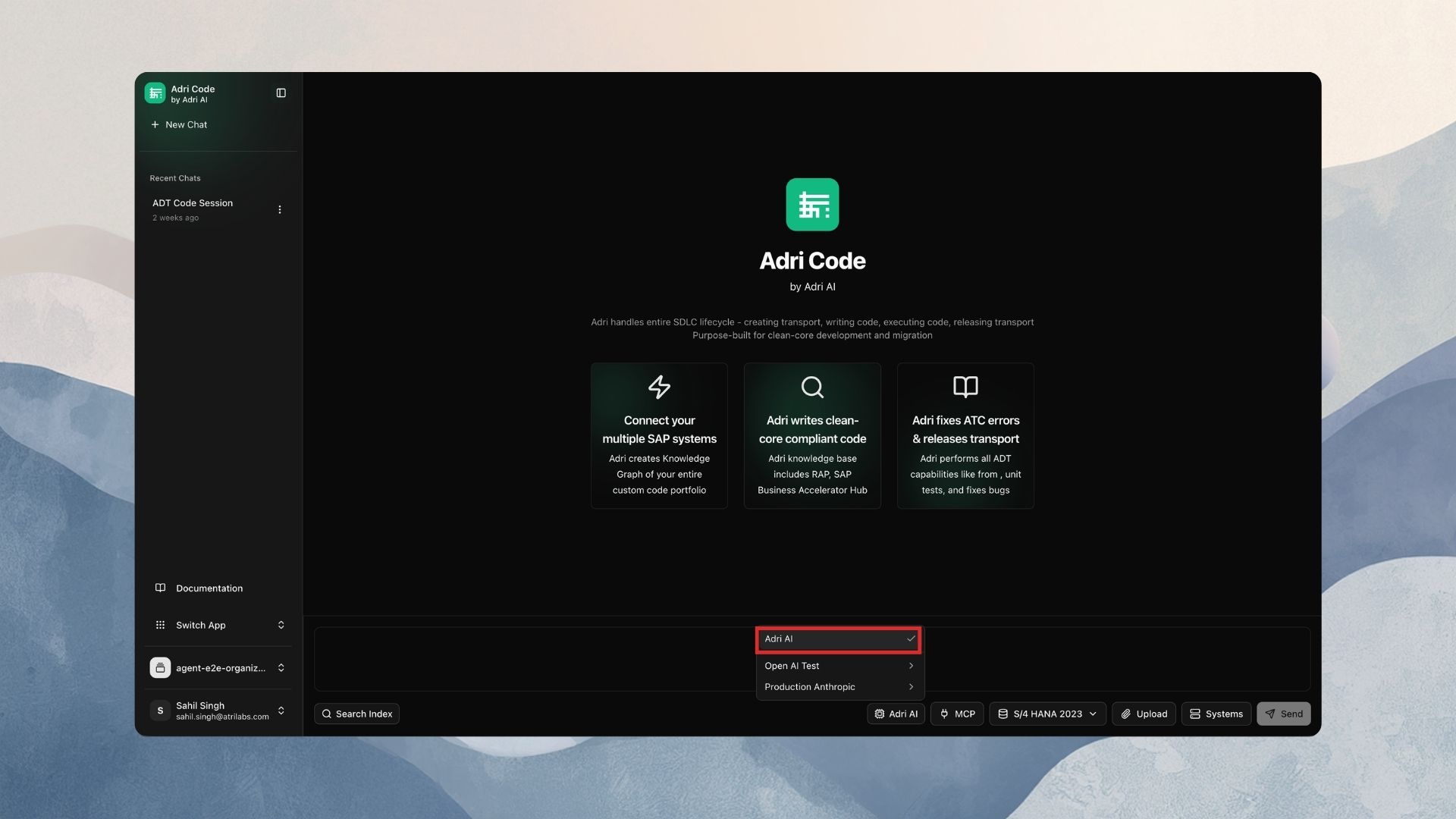
In every screenshot, the red box shows exactly where to focus.
1. Find the model picker
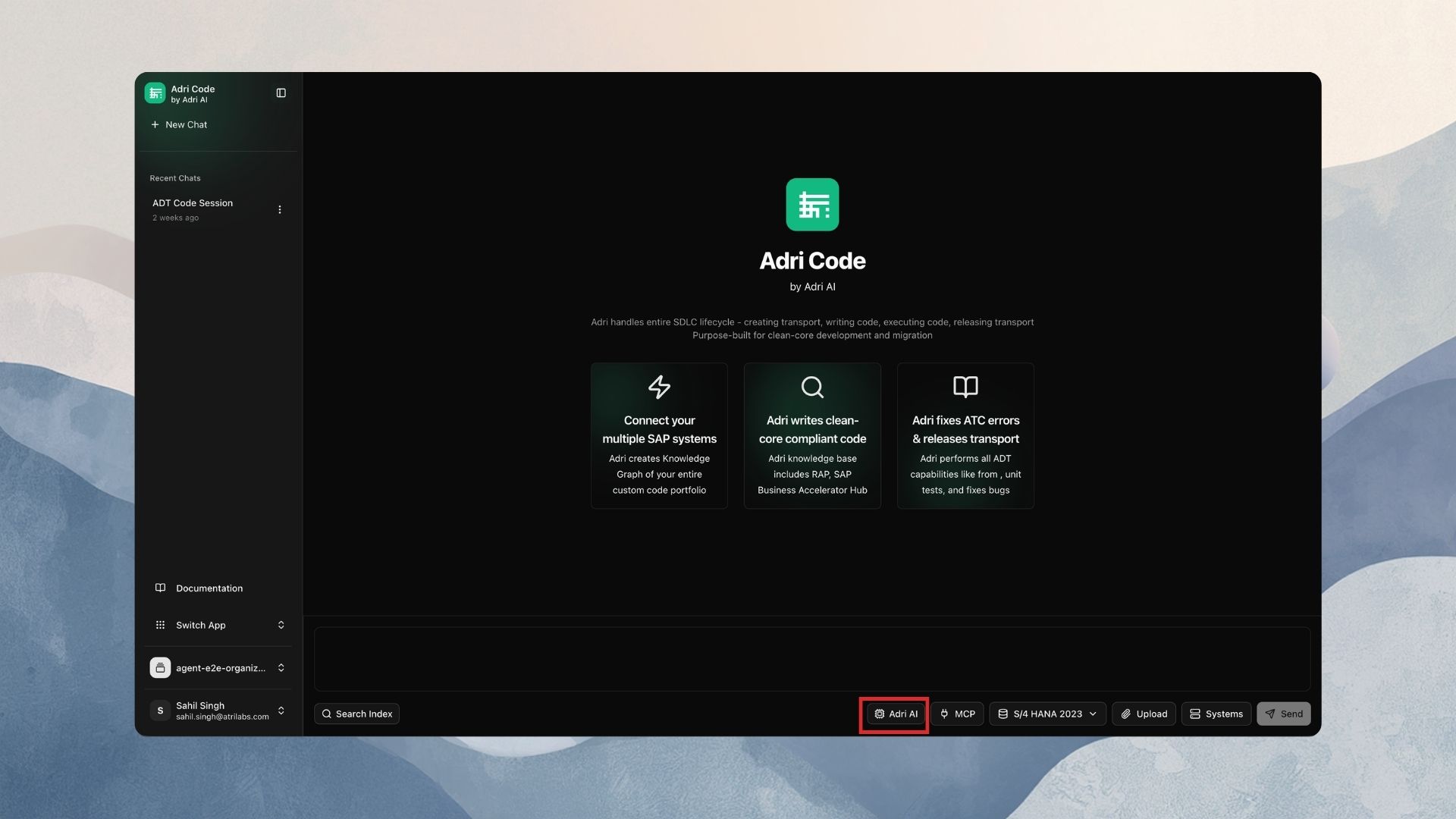
Open any conversation. At the bottom, next to the message box, there is a button with a CPU icon. By default it reads Adri AI.
2. Open the picker
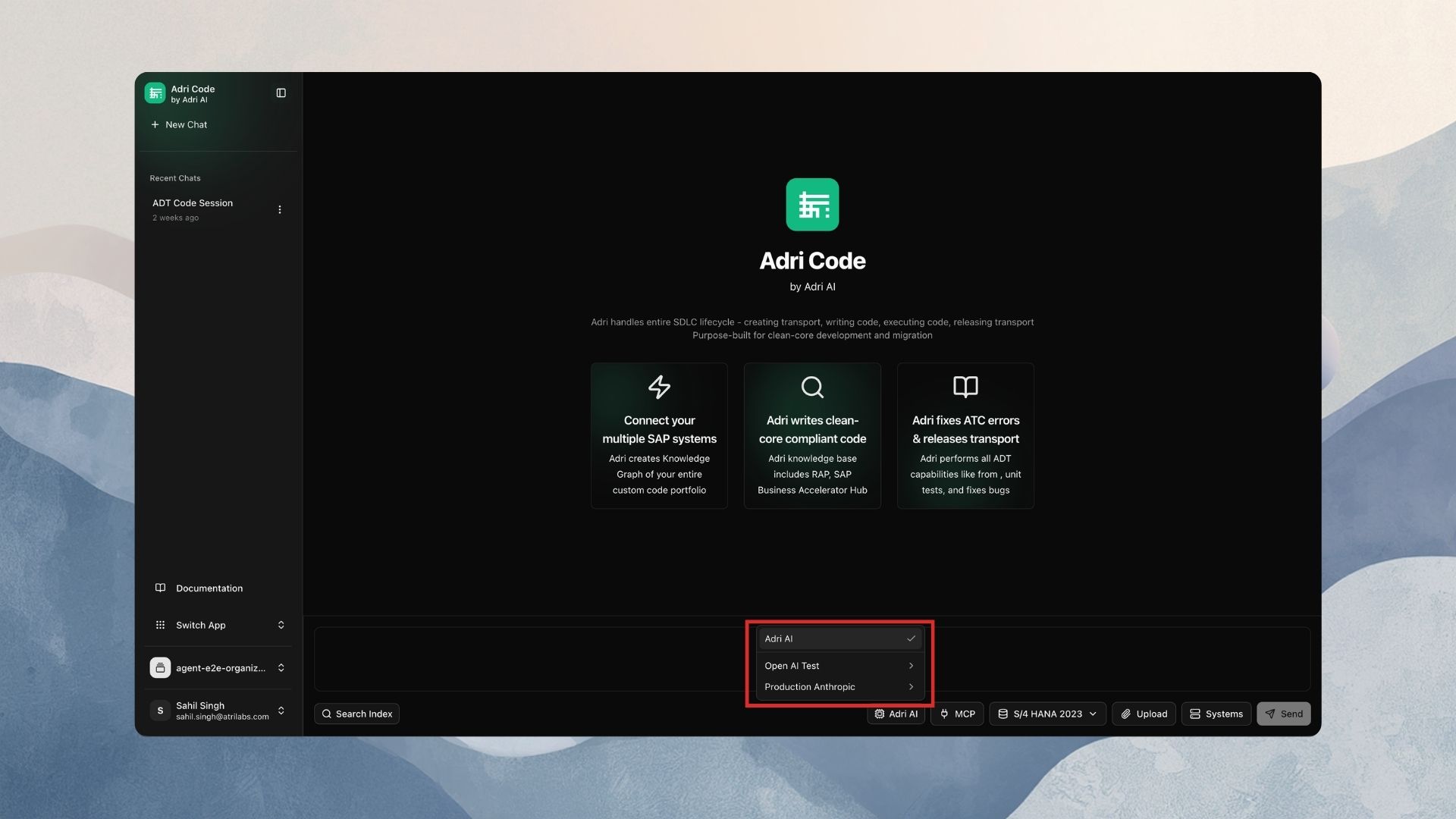
Click the button. The dropdown shows:
- Adri AI at the top — the project default. A check mark marks the current selection.
- One entry per enabled provider, by the name your team gave it (e.g.
Production Anthropic).
If the dropdown says "No providers configured. Add one in Settings → Providers.", your project has no providers yet — follow Add a provider first.
3. Pick a model
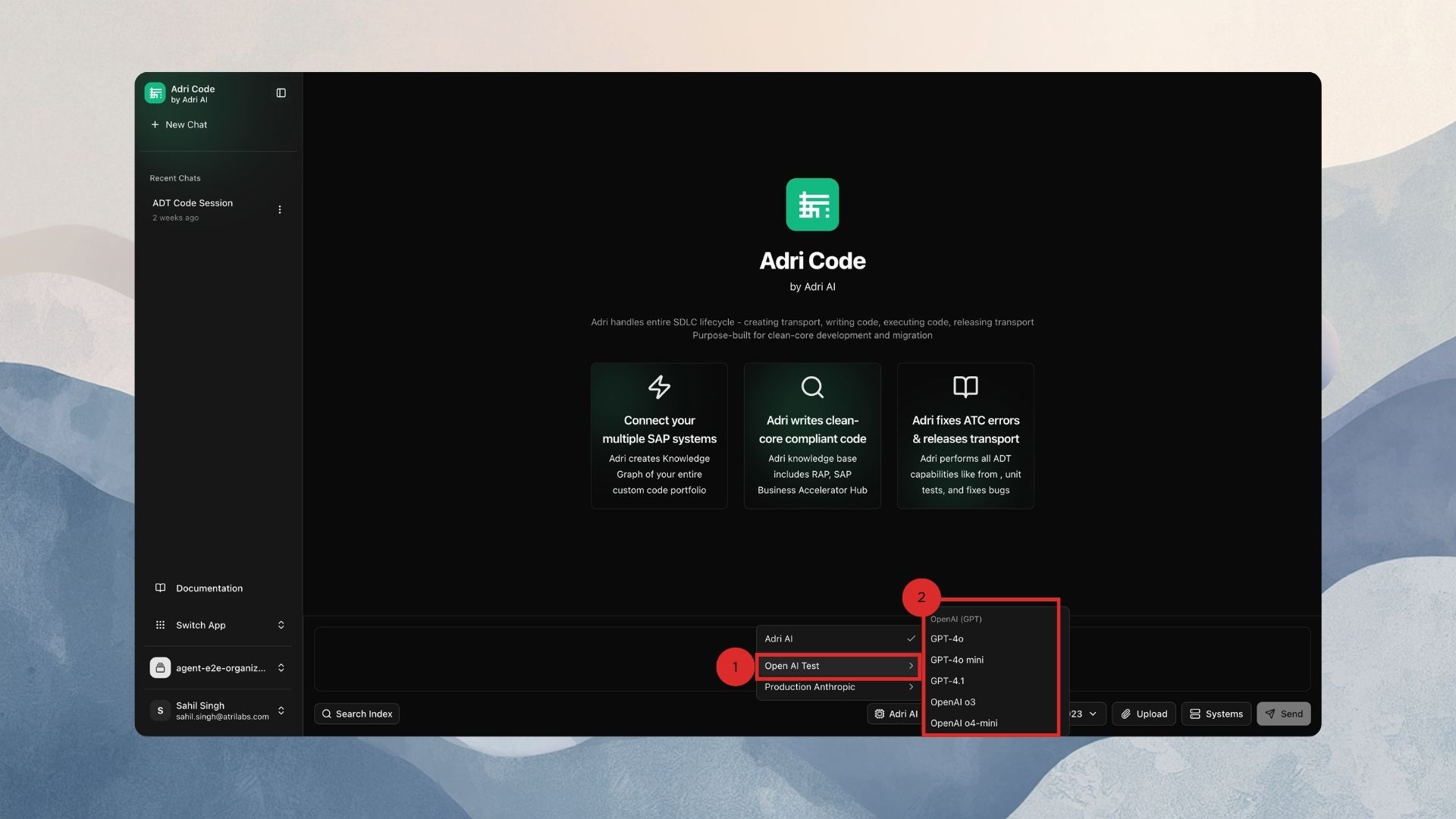
- Hover over a provider to open its model list.
- Click the model you want.
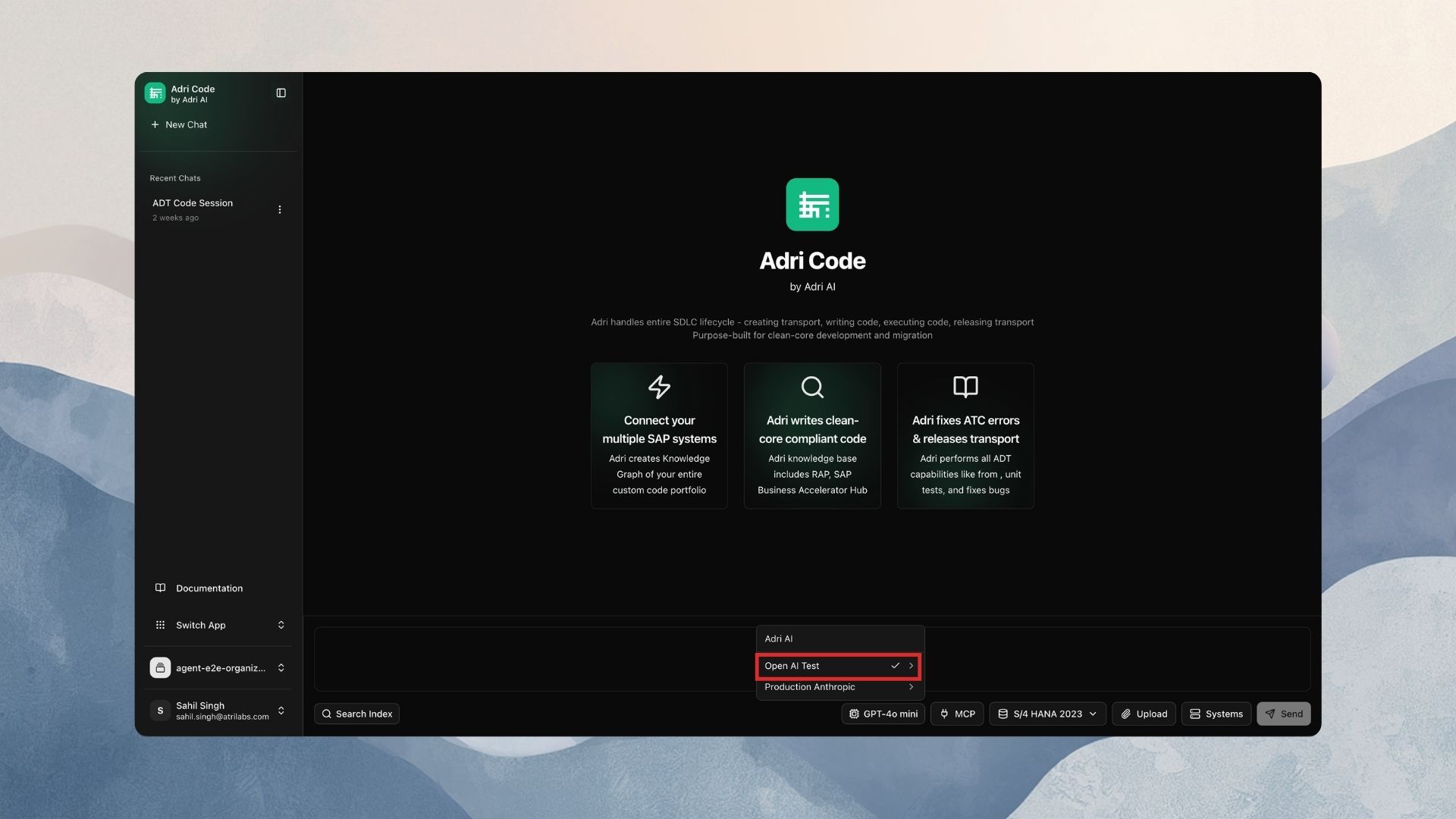
You should see a toast like Switched to Claude Sonnet 4.5, and the composer button now shows the model's name.
4. What the switch means
- The choice applies to this conversation only. Other conversations keep their own selection.
- It takes effect on the next message you send. Earlier messages are never rewritten.
- The selection is saved — leave and come back, it is still set.
5. Go back to the default
Open the picker and click Adri AI. You should see the toast "Using the project default model".
If the button shows "(unavailable)"
The provider behind this conversation's model was removed. Open the picker and choose a new model (or Adri AI). See FAQs & troubleshooting for details.