Install MCP for Claude Code
The extension can install the Adri MCP Server into your Claude Code configuration so that Claude can call Adri tools directly. This is the one-click alternative to editing .mcp.json by hand — see Setup (Claude Code) for the manual flow.
In every screenshot, the red box shows where to focus.
Pre-requisites
- The Claude Code CLI is installed and you are signed in.
- The Adri AI Foundry for VS Code extension is installed and you are signed in.
1. Open Setup → AI Tools
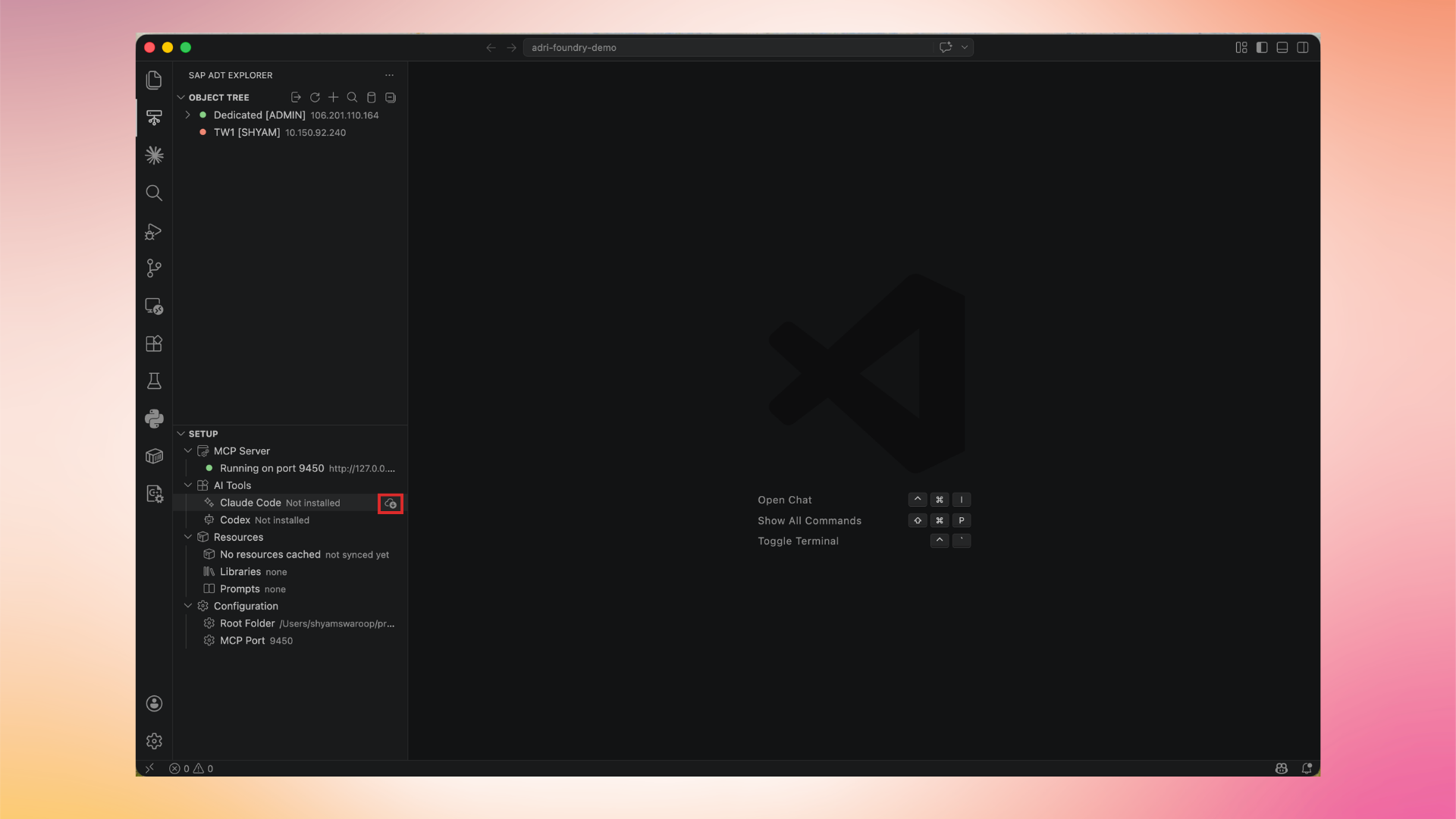
In the SAP ADT Explorer, expand Setup → AI Tools. Claude Code is listed as Not installed by default.
2. Click the install icon
Hover over the Claude Code row and click the Install icon on the right. The extension writes the MCP server entry into your Claude configuration.
3. Restart Claude Code
When the install completes, the row updates to Installed and the status bar shows Adri AI installed for Claude Code. Restart Claude Code to connect. Restart Claude Code so it picks up the new MCP server.
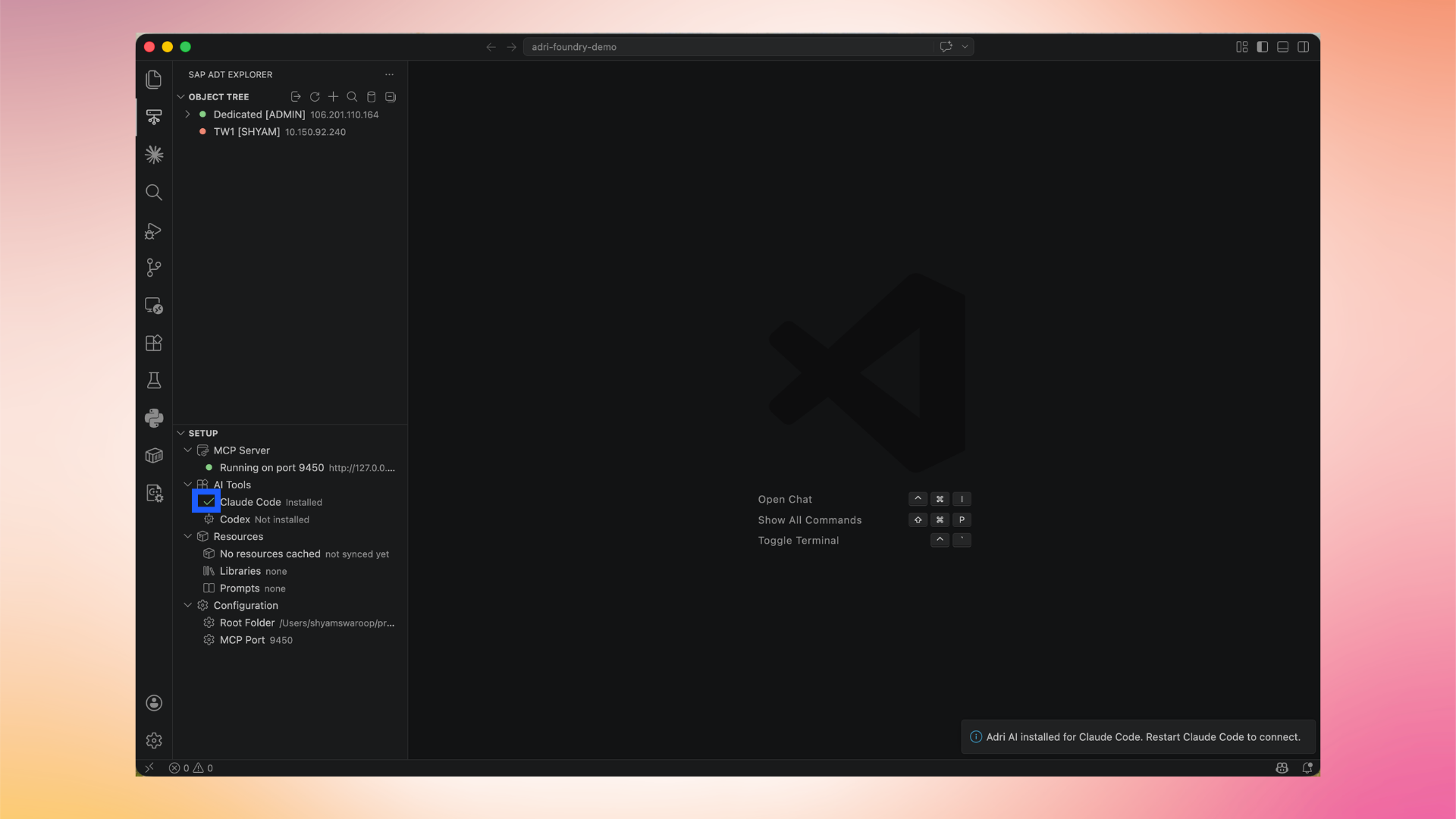
After restart, Claude Code can call Adri MCP tools (read SAP source, run ADT operations, query tables, and more). For details on what is available, see MCP capabilities.