Connect Your SAP System
Connect your SAP system
Use these steps to create a new SAP connection in Adri Project Manager. If you are not sure how to reach Project Settings, follow Open a Project first.
In every screenshot, the red box shows exactly where to focus.
1. Open the Connections page
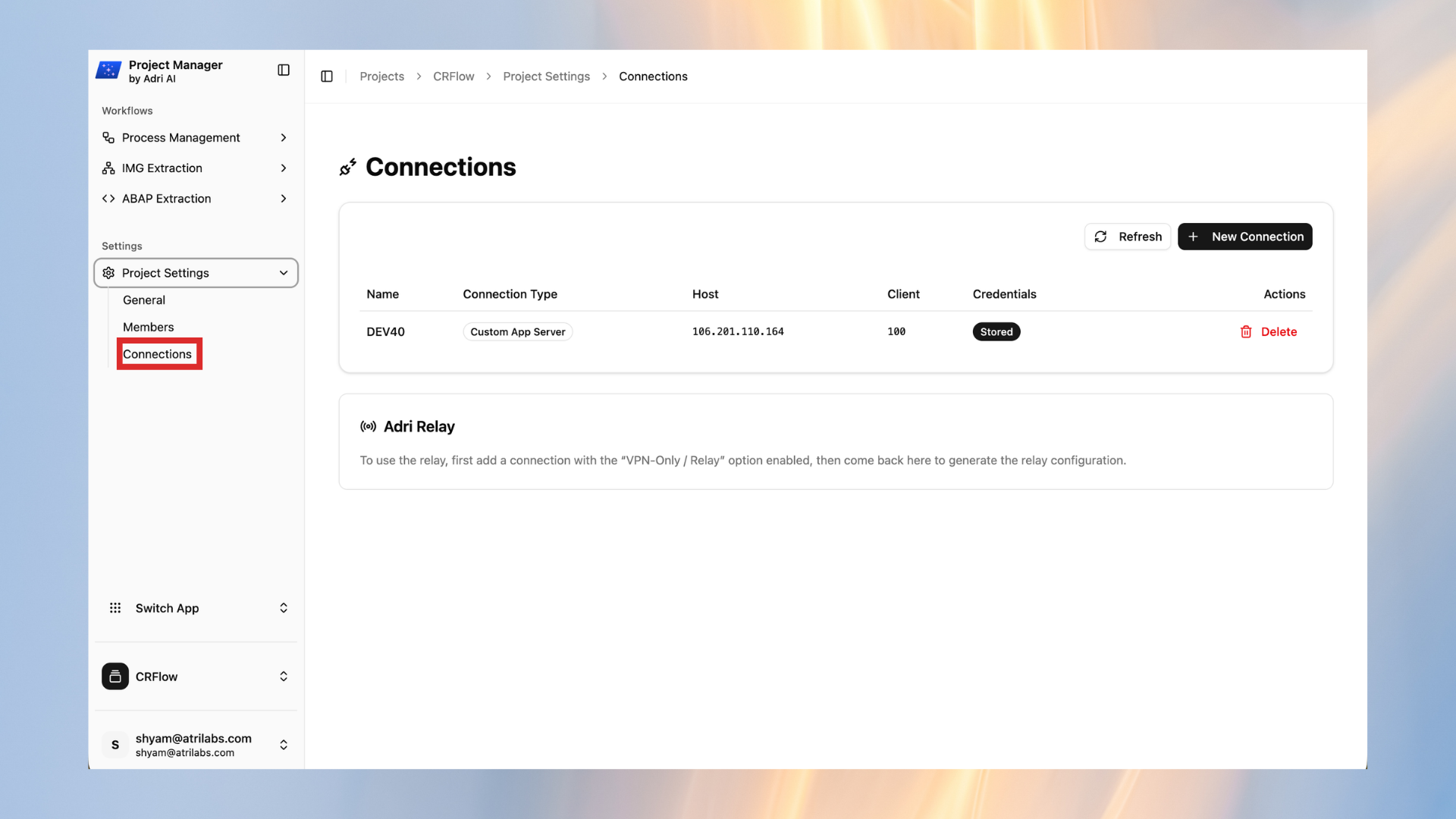
- In the left sidebar, open Project Settings.
- Click Connections.
2. Create a new connection
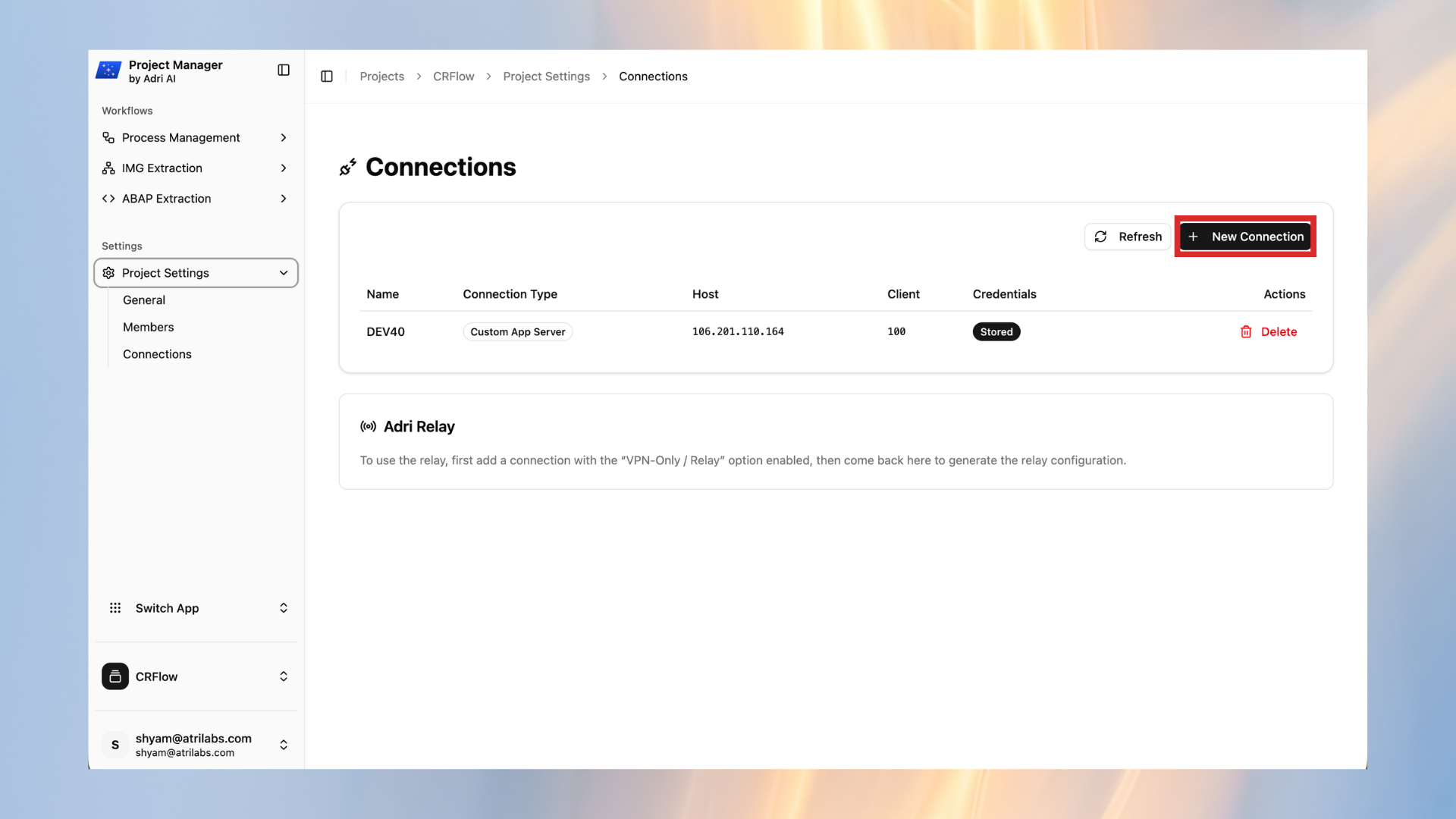
- On the Connections page, click + New Connection.
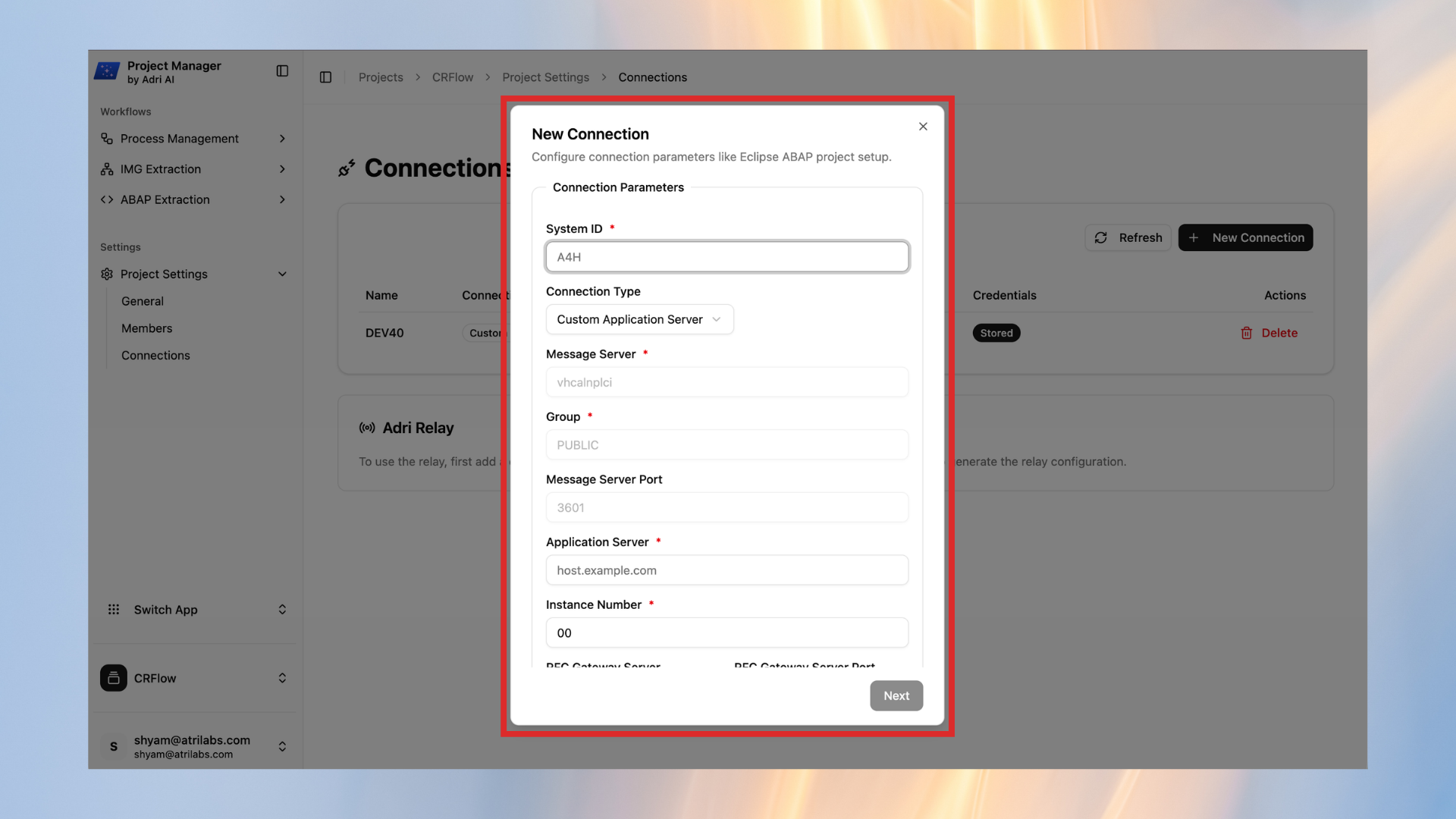
- Enter your SAP technical details in the dialog (system ID, server details, ports, and related fields).
Tip:
- If you are unsure about these values, ask your SAP Basis or system administrator.
- Continue to the credentials section and fill in connection name, client, language, user, and password.
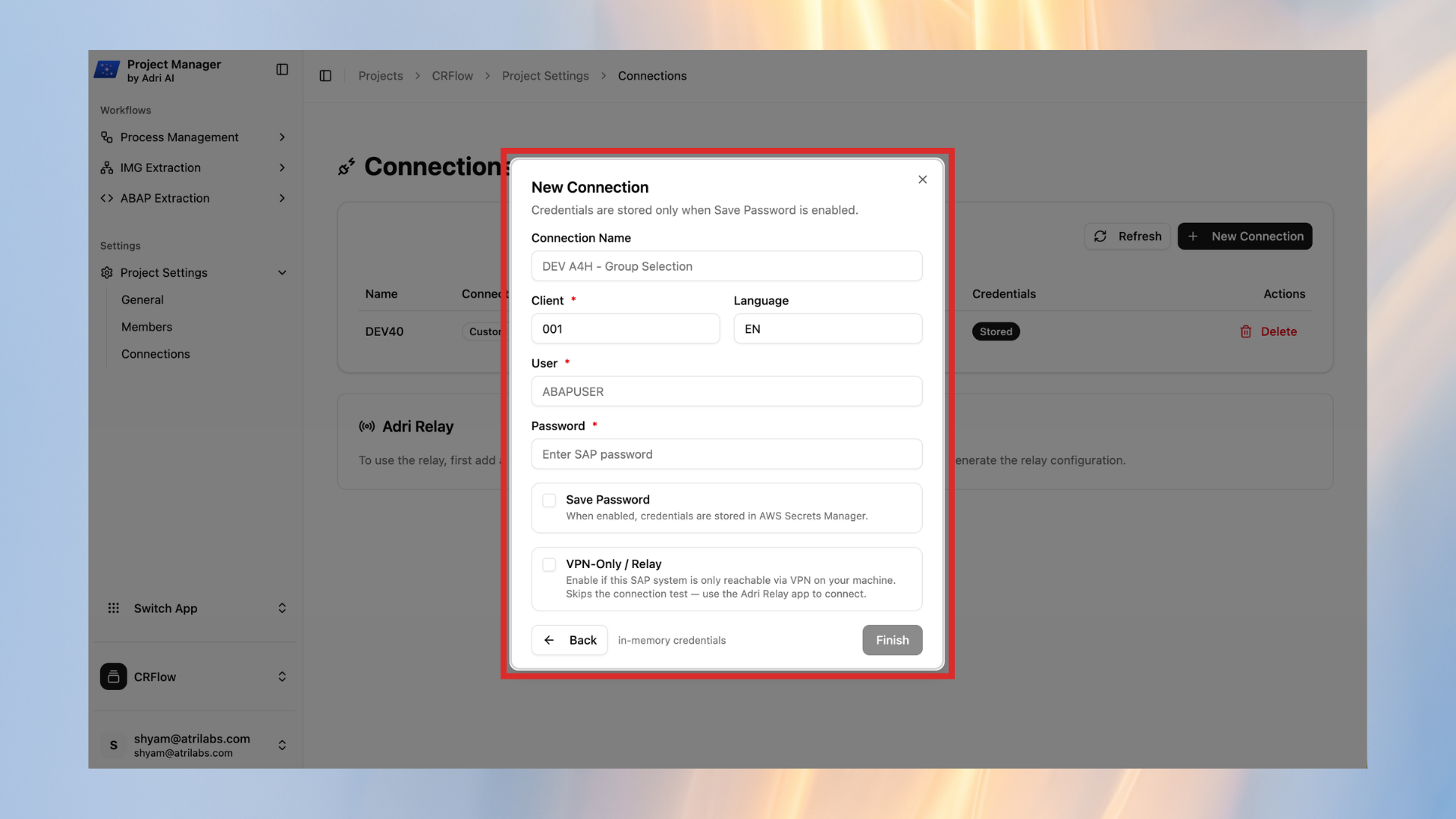
- Enable Save Password so Adri can securely store credentials and use the connection later.
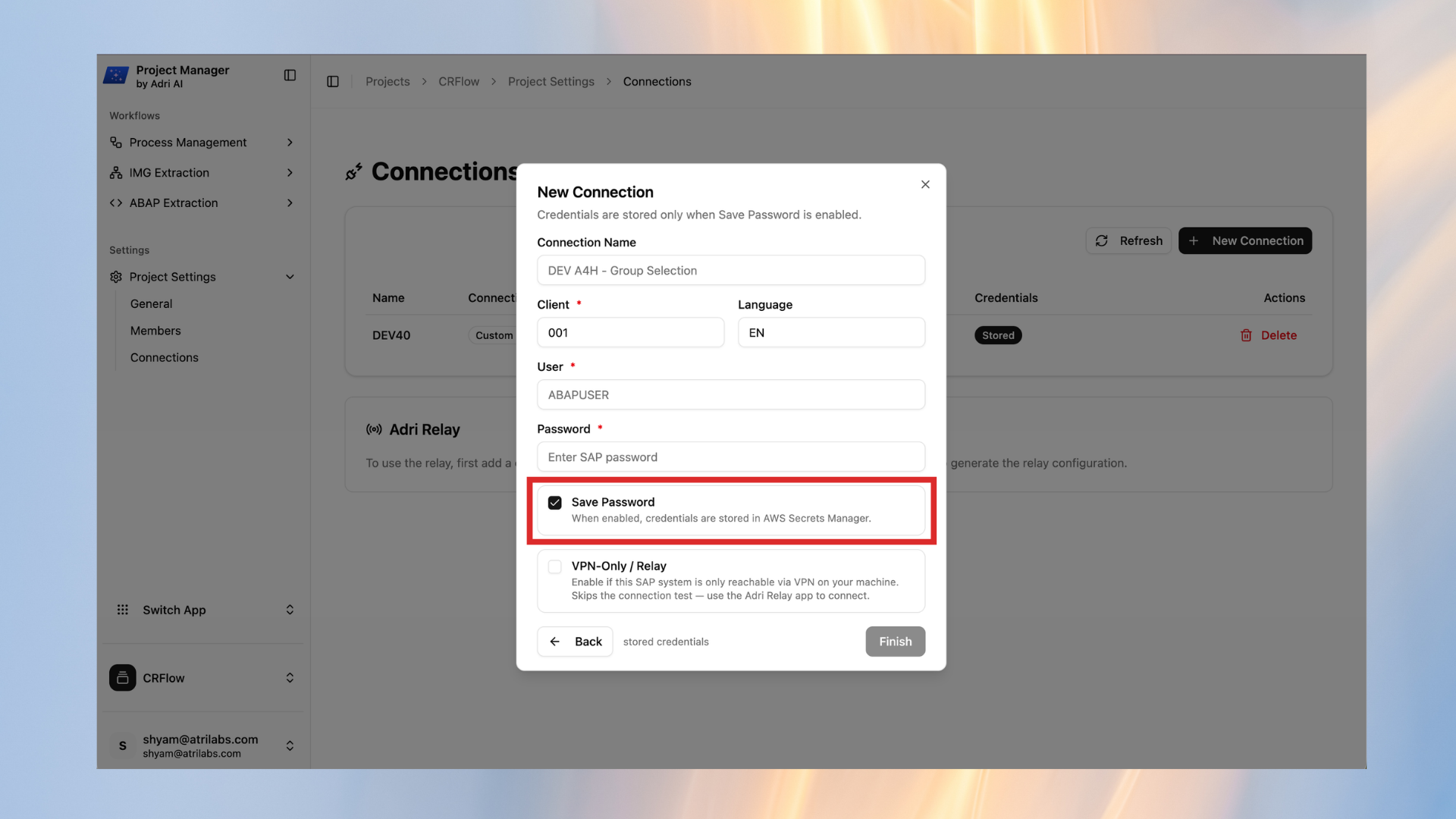
- If this system is reachable only through VPN, enable VPN-Only / Relay.
What this means:
- VPN-Only / Relay tells Adri AI that this SAP system is not directly reachable from the internet.
- You will use Adri Relay (a small desktop app) to securely bridge that connection.
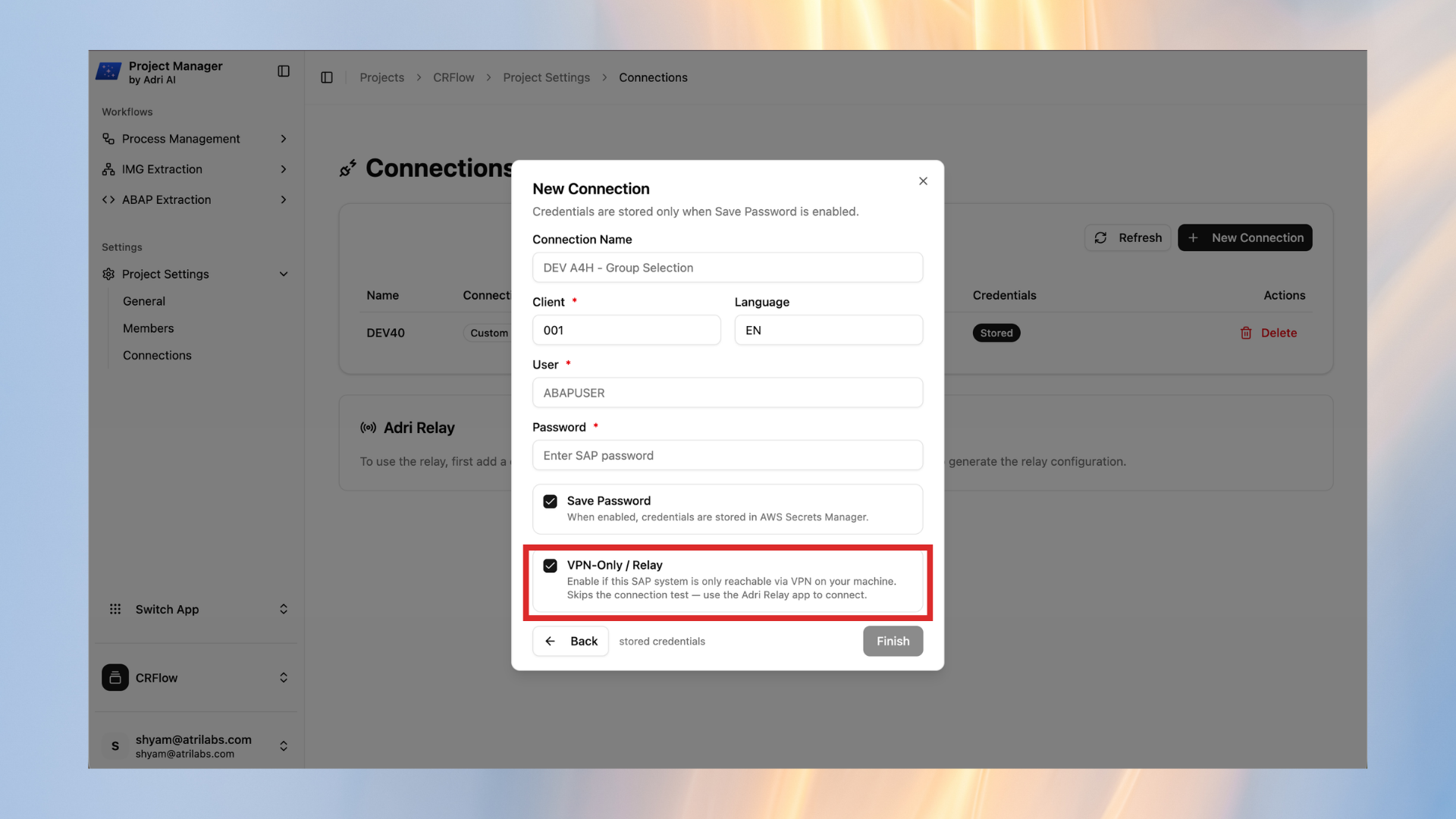
- Click Finish to create the connection.
3. If your system needs VPN relay
Install and configure Adri Relay by following the VPN users guide.
VPN-only systems
If your SAP system is only reachable through VPN, complete the relay setup guide next:
Connect a SAP system in Adri Code Agent
Use this guide after your SAP connection is already created.
In every screenshot, the red box shows exactly where to focus.
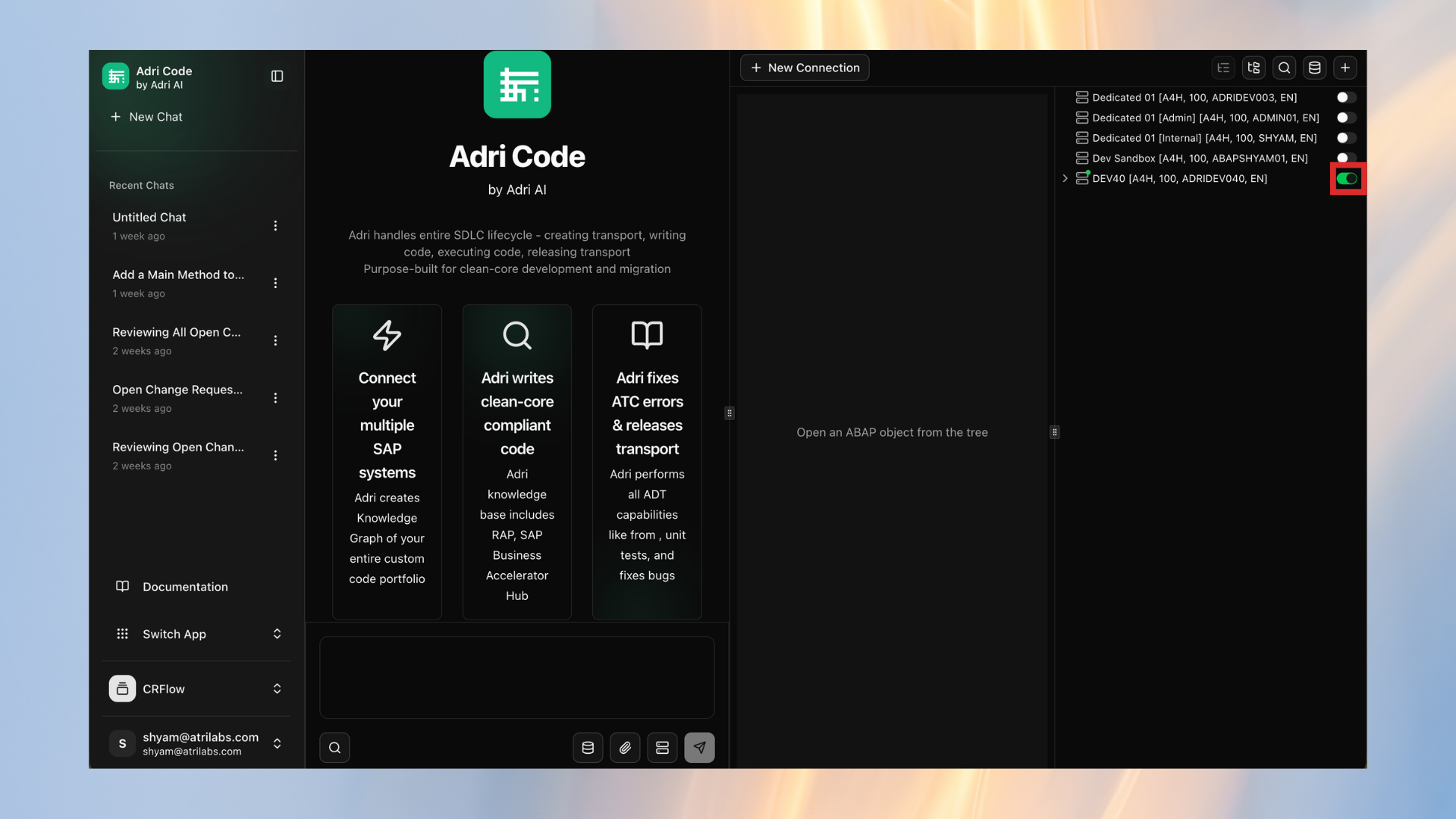
- Open code.getadri.ai and click Systems.
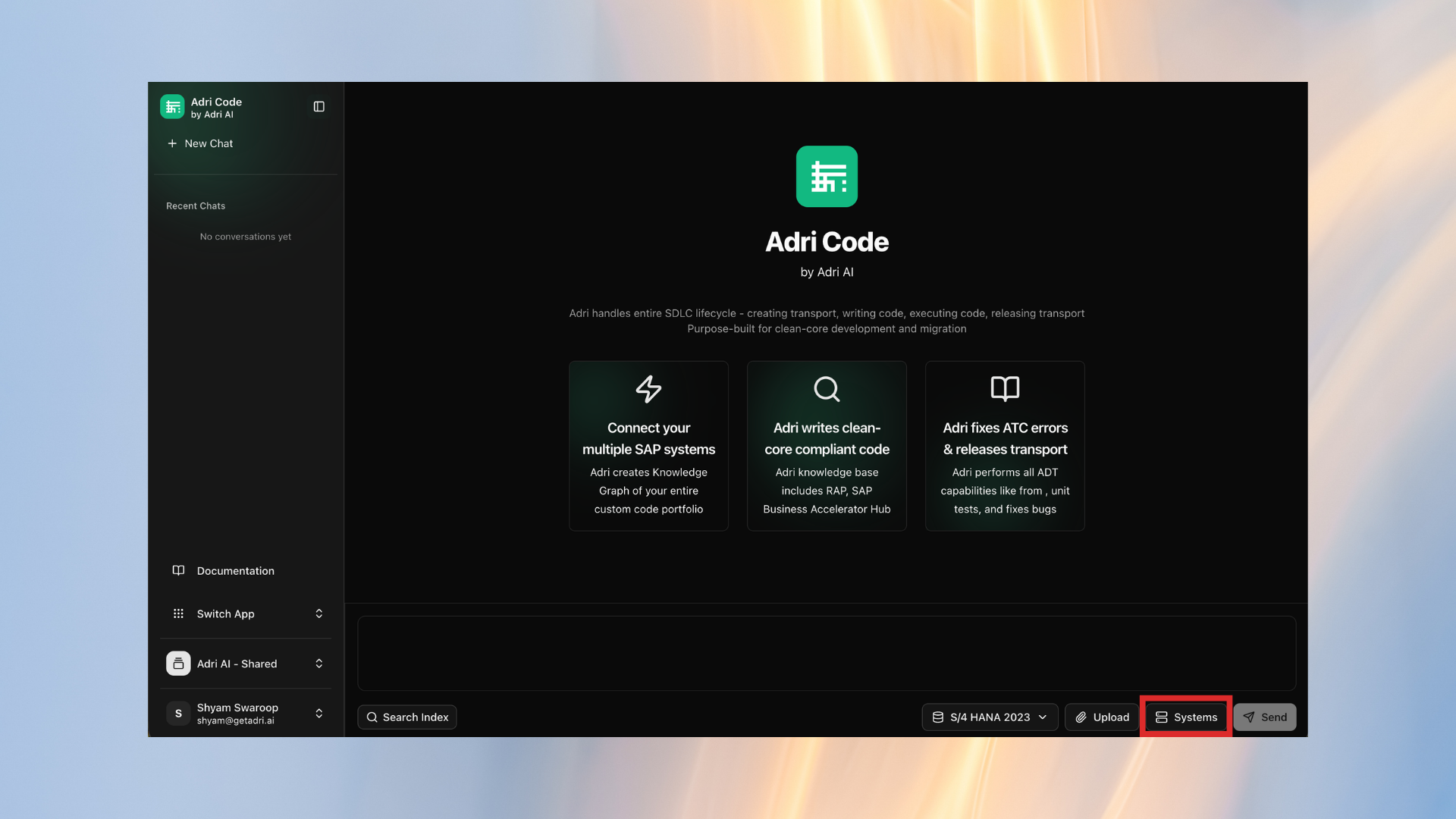
- In the systems panel, turn on the switch for the SAP connection you want to use.
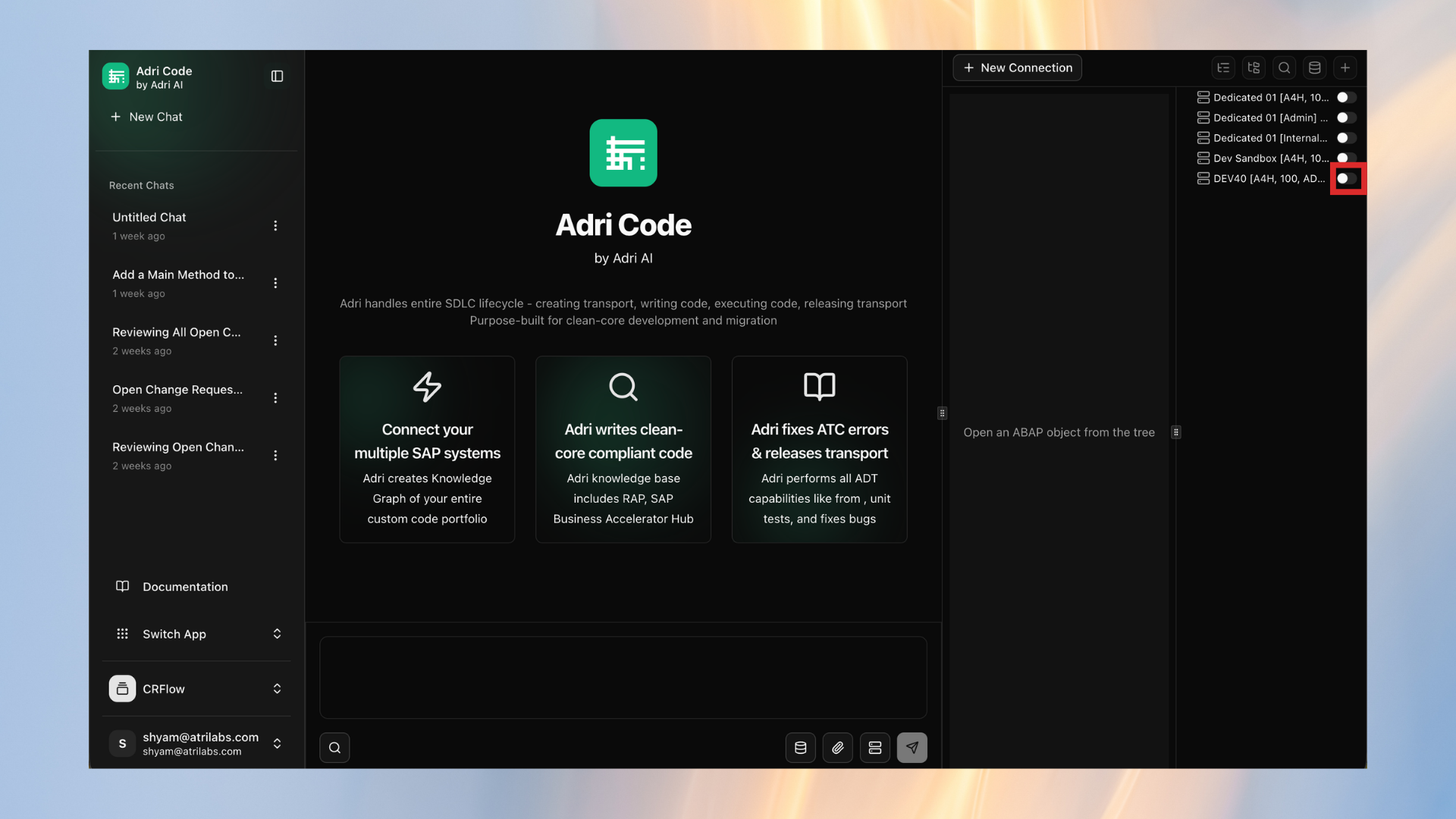
- Wait until the switch turns green. This means the system is connected and ready.