Manage Providers
Manage your project's providers
Everything on this page happens on the LLM Providers settings page (left sidebar → Settings → Project Settings → Providers).
In every screenshot, the red box shows exactly where to focus.
Set the default provider
The default provider is what the Adri AI entry in the model picker resolves to. Conversations that never picked a specific model run on the default.
- In the Configured providers list, find the provider you want as default.
- Click Set default (star icon).
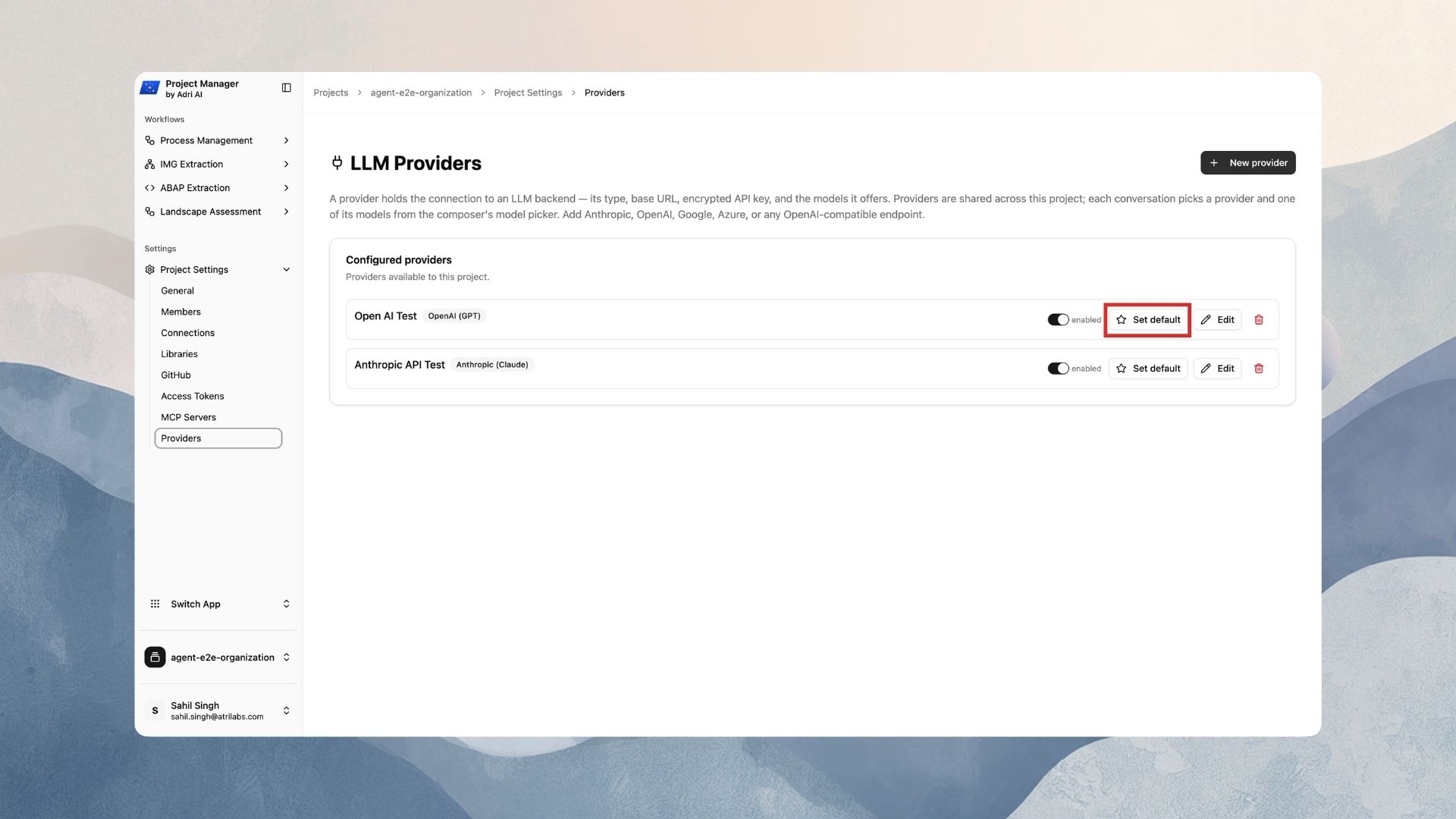
You should see the toast "your provider" is now the default provider, and the row now shows a default badge.
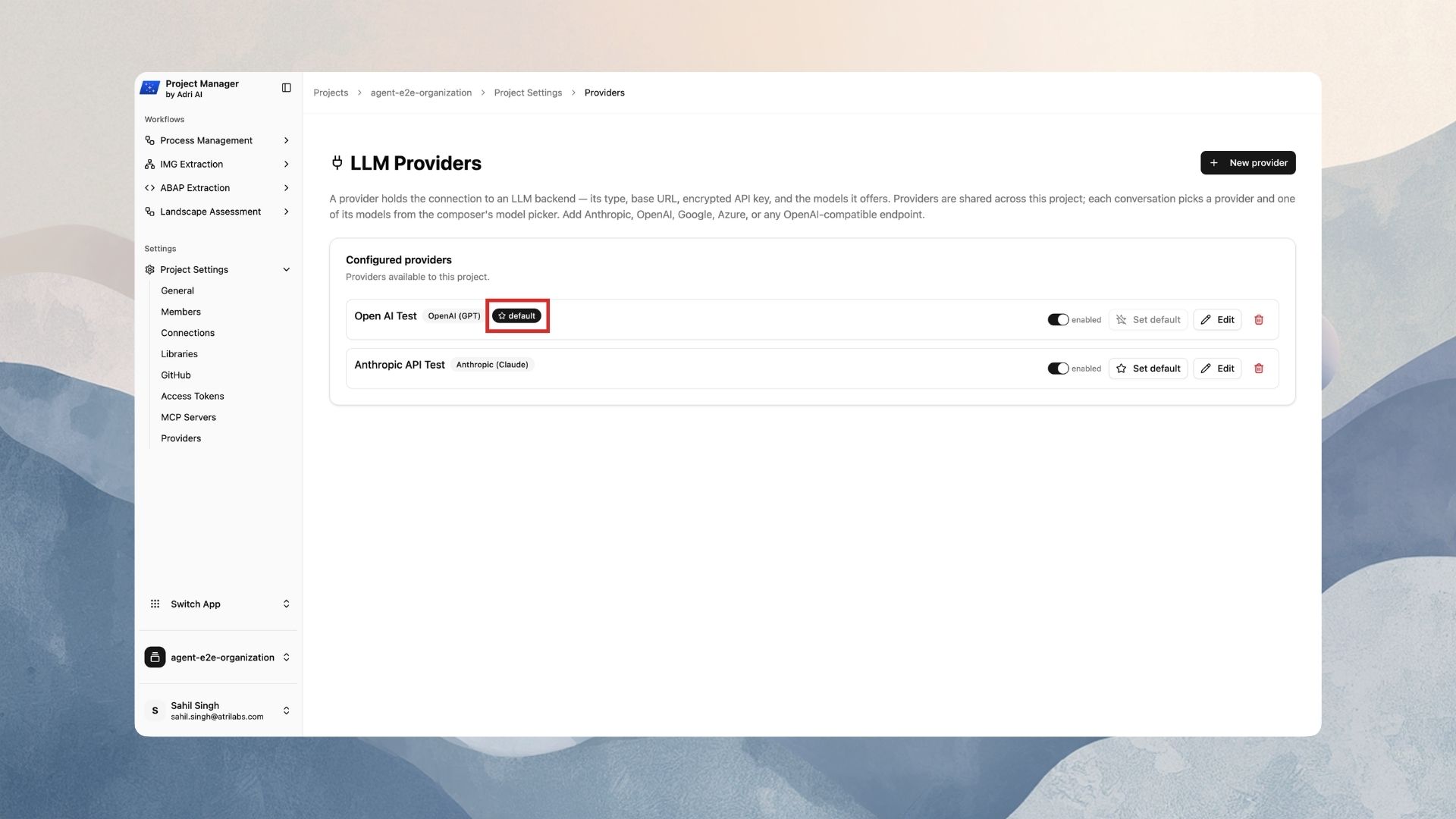
There is exactly one default at a time. Setting a new default automatically unsets the previous one. The Set default button is disabled on the row that is already the default.
Enable or disable a provider
Use the switch on the provider row. It reads enabled when on and off when off.
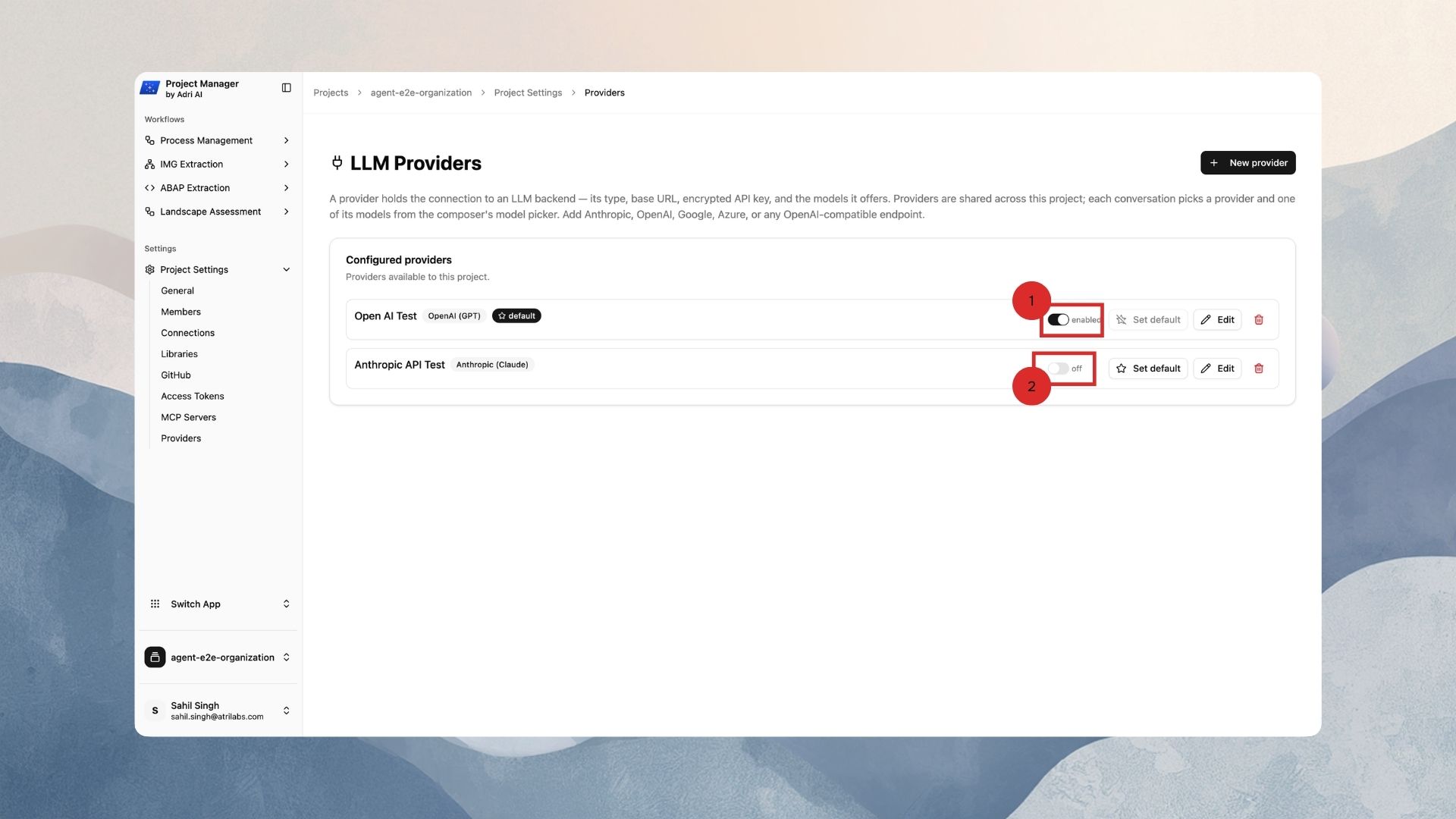
- Disabled providers disappear from the model picker — nobody can pick their models for new turns.
- The provider's configuration and API key stay saved; switch it back on any time.
Edit a provider
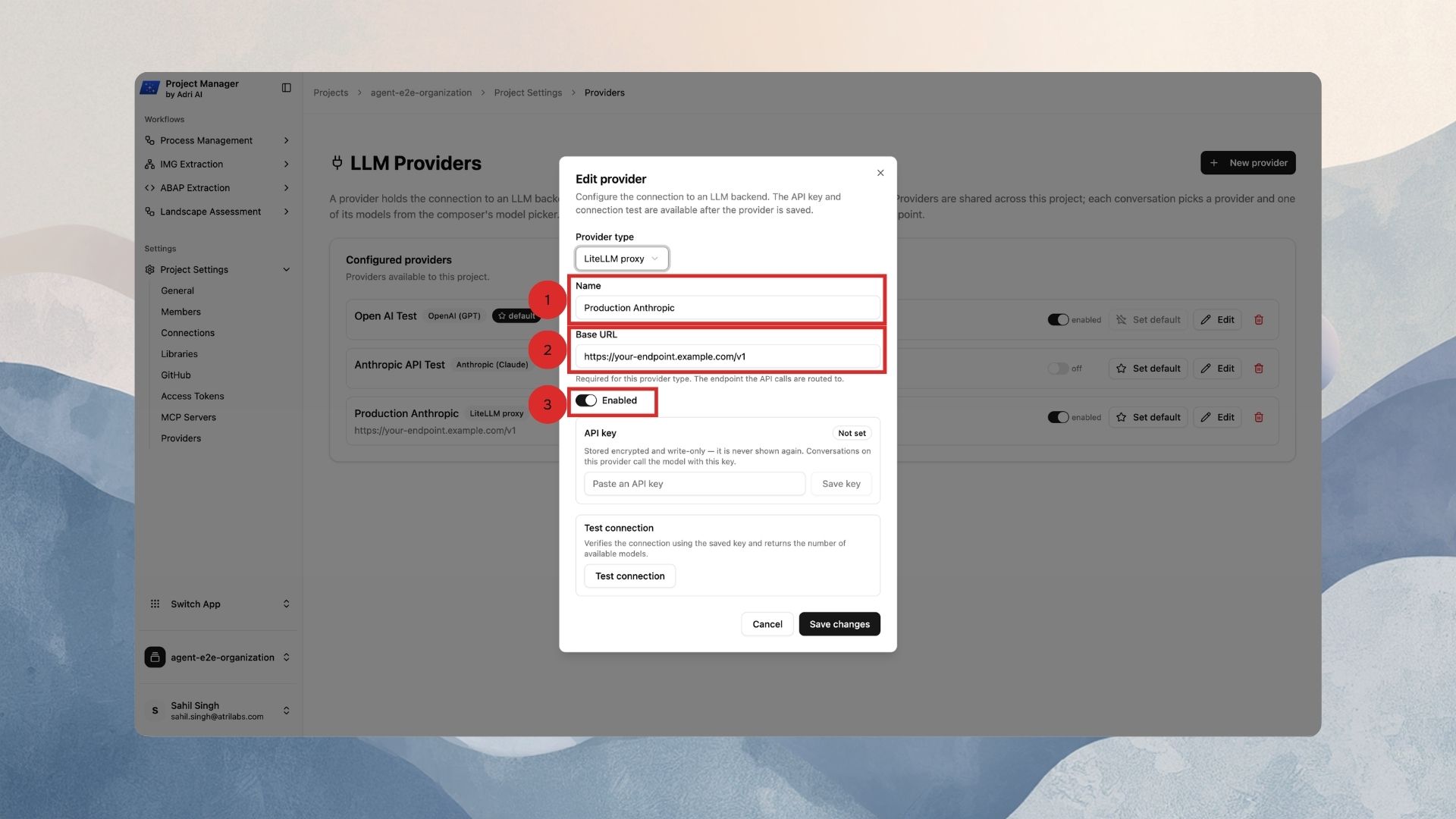
- Click Edit on the provider row.
- Change the Name, Base URL (where applicable), or Enabled state.
- Click Save changes.
Rotate or remove the API key
Keys are write-only — you can never view a saved key, only replace or clear it.
- Click Edit on the provider row.
- In the API key section (badge shows Configured):
- To rotate: paste the new key into the field ("Enter a new key to replace") and click Save key. You should see "API key saved".
- To remove: click Clear. You should see "API key removed" and the badge switches to Not set.
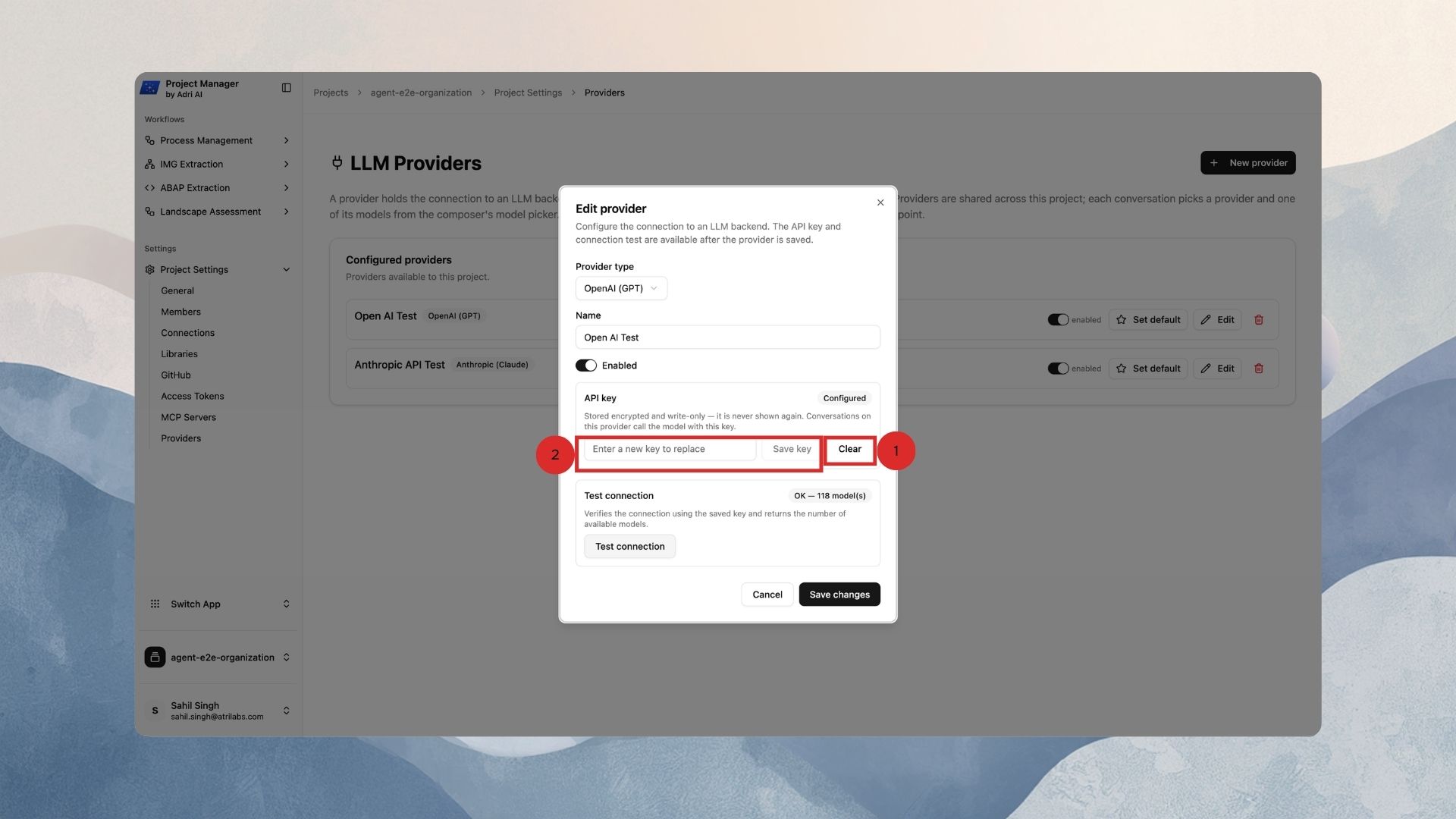
A provider without a key cannot serve conversations. After clearing, add a new key before anyone picks this provider's models.
Remove a provider
- Click the trash icon on the provider row.
- A confirmation dialog appears: Remove provider? — "your provider" will be deleted. Conversations pinned to it will be prompted to pick a new model. This cannot be undone.
- Click Remove.
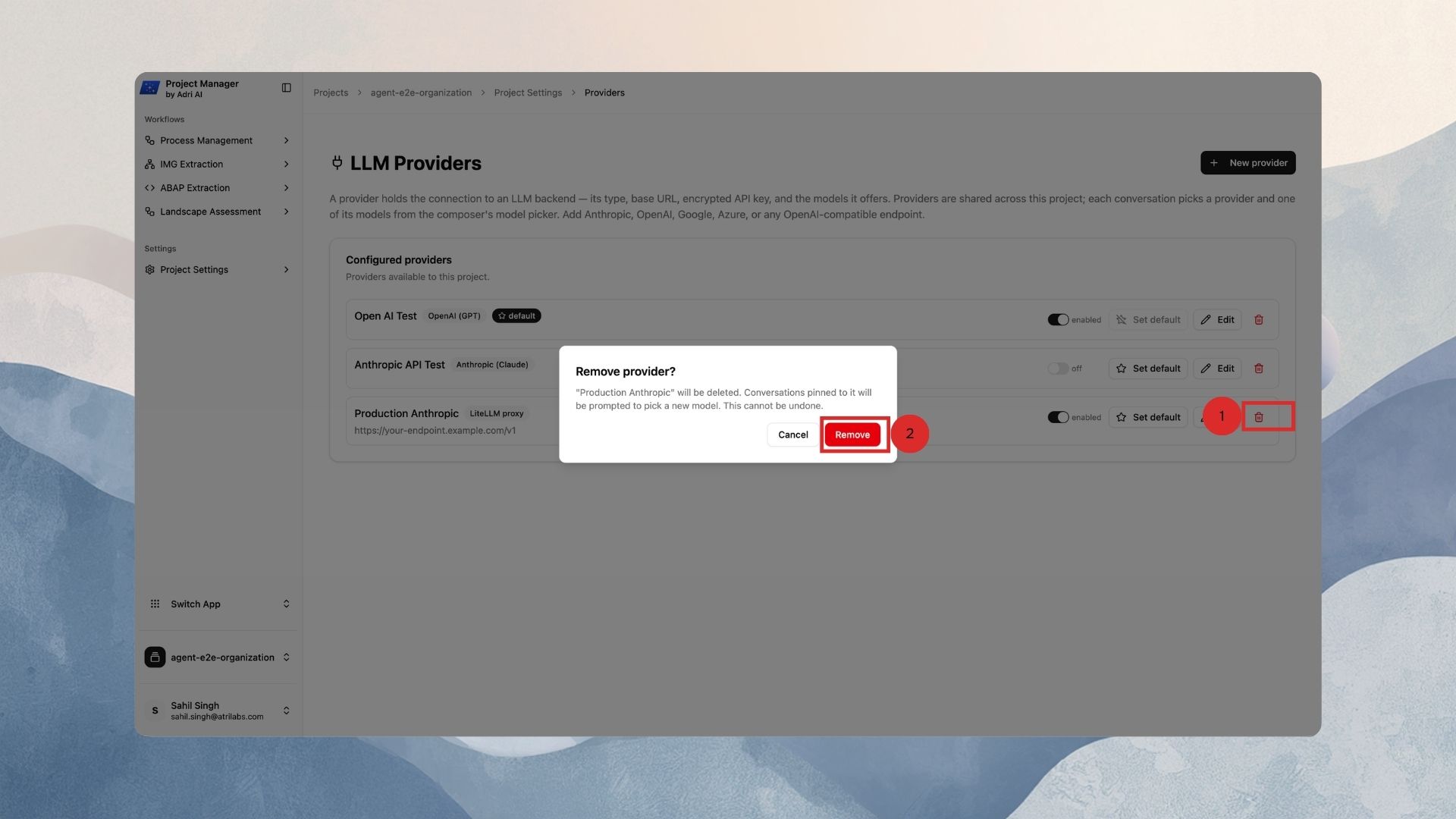
What happens to conversations that were using it:
- Their model picker shows the old model name with (unavailable).
- On the next message, the user is prompted to pick a new model (or Adri AI).
- No history is lost — only the model selection needs re-picking.