Connect to Claude (claude.ai)
Add Adri MCP Server in Claude Chat
Use this guide to add Adri MCP Server as a custom connector in Claude Chat and run a quick test prompt.
In every screenshot, the red box shows exactly where to focus.
Pre-requisite
- Log in to Adri AI: https://www.getadri.ai/login
- Log in to Claude: https://claude.ai/login
MCP server URL (copy this)
https://mcp-server.getadri.ai/mcp/mcp/
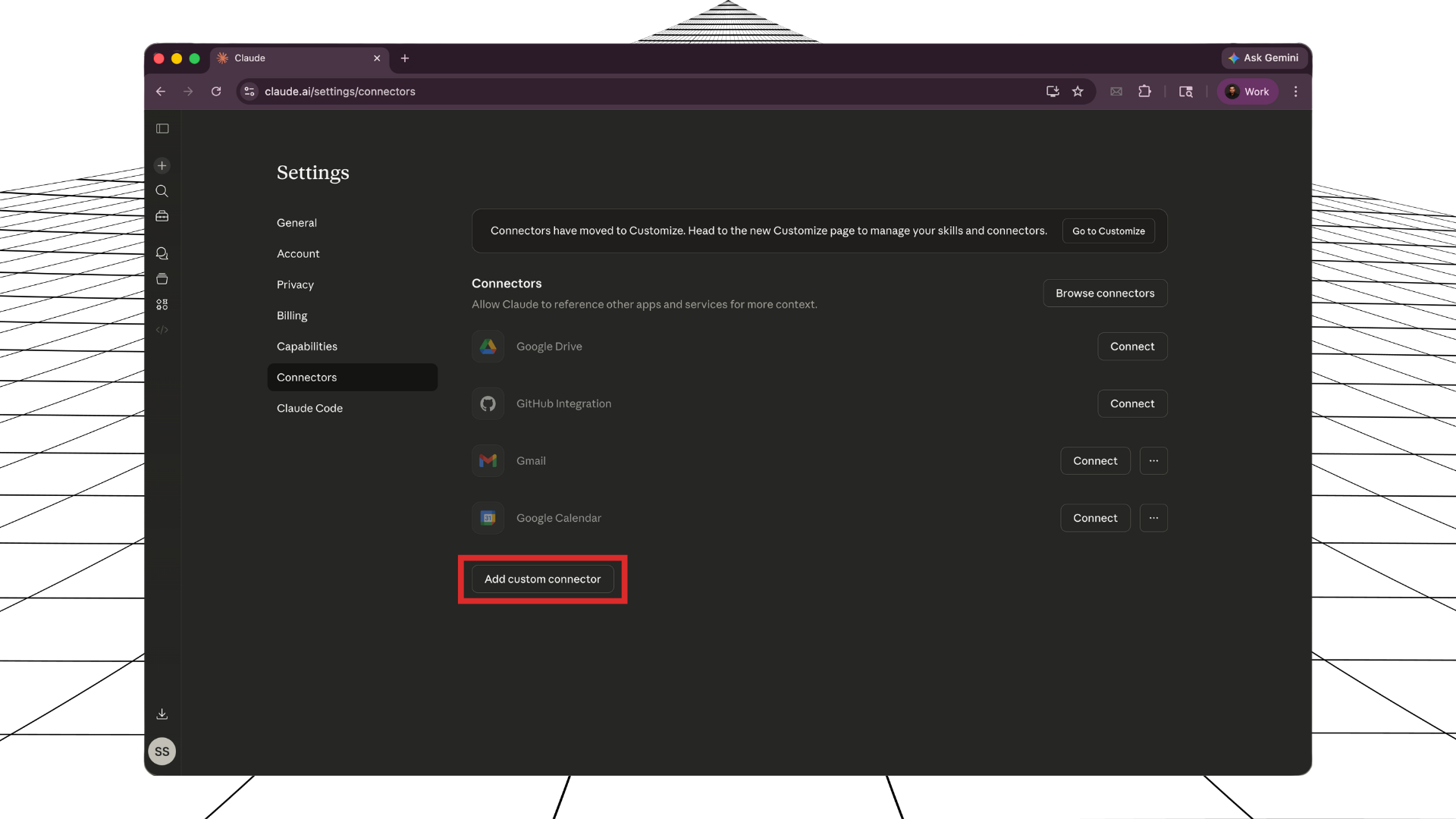
1. Open Claude Connectors settings
- Open claude.ai/settings/connectors.
- Click Add custom connector.
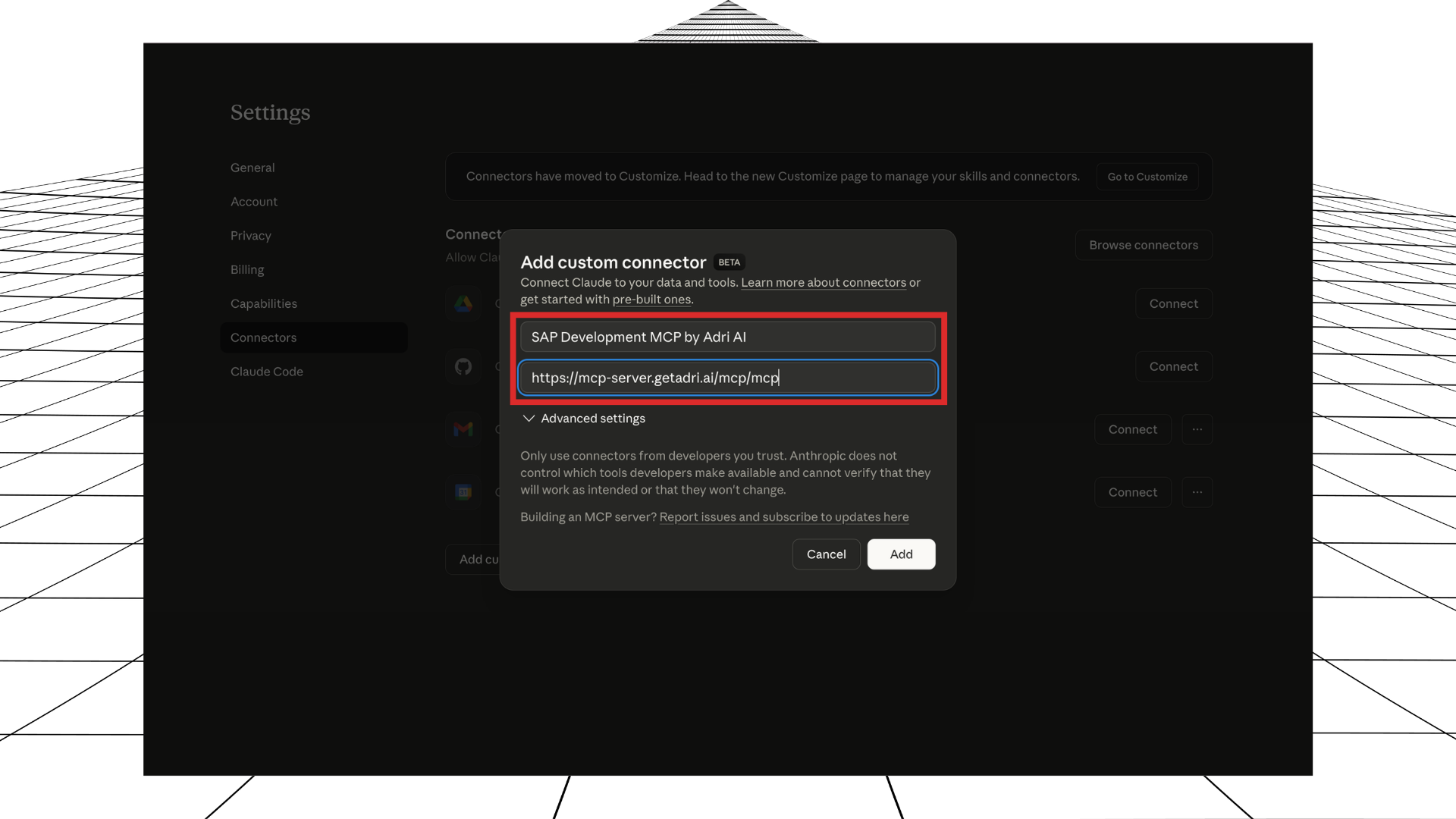
2. Add the connector details
- In the connector dialog, enter a name like
SAP Development MCP by Adri AI. - Paste this server URL:
https://mcp-server.getadri.ai/mcp/mcp/. - Click Add.
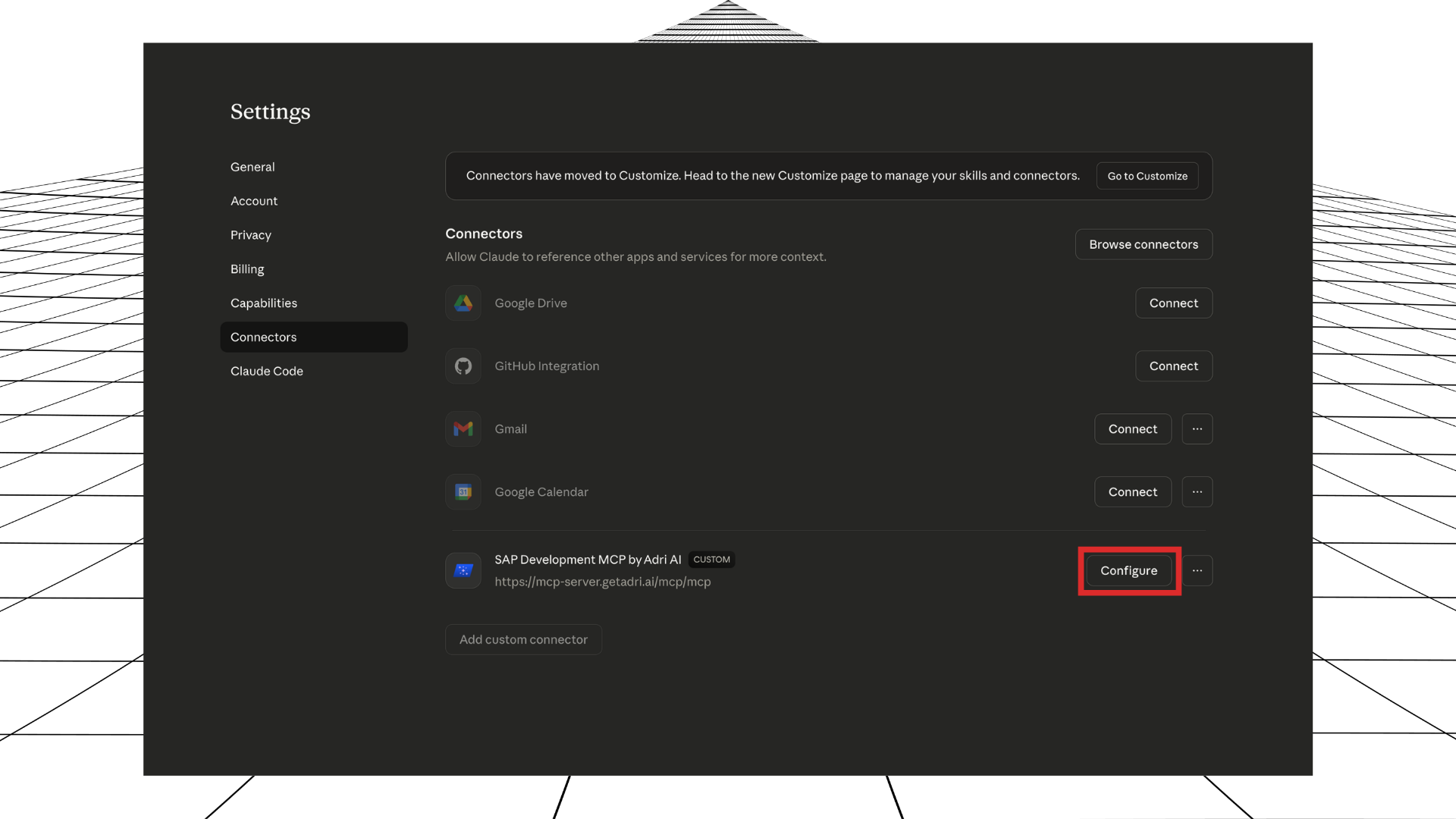
3. Configure tool permissions
- In the connector list, find
SAP Development MCP by Adri AI. - Click Configure.
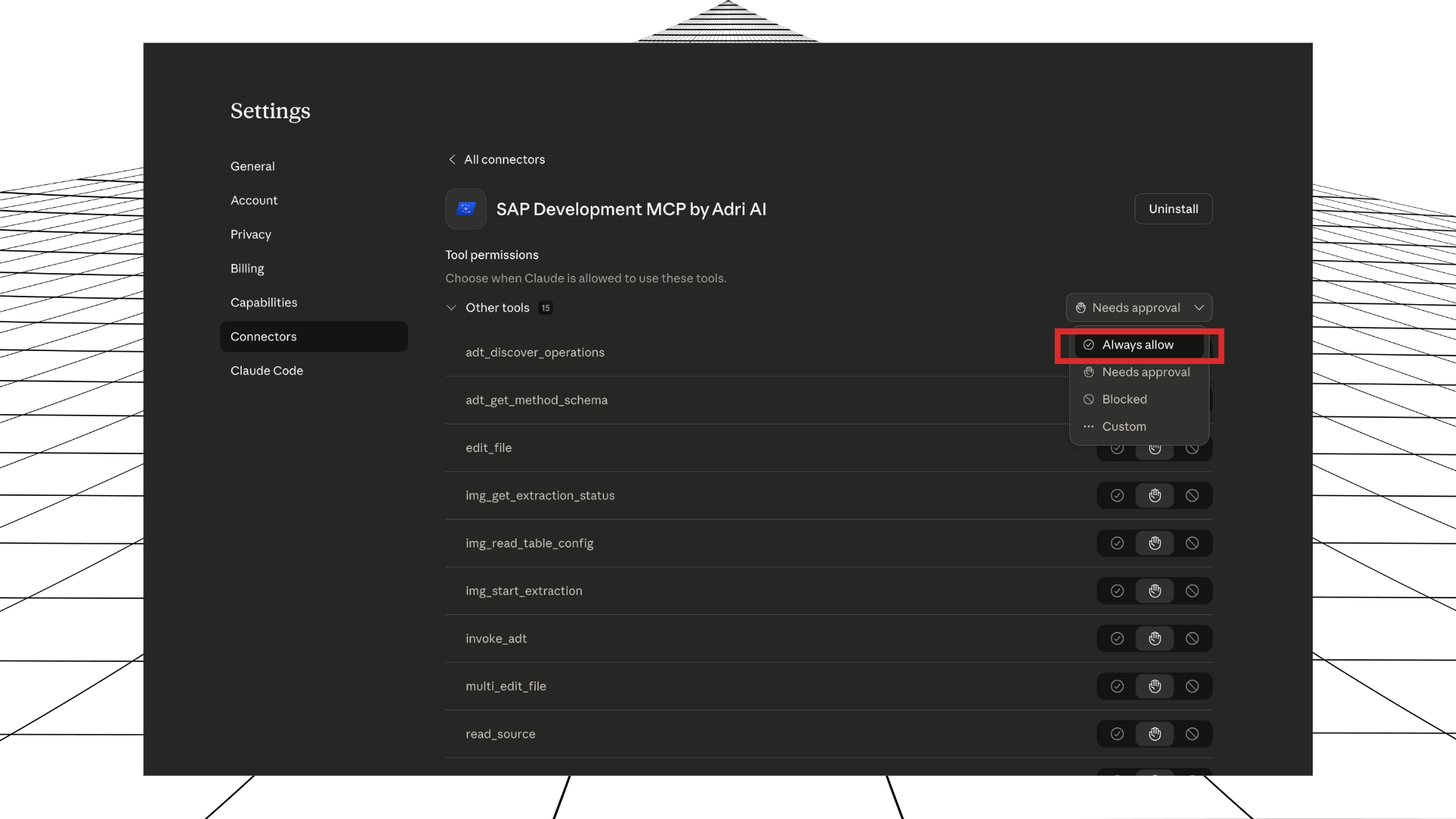
- In the tool permissions dropdown, switch from Needs approval to Always allow.
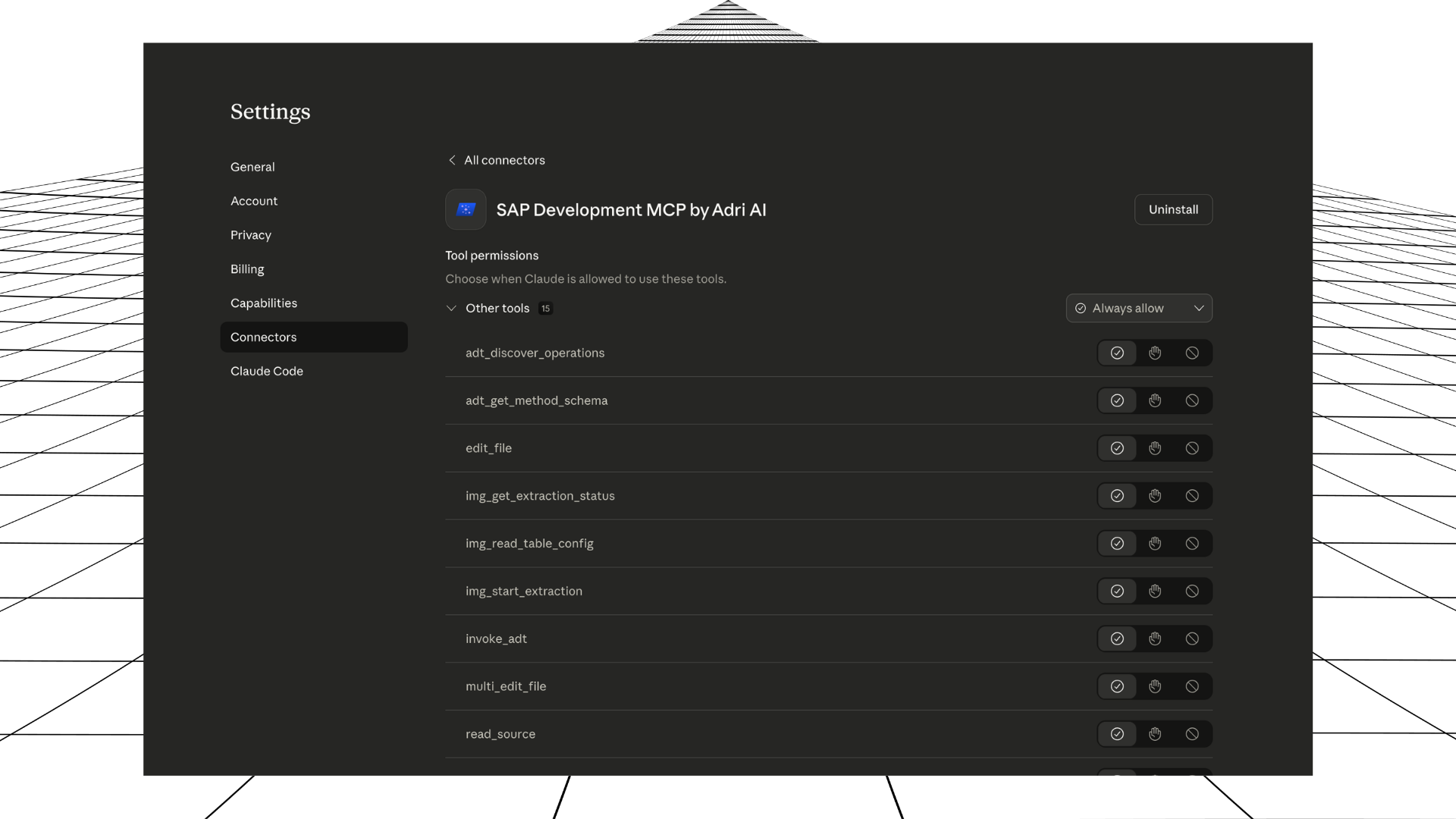
- Confirm the dropdown now shows Always allow.
4. Enable the connector in chat
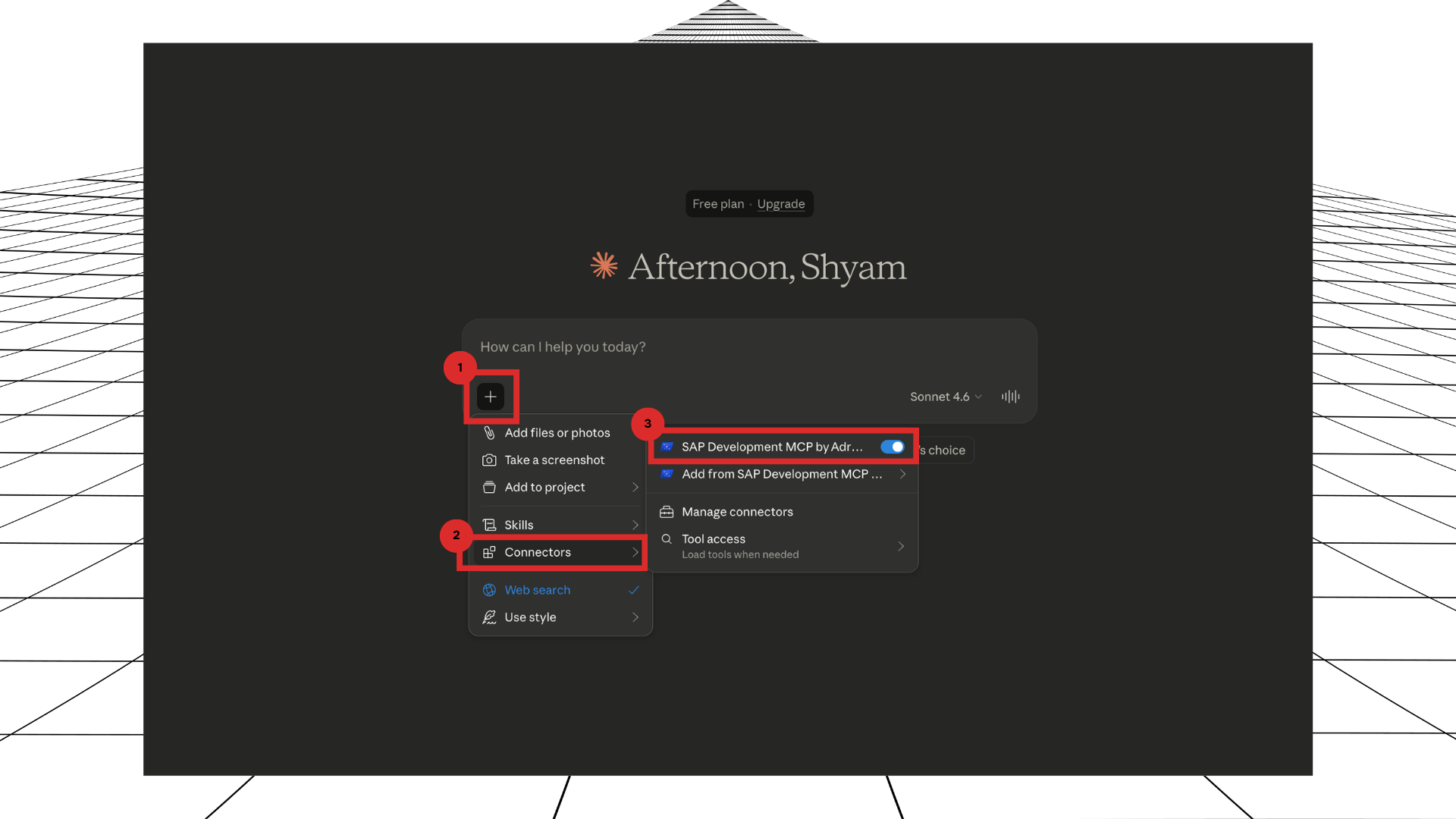
- Open a new Claude chat.
- Click the + button.
- Open Connectors.
- Turn on
SAP Development MCP by Adri AI.
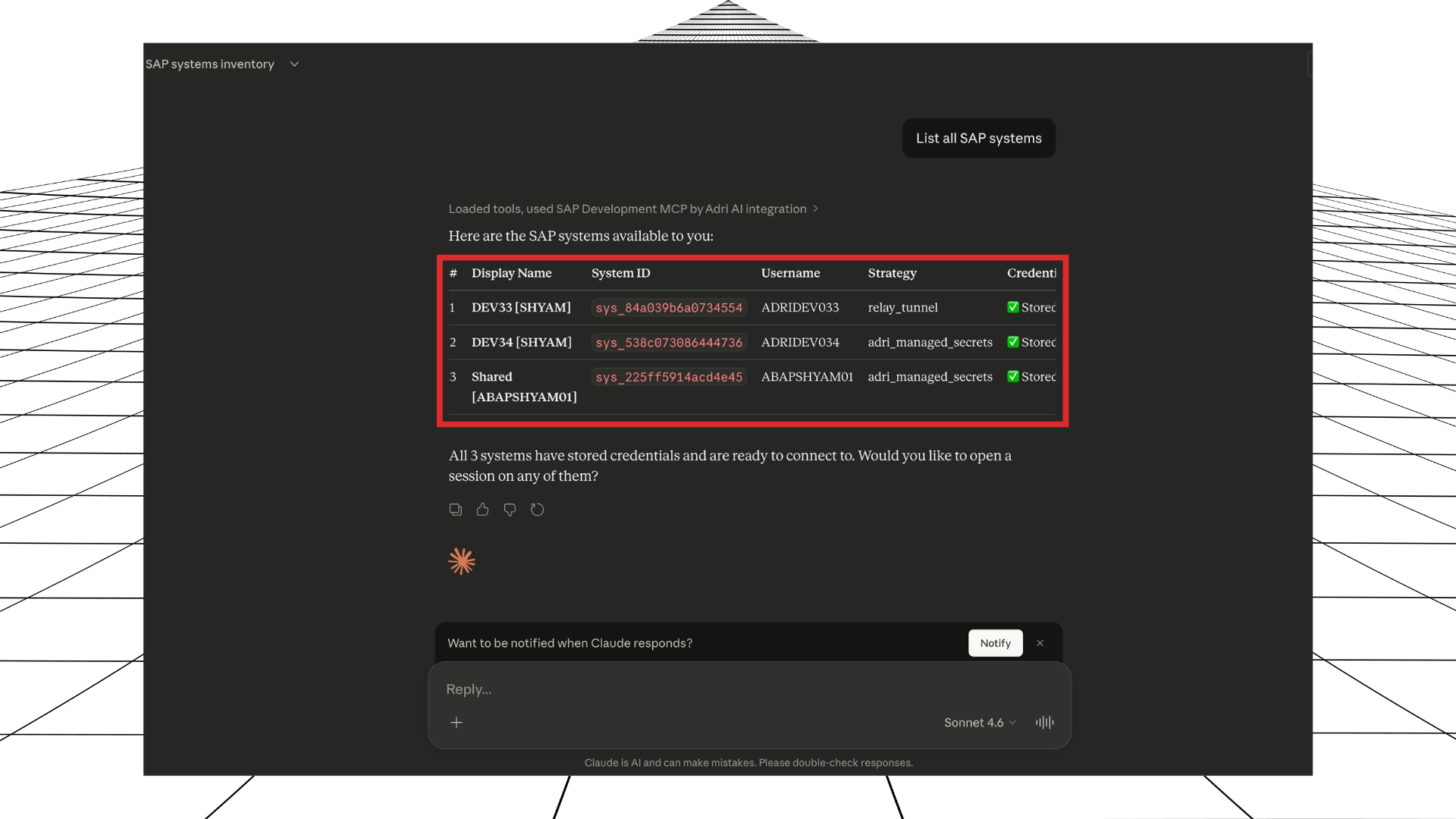
5. Test with a first prompt
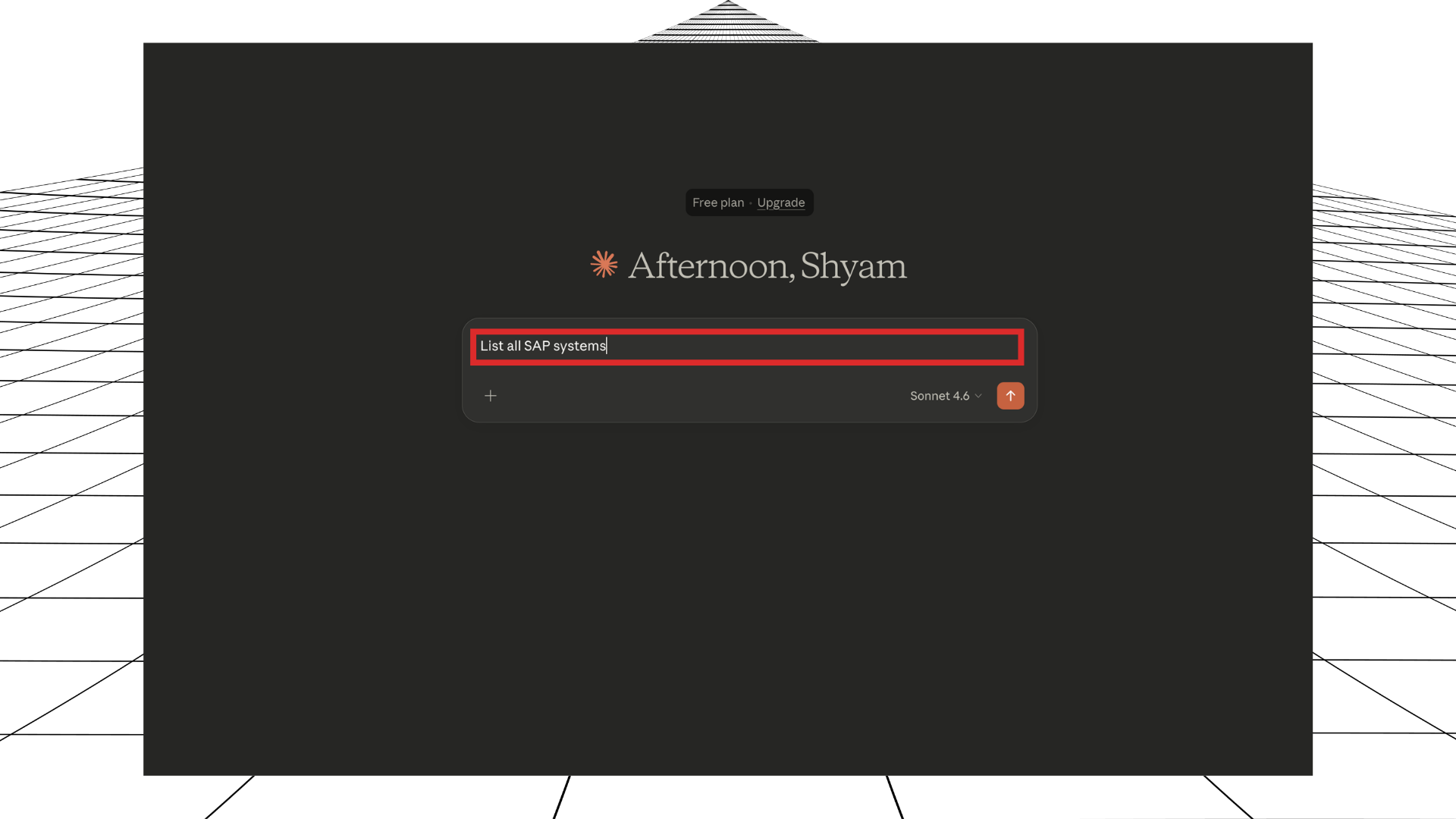
- Ask:
List all SAP systems.
- Verify Claude returns your SAP systems list from the connector.