Explore code mining
Code mining documents the custom-code landscape in your SAP ECC or SAP S/4HANA system. It generates readable functional specifications and maps dependencies among custom objects, helping you understand what the code does and how the landscape is connected.
Adri AI also organizes custom code by SAP module, associated business process, and application category. These are classification views of the mined source code; code mining does not include process mining.
Explore Code Mining deliverables in Adri AI
Adri AI includes a curated reference portfolio with hundreds of ABAP objects. Create your own demo project, copy the prepared Willow reference data, and inspect the Code Mining deliverables without connecting an SAP system.
If you have already signed up for Adri AI and copied the Willow reference project, skip directly to Step 3.
Step 1: Sign up for Adri AI
Step 1: Sign Up on Adri
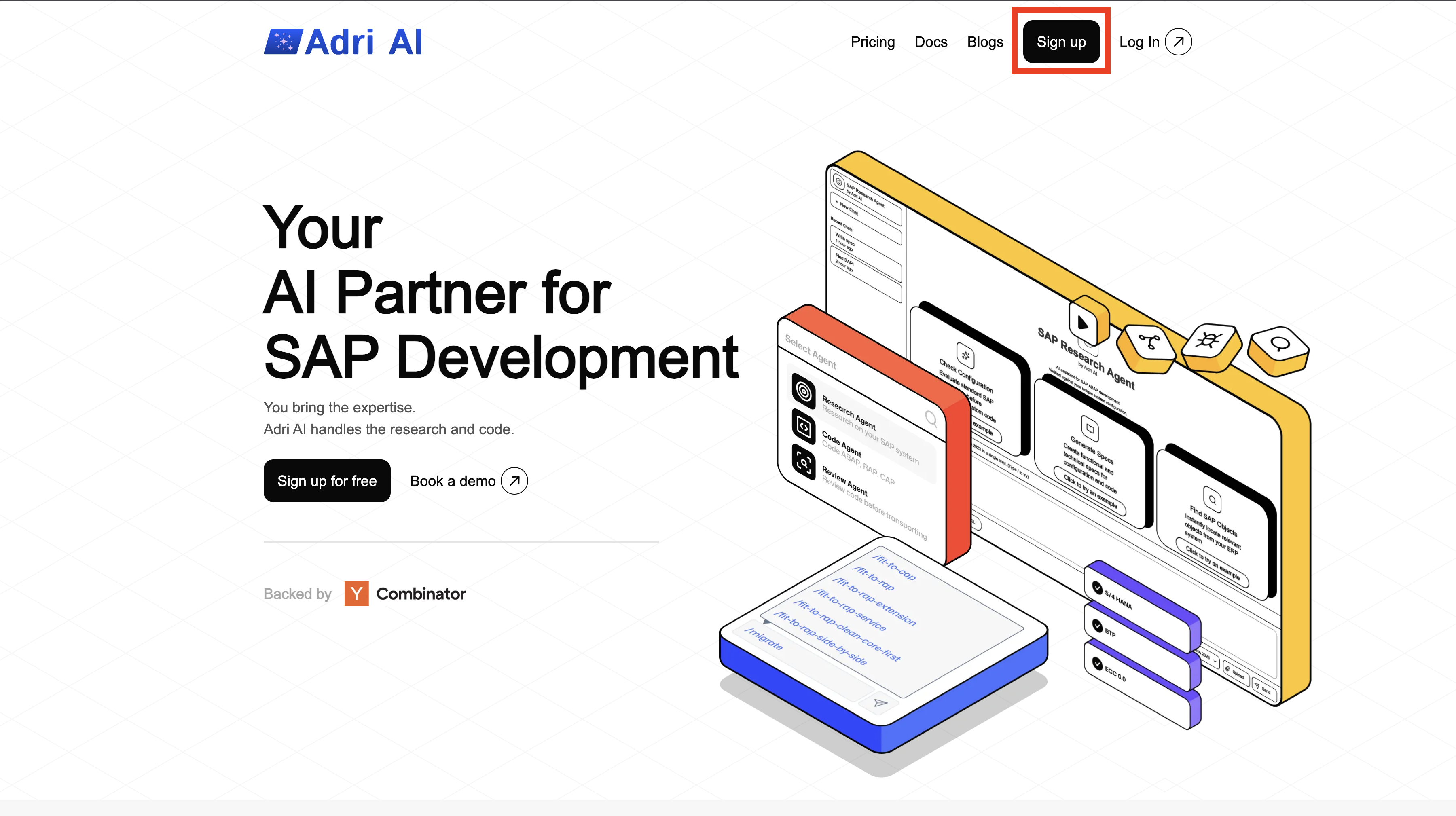
- Open getadri.ai/signup.
- Click Sign up (if needed) and complete registration.
- If you already have an account, use getadri.ai/login.
Done when: You are prompted to verify your email.
Step 2: Verify Email and Complete Profile
- Open the verification email and click the verification link.
- Fill in your basic details.
- Submit the form.
Done when: You land on the Projects page.
Step 2: Create a demo project and copy its data
- On the Projects page, select Create Project.
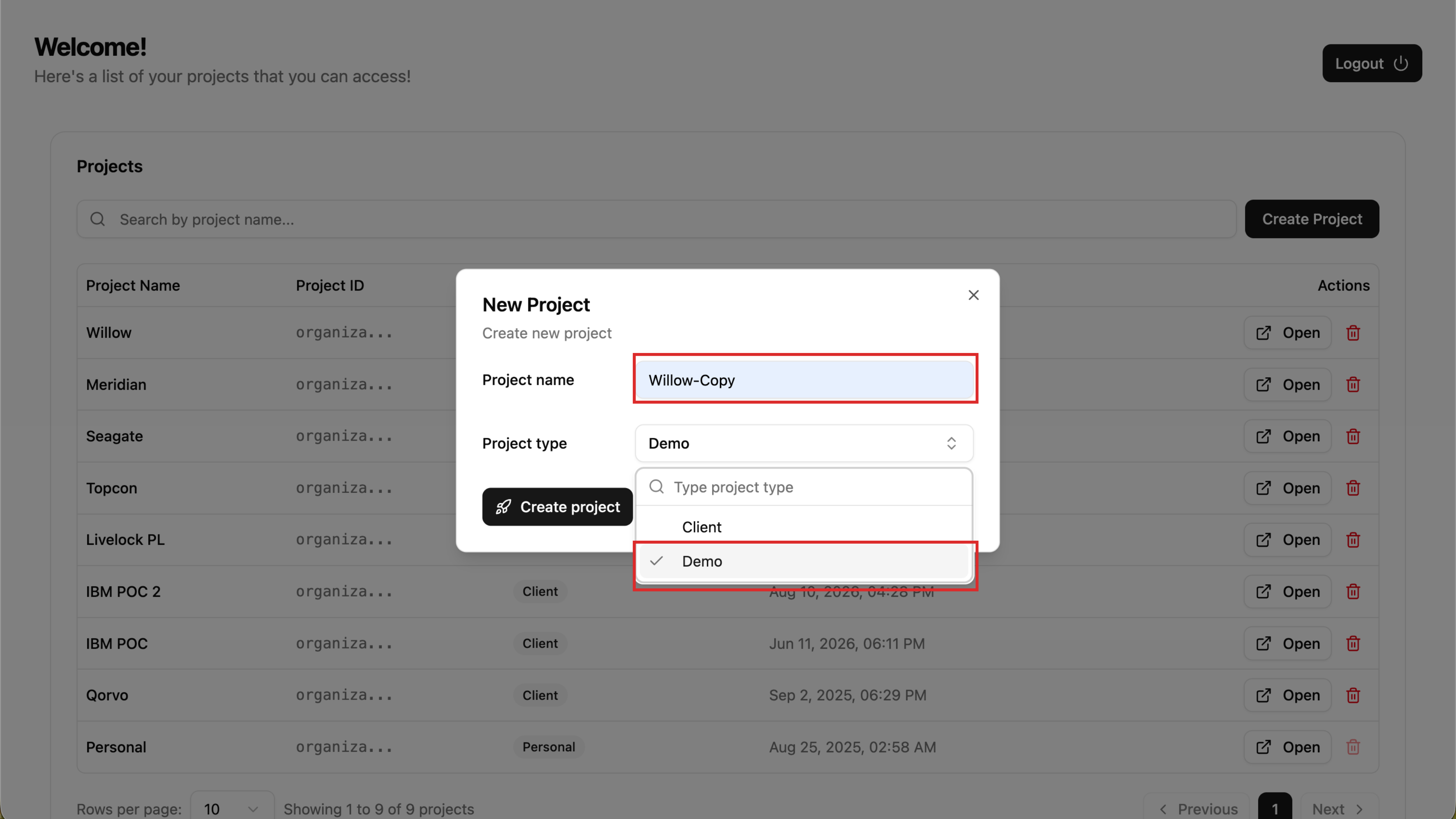
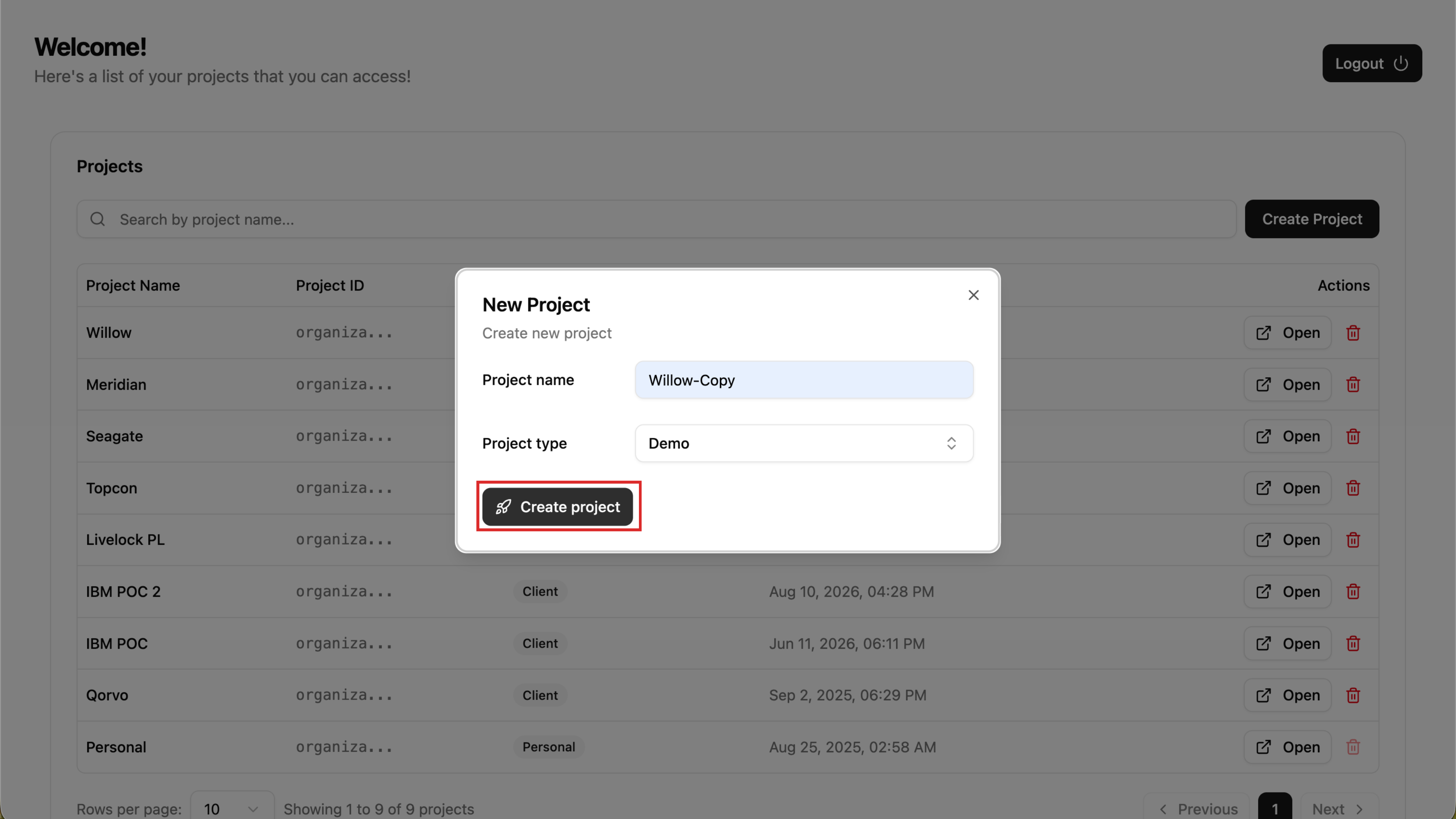
- Enter a project name, set Project type to Demo, and select Create project.
- In the new project, open Project settings > General and scroll to Copy from....
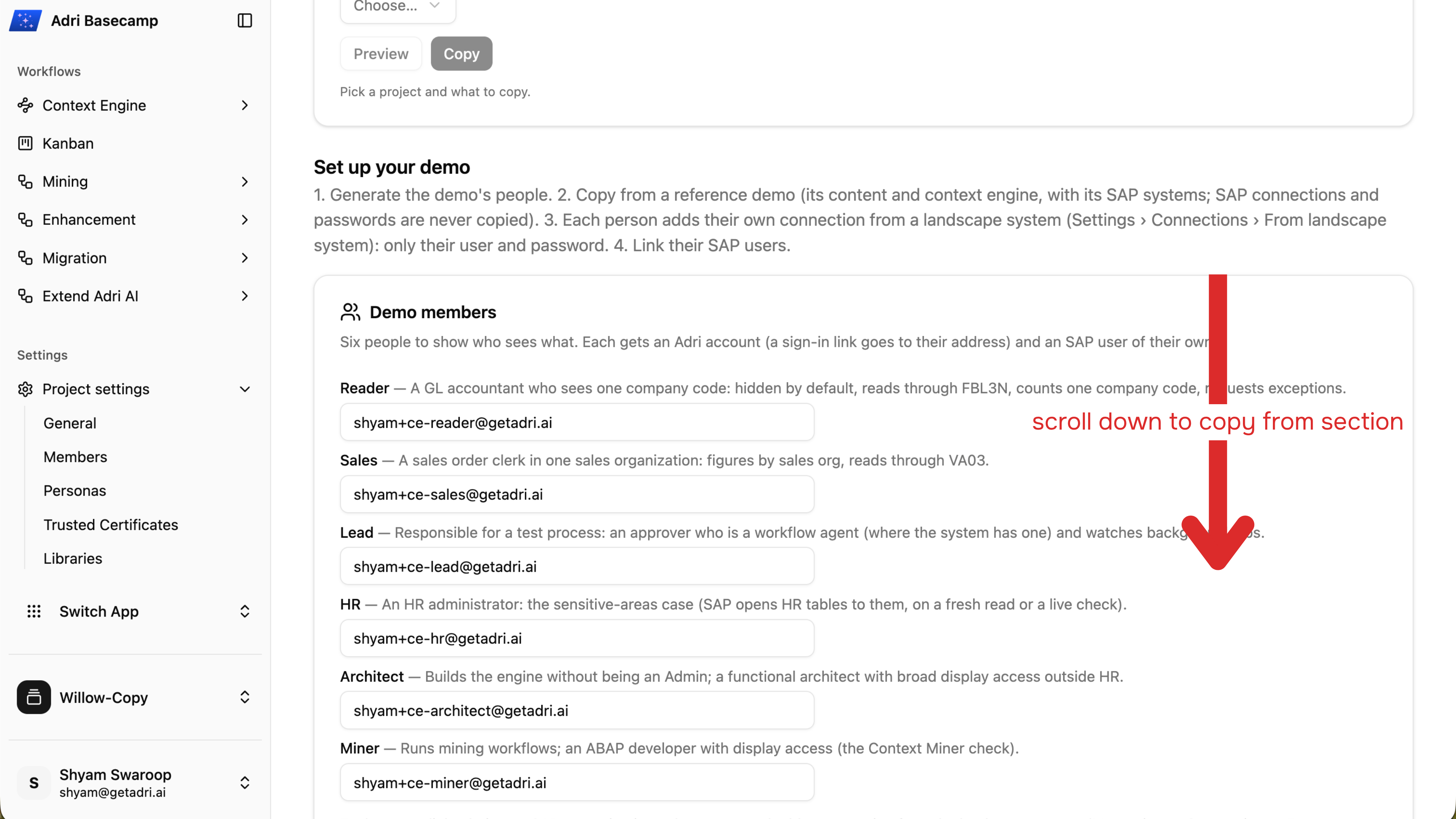
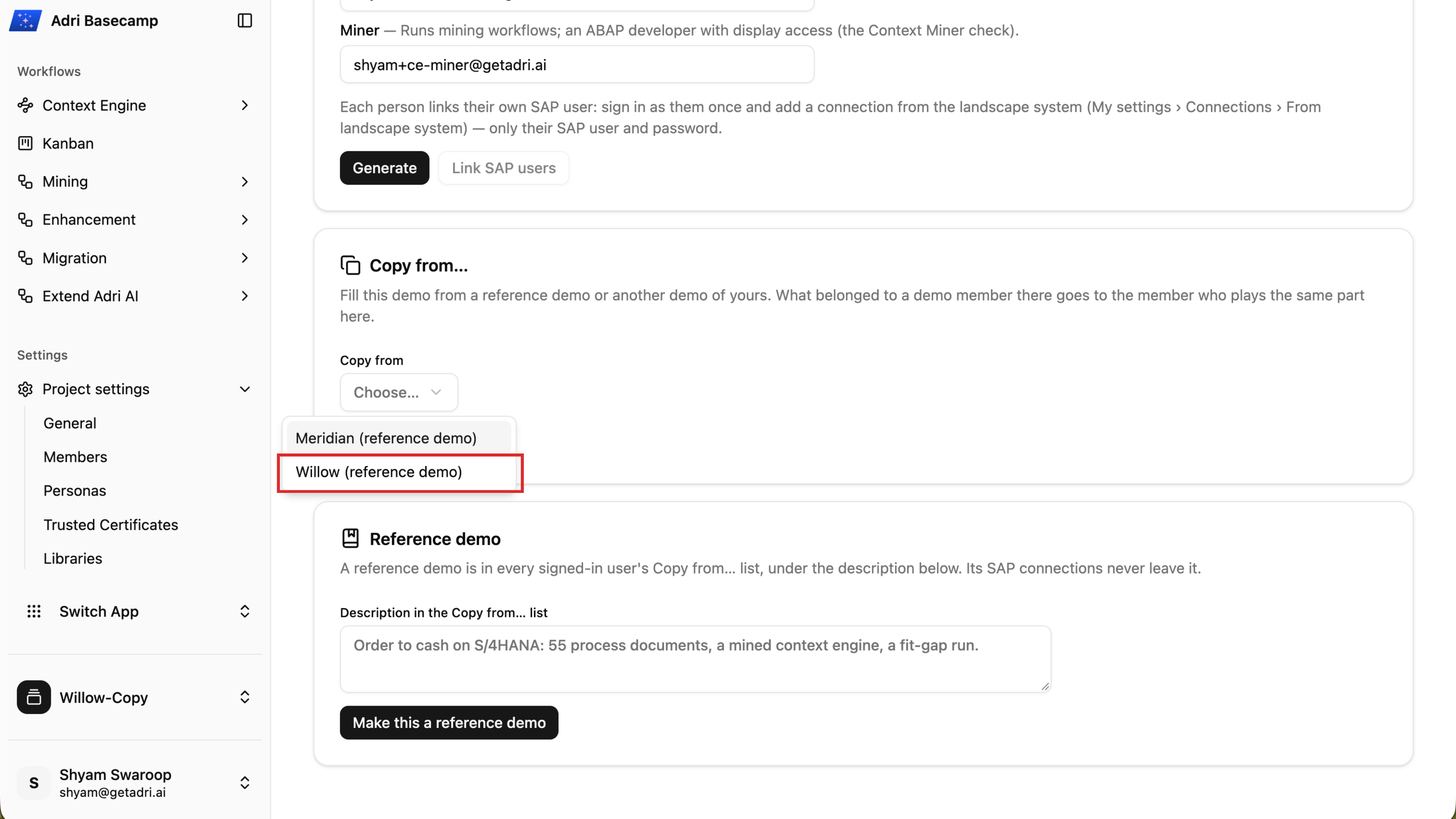
- Open Copy from and choose Willow (reference demo).
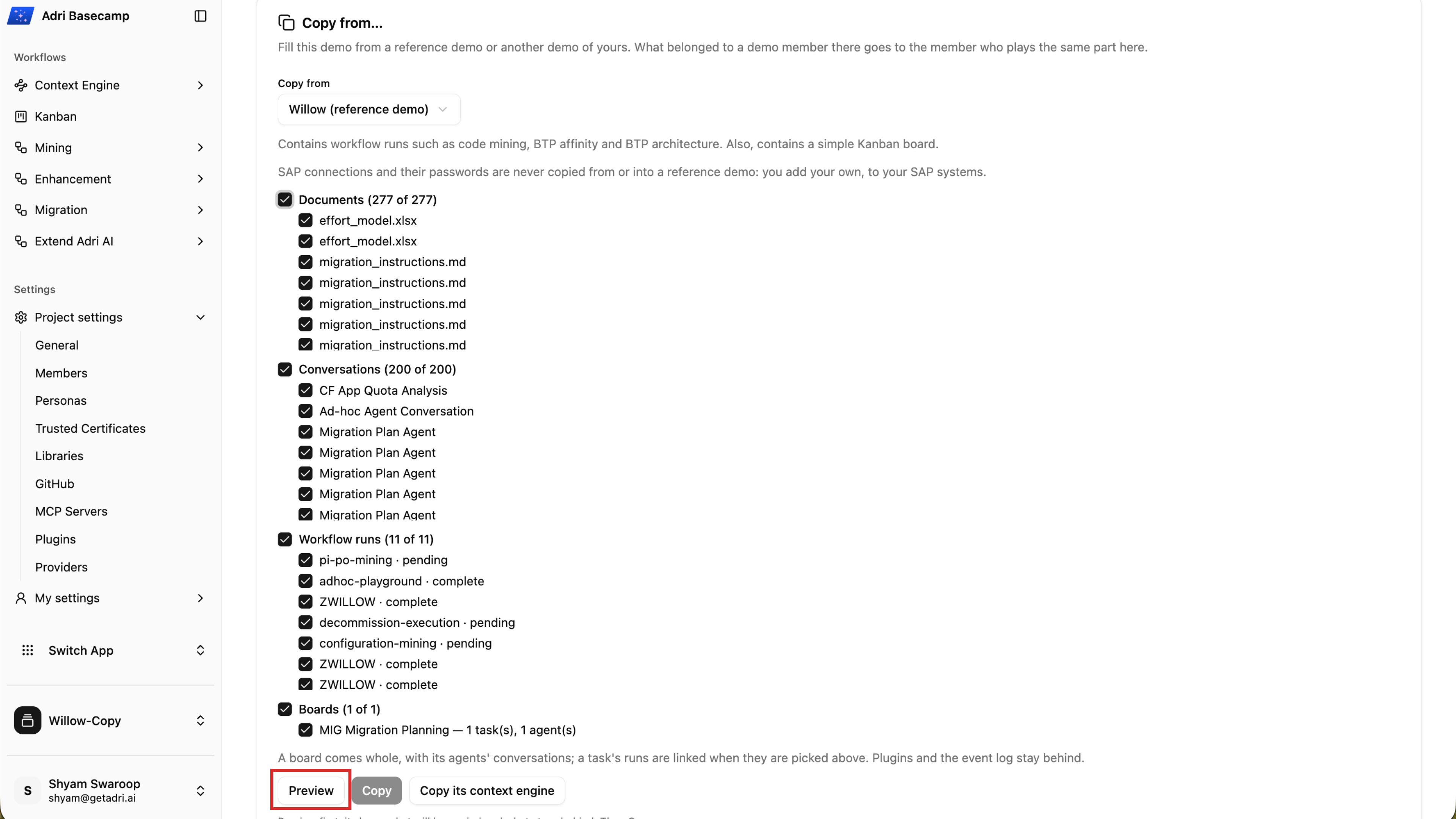
- Keep the content you want selected, then choose Preview. Review the documents, conversations, workflow runs, boards, and anything that will be left out.
- Choose Copy and wait until the content copy reports Copied.
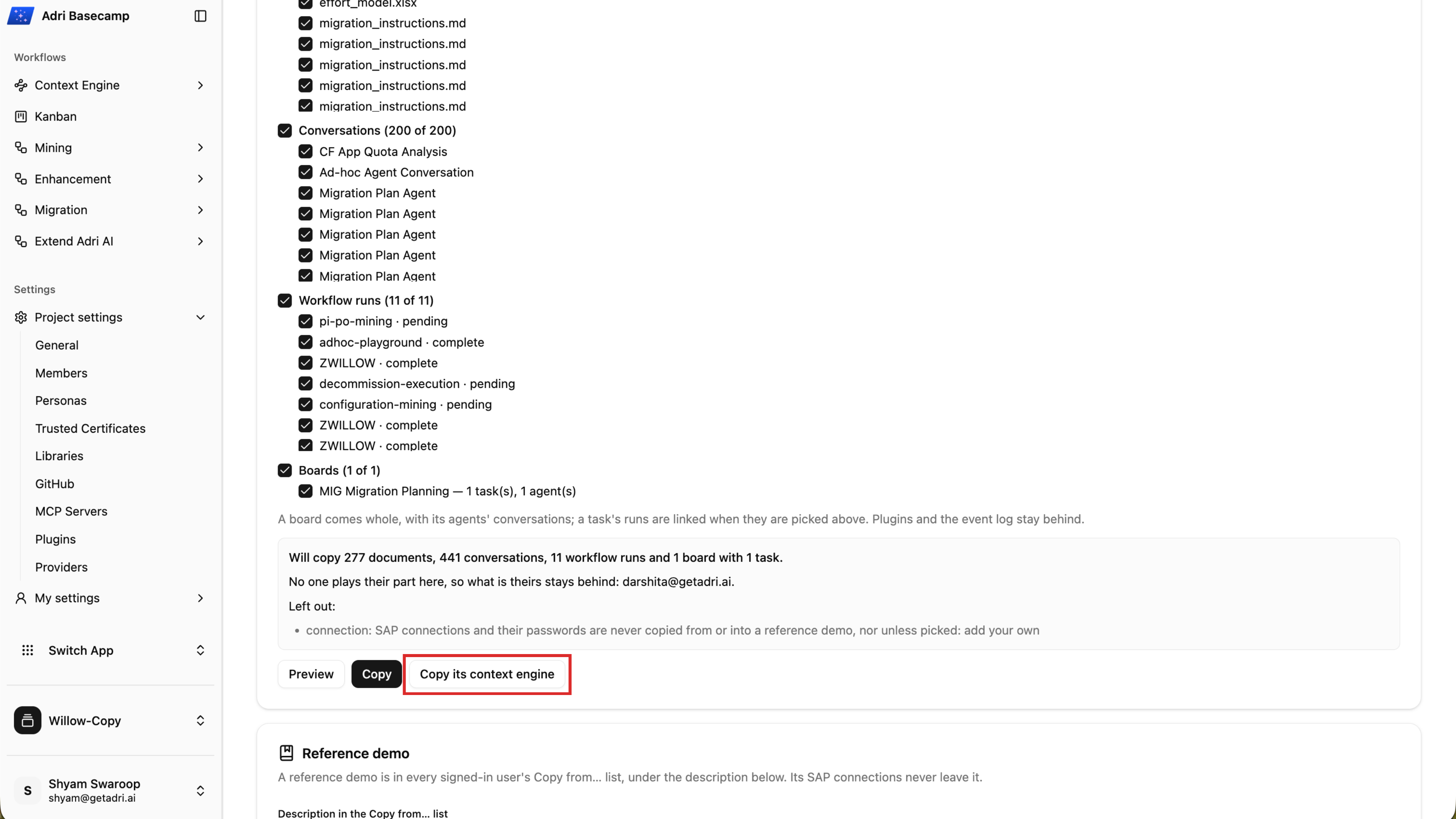
- Choose Copy its context engine. Keep the completed run that published the reference Context Engine selected, then choose Copy the context engine.
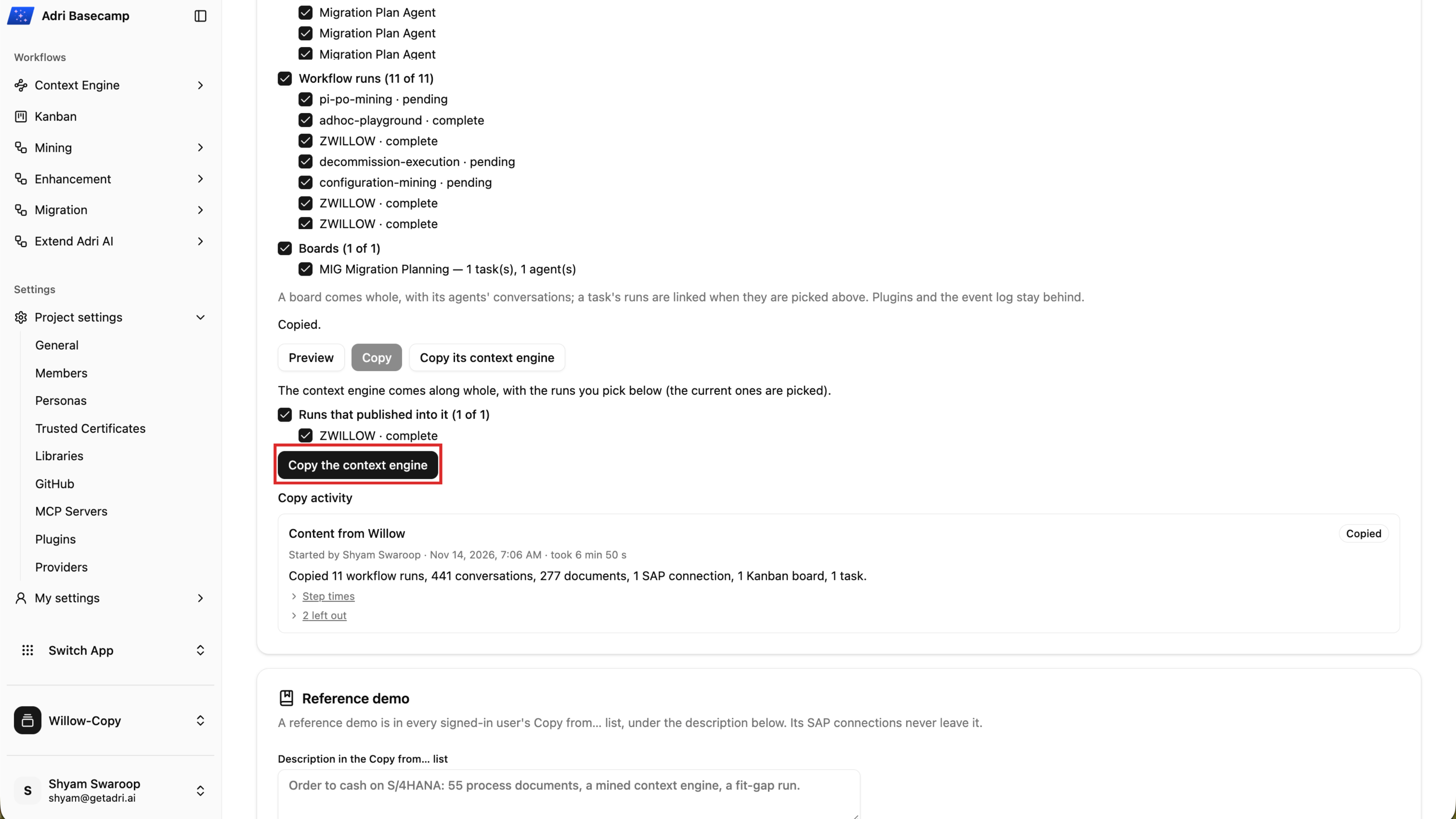
- Wait while Adri AI copies the Context Engine and its linked content.
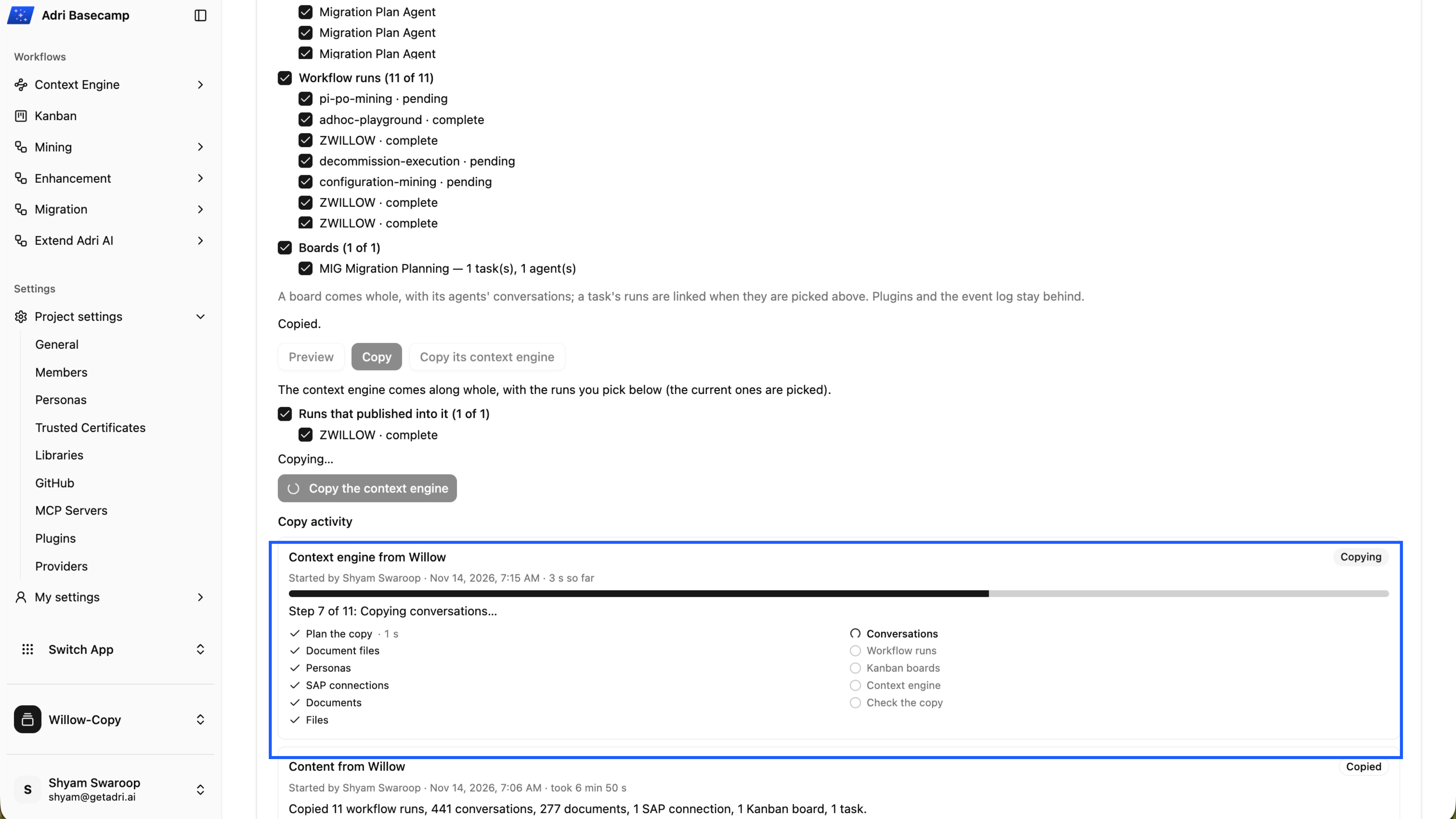
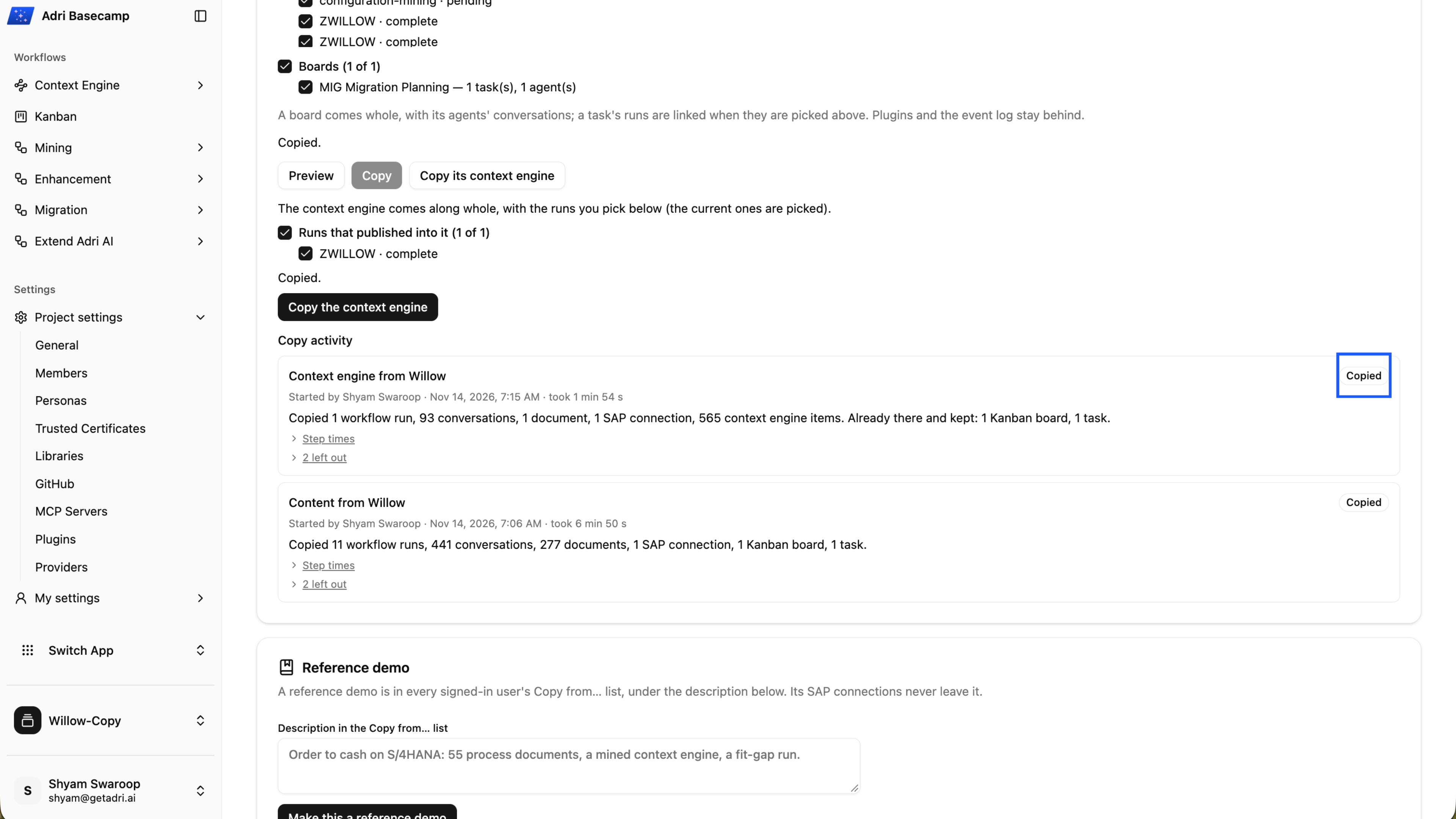
- Confirm that the Context Engine copy reports Copied.
- Open Context Engine and confirm that the copied processes are available.
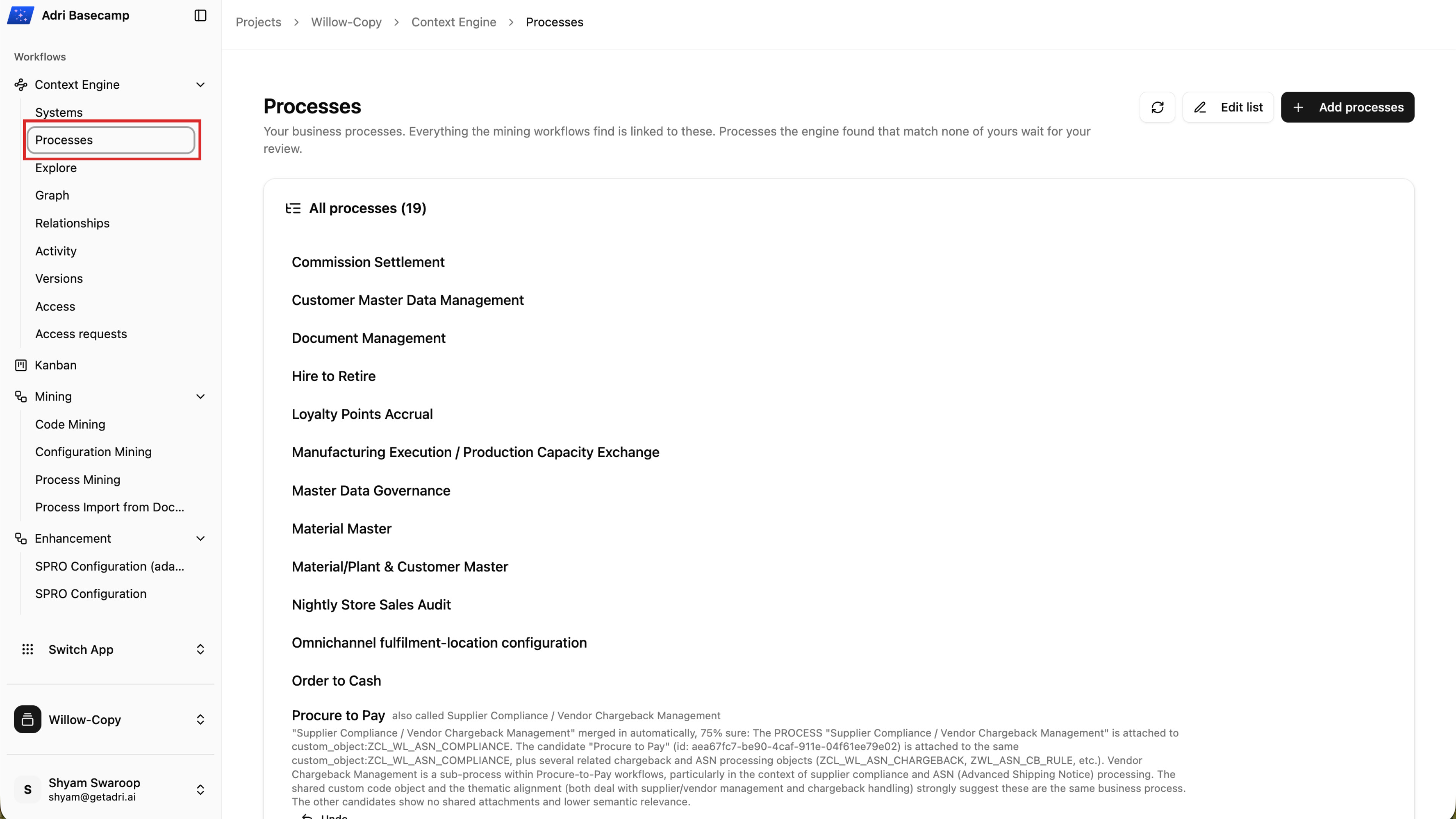
Done when: The content and Context Engine copy activities both report Copied, and the copied processes appear in your demo project.
Step 3: Explore documentation and the source dependency graph
Open the Code Mining workflow
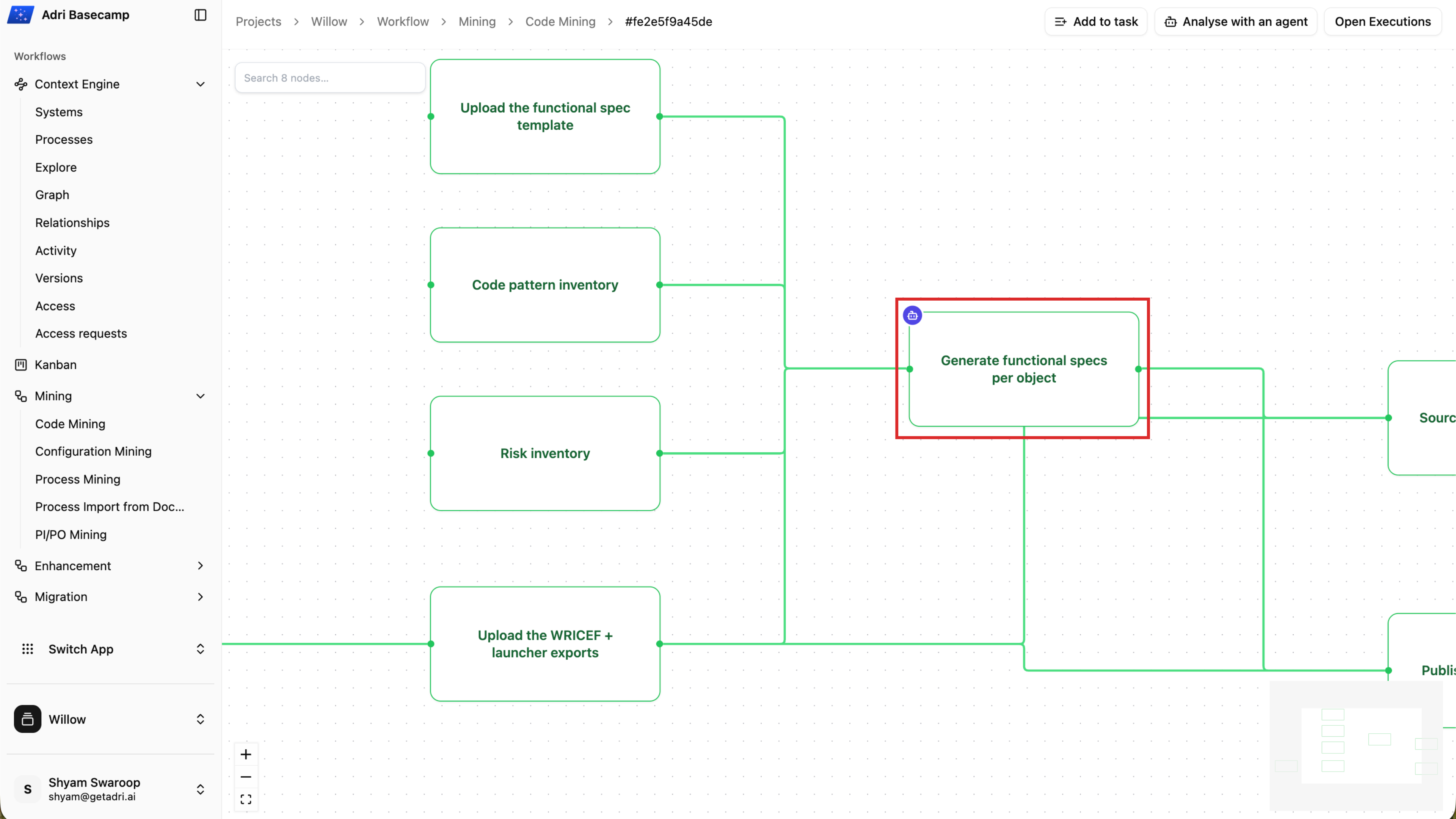
In the Willow project, open Mining, select Code Mining, and open the prepared workflow run.
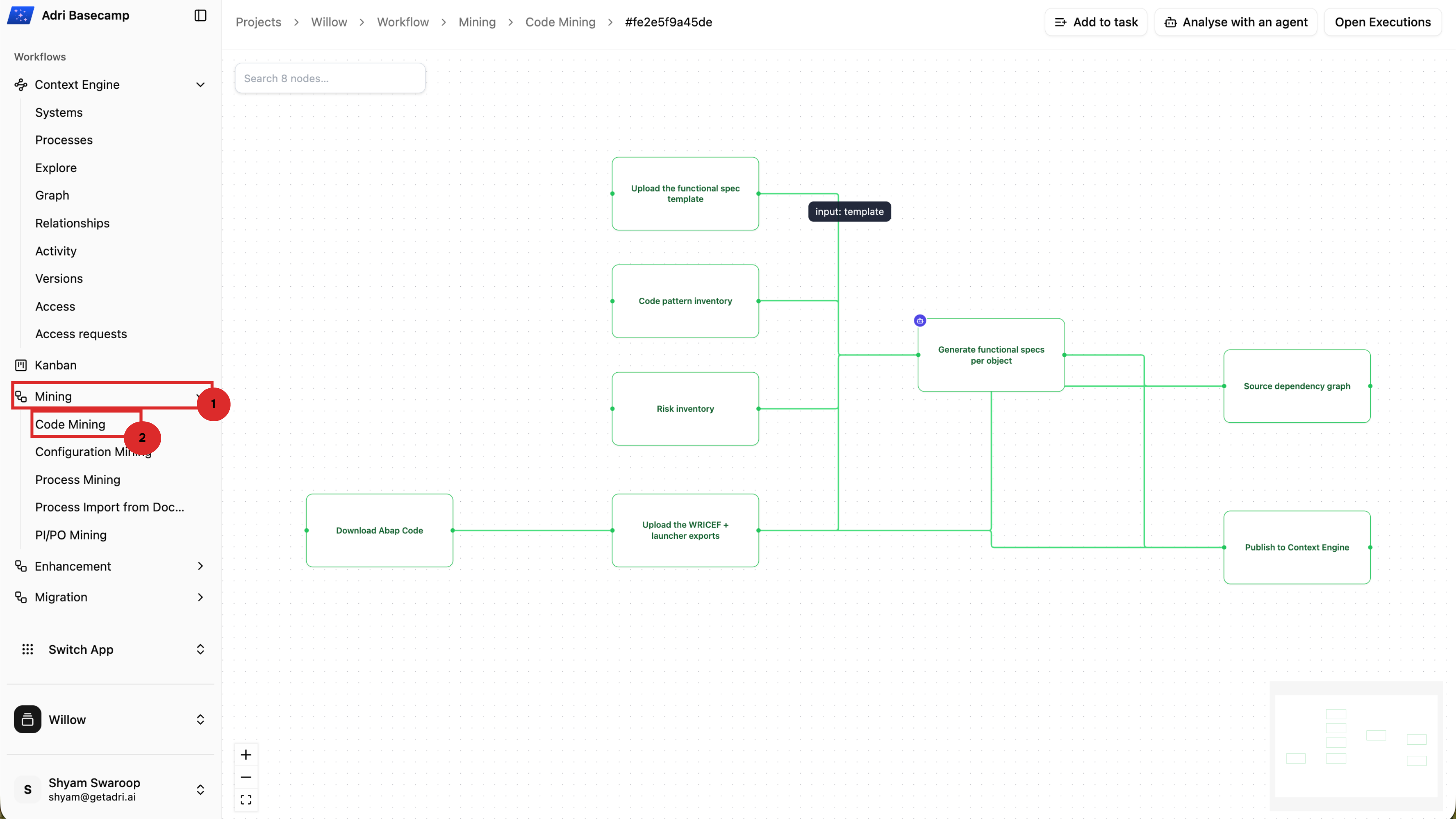
The workflow contains specialized agents for each stage of code analysis. Select Generate functional specs per object to inspect its completed output.
Review generated functional specifications
The agent creates a functional specification for every successfully analyzed custom object. Open the agent details and expand the output.
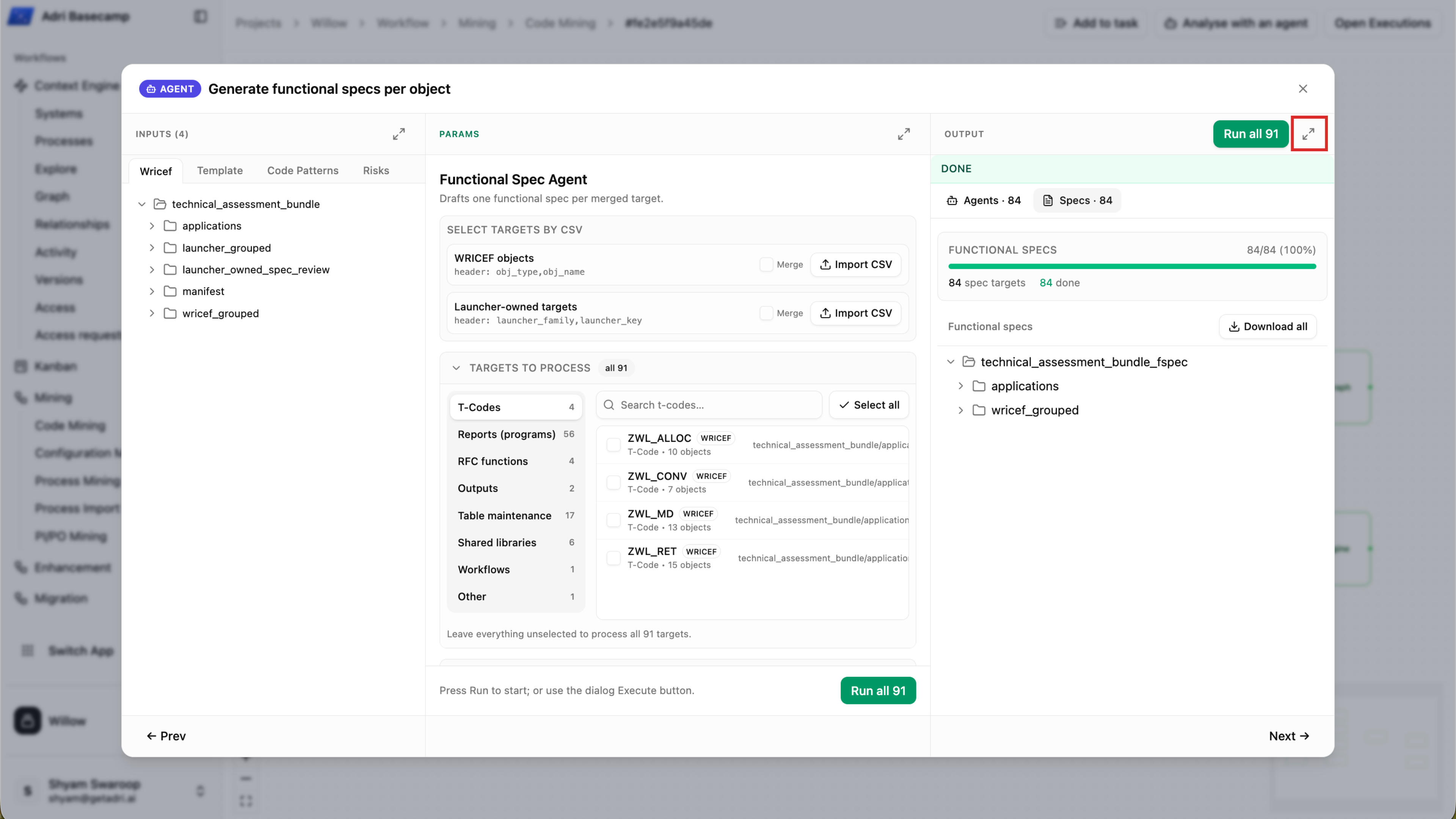
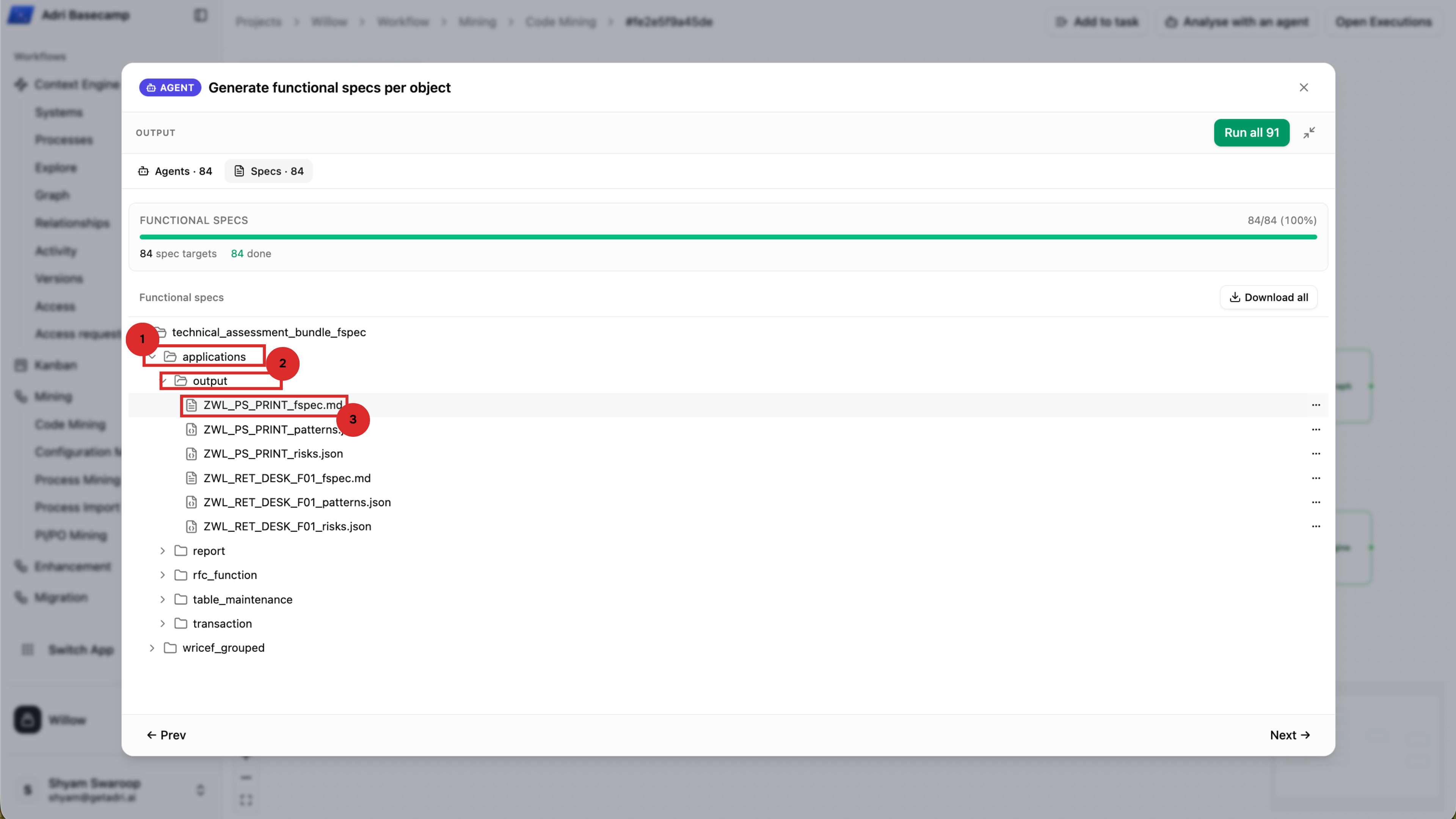
Navigate to technical_assessment_bundle_fspec → applications → output, then select a Markdown file to review the functional specification for that object.
Each specification translates the source code into readable documentation. It identifies the object's purpose and explains its functional behavior, data usage, dependencies, processing flow, validations, and outputs.
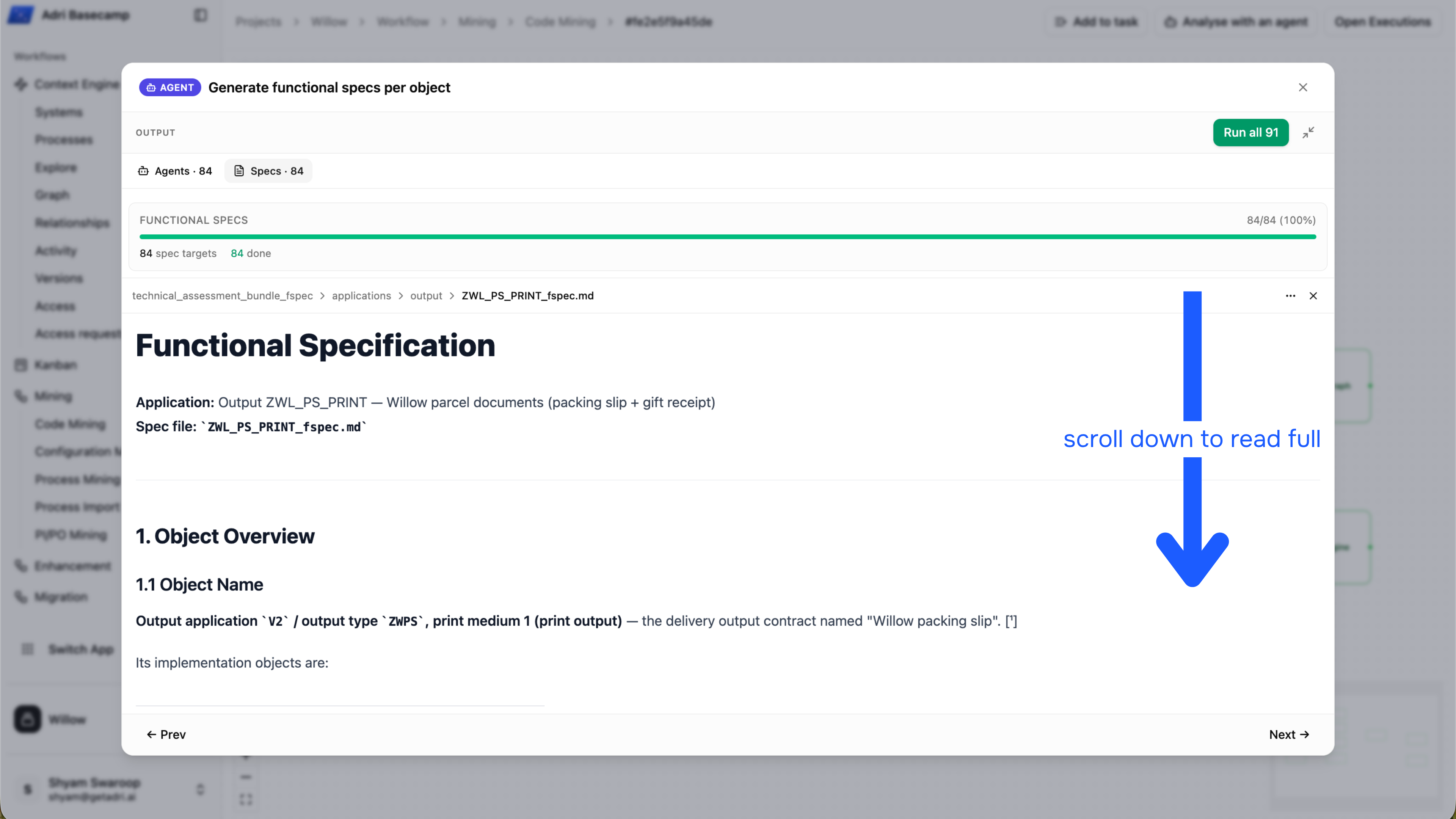
Scroll through the document to review the complete analysis.
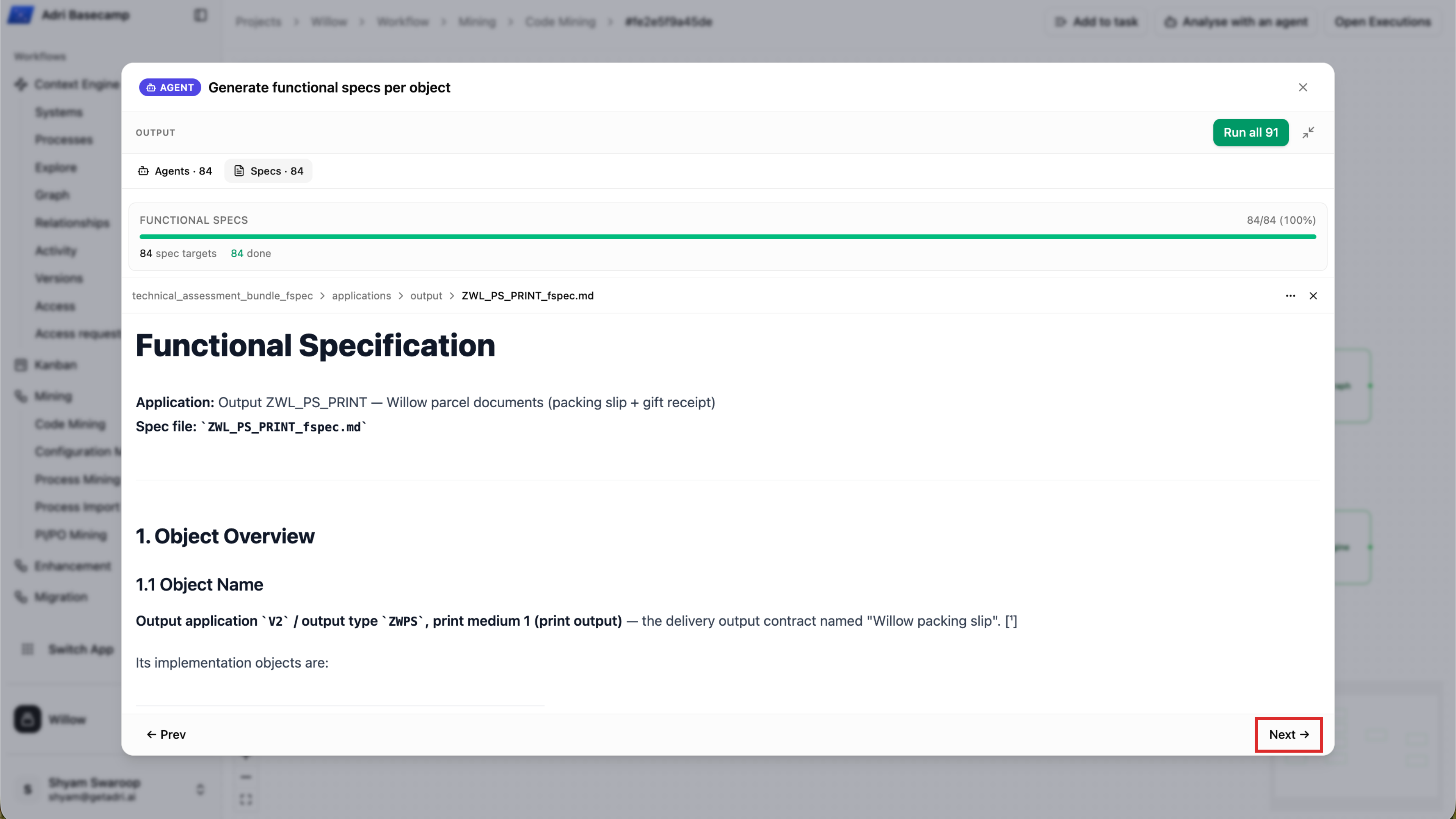
When you are ready to inspect the next deliverable, select Next.
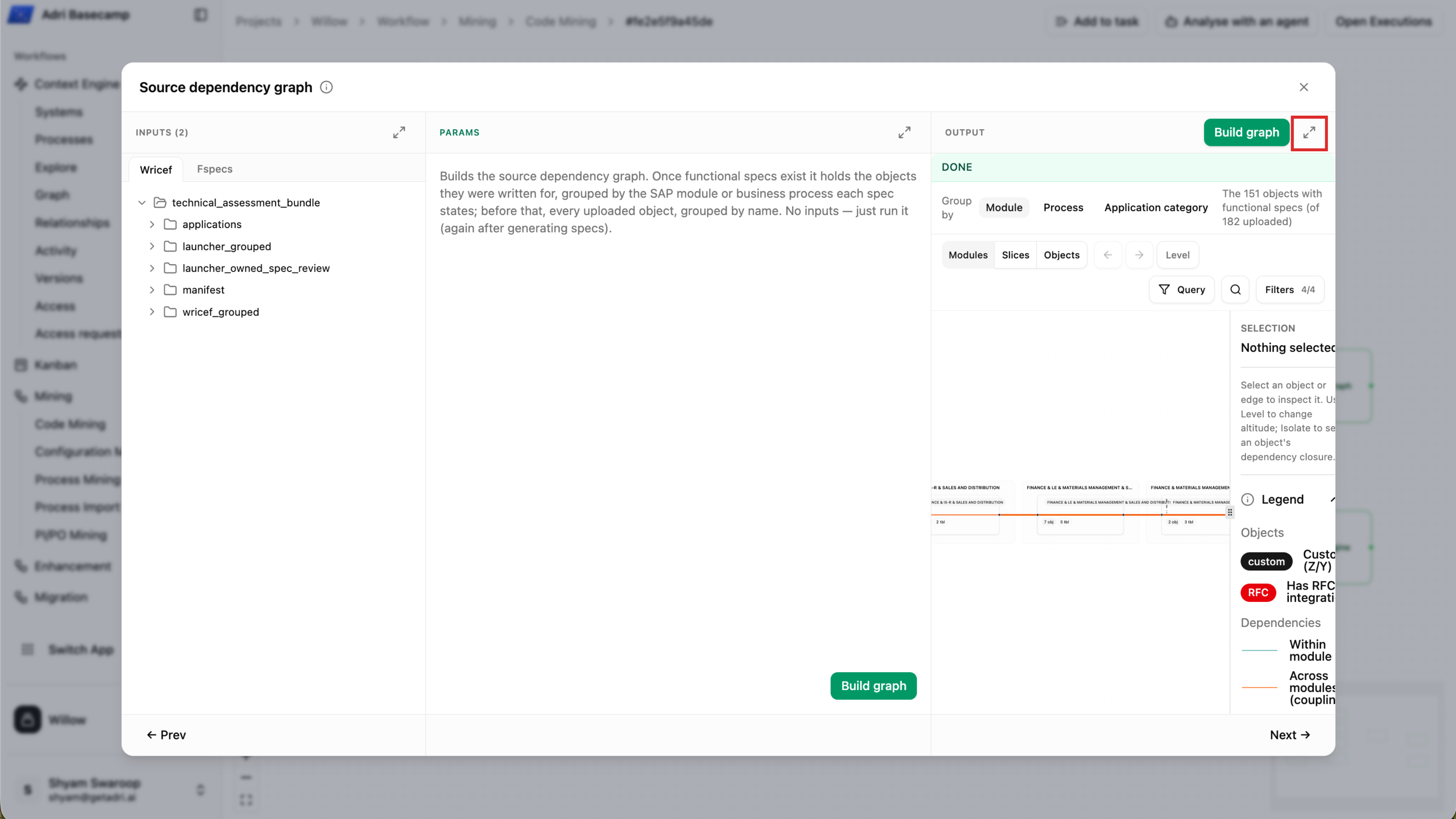
Explore the source dependency graph
The source dependency graph turns relationships among custom objects into an interactive map. Open the graph output and expand it for more room to explore.
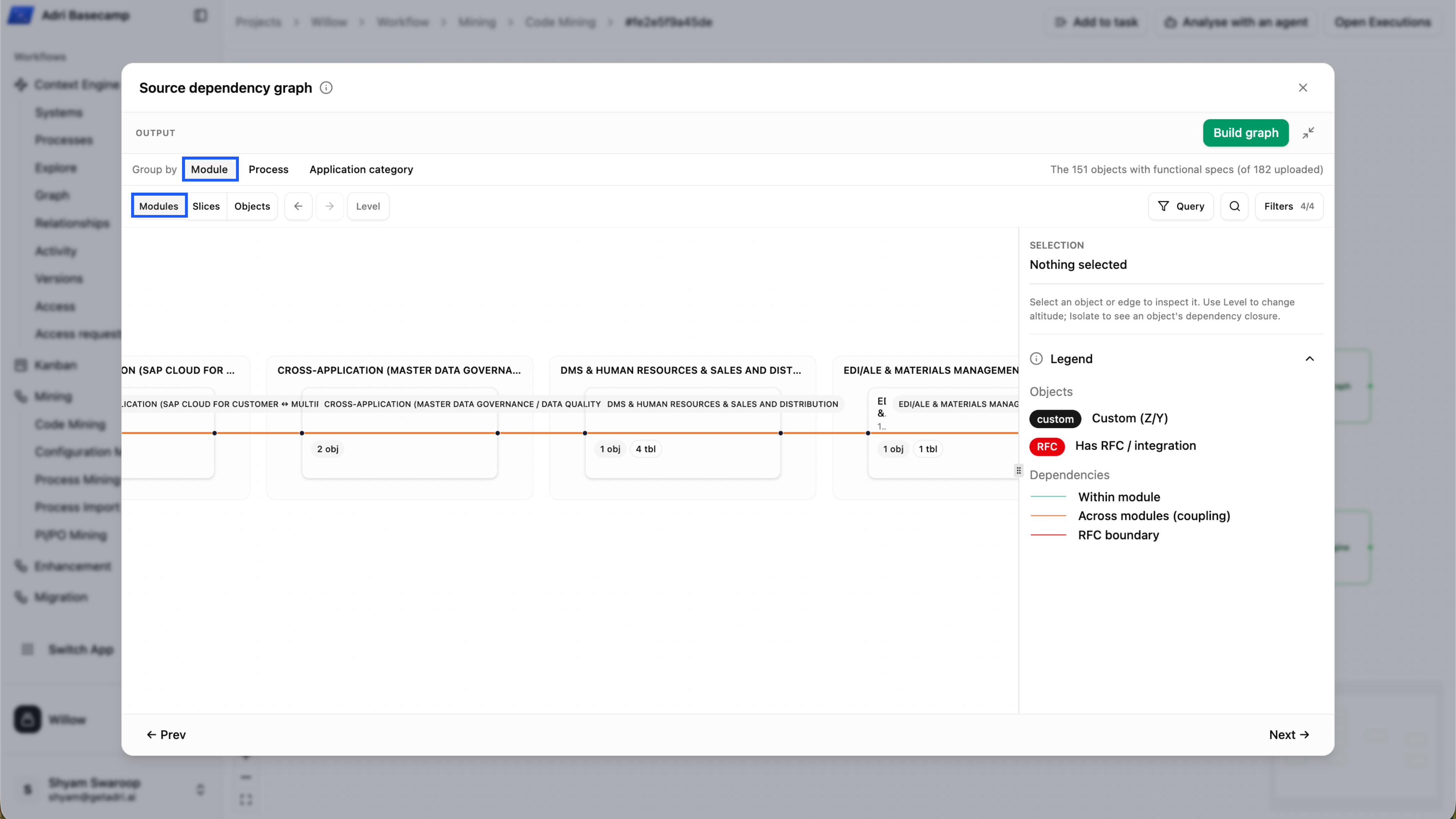
Start with Module to see how custom objects are distributed across SAP functional modules. Switch between Modules, Slices, and Objects to move from a portfolio-level view to individual objects.
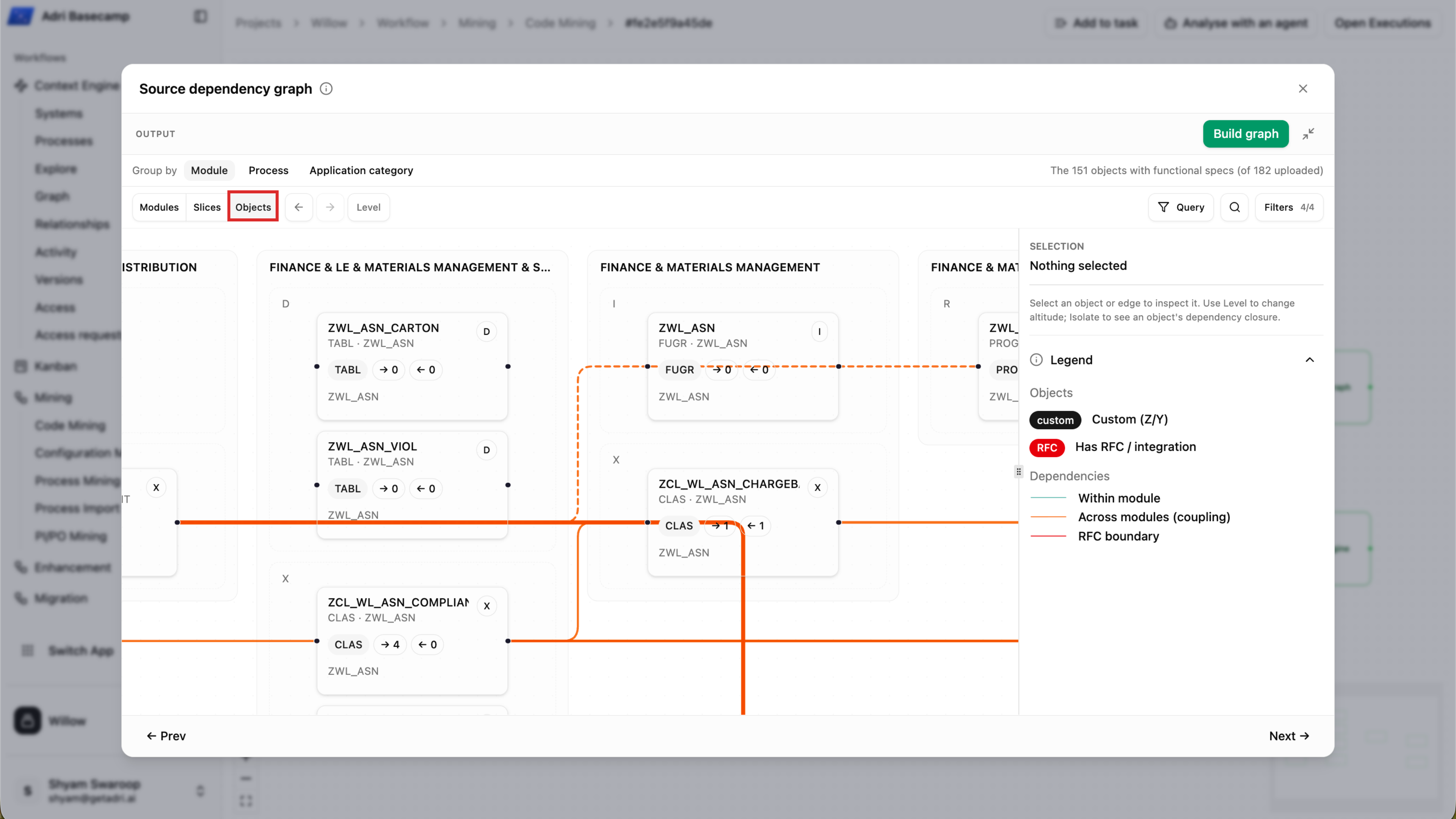
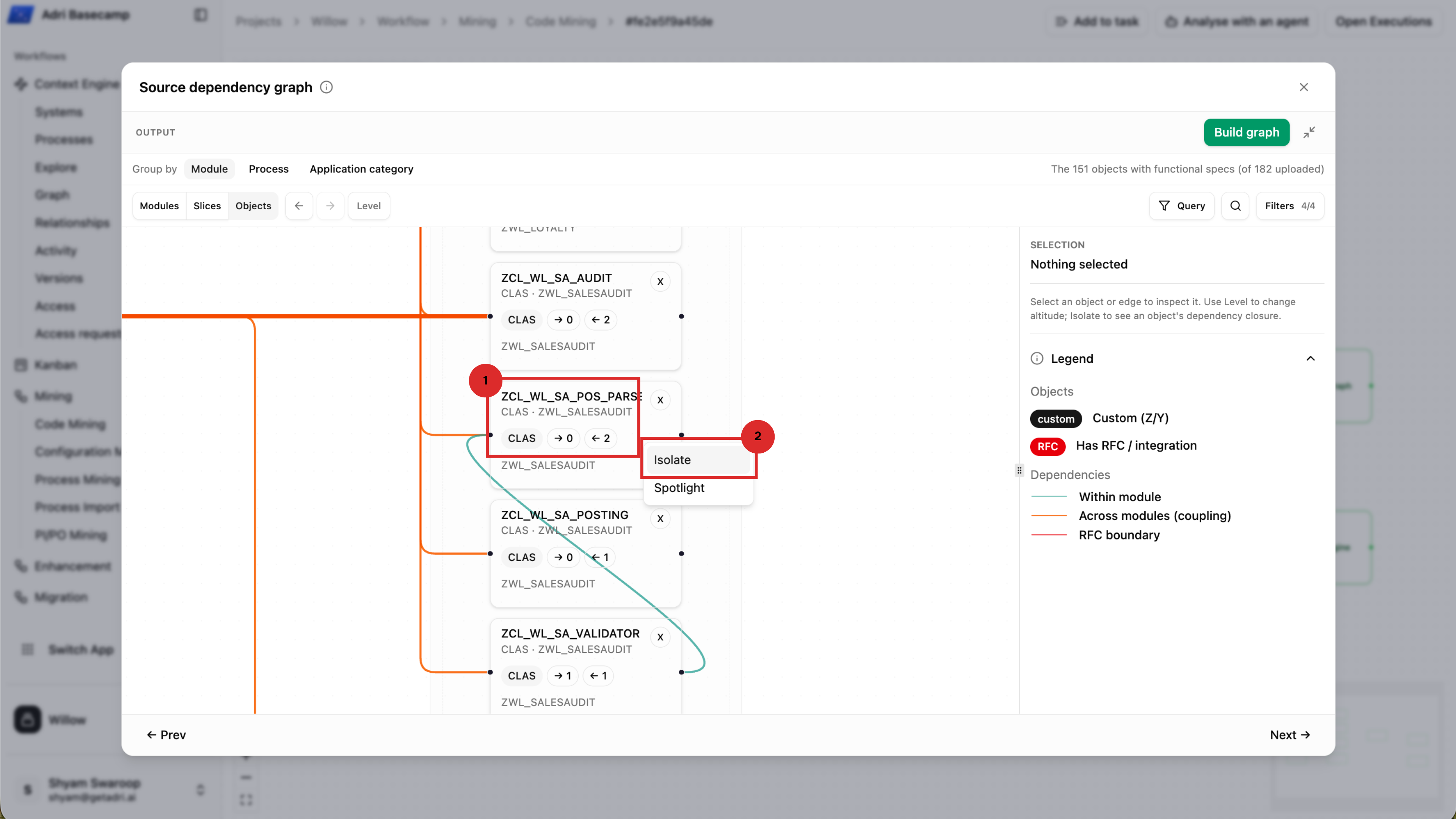
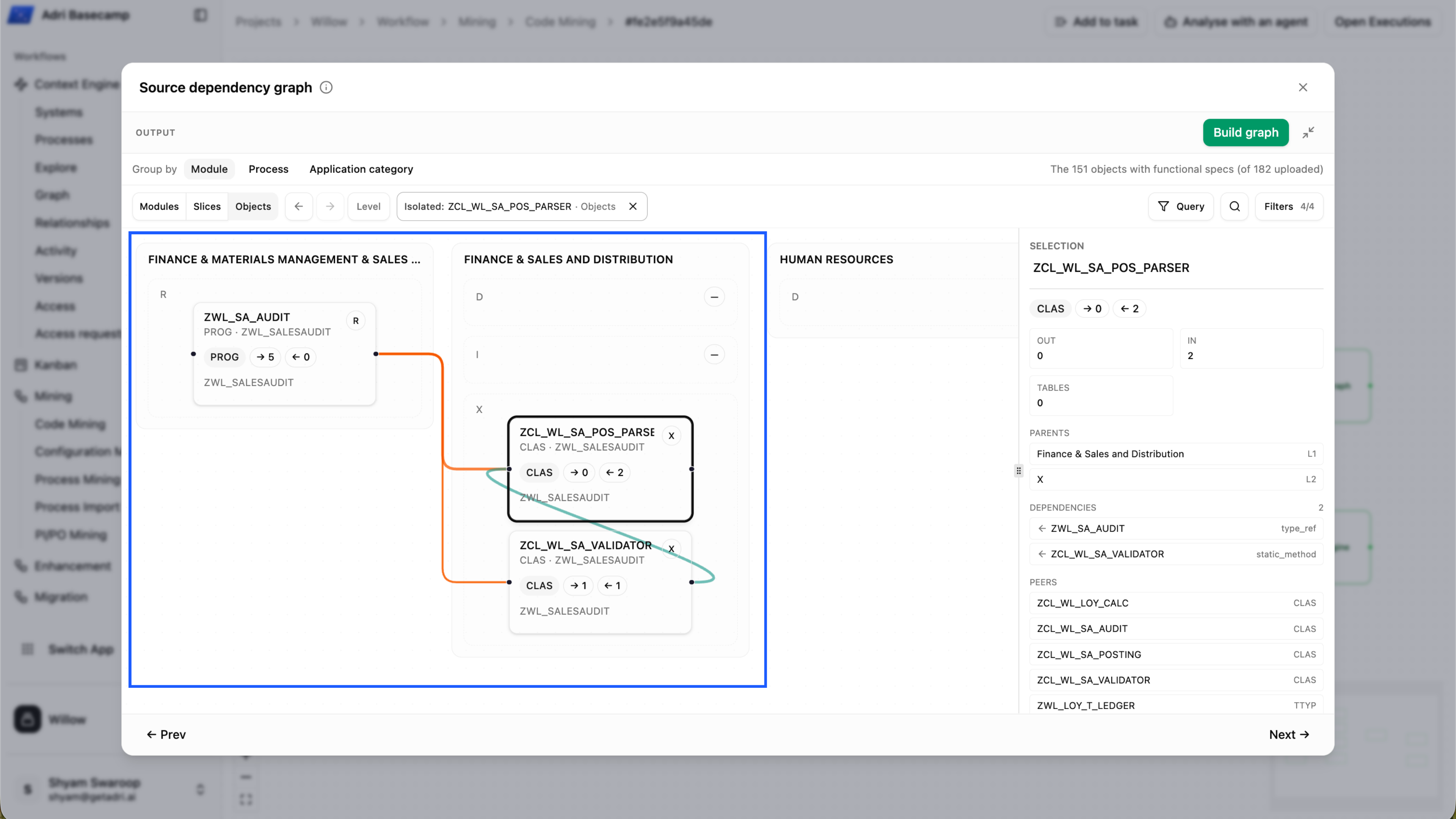
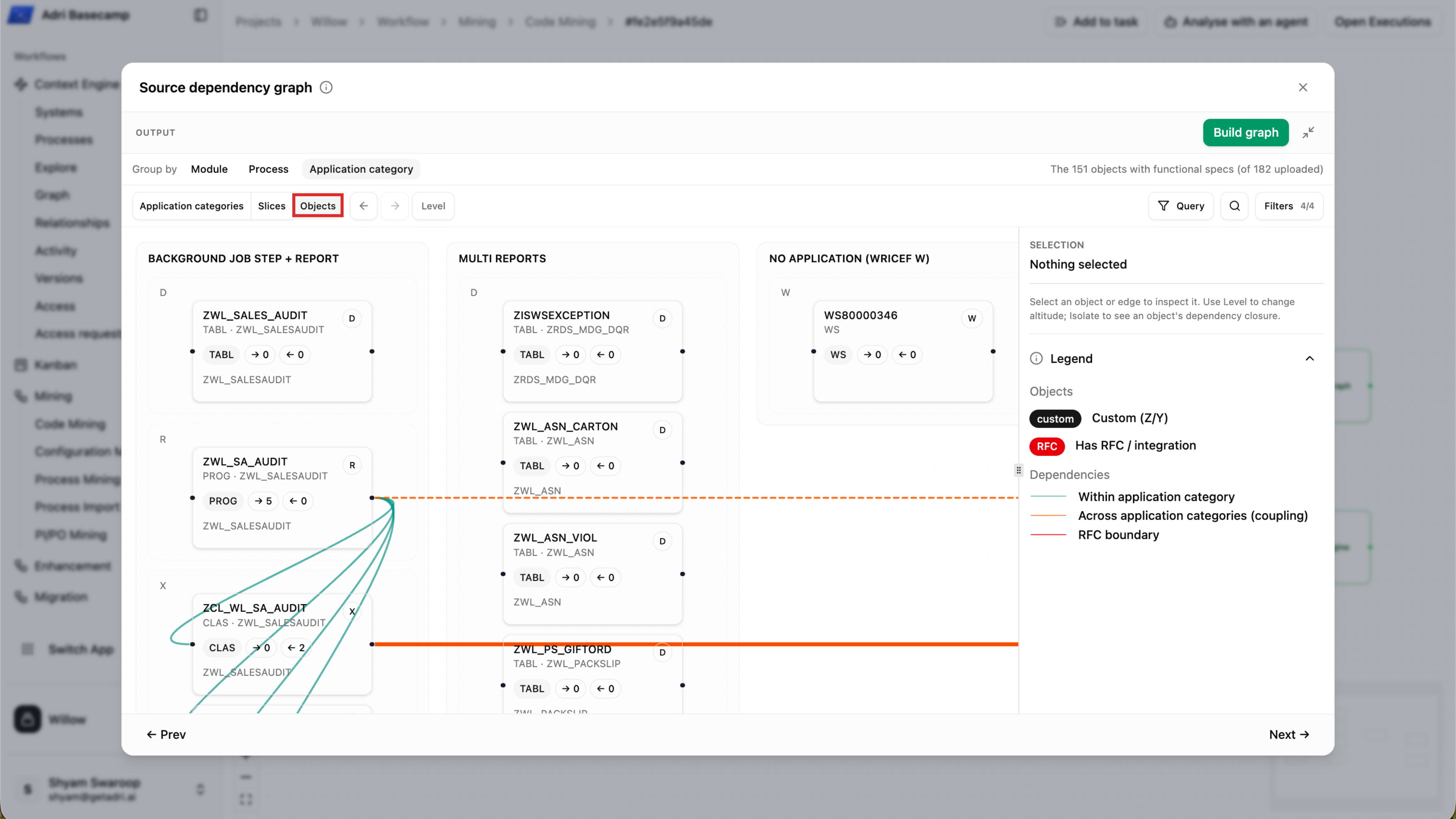
In Objects, select a card to inspect its type, incoming and outgoing dependencies, parent group, and related objects. Use Isolate to focus on that object's dependency closure.
The isolated view keeps the selected object and the dependencies that explain its impact, making a dense landscape easier to analyze.
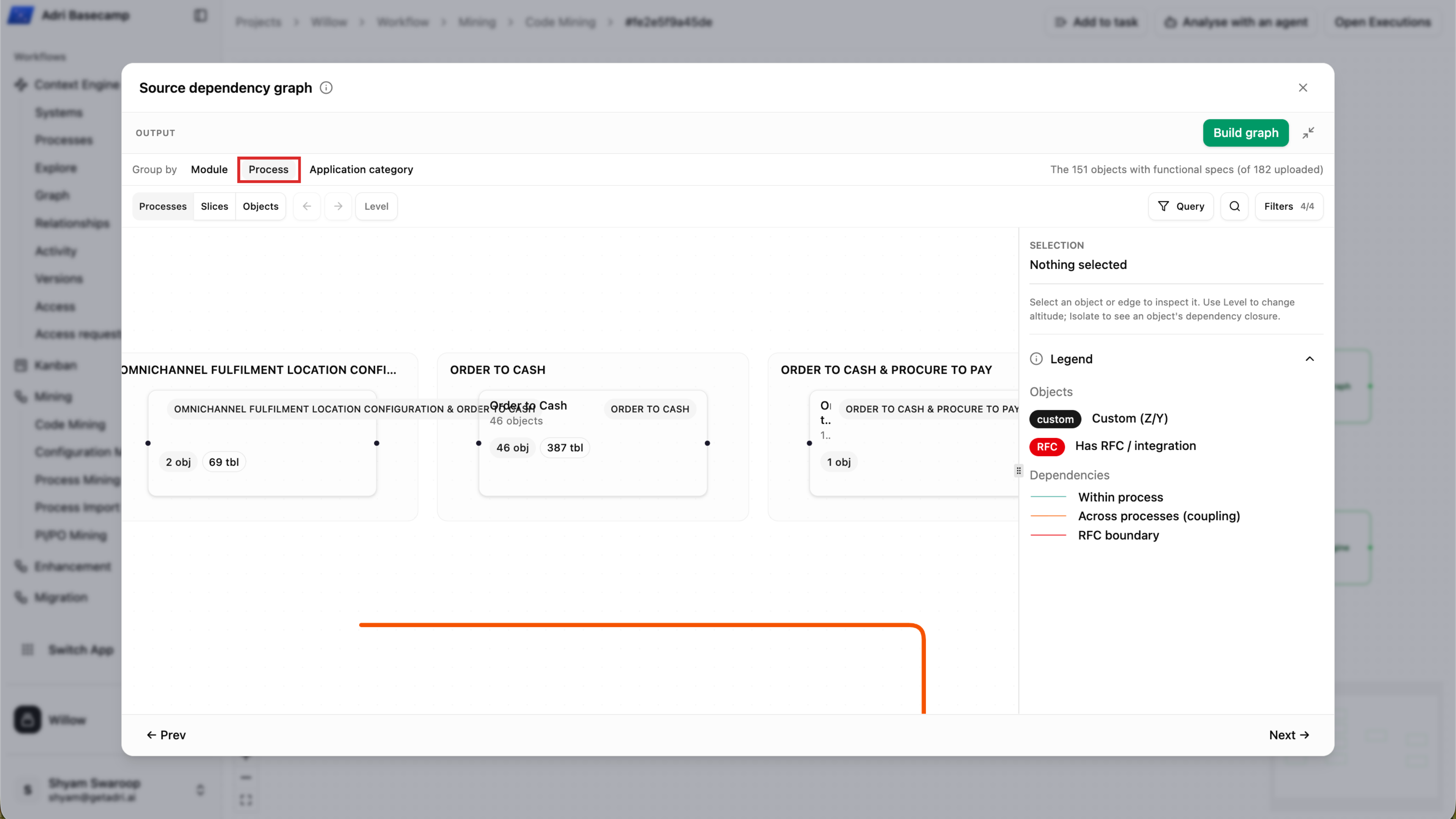
Choose Process to organize the same source-code inventory by the business processes associated with each object. This is a code-classification view within Code Mining; it is not process mining.
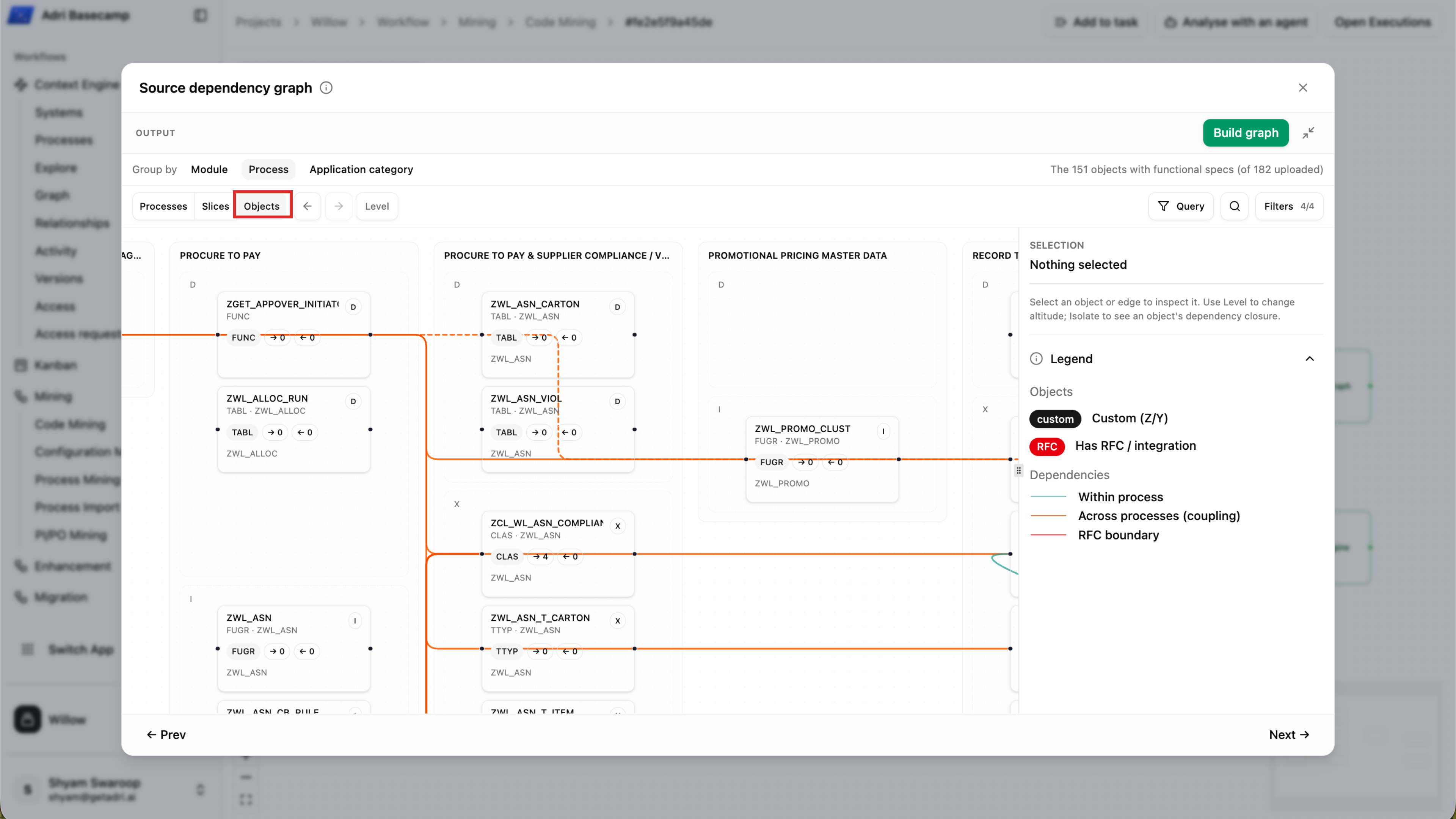
Switch to Objects to inspect the code-level dependencies within and across those process groups. The legend distinguishes dependencies within a group, coupling across groups, and RFC boundaries.
Choose Application category to group custom code by its technical usage pattern, such as output and report combinations, transaction-code outputs, or RFC functions and reports.
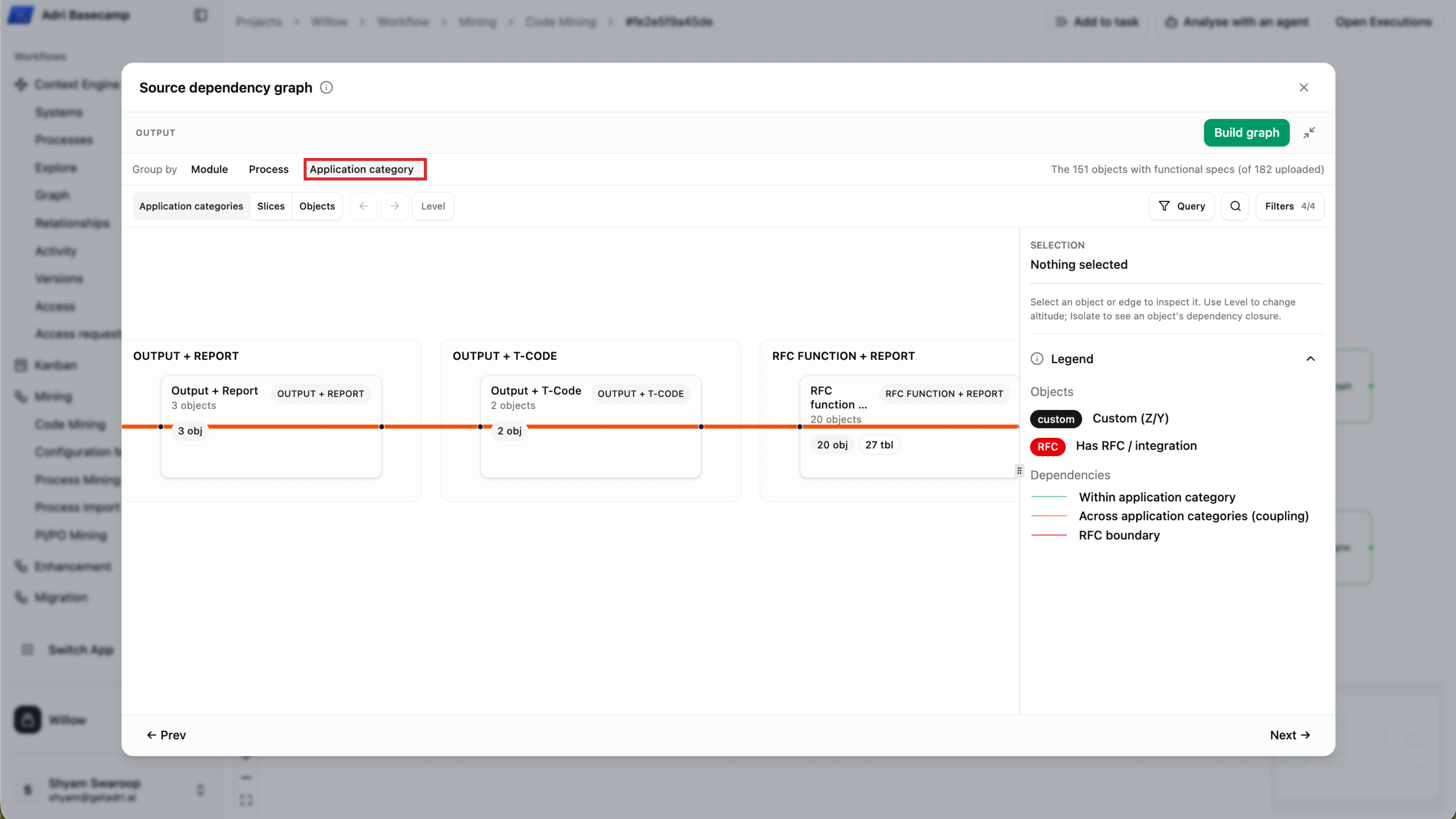
Open Objects to see the individual custom objects behind each category and trace coupling across categories.
Together, the generated functional specifications and dependency graph give you both object-level documentation and a landscape-wide view of how your custom code is organized and connected.