Explore the context engine
The Adri AI Context Engine is a process-centric map of your SAP landscape. It connects custom code, integrations, configuration, process activities, tables, documents, and other technical evidence to the business processes they support.
Every item ultimately links to one or more processes. This means users and agents can begin with a business question—such as What supports Procure-to-Pay?—and follow the graph to the relevant SAP objects and evidence instead of searching through isolated technical inventories.
See this model in action in Context Engine: every SAP business process, mapped to the custom code behind it.
Explore the Context Engine in Adri AI
If you have already signed up for Adri AI and copied the Willow reference project, skip directly to Step 3.
Step 1: Sign up for Adri AI
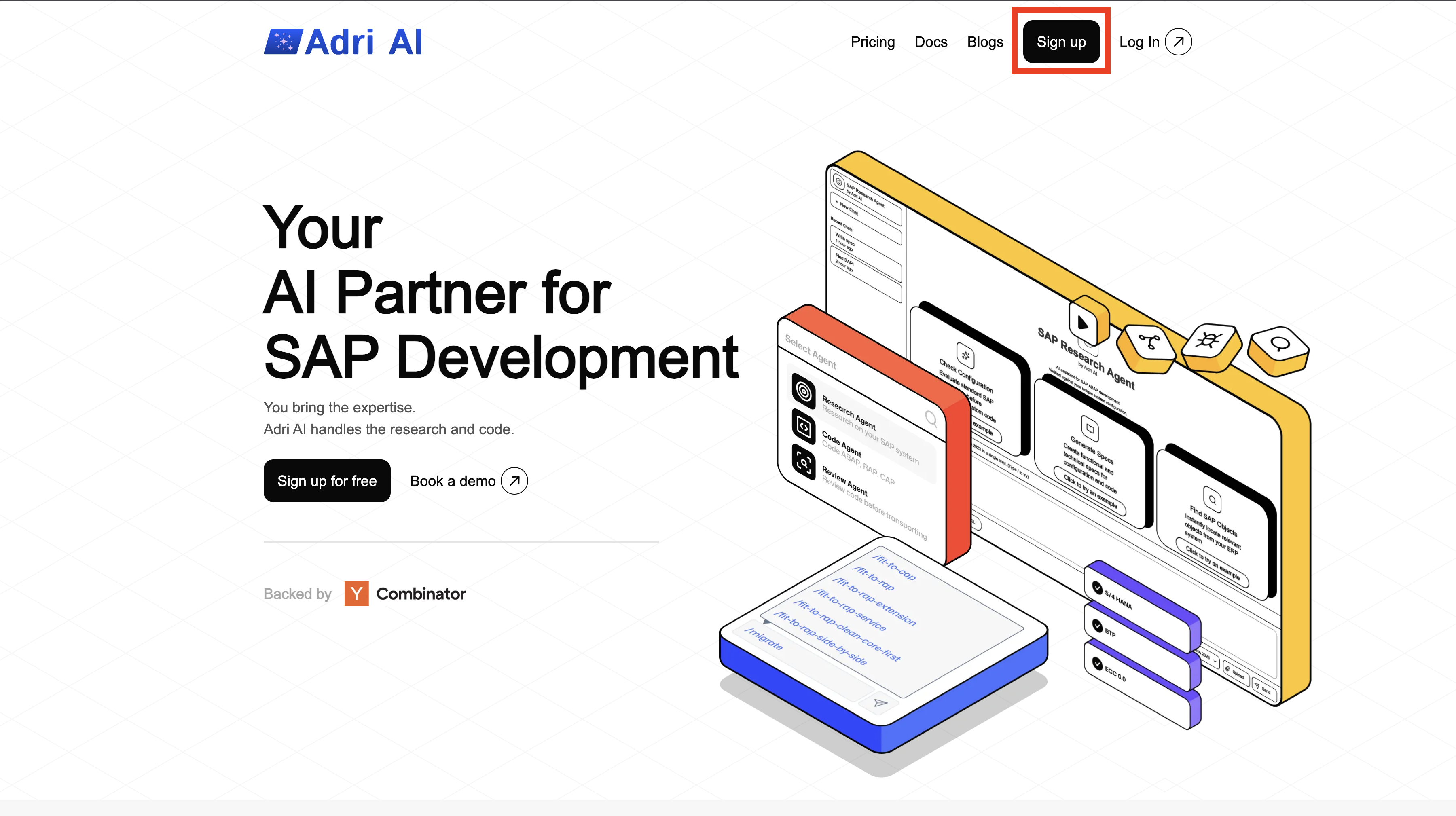
Step 1: Sign Up on Adri
- Open getadri.ai/signup.
- Click Sign up (if needed) and complete registration.
- If you already have an account, use getadri.ai/login.
Done when: You are prompted to verify your email.
Step 2: Verify Email and Complete Profile
- Open the verification email and click the verification link.
- Fill in your basic details.
- Submit the form.
Done when: You land on the Projects page.
Step 2: Create a demo project and copy its data
- On the Projects page, select Create Project.
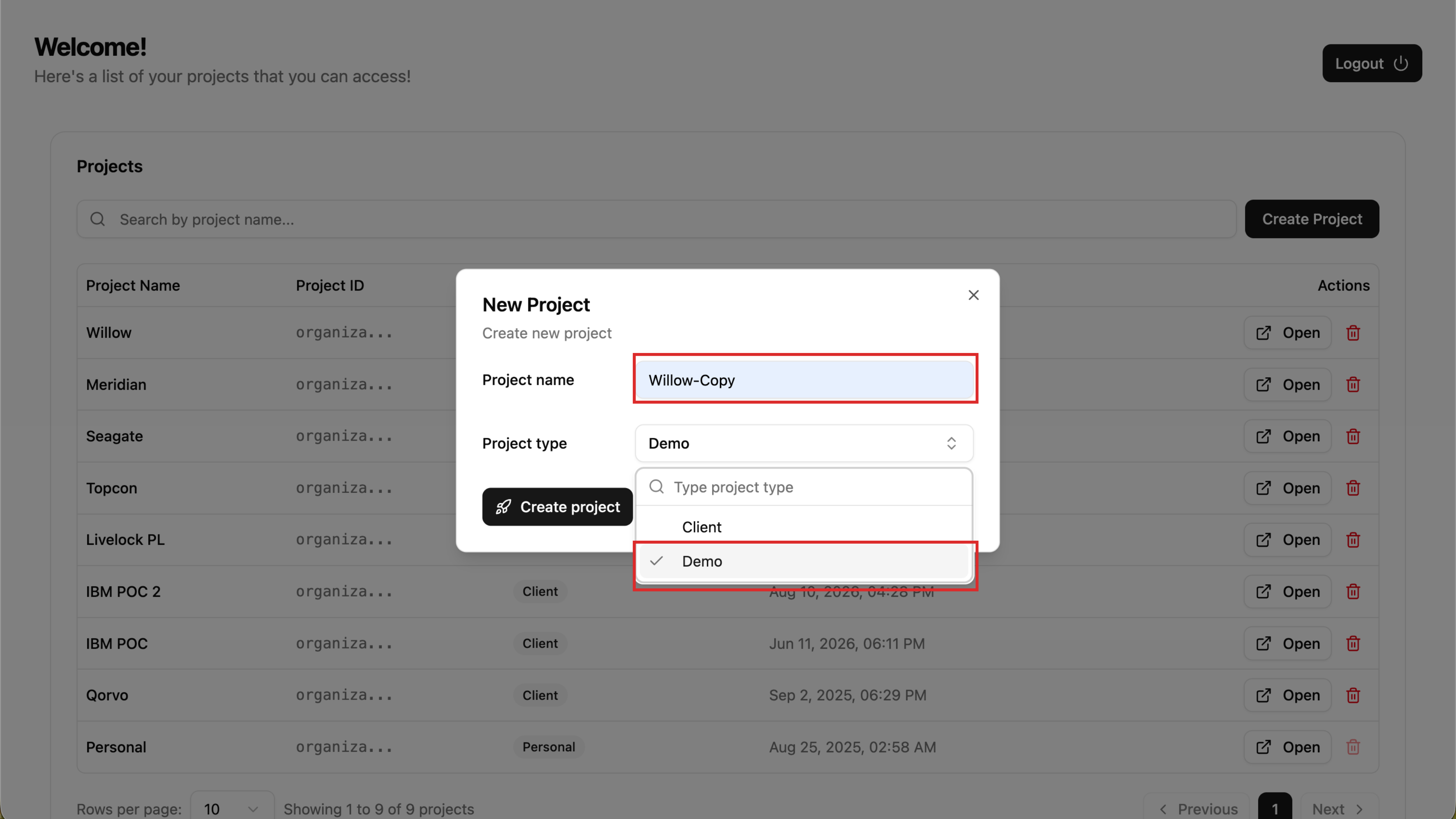
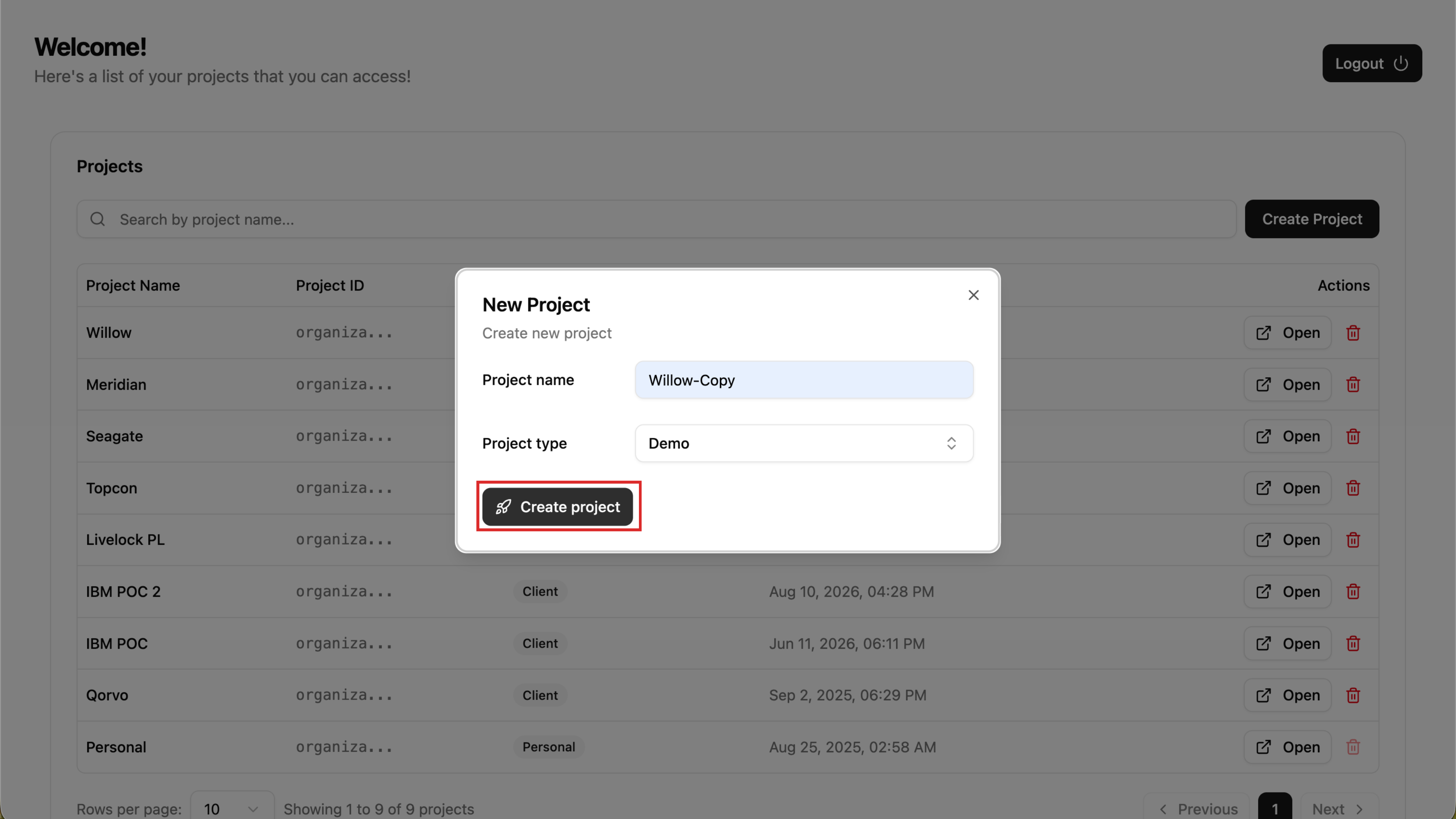
- Enter a project name, set Project type to Demo, and select Create project.
- In the new project, open Project settings > General and scroll to Copy from....
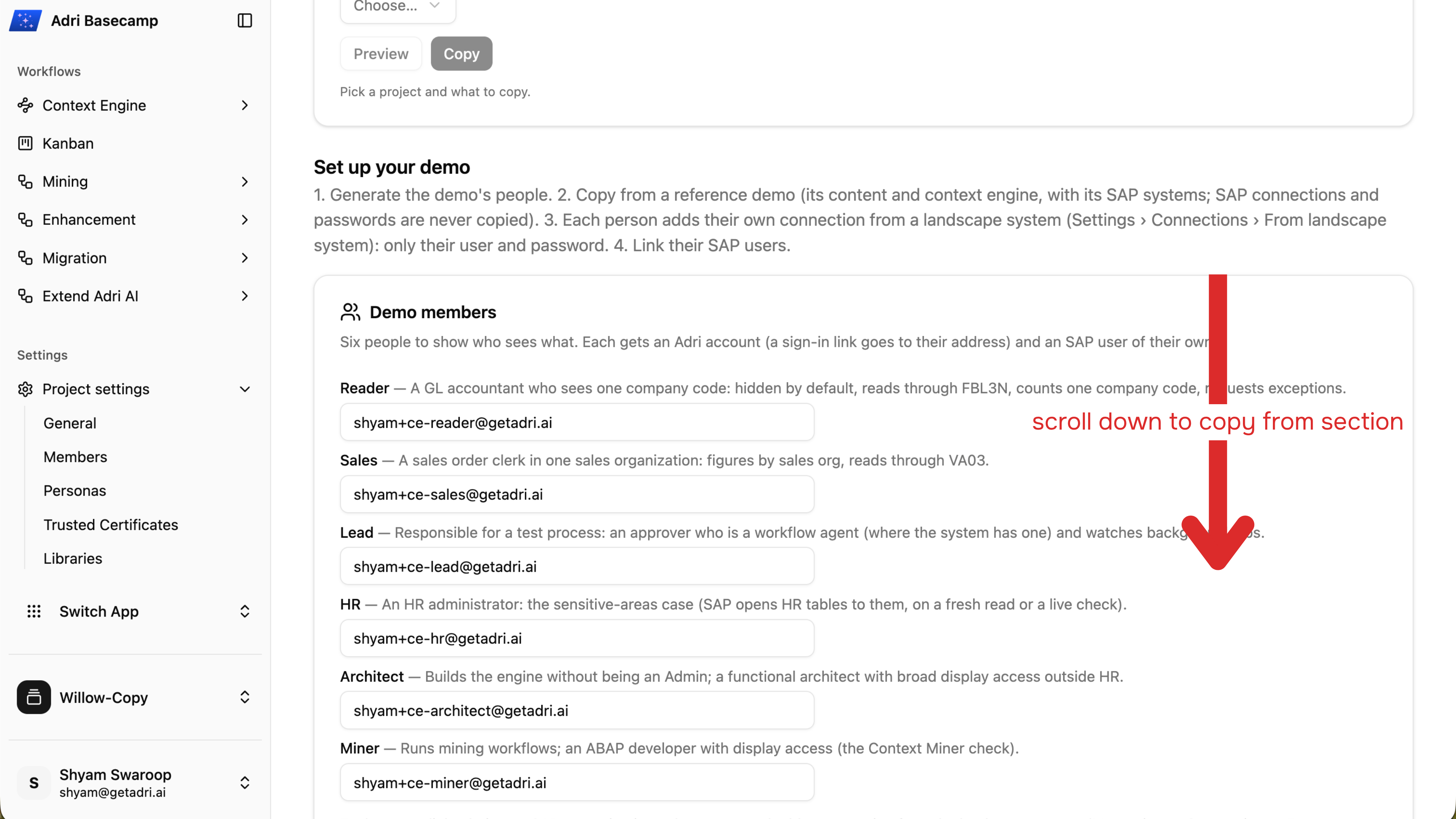
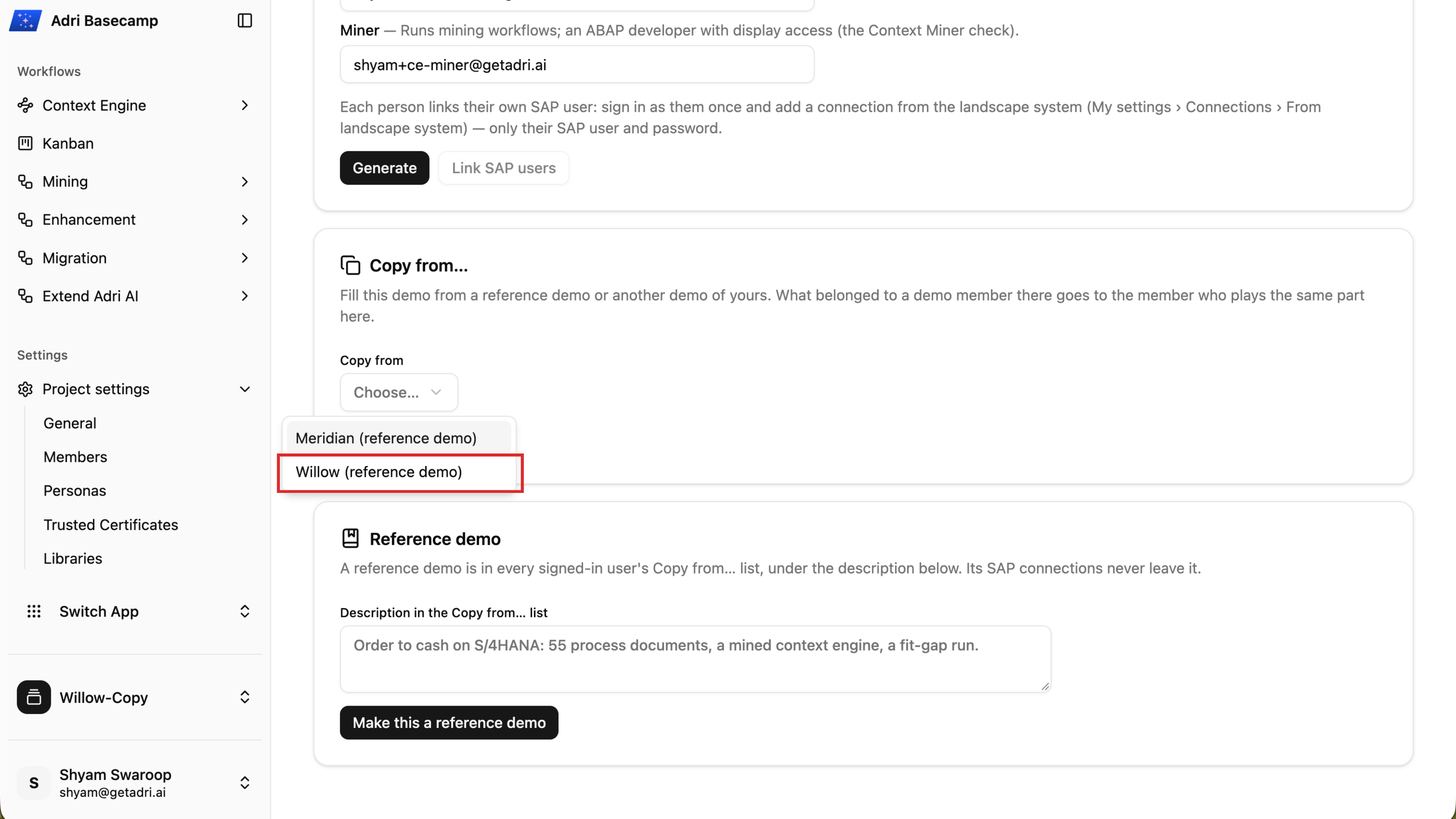
- Open Copy from and choose Willow (reference demo).
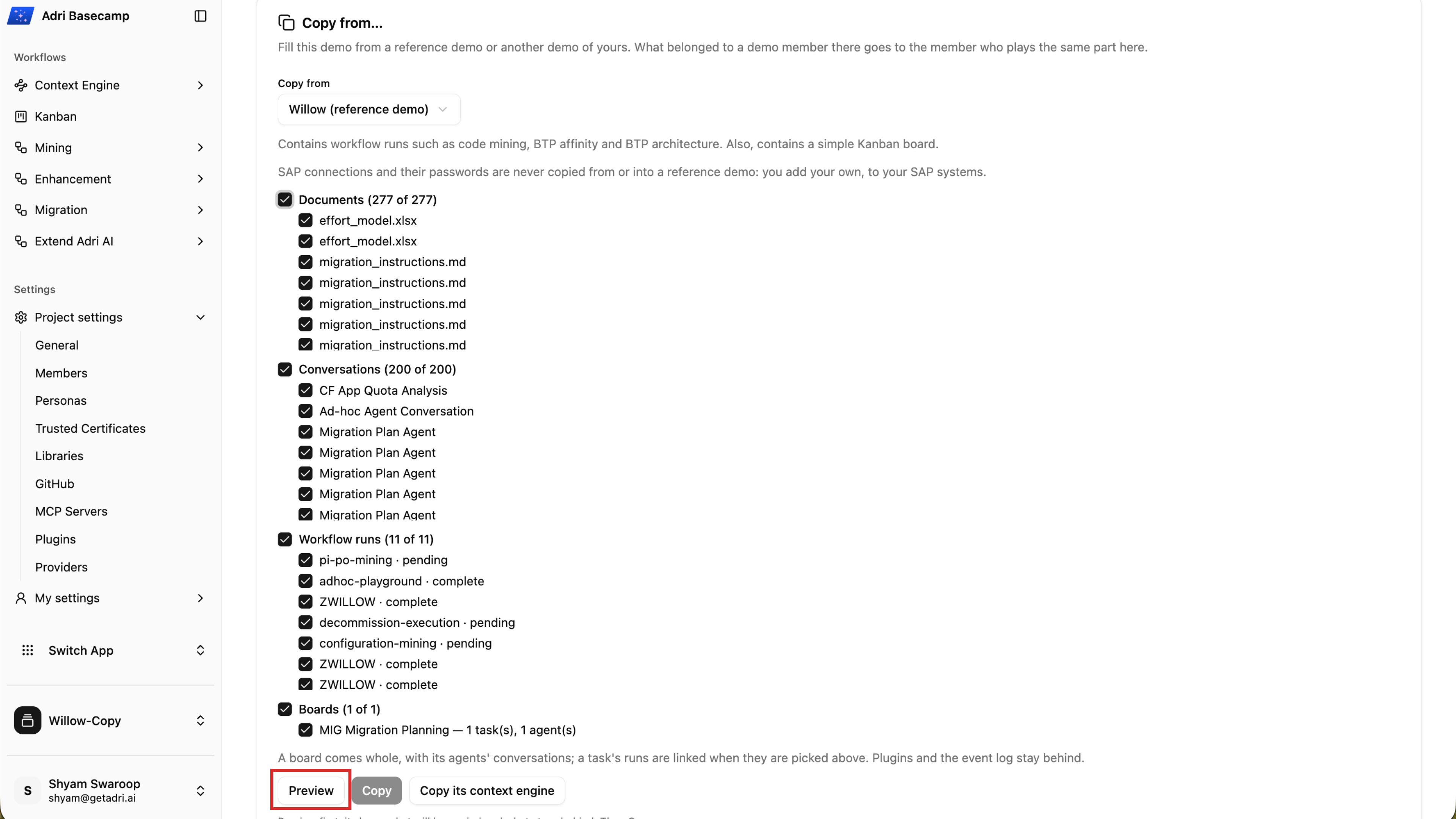
- Keep the content you want selected, then choose Preview. Review the documents, conversations, workflow runs, boards, and anything that will be left out.
- Choose Copy and wait until the content copy reports Copied.
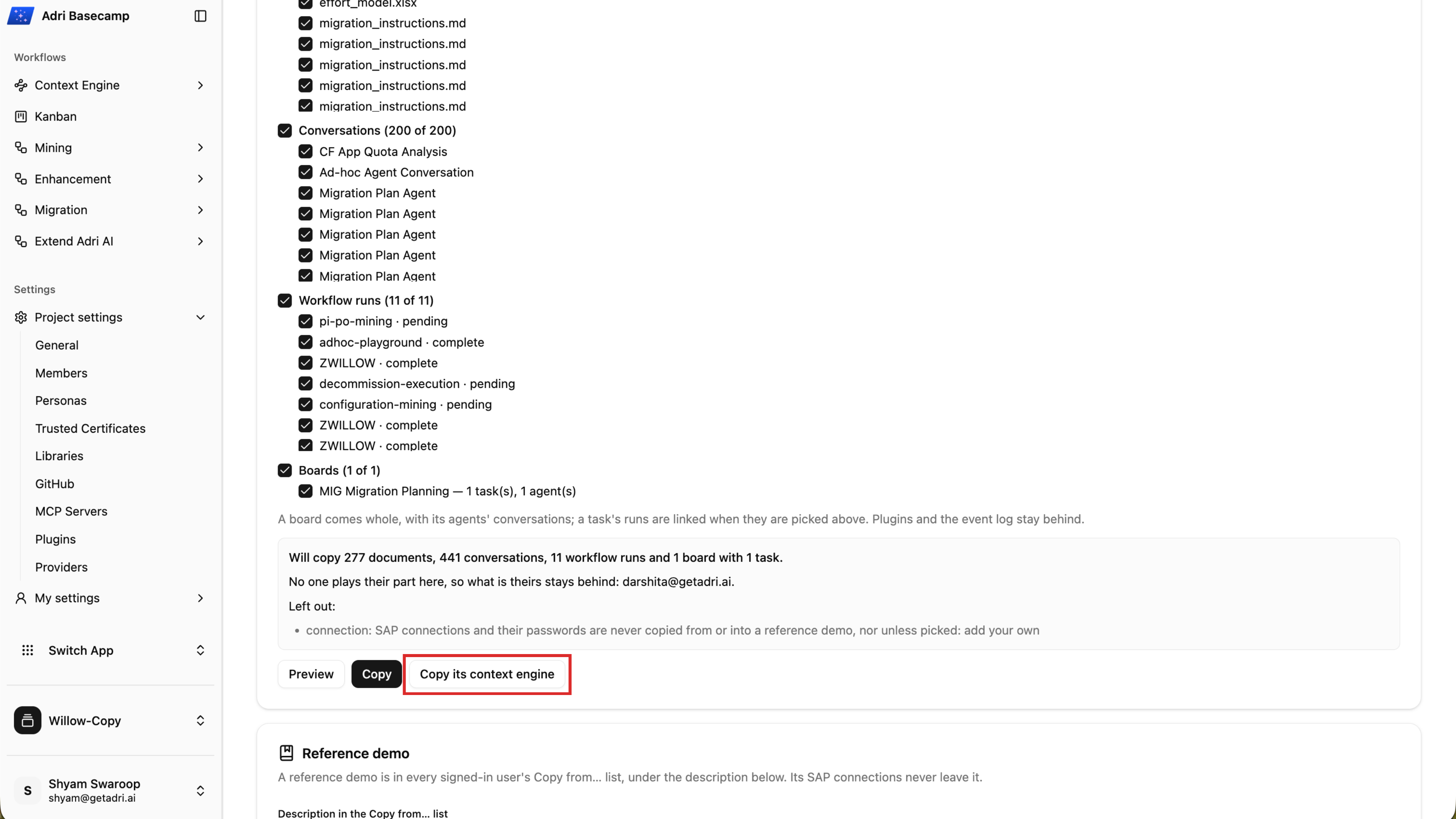
- Choose Copy its context engine. Keep the completed run that published the reference Context Engine selected, then choose Copy the context engine.
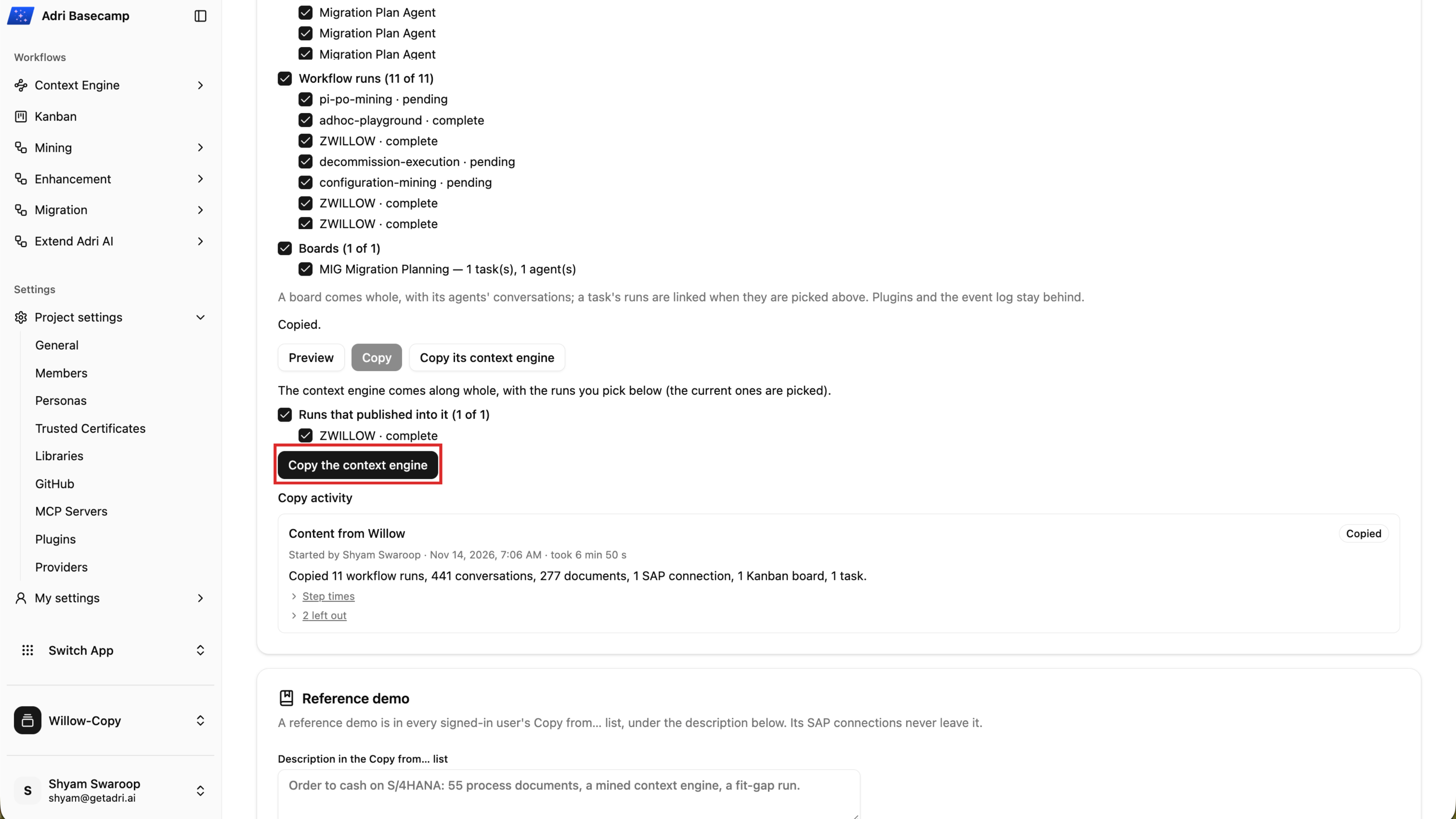
- Wait while Adri AI copies the Context Engine and its linked content.
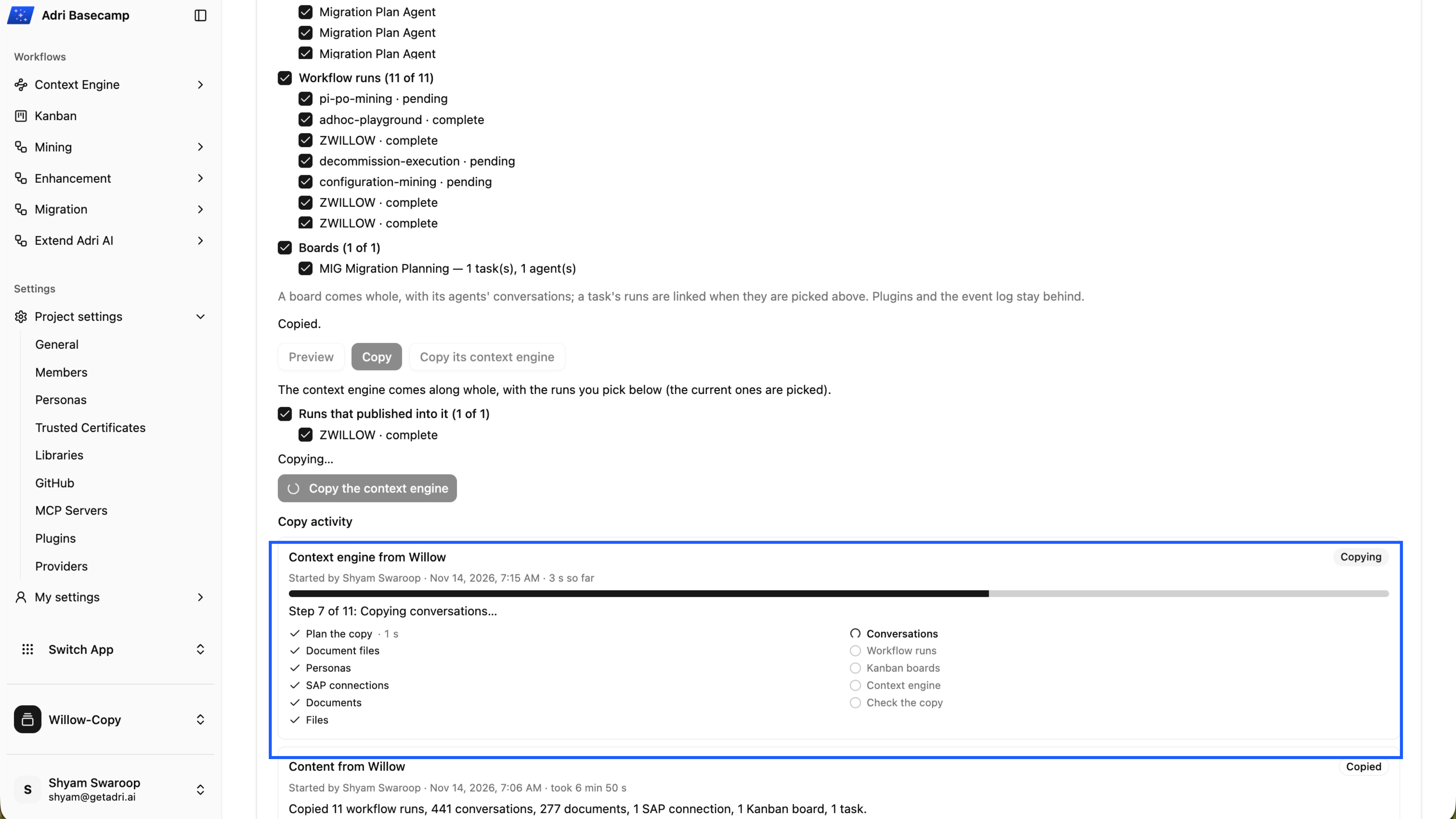
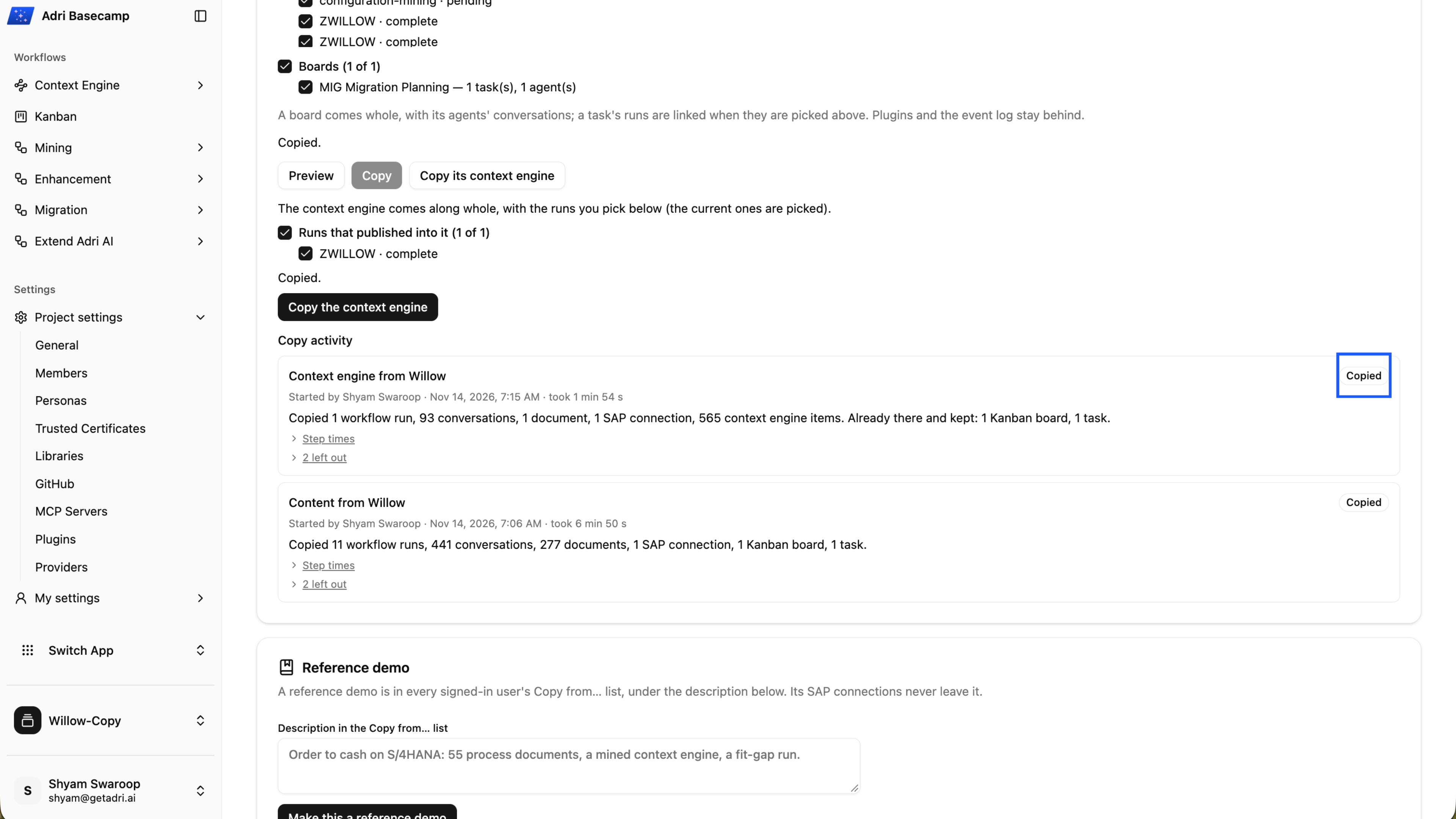
- Confirm that the Context Engine copy reports Copied.
- Open Context Engine and confirm that the copied processes are available.
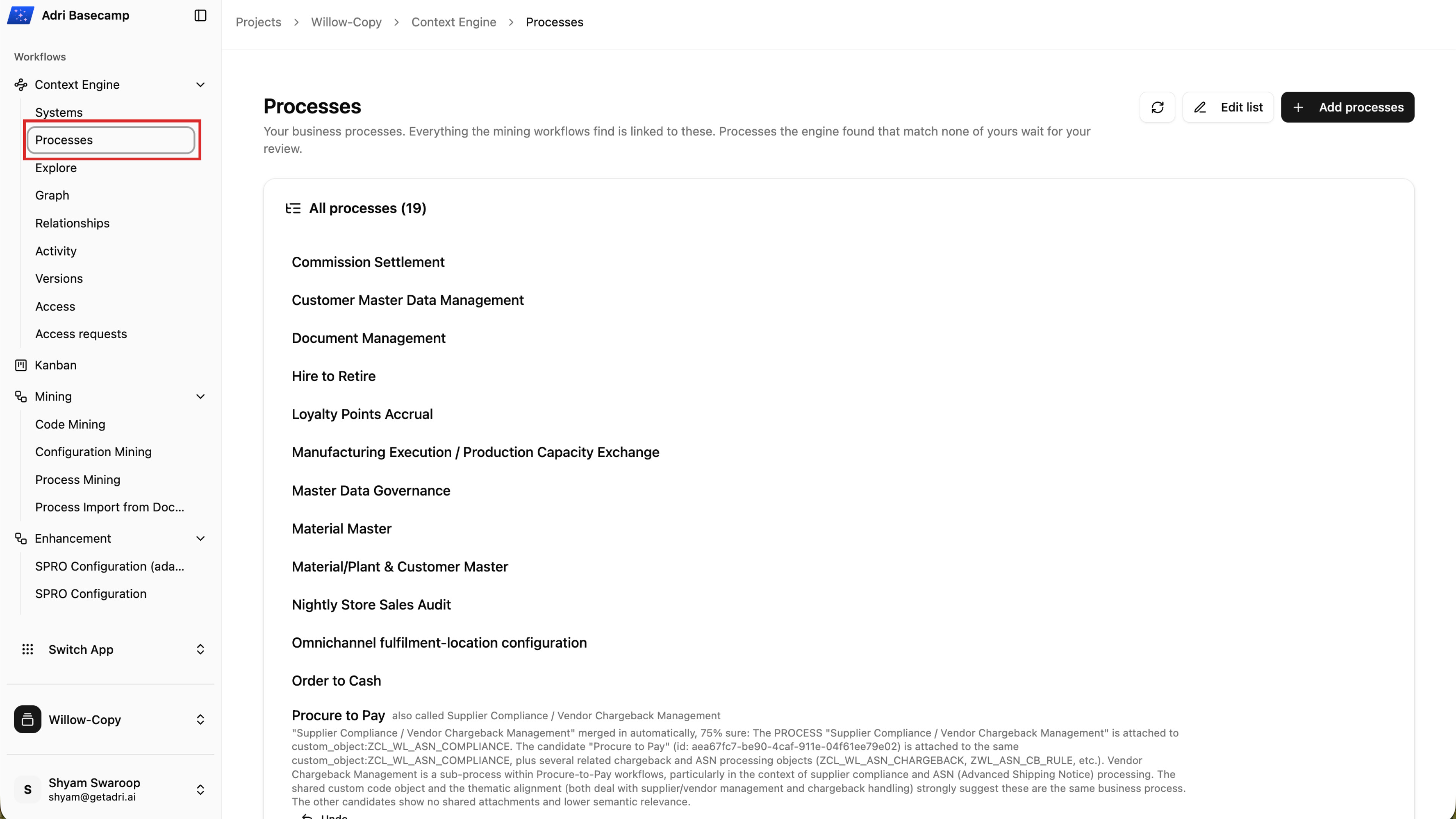
Done when: The content and Context Engine copy activities both report Copied, and the copied processes appear in your demo project.
Step 3: Explore the Context Engine in multiple ways
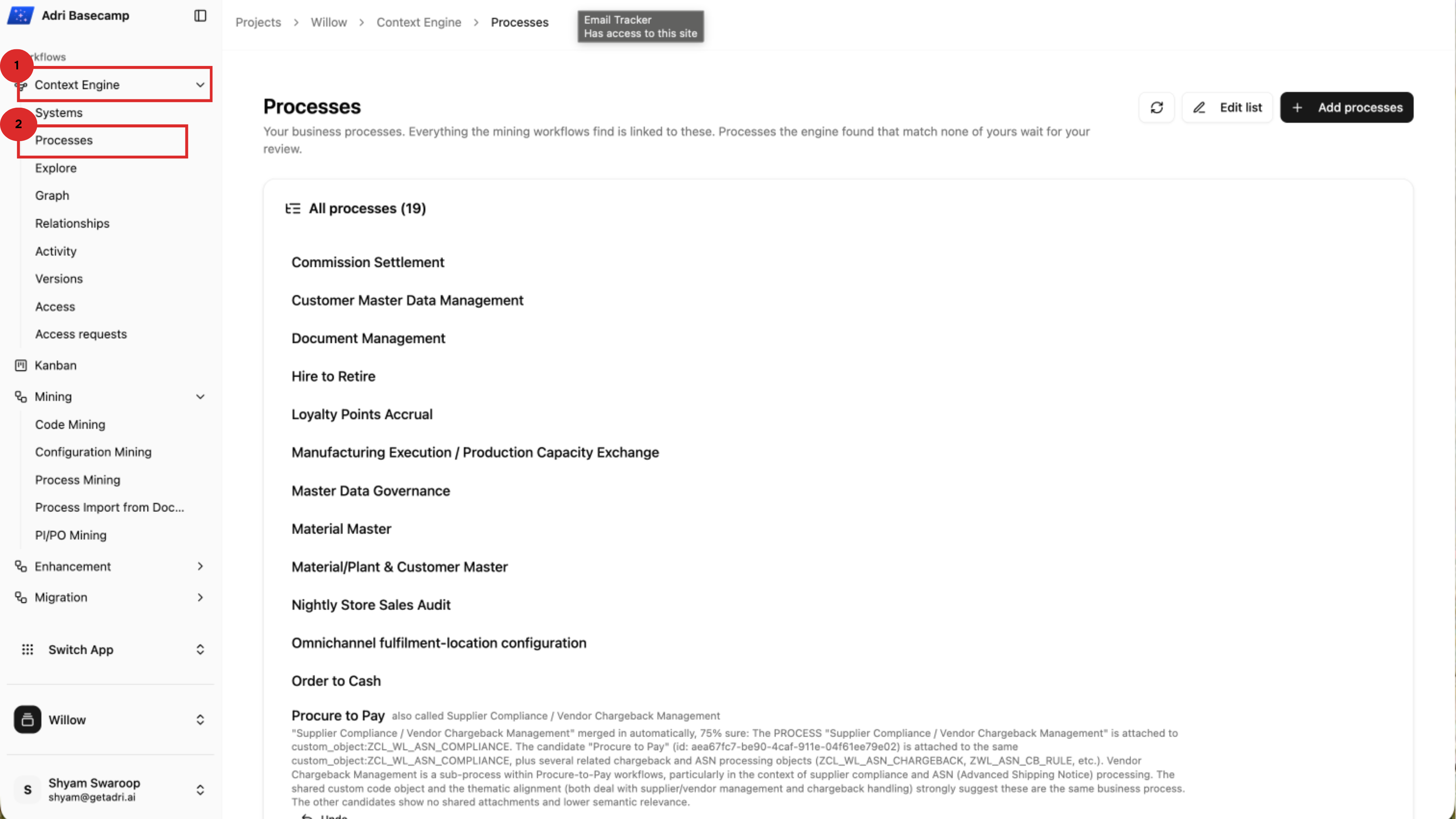
Open your demo project and expand Context Engine in the left navigation. You can explore its contents from a business-process view, as a relationship graph, or with targeted search.
See processes in your systems at a glance
Select Processes to browse the business processes discovered or copied into the project. Open a process to inspect the SAP objects and evidence connected to it.
Visualize using a graph
Select Graph to see processes and their relationships as a connected map. Search for an item, select a node for details, and expand it to bring linked items into view.
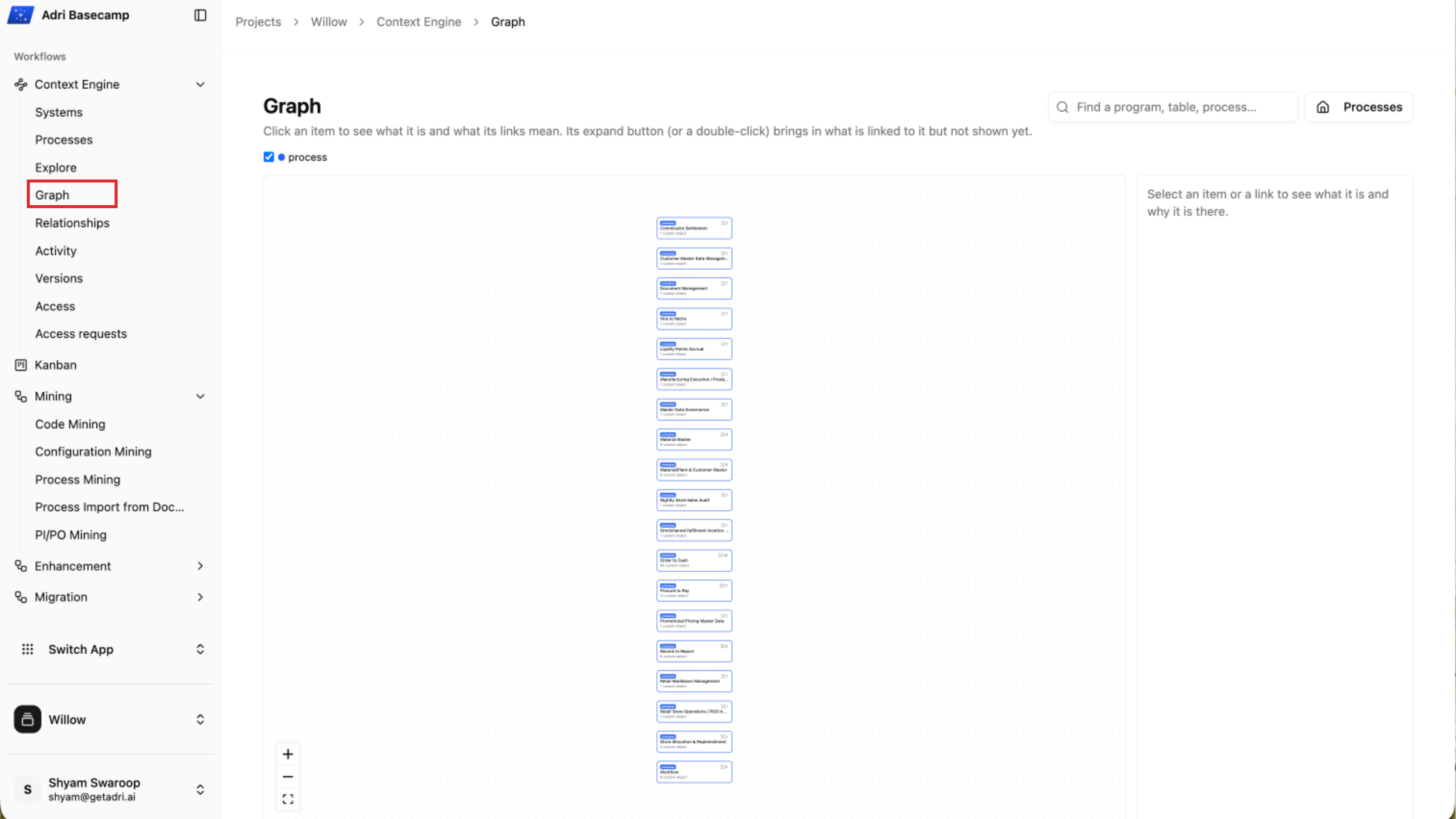
Watch this walkthrough to learn how to use the different features of the Context Engine graph.
Explore using advanced search features
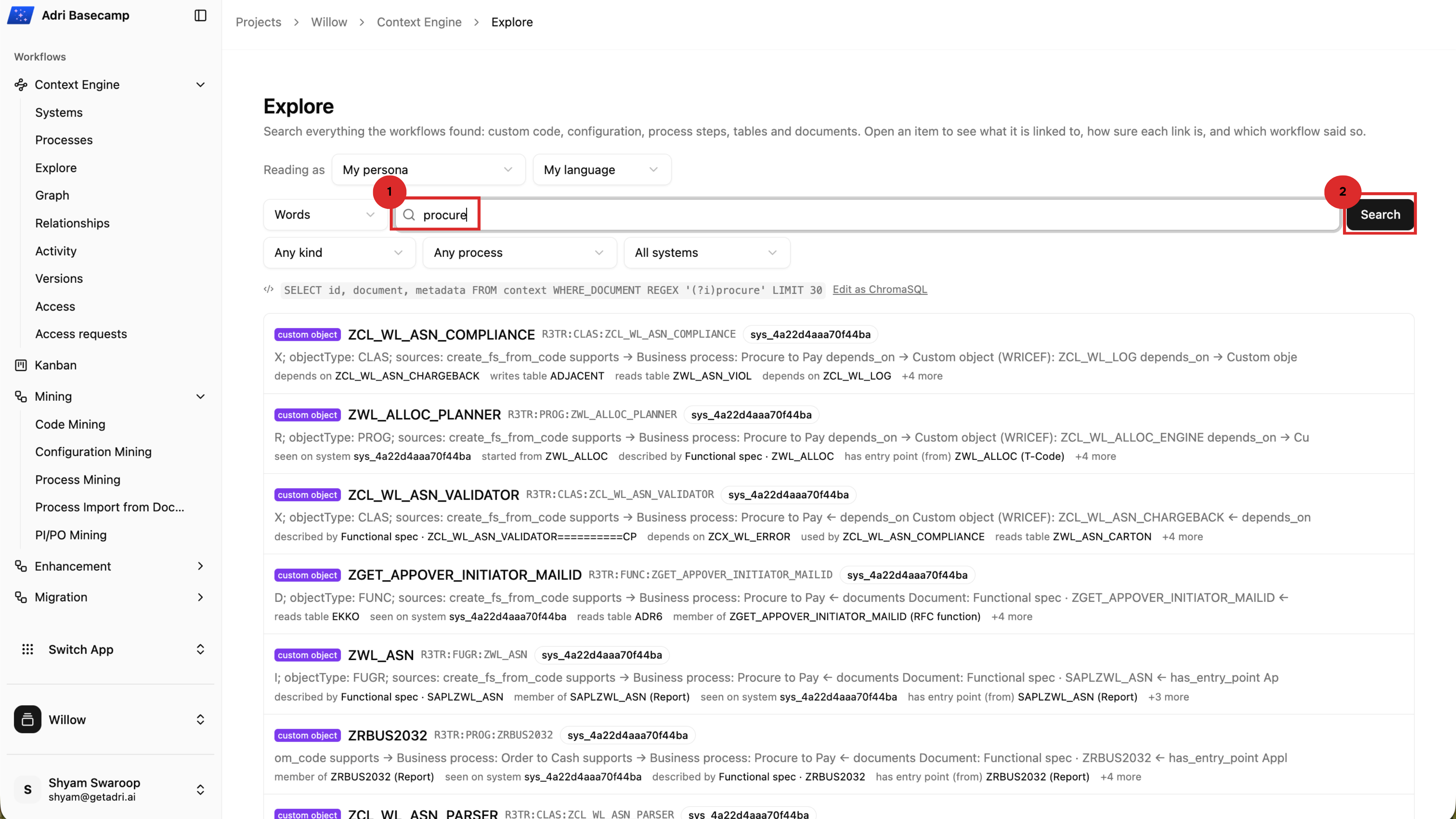
Select Explore to search everything found by the workflows.
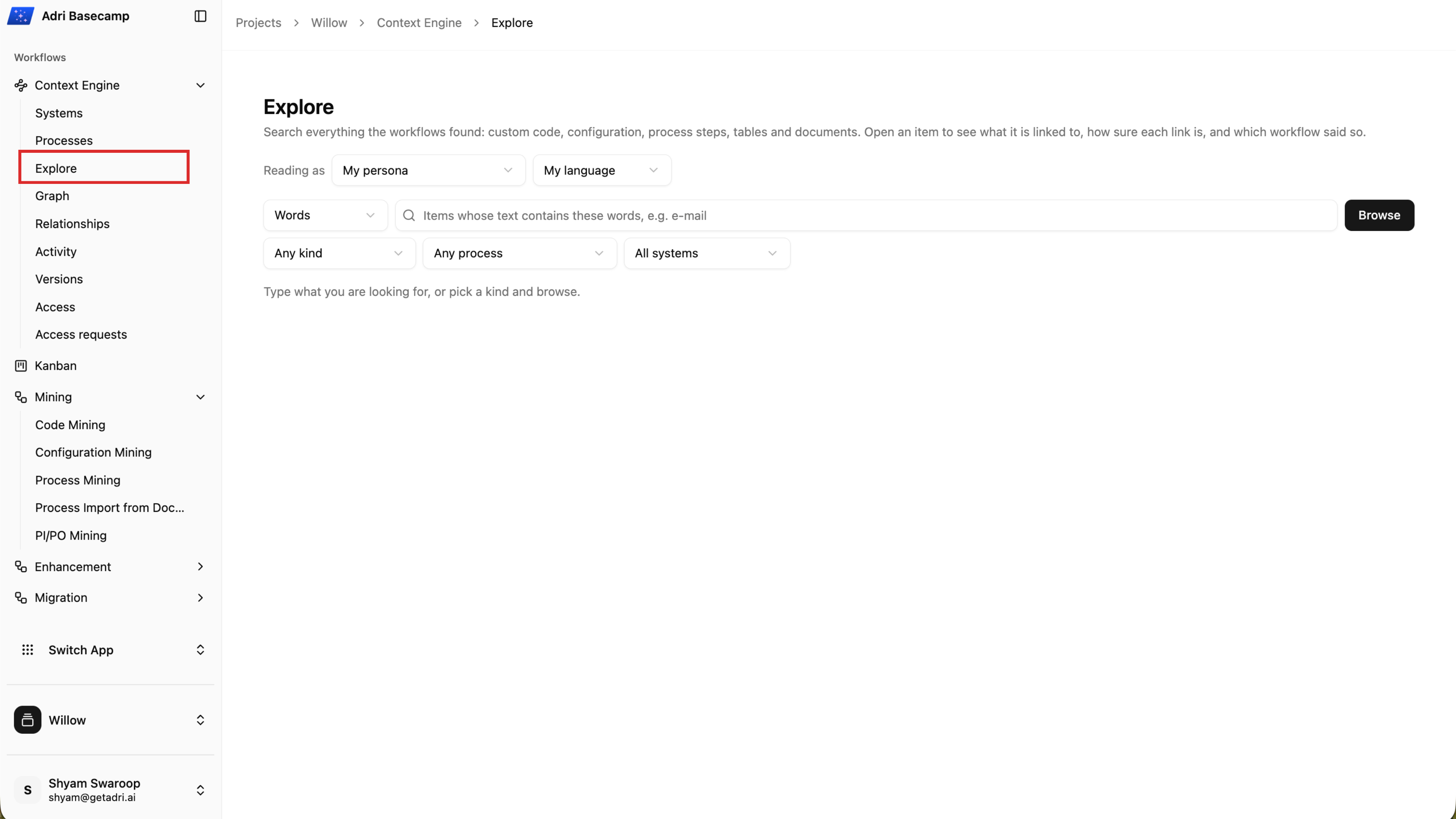
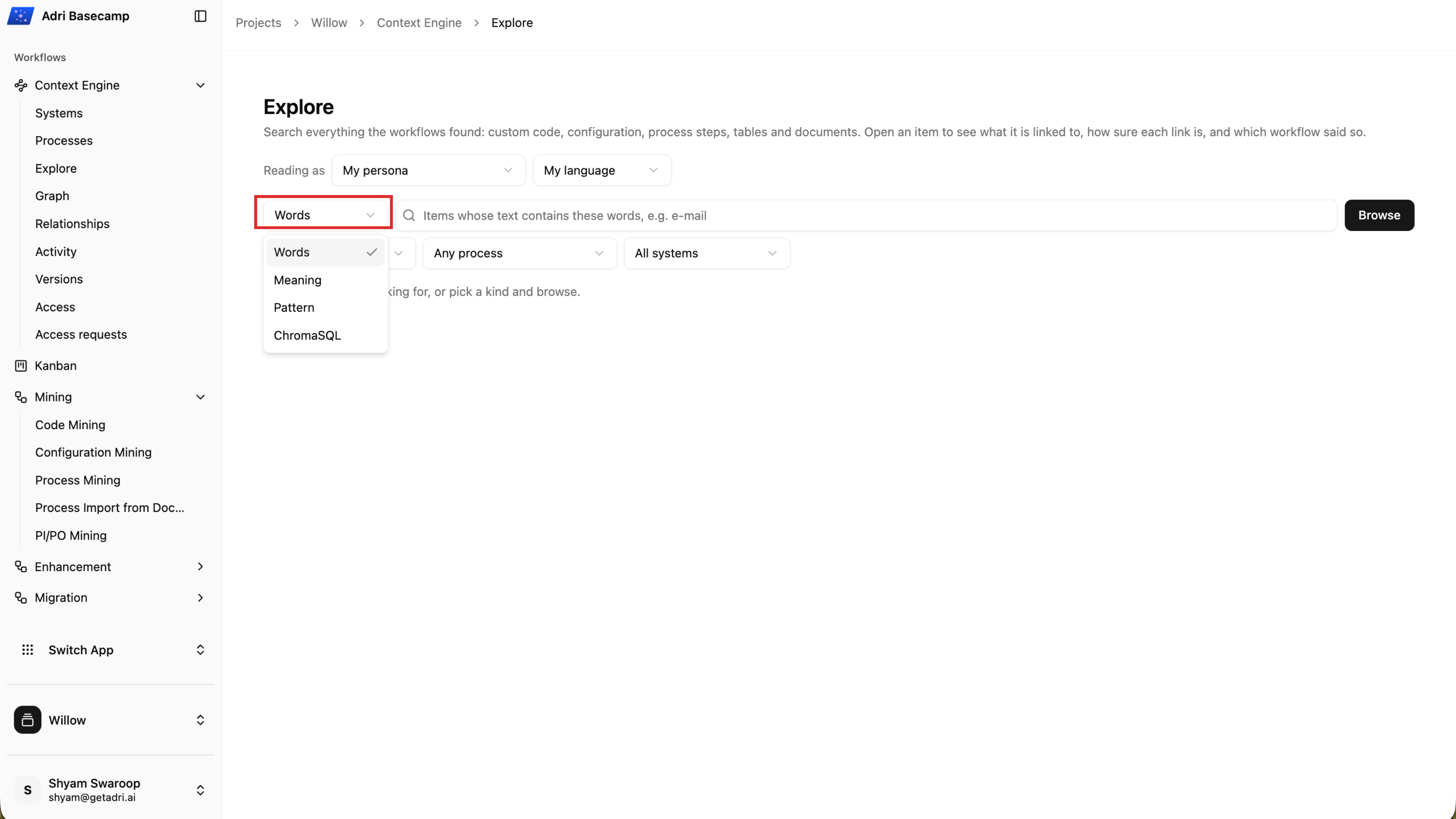
You can search using words, meaning, a pattern, or ChromaSQL.
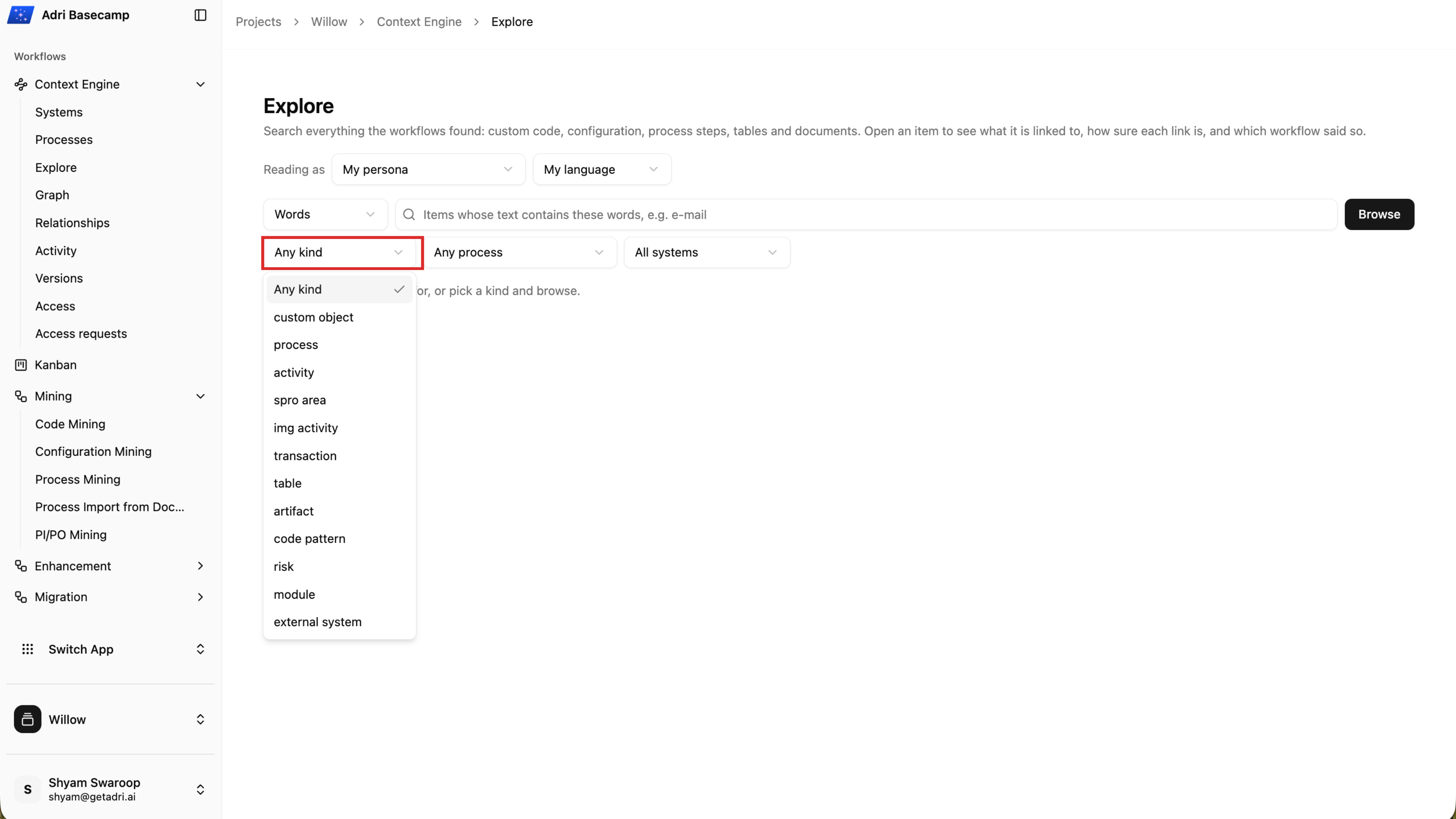
Filter the results by item kind, business process, or source system.
Enter a term and select Search. The results show matching items together with their types, identifiers, systems, and important relationships.
Done when: You can browse the process list, open the graph, and find Context Engine items with search and filters.