Explore BTP architecture capabilities
Adri AI's Architect Clean Core pipeline designs a clean-core target architecture for a custom-code estate. It supports two target strategies: a side-by-side architecture that uses SAP BTP where appropriate, or an architecture that keeps the custom estate on S/4HANA using ABAP Cloud without requiring BTP.
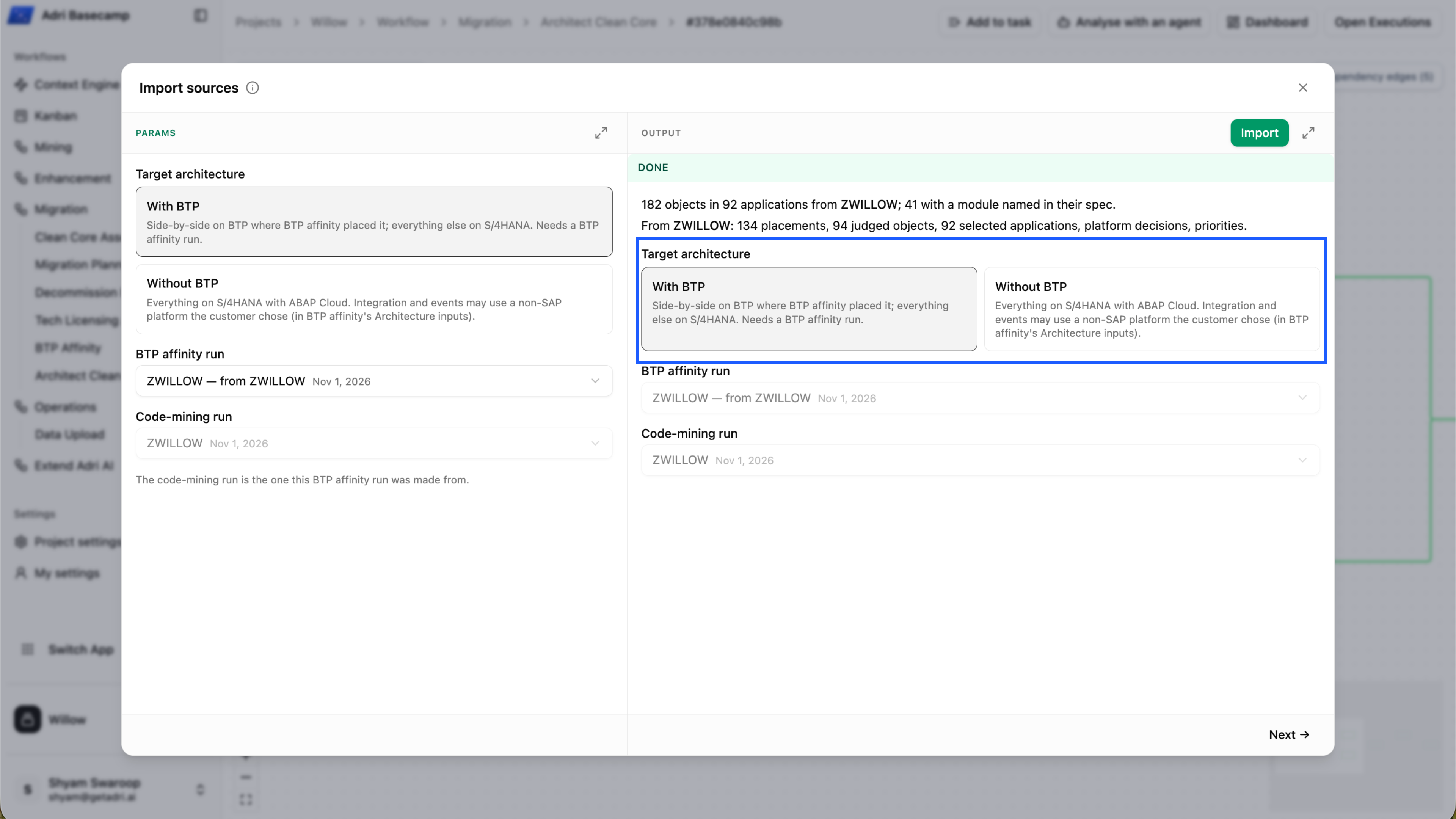
The pipeline turns individual custom-code objects and their relationships into a reviewable application architecture. It shows how existing applications split, combine, or become new services; where each target application runs; and which dependencies remain between S/4HANA and side-by-side services.
Explore BTP architecture in Adri AI
The Willow reference demo contains a completed Architect Clean Core run for an S/4HANA target architecture with BTP. Copy the reference project, then use the prepared result to explore its application mappings and estate diagram.
If you have already signed up for Adri AI and copied the Willow reference project, skip directly to Step 3.
Step 1: Sign up for Adri AI
Step 1: Sign Up on Adri
- Open getadri.ai/signup.
- Click Sign up (if needed) and complete registration.
- If you already have an account, use getadri.ai/login.
Done when: You are prompted to verify your email.

Step 2: Verify Email and Complete Profile
- Open the verification email and click the verification link.
- Fill in your basic details.
- Submit the form.
Done when: You land on the Projects page.
Step 2: Create a demo project and copy its data
- On the Projects page, select Create Project.
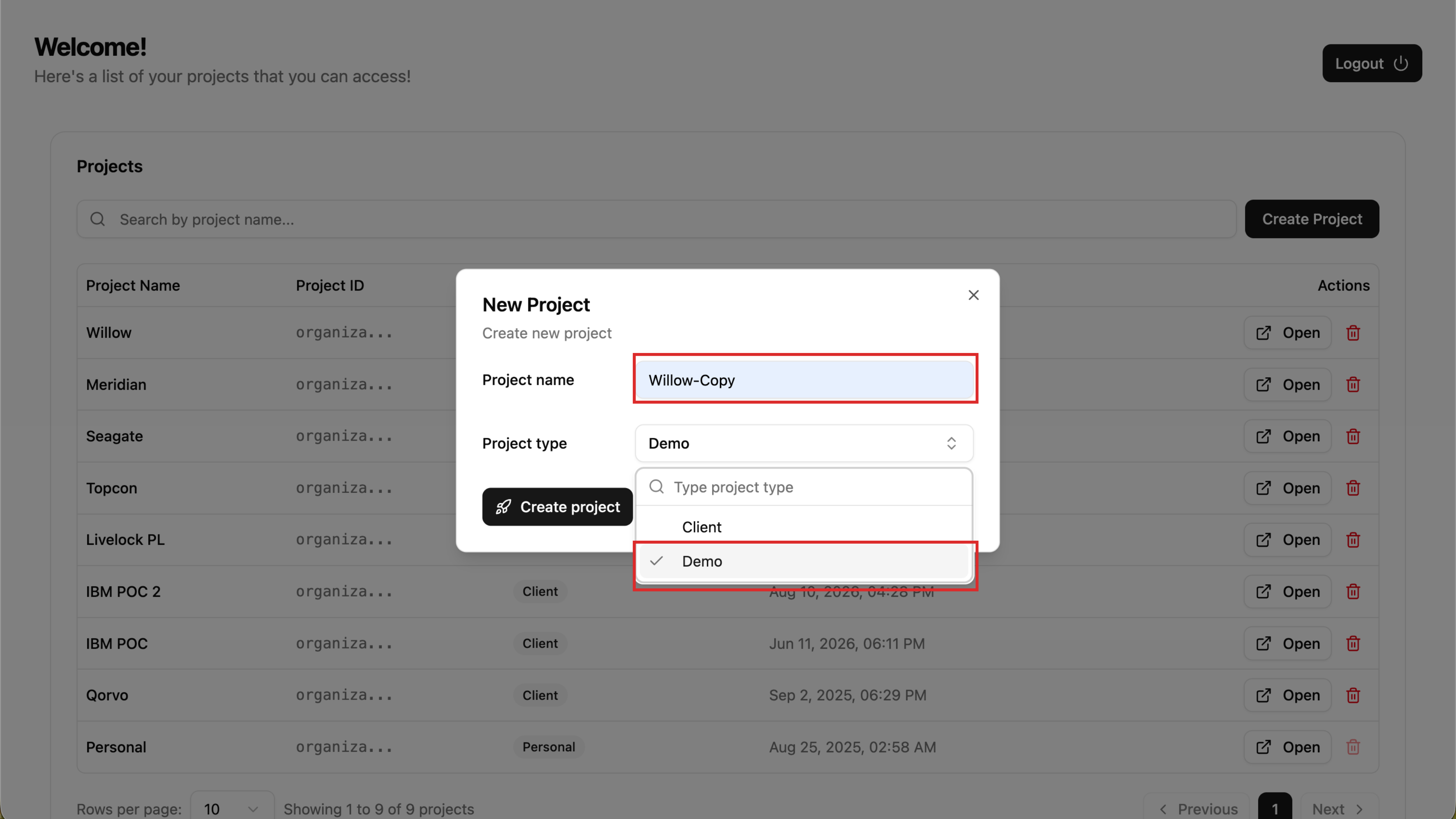
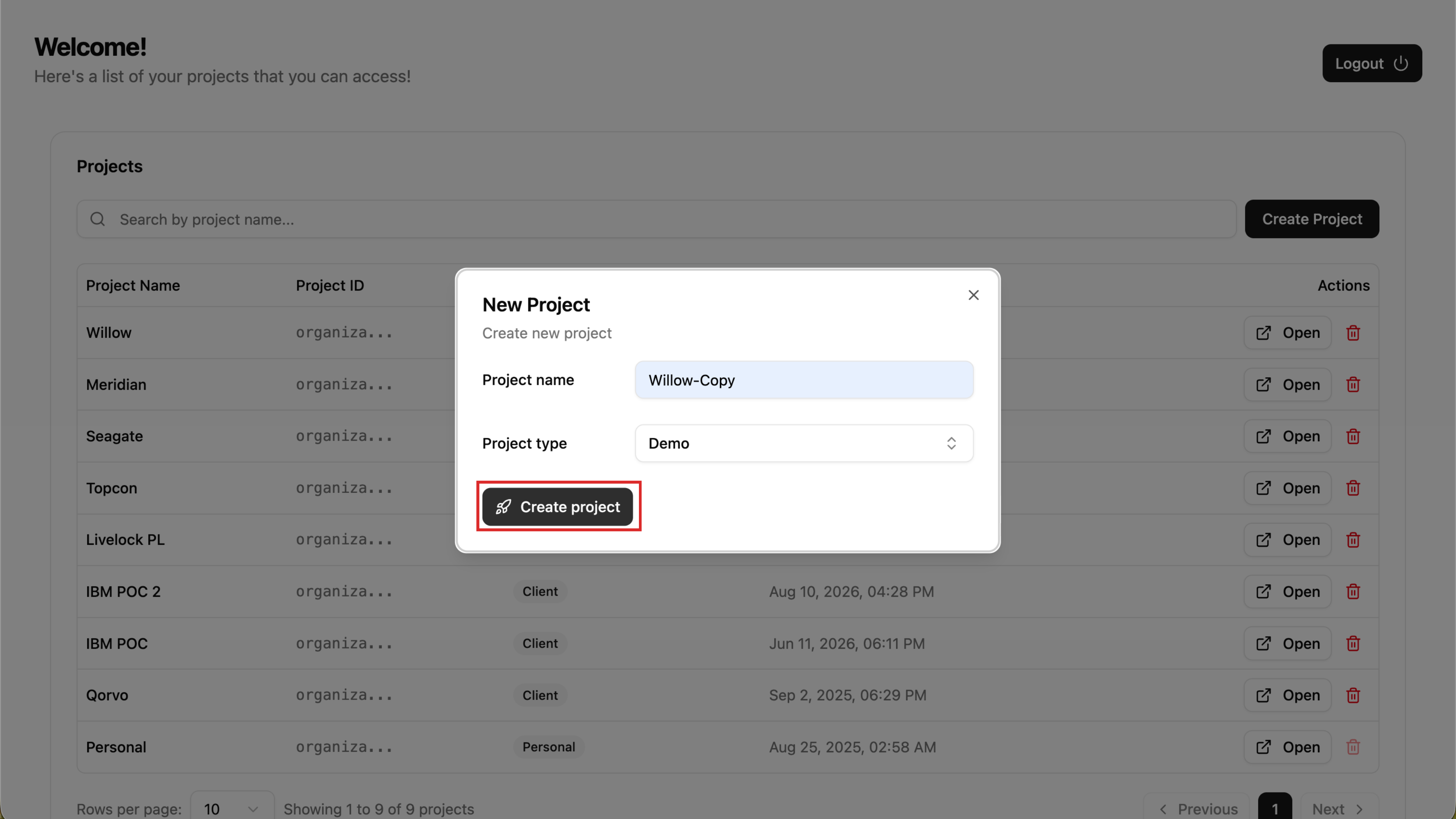
- Enter a project name, set Project type to Demo, and select Create project.
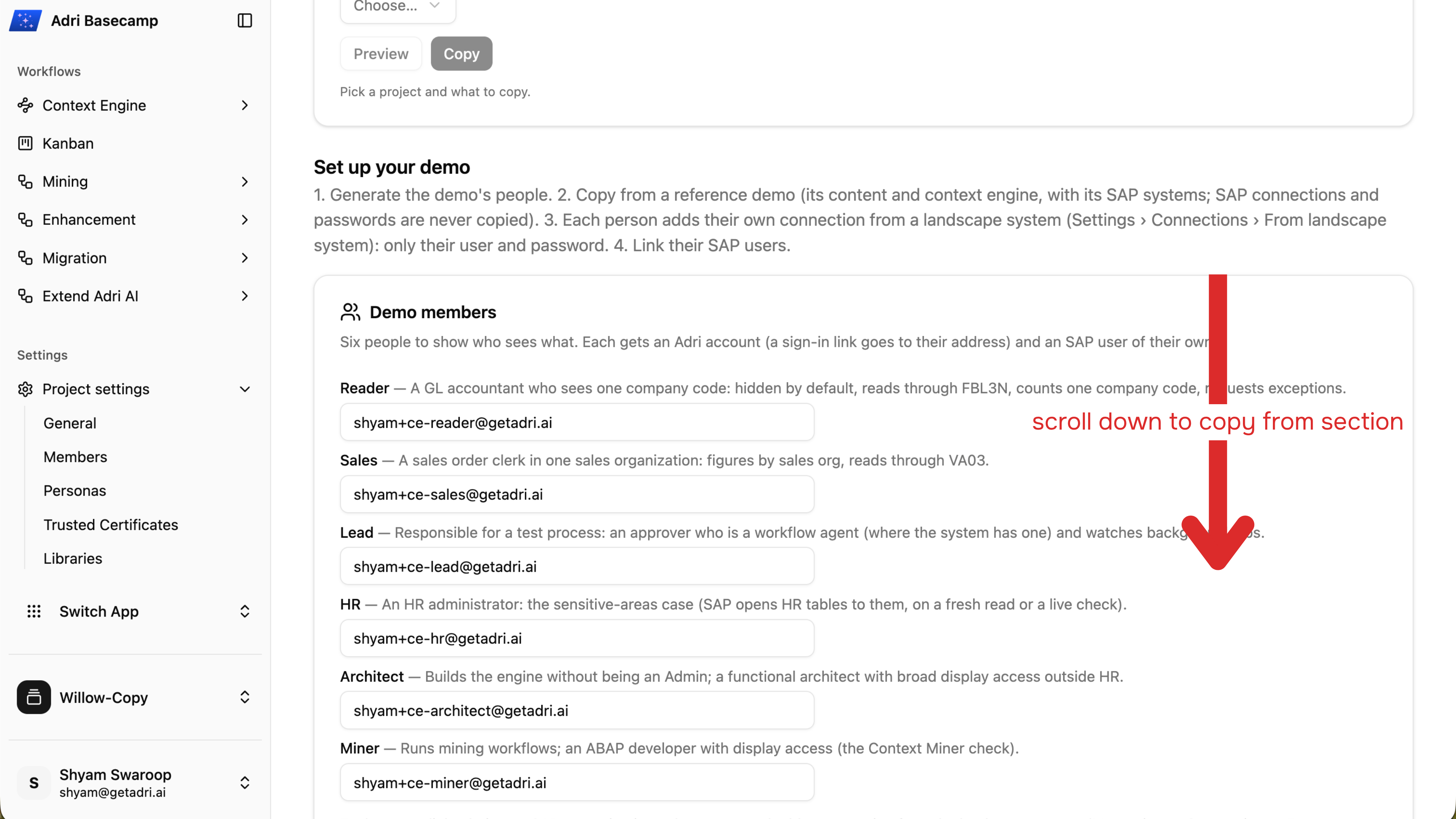
- In the new project, open Project settings > General and scroll to Copy from....
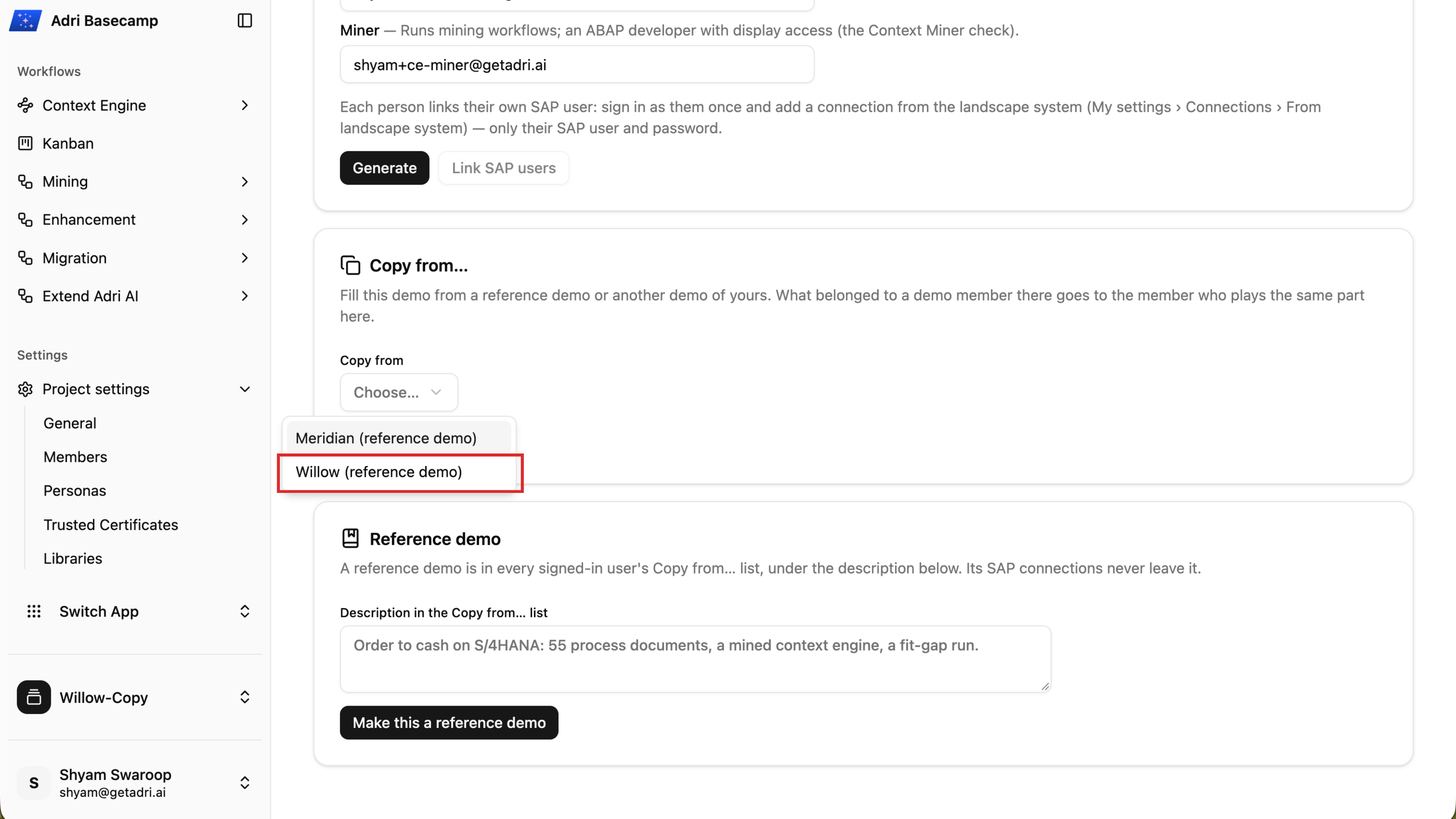
- Open Copy from and choose Willow (reference demo).
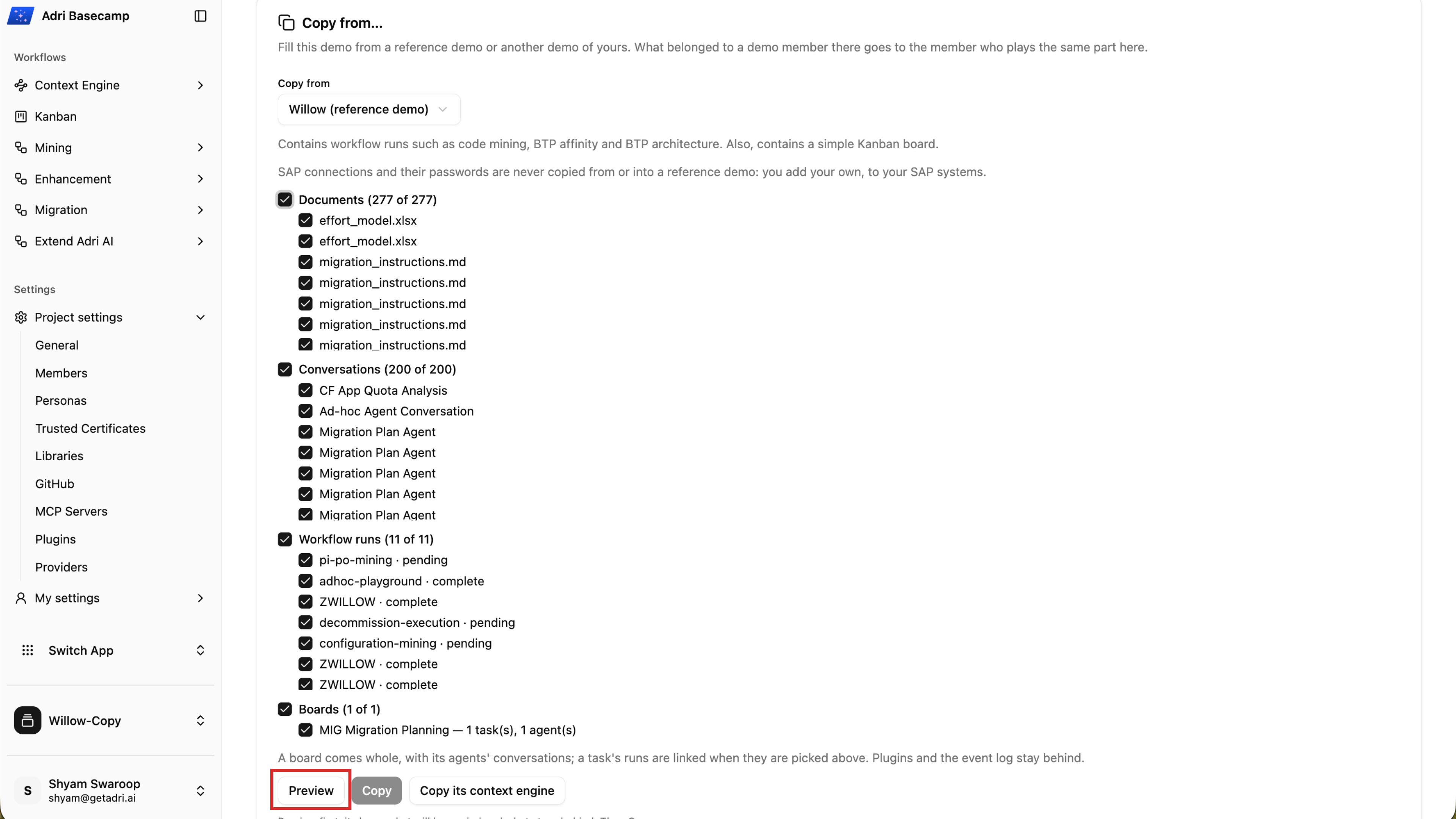
- Keep the content you want selected, then choose Preview. Review the documents, conversations, workflow runs, boards, and anything that will be left out.
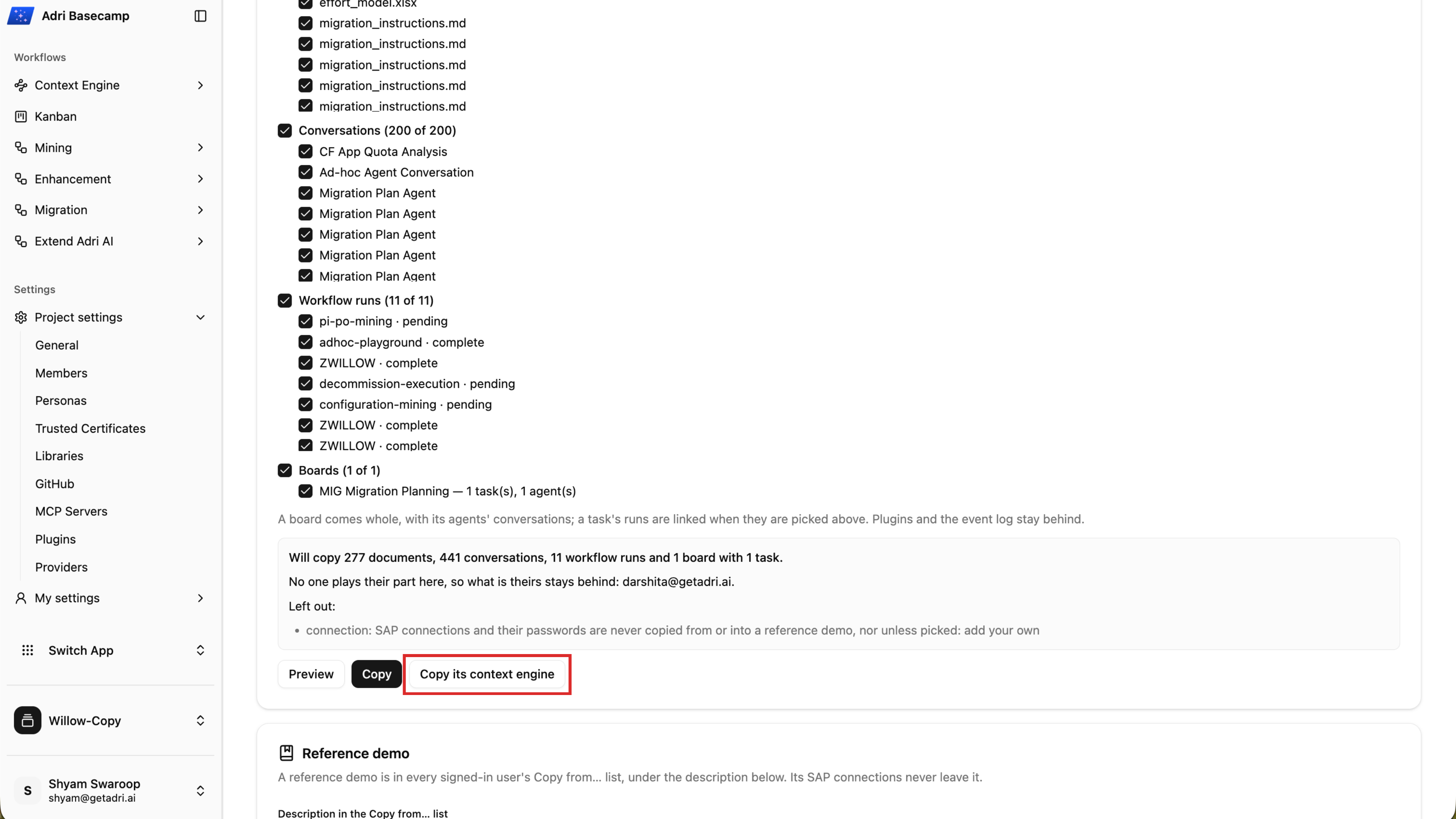
- Choose Copy and wait until the content copy reports Copied.
- Choose Copy its context engine. Keep the completed run that published the reference Context Engine selected, then choose Copy the context engine.
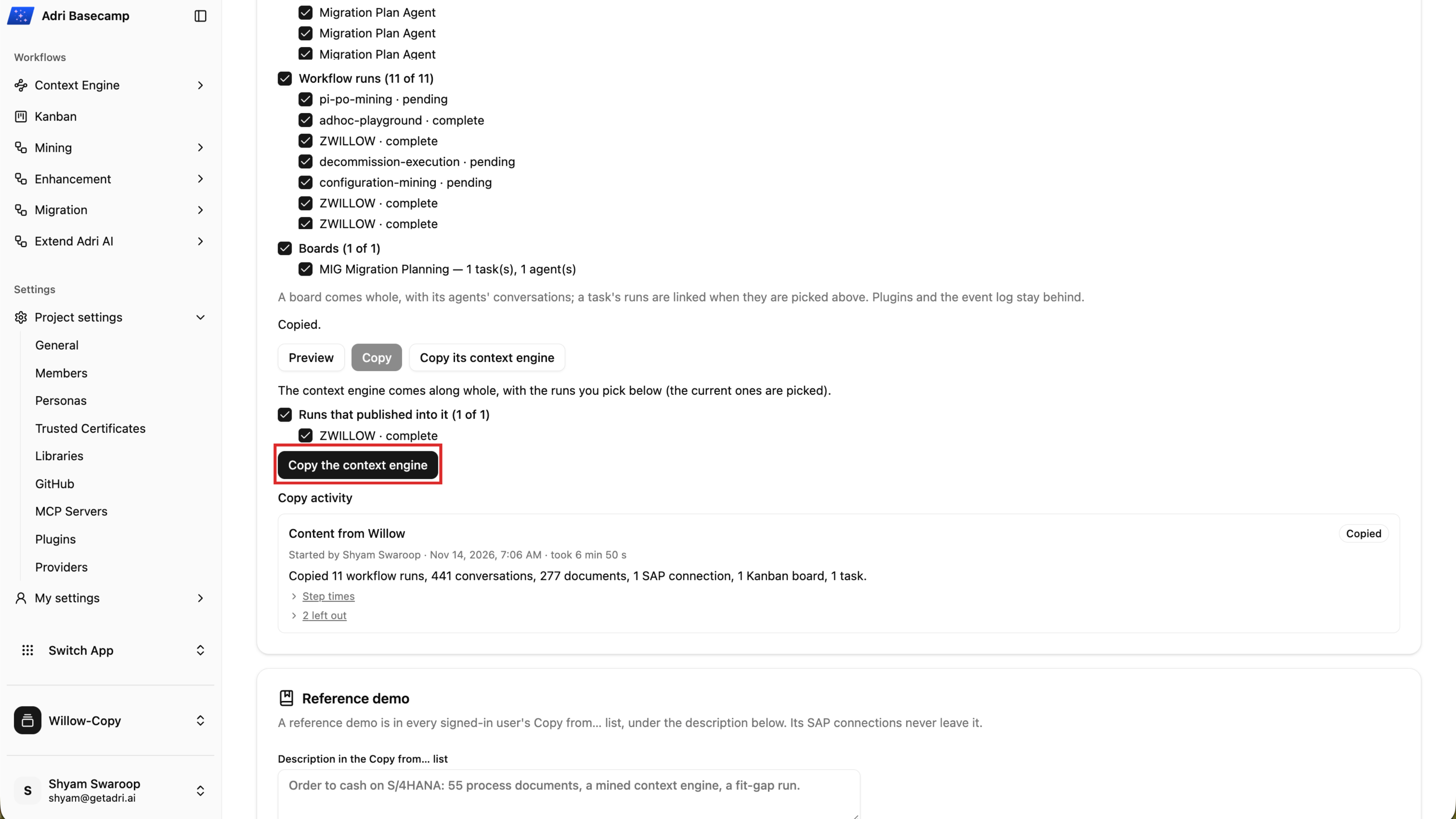
- Wait while Adri AI copies the Context Engine and its linked content.
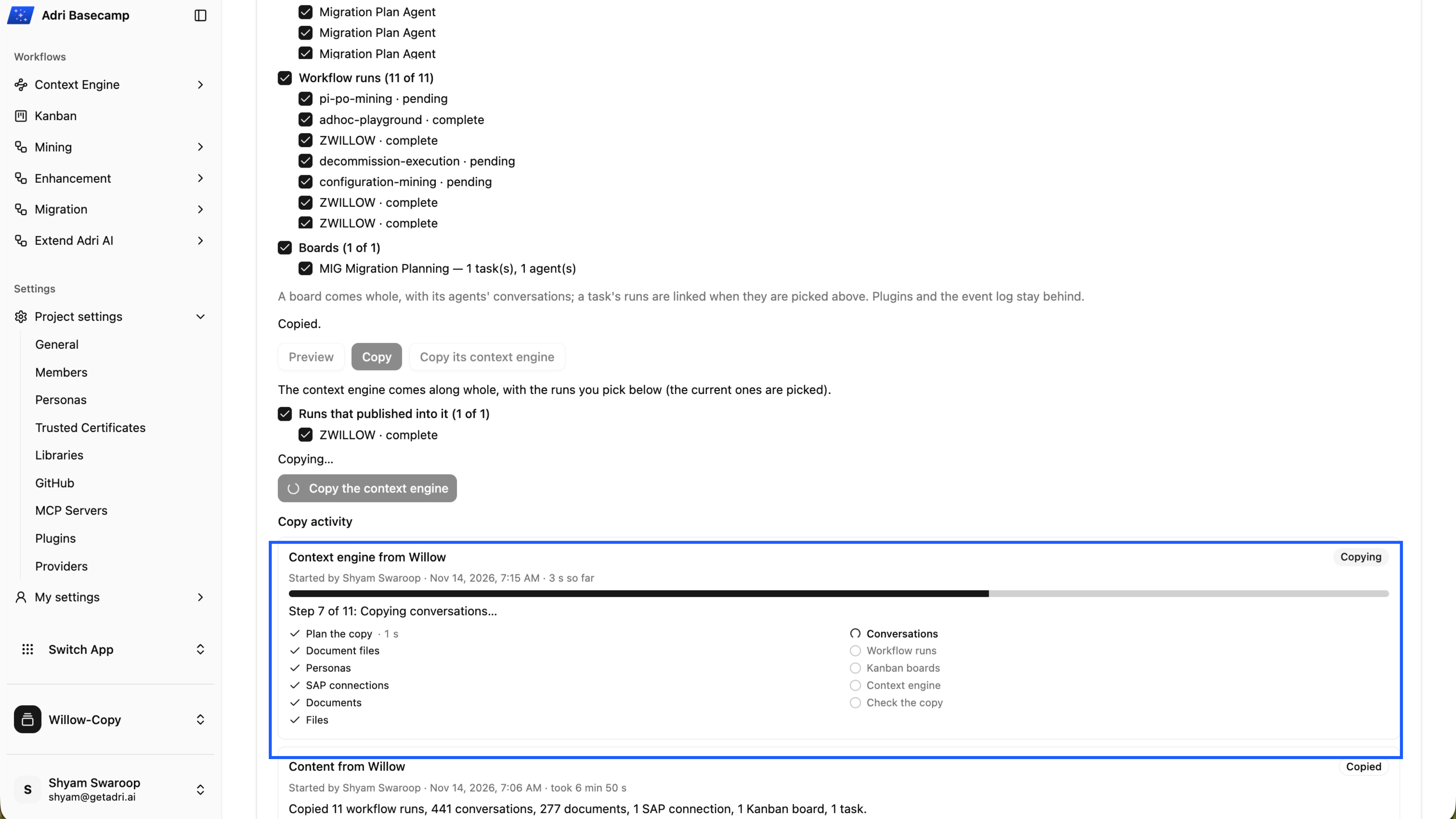
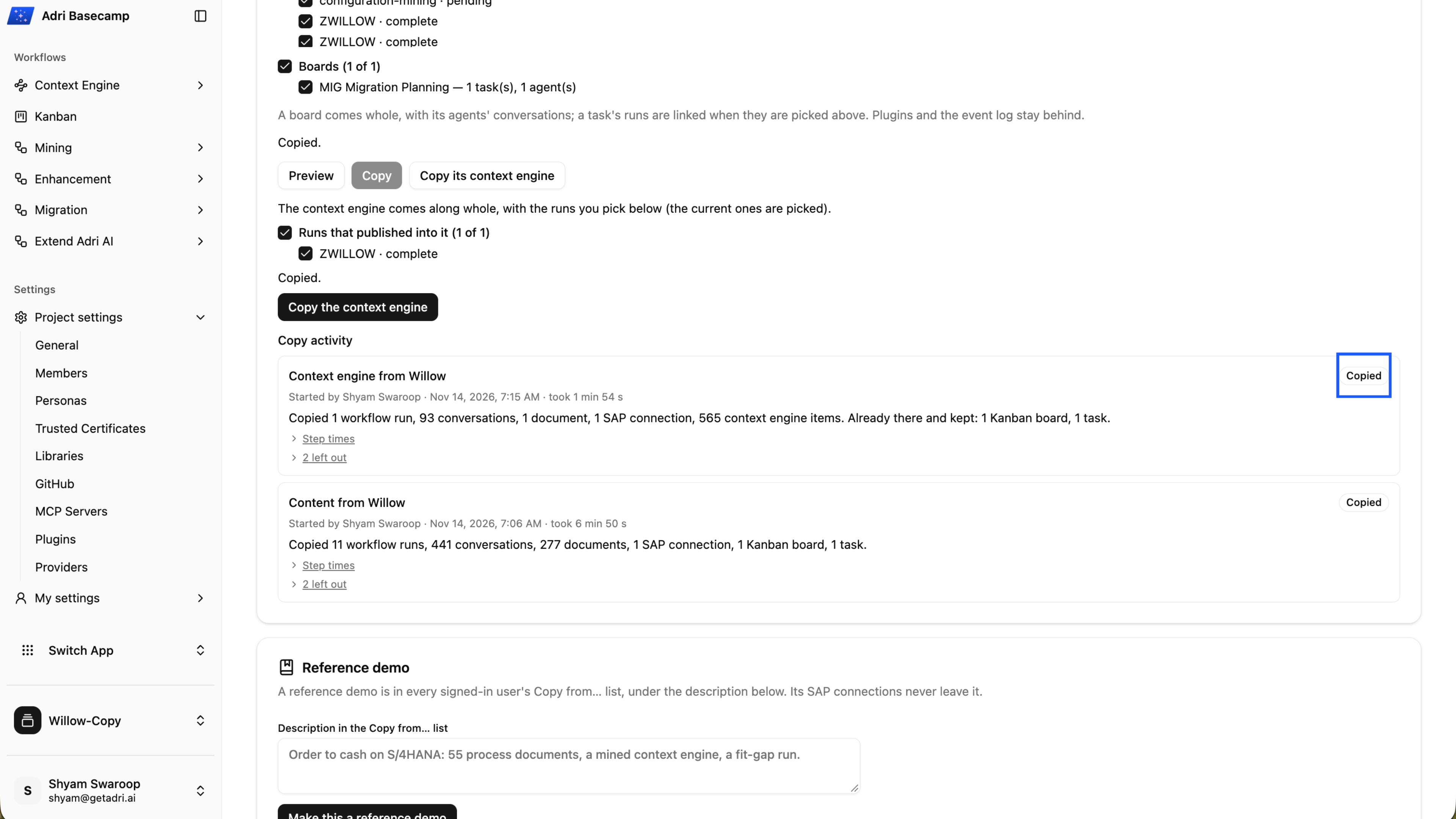
- Confirm that the Context Engine copy reports Copied.
- Open Context Engine and confirm that the copied processes are available.
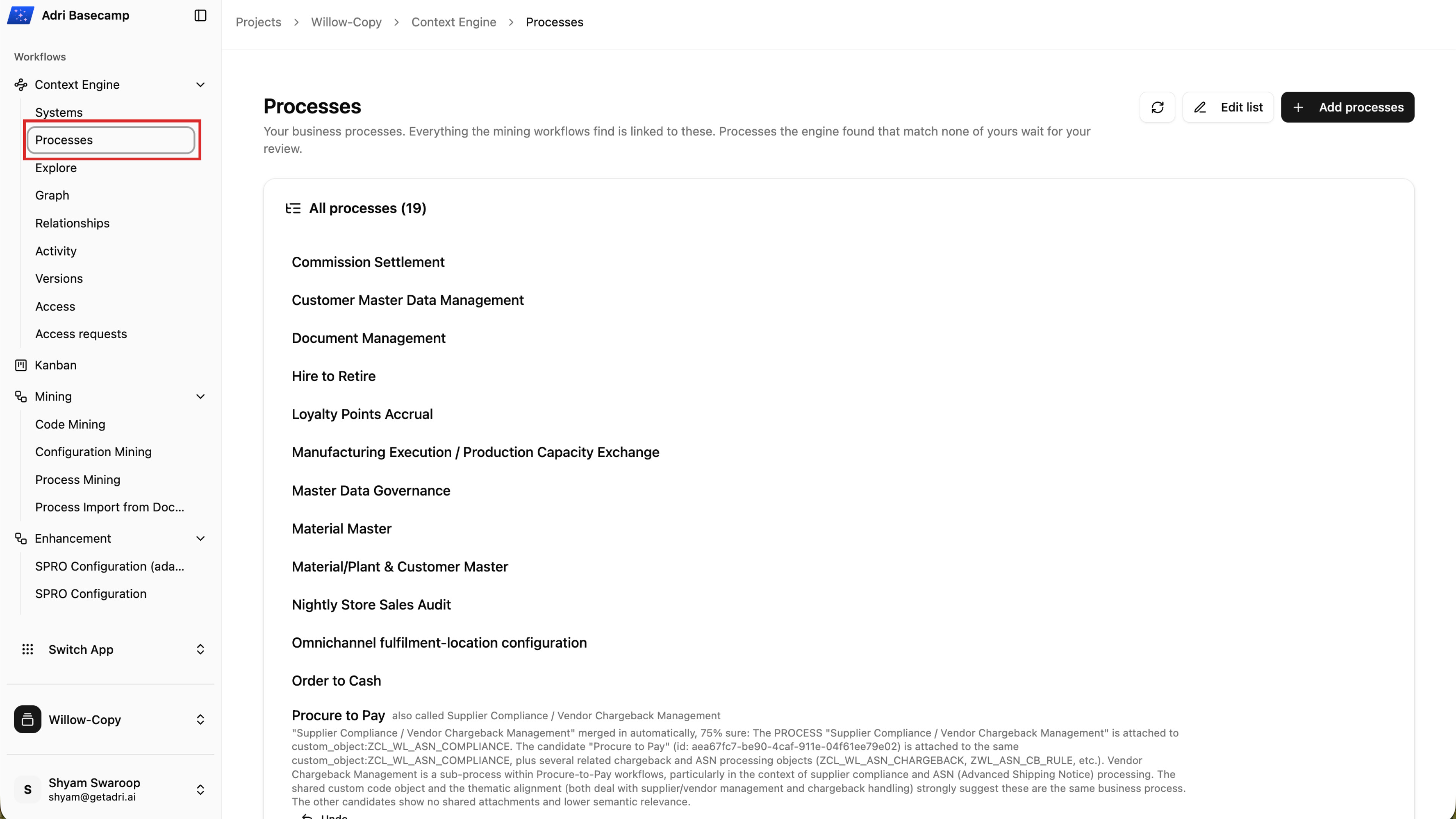
Done when: The content and Context Engine copy activities both report Copied, and the copied processes appear in your demo project.
Step 3: Explore the Architect Clean Core pipeline with BTP
- In your demo project, expand Migration and select Architect Clean Core.
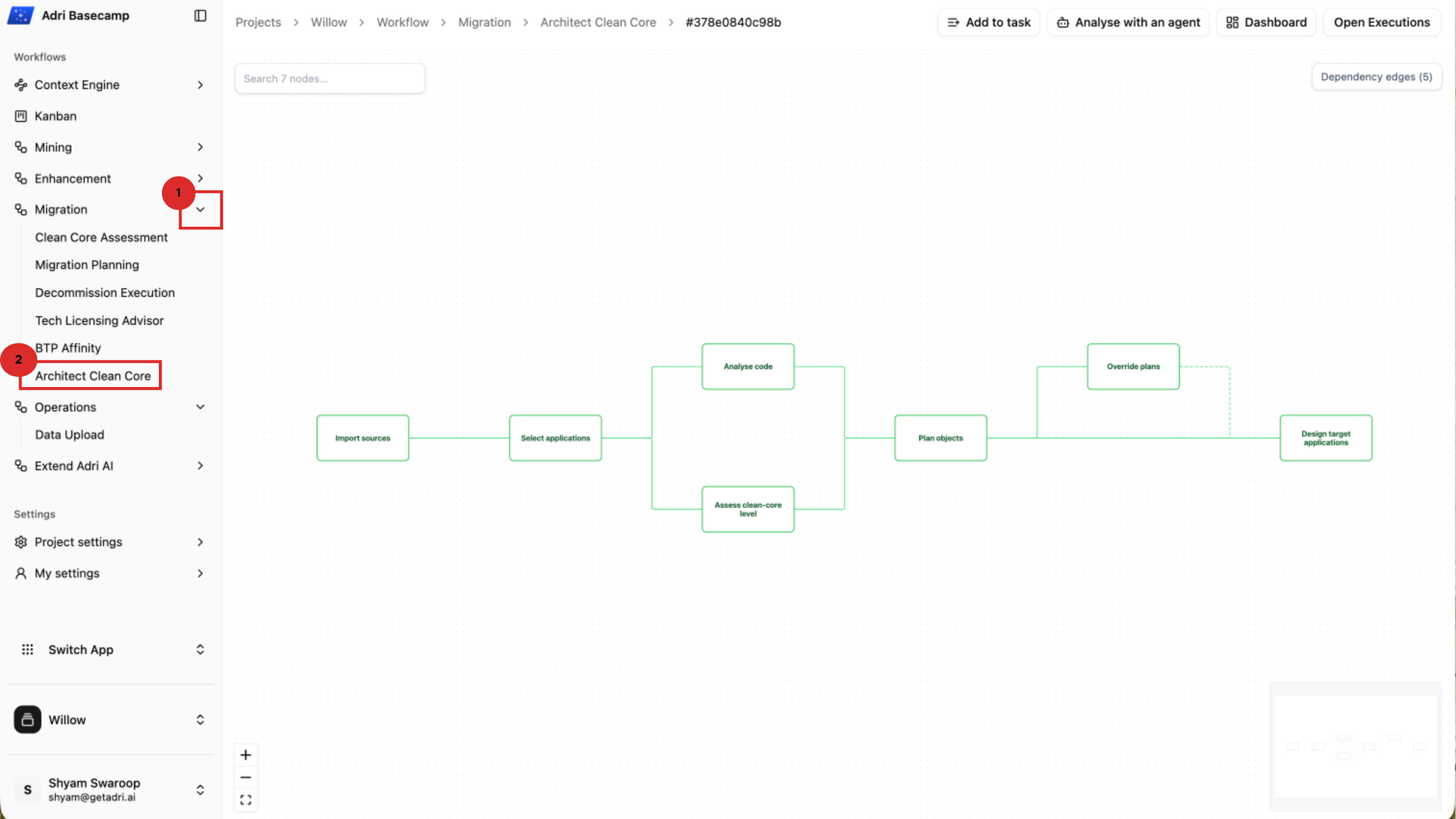
- Review the pipeline from Import sources through Design target applications. To inspect a node that is outside the current view, pan across the canvas or use the minimap in the lower-right corner.
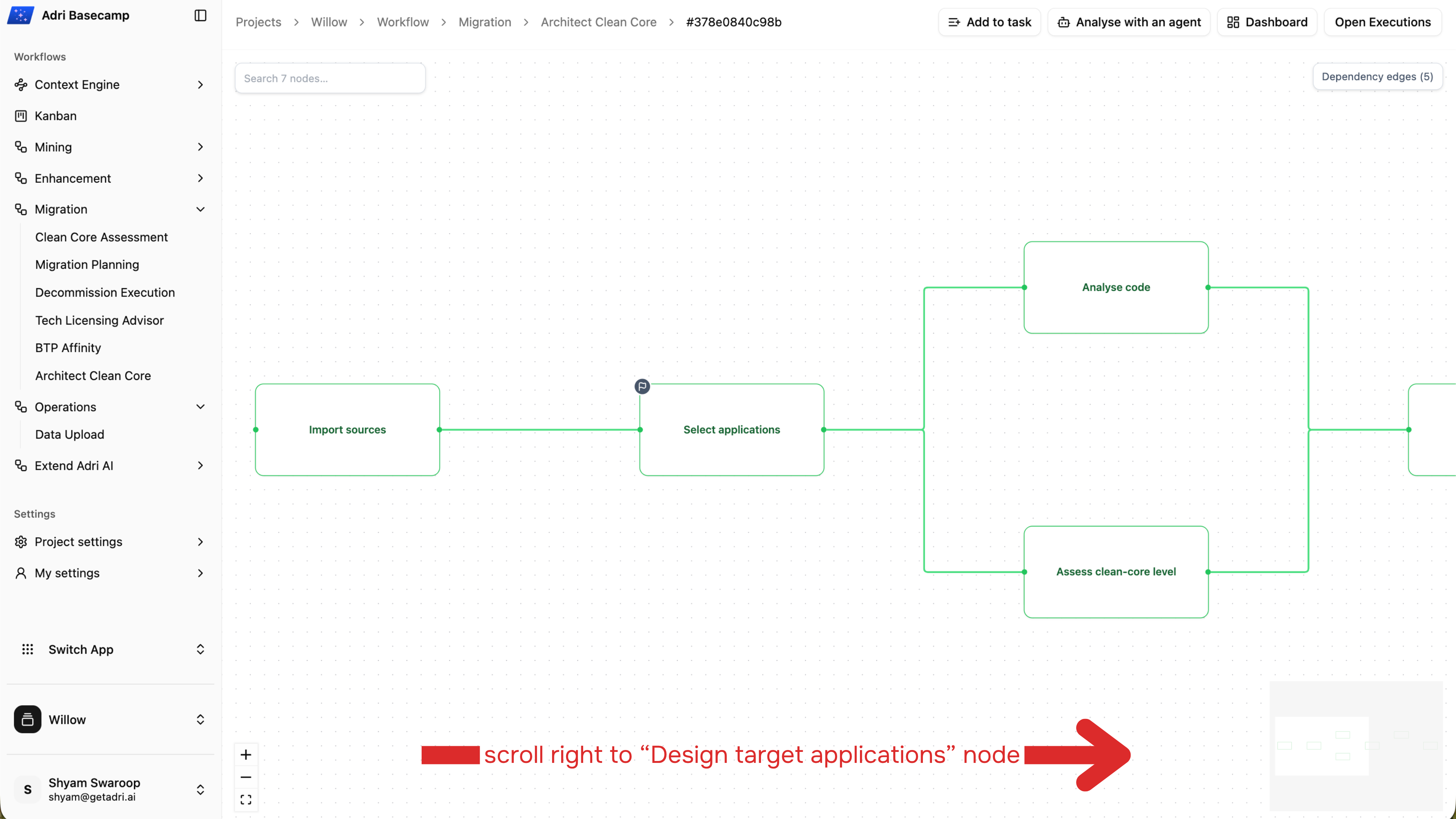
The canvas supports zooming with Ctrl + mouse wheel on Windows and Linux, or Command + mouse wheel on macOS.
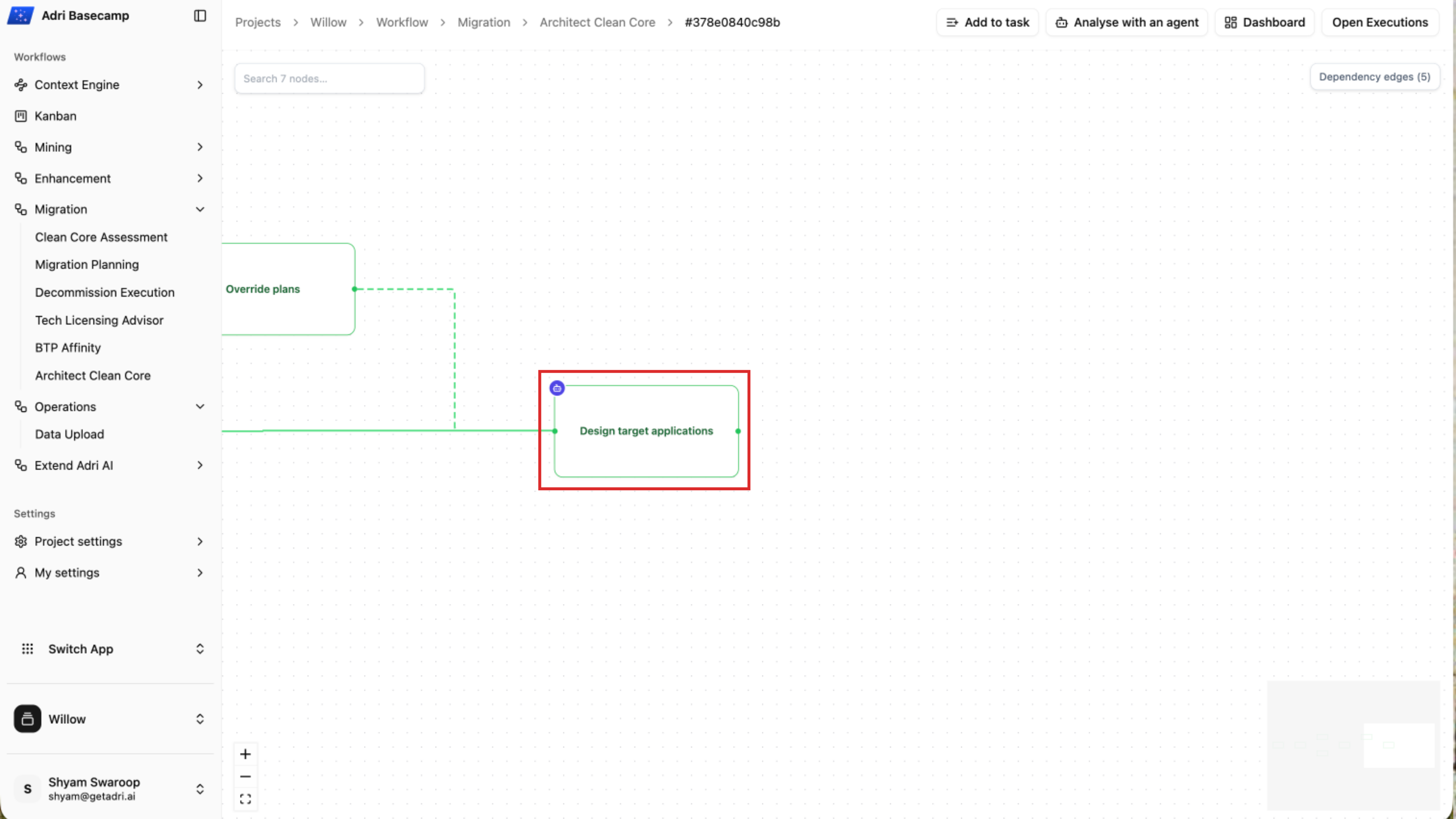
- Move to the right-hand end of the pipeline and open Design target applications.
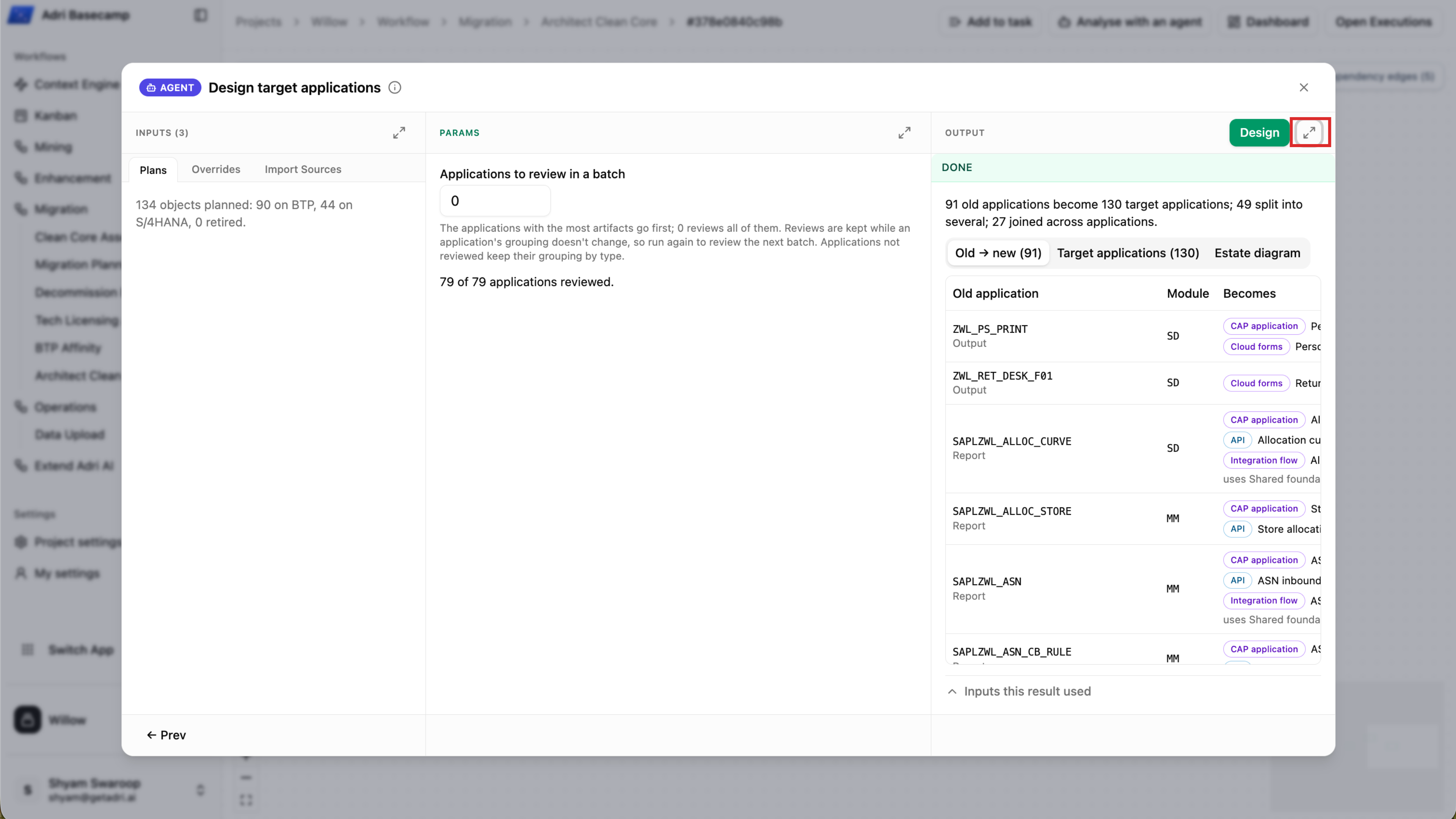
- Expand the node output to use the available space.
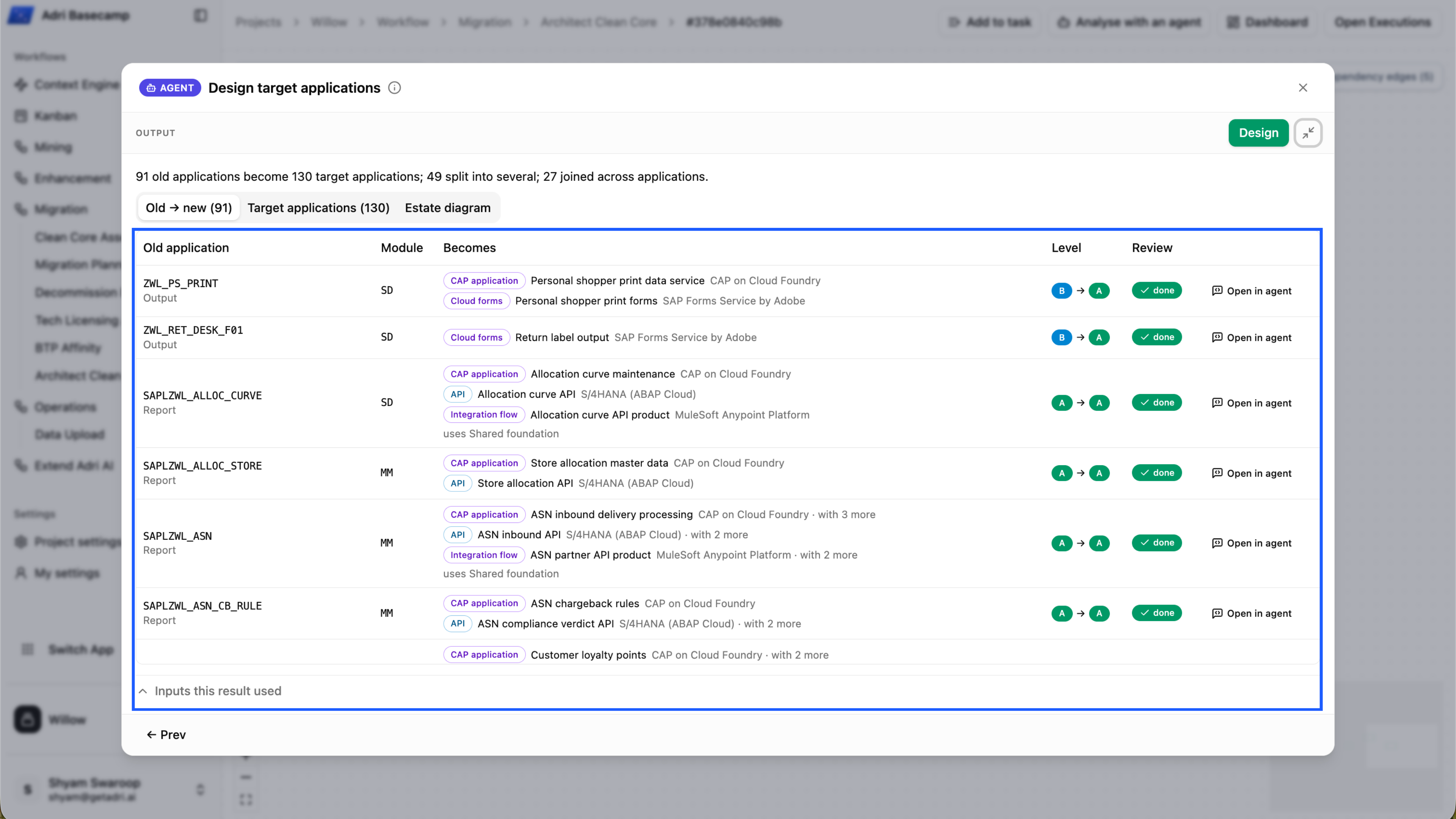
- Start with Old → new. This view shows how each current application is transformed into one or more target applications, including its module, proposed application types, target technologies, clean-core level, and review status.
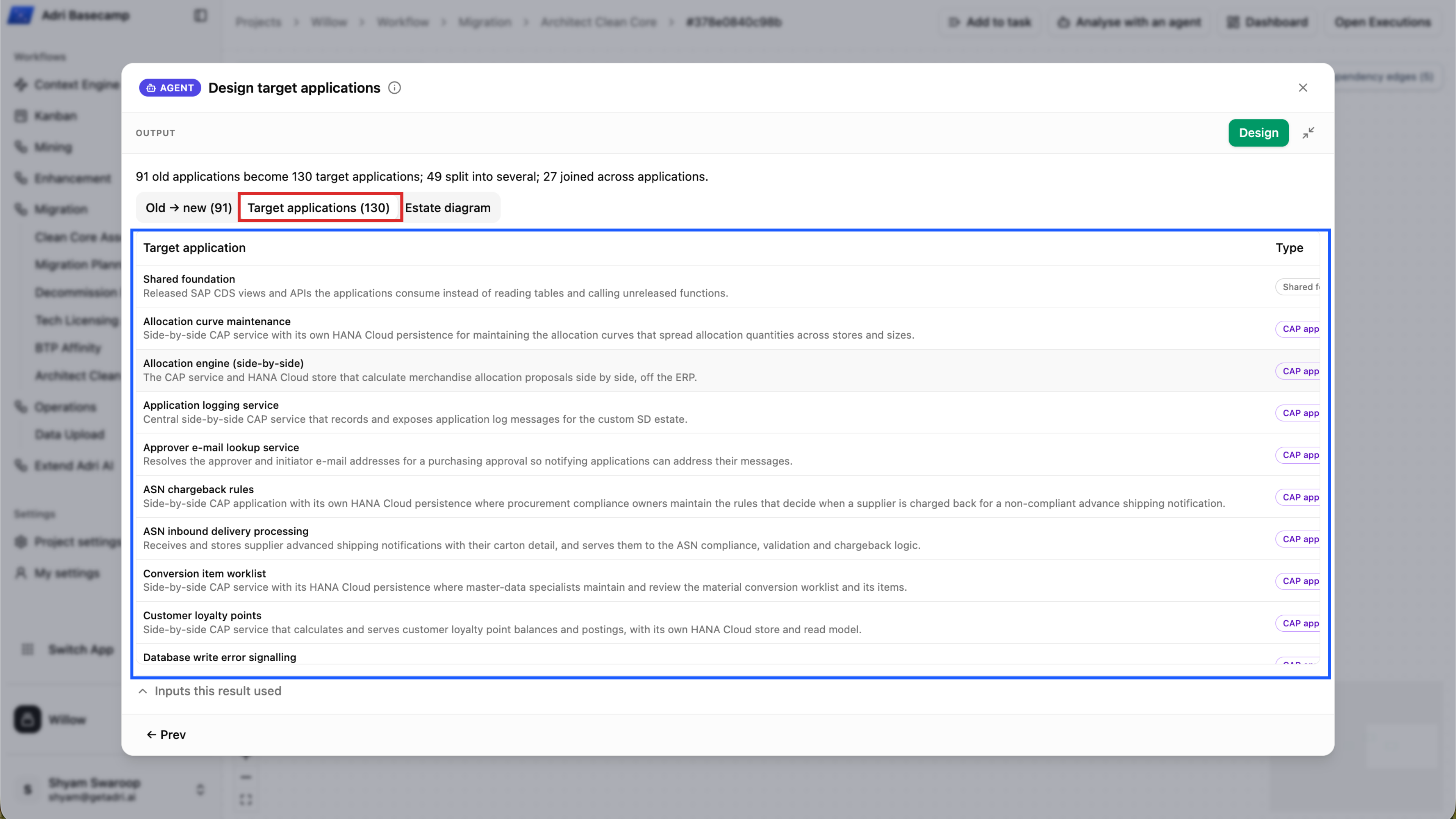
- Select Target applications to inspect the proposed target estate directly. Each row explains an application's responsibility and identifies its target type.
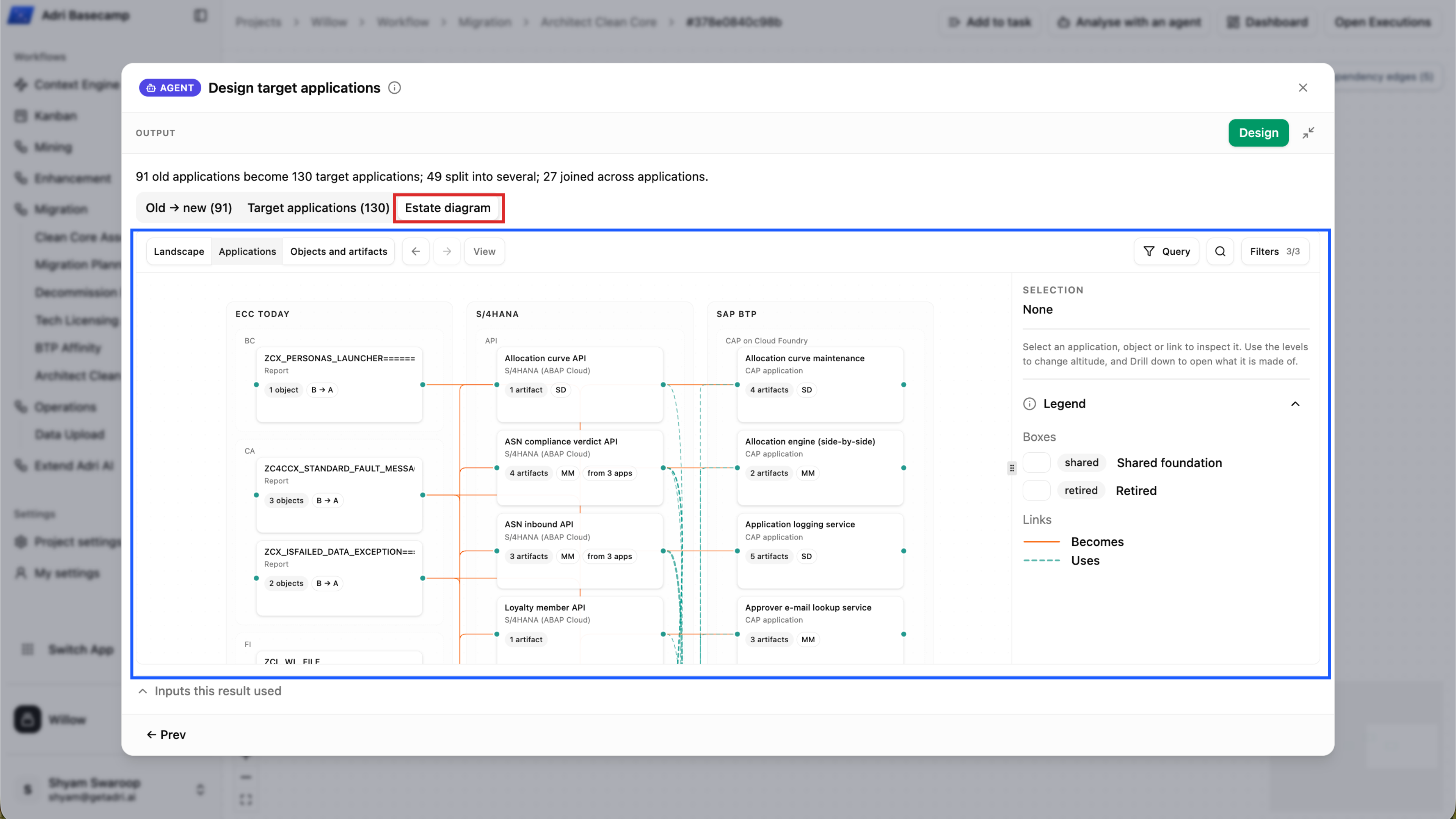
- Select Estate diagram to explore the architecture visually. The diagram places the current estate, S/4HANA applications, and side-by-side BTP applications in separate areas. Solid links show what an existing application becomes; dashed links show what another application or service uses.
- Select a node to inspect its platform, artifacts, parents, and links in the details panel. Right-click the node to open its context menu.
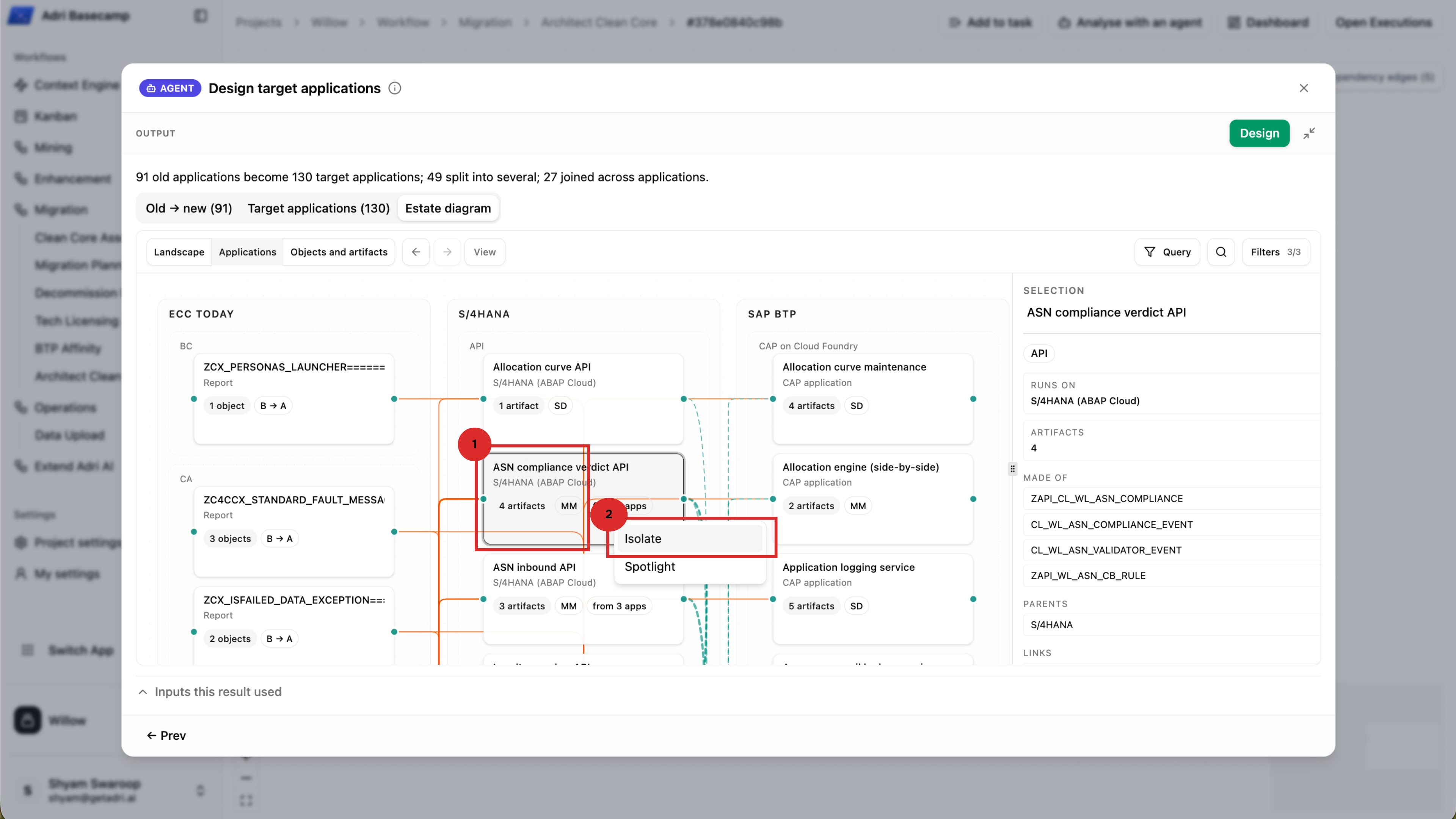
Choose between these views:
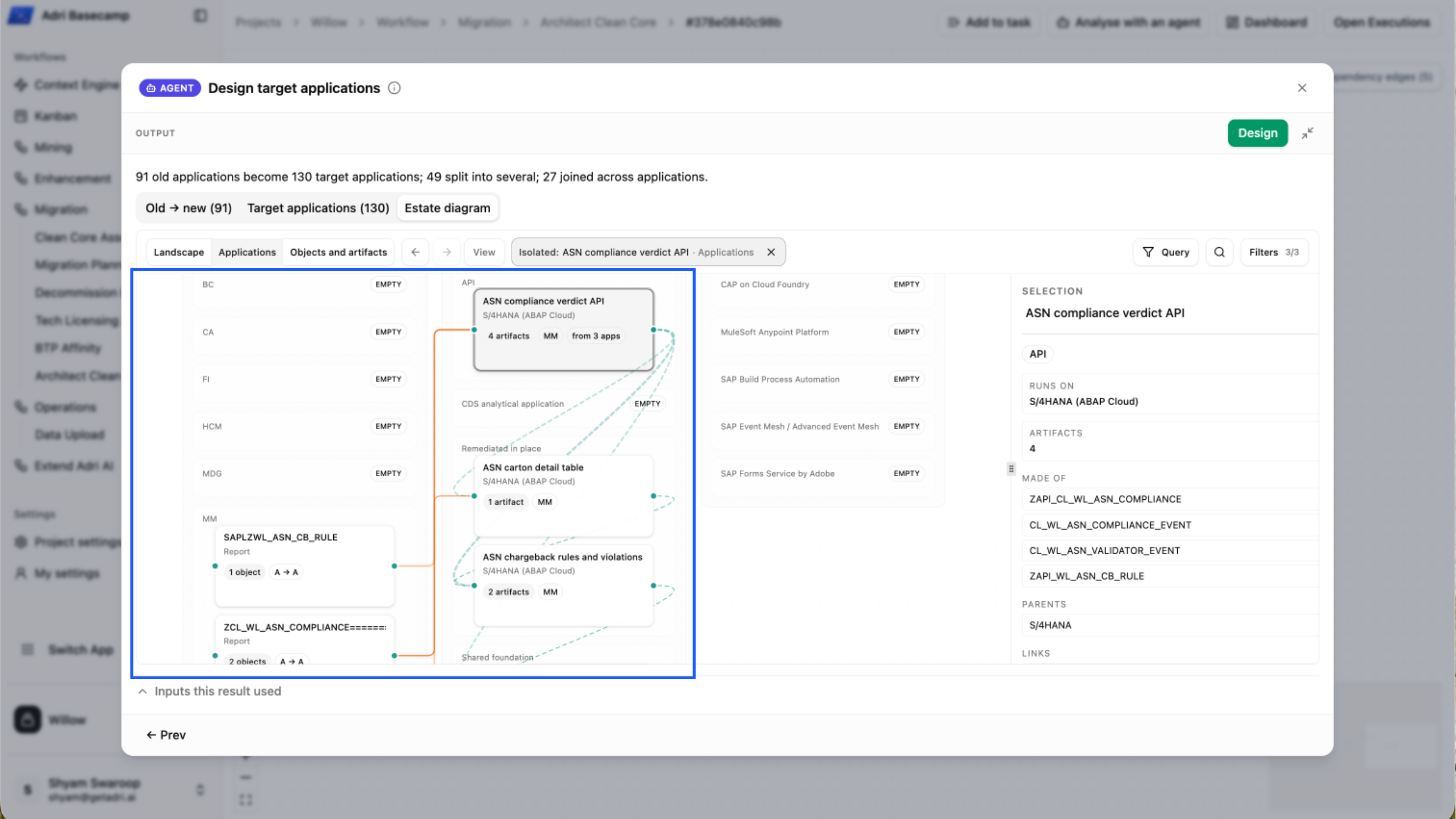
- Isolate keeps the selected node and all of its direct and indirect relationships visible, through the full relationship depth.
- Spotlight emphasizes the selected node while preserving the wider estate for context.
- Choose Isolate when you need to trace one application's complete dependency path without unrelated nodes obscuring it. Close the isolation filter at the top of the diagram to return to the full estate.
Done when: You can compare the current and target applications, navigate the estate diagram, inspect a node's details, and isolate its complete relationship path.