Connect SAP PI/PO
Connect Adri AI to the Integration Directory, Enterprise Services Repository (ESR), and Runtime of your PI/PO system.
Before you begin
You need the PI/PO host URL and the username and password Adri should use. If the Integration Directory, ESR, and Runtime are on different hosts, collect each service URL.
Save the connection in Adri Basecamp
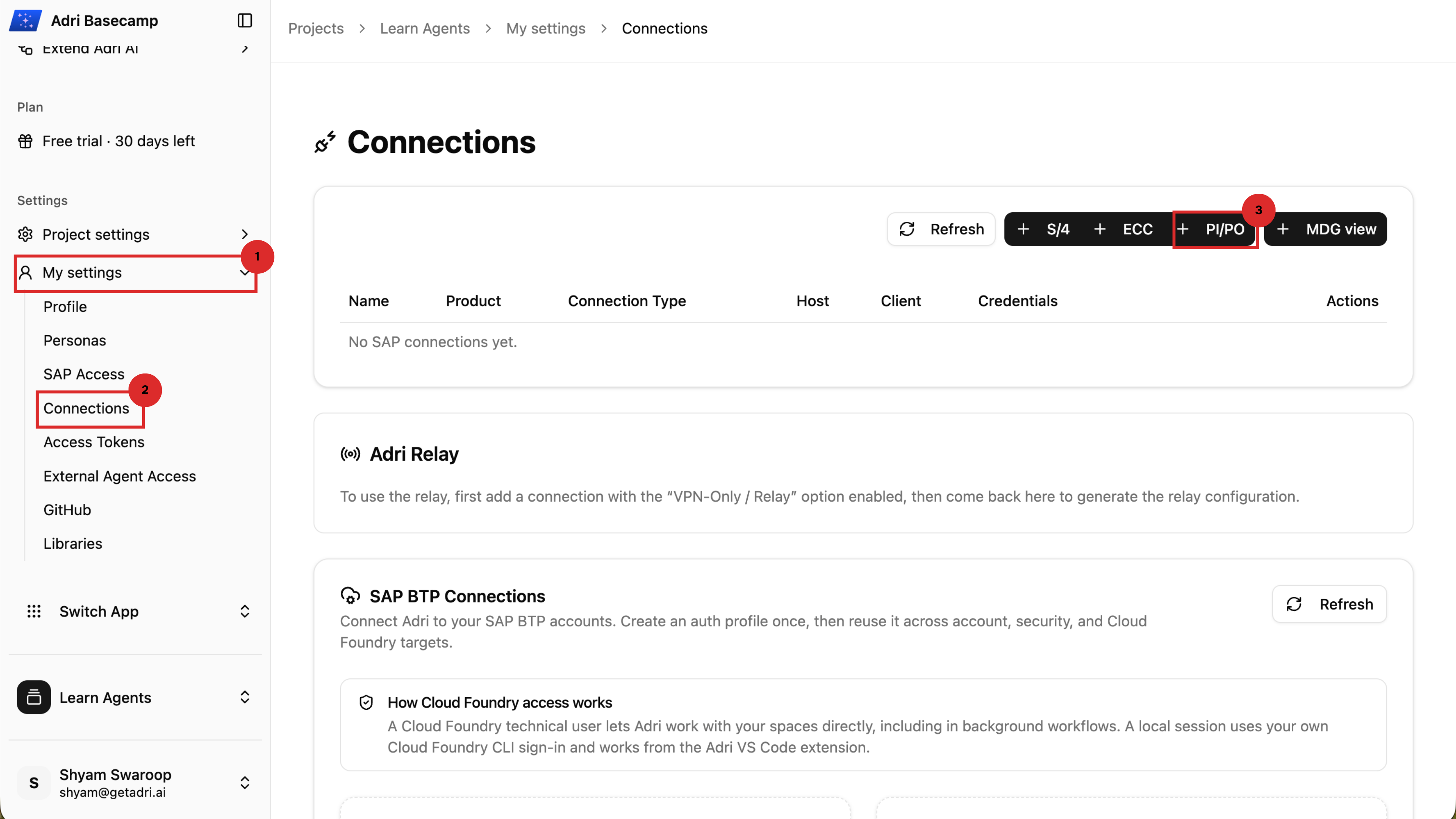
- Open your project in Adri Basecamp.
- Open My settings > Connections.
- Select + PI/PO.
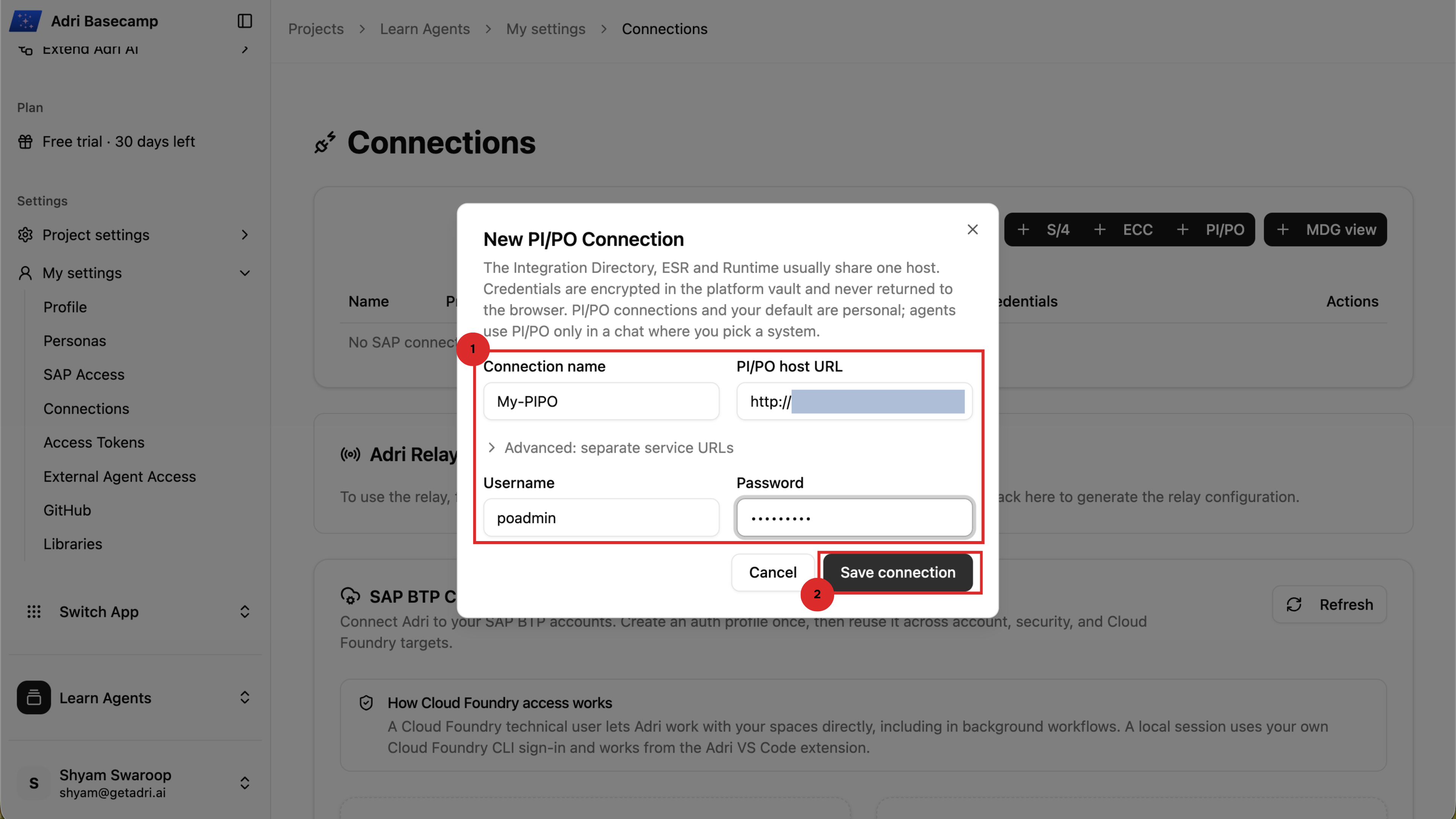
- Enter a connection name, PI/PO host URL, username, and password.
- If the services use different URLs, expand Advanced: separate service URLs and enter them.
- Select Save connection.
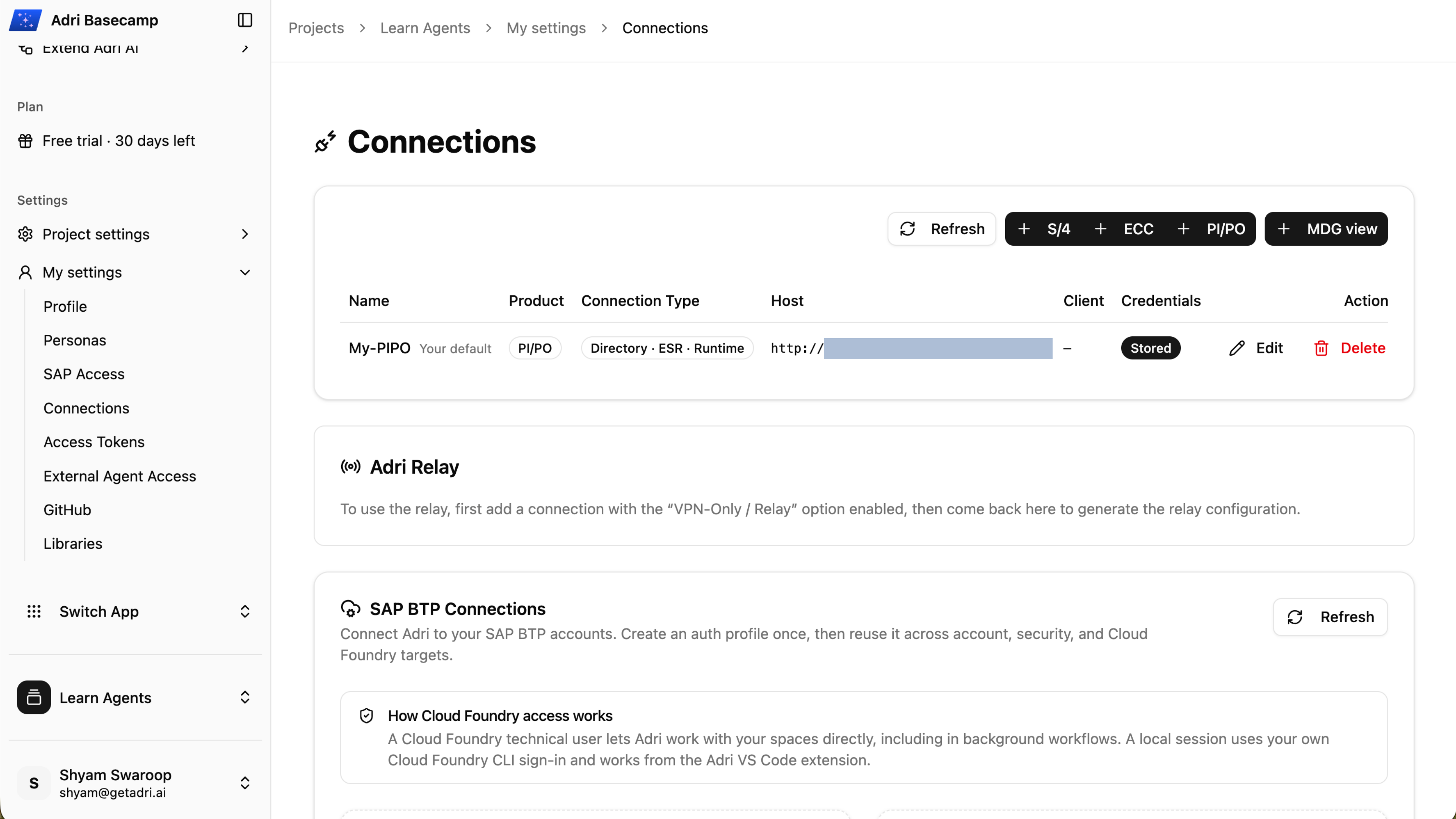
The saved connection appears in the list. Its credentials are encrypted in the platform vault and are not returned to the browser.
Personal connection
PI/PO connections and your default PI/PO selection are personal. An agent can use the system only in a chat where you explicitly link it.
Connect from VS Code
- Install Adri AI Foundry for VS Code and sign in to Adri AI.
- In the Object Tree, find the PI/PO connection.
- Select the connect icon beside it.
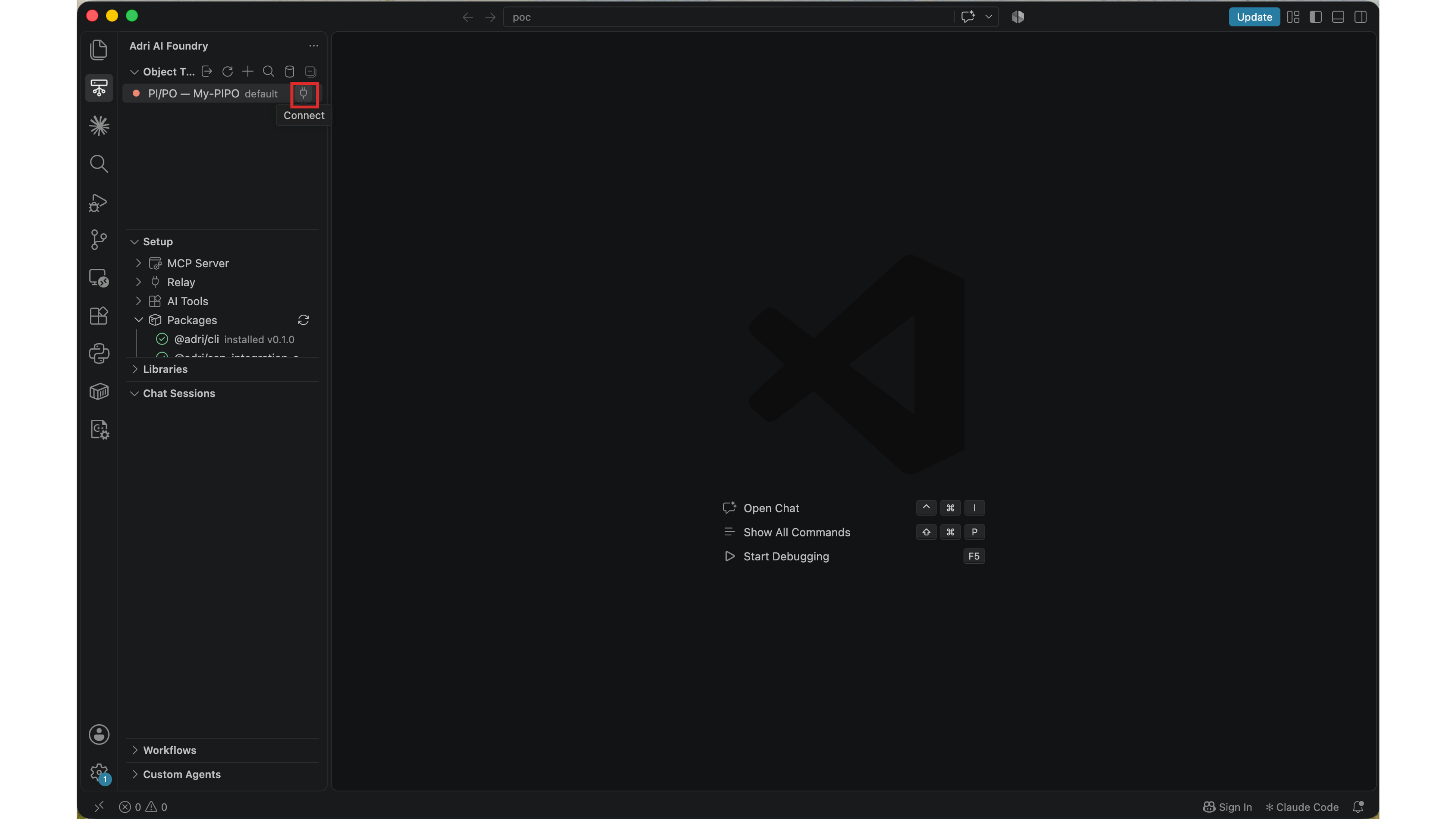
When the status turns green, you can explore the PI/PO workspace and link the system to an agent chat.