Setup (Claude Code)
Connect Adri MCP Server in Claude Code
Adri MCP Server works with any MCP-compatible coding agent, including Codex, Cline, Claude Code, and others. This walkthrough uses Claude Code screenshots, but the server URL and auth flow are the same idea across agents. If you are new: MCP is the standard way coding agents use external tools like Adri AI. For advanced SAP-side capabilities (parametrized execution and better large-table pagination), also complete Setup Enabler Framework.
Using Codex CLI instead? See Setup (Codex).
In every screenshot, the red box shows where to focus.
Pre-requisites
- Complete the one-time tool install guide: Install VS Code and Agent Tools
- Log in to Adri AI: https://www.getadri.ai/login
- Log in to Claude: https://claude.ai/login
- Verify Claude Code CLI is installed.
- Verify the Claude Code VS Code extension is installed.
Run this check for step 4:
claude --version
Claude Code VS Code extension guide: code.claude.com/docs/en/vs-code
If Claude Code CLI is not installed yet, use the official quickstart: code.claude.com/docs/en/quickstart
1. Create .mcp.json in your project
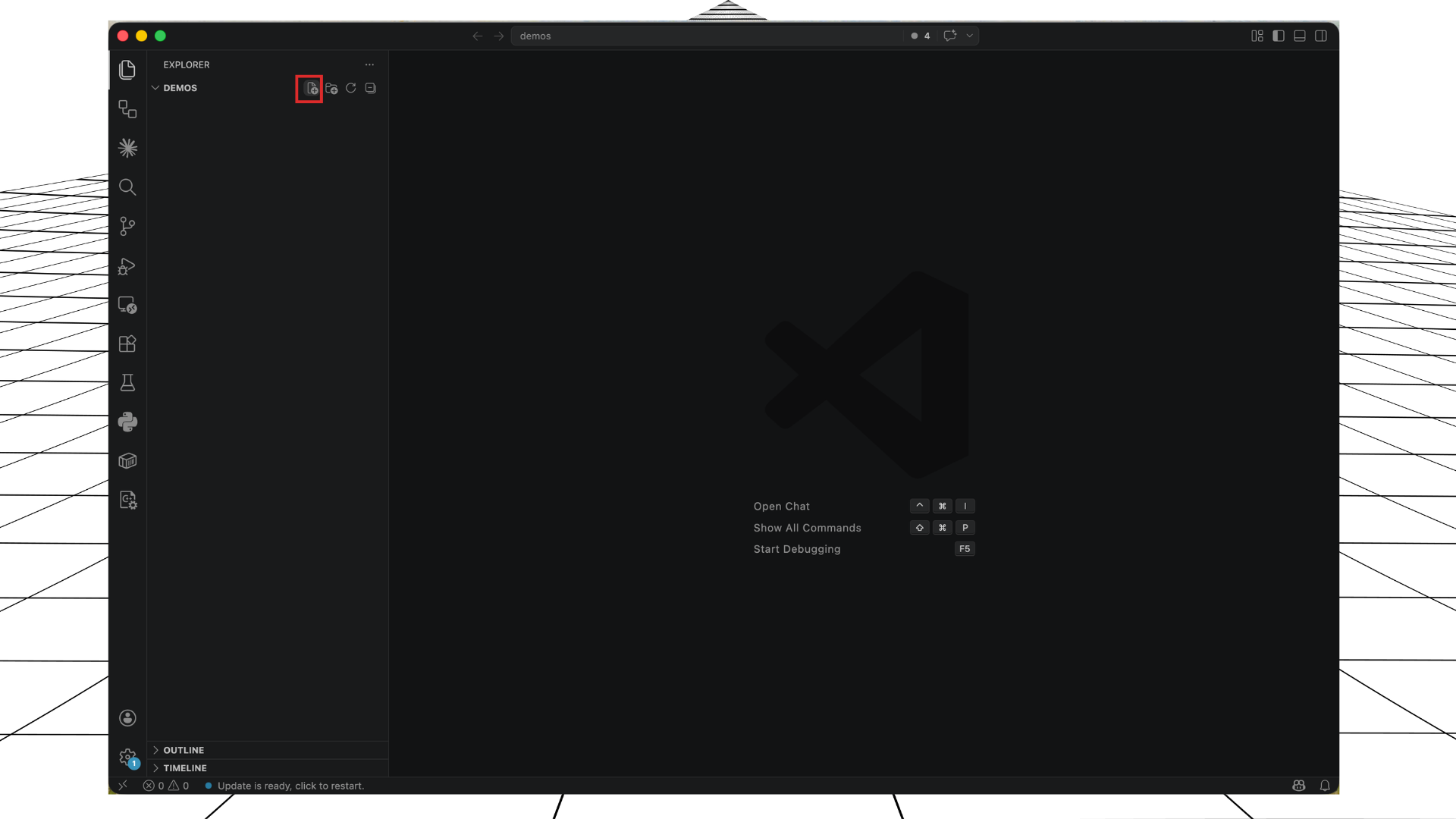
- Open your project folder in VS Code.
- Click New File in the Explorer.
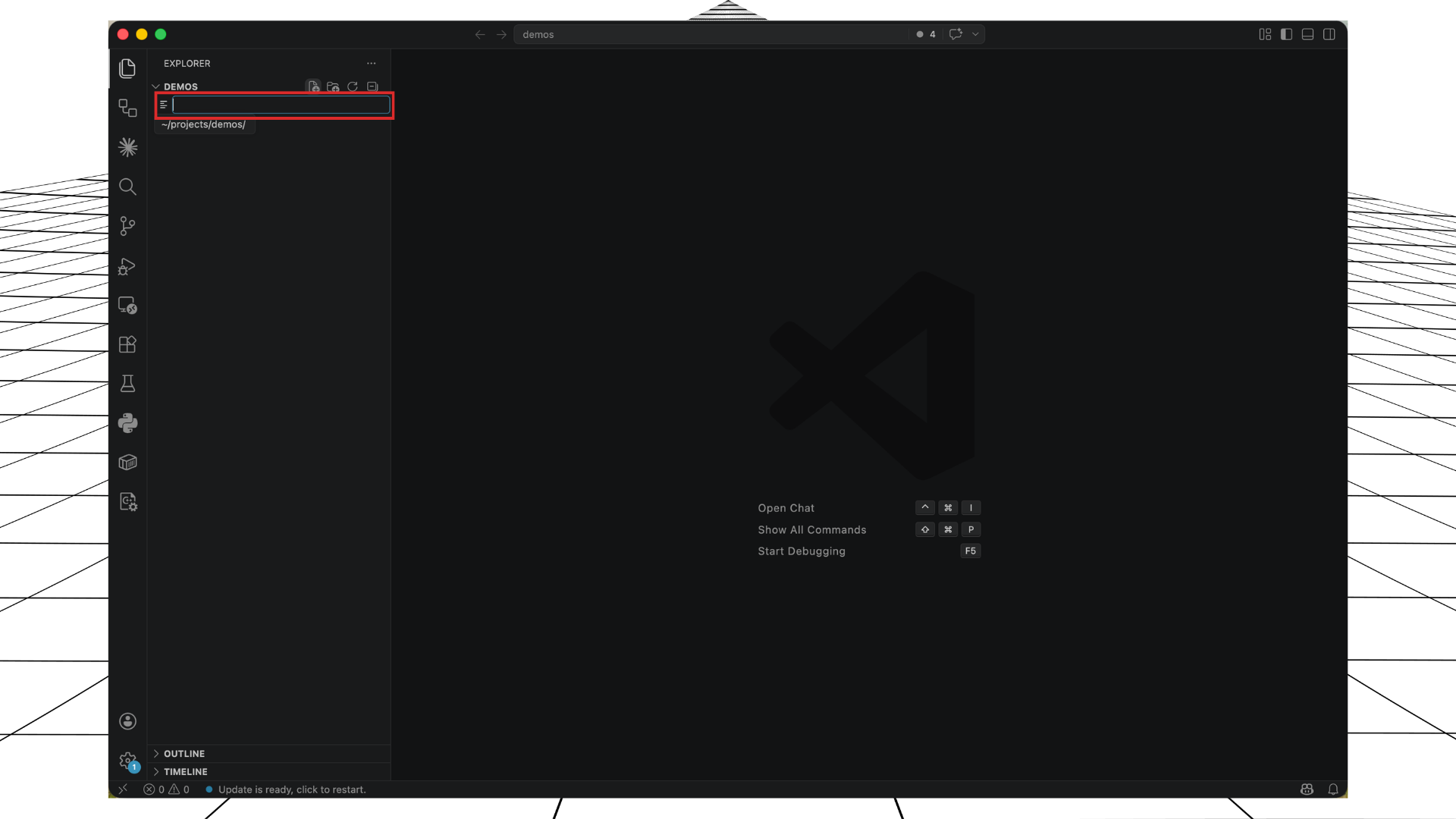
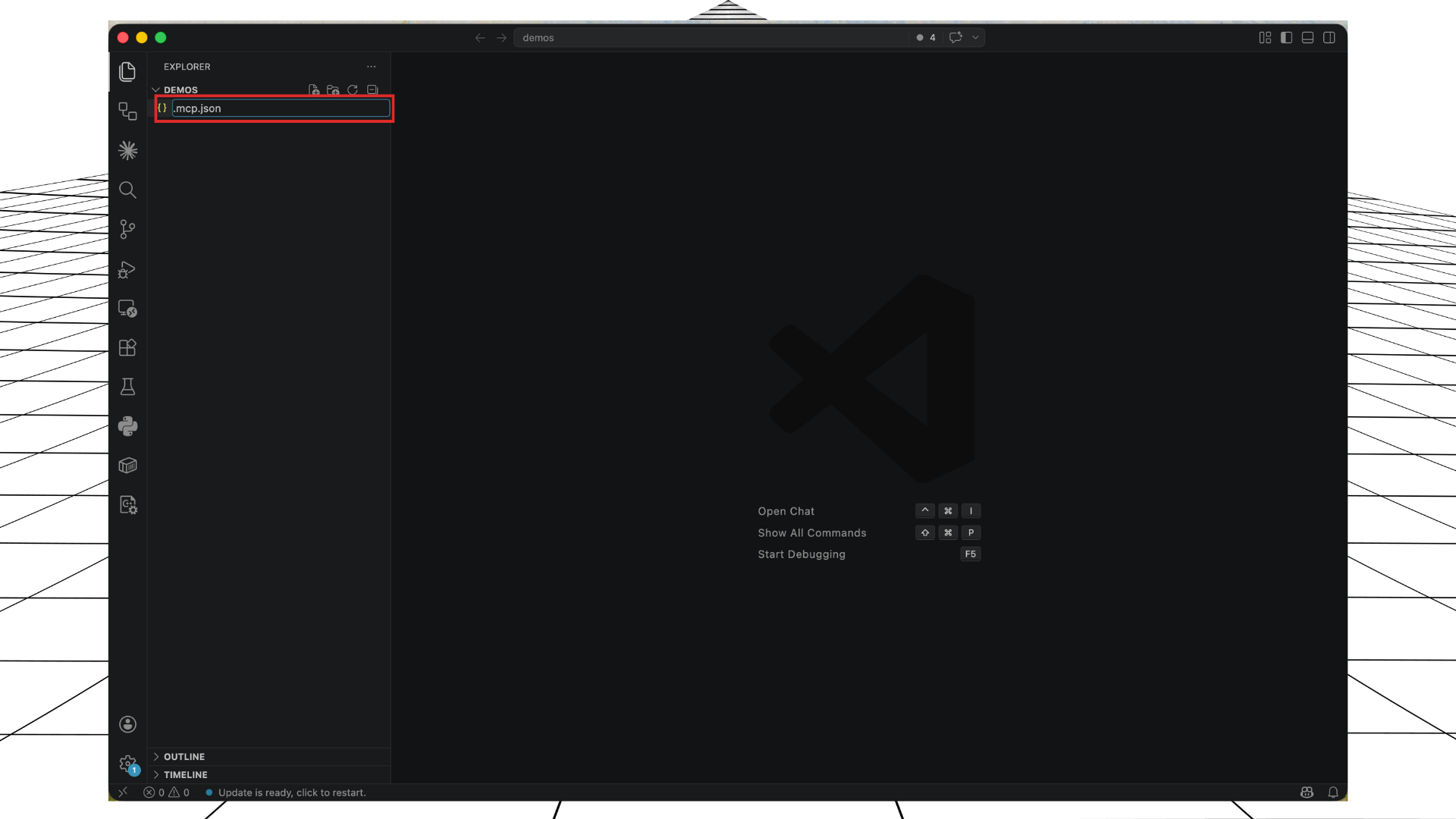
- Type
.mcp.jsonand press Enter.
- Open the new file.
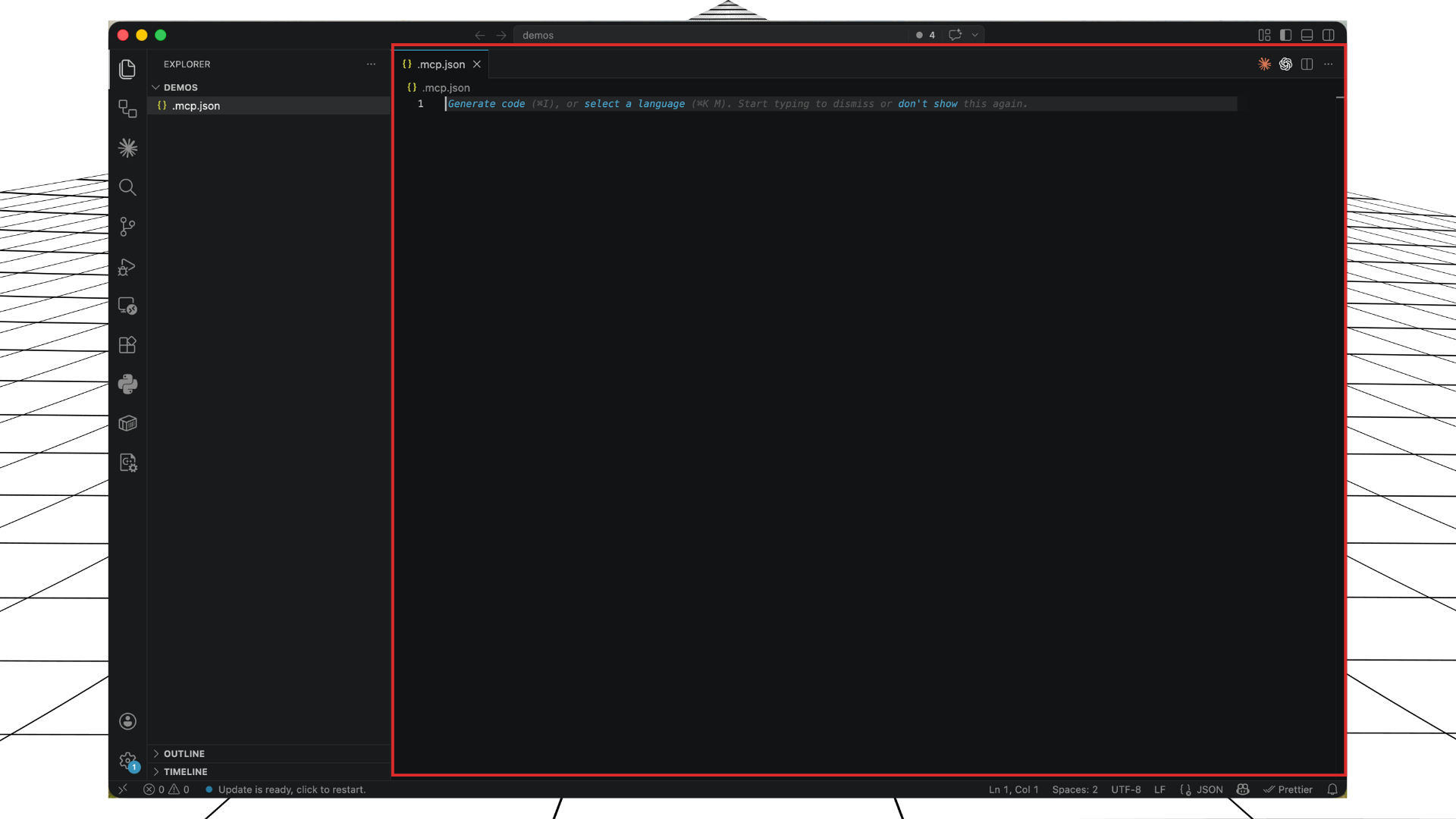
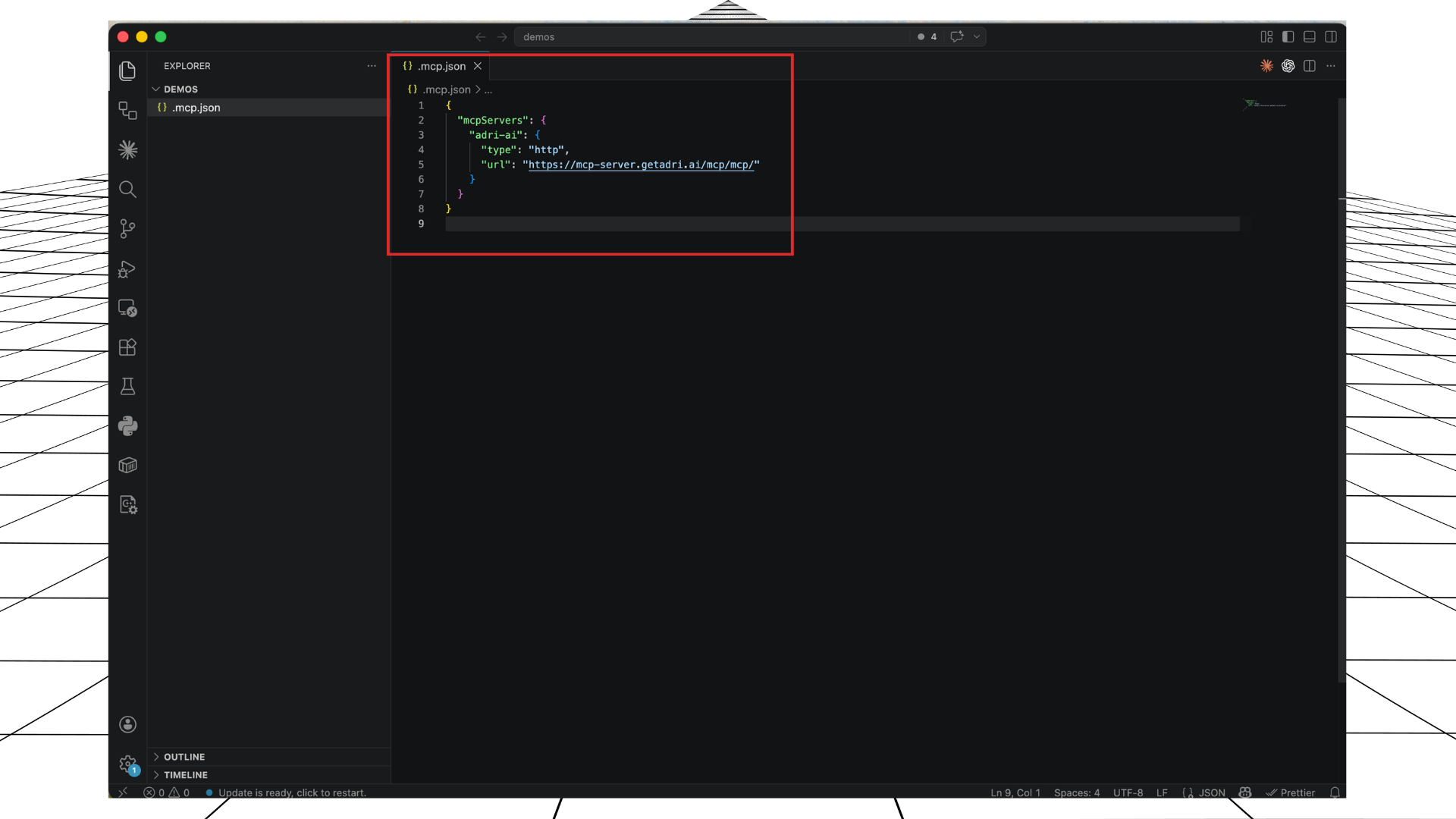
- Paste this config:
This file tells your coding agent how to reach Adri MCP Server.
{
"mcpServers": {
  "adri-ai": {
    "type": "http",
    "url": "https://mcp-server.getadri.ai/mcp/mcp/"
  }
}
}
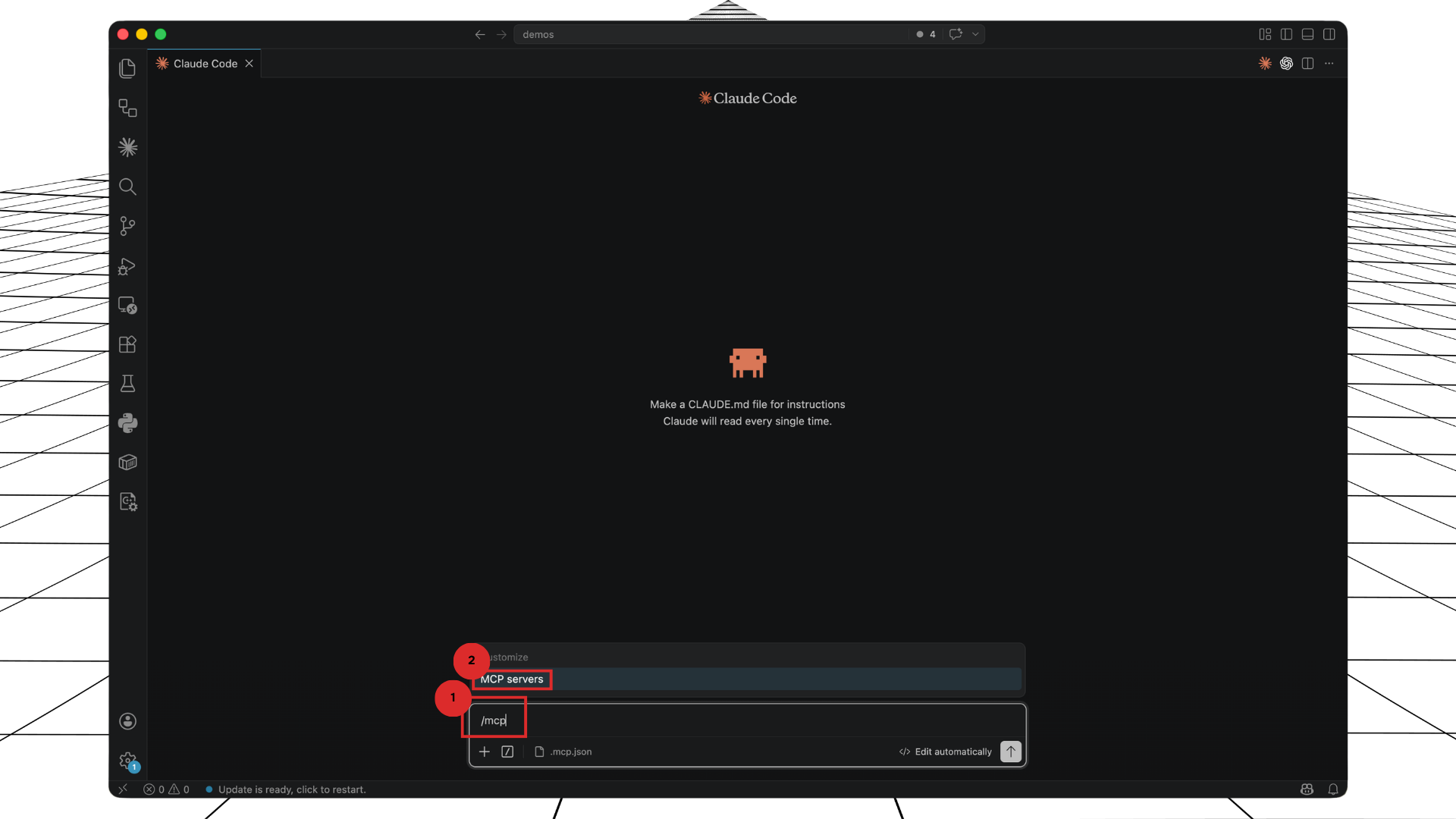
2. Open MCP servers in Claude Code
- Open Claude Code in VS Code.
- Run
/mcpand select MCP servers.
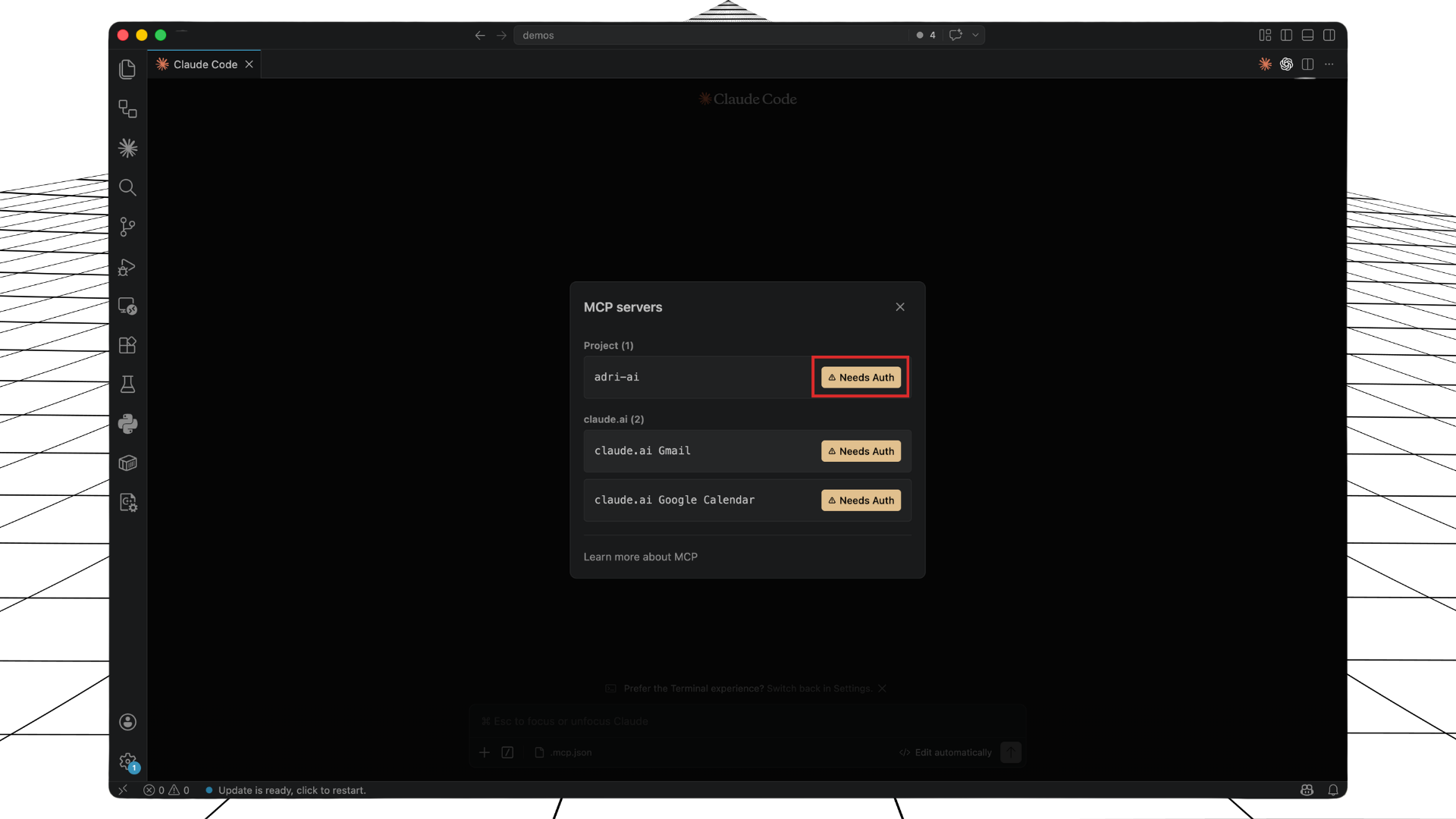
3. Authenticate the adri-ai MCP server
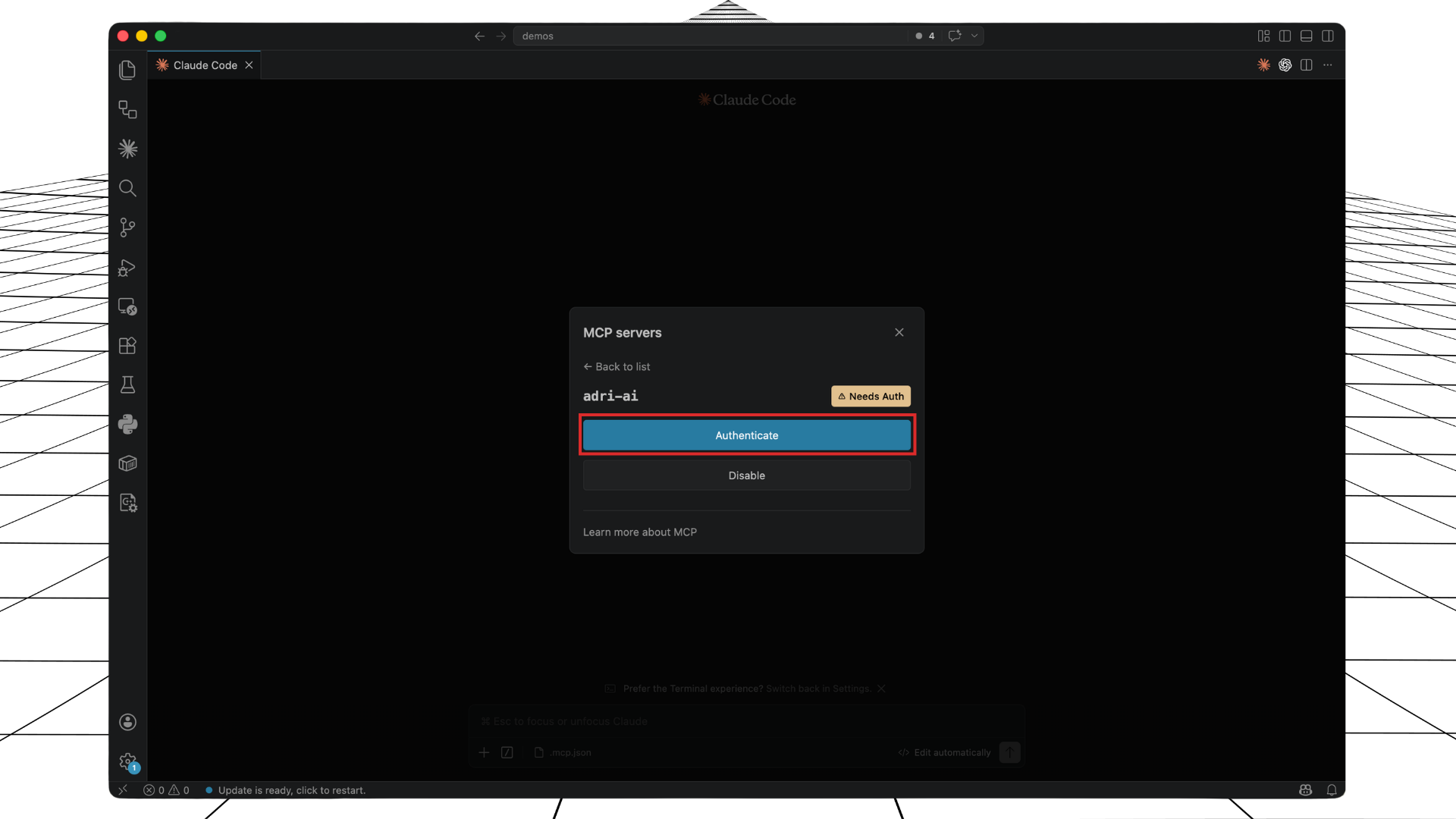
- In MCP servers, find
adri-aiand click Needs Auth.
- Click Authenticate.
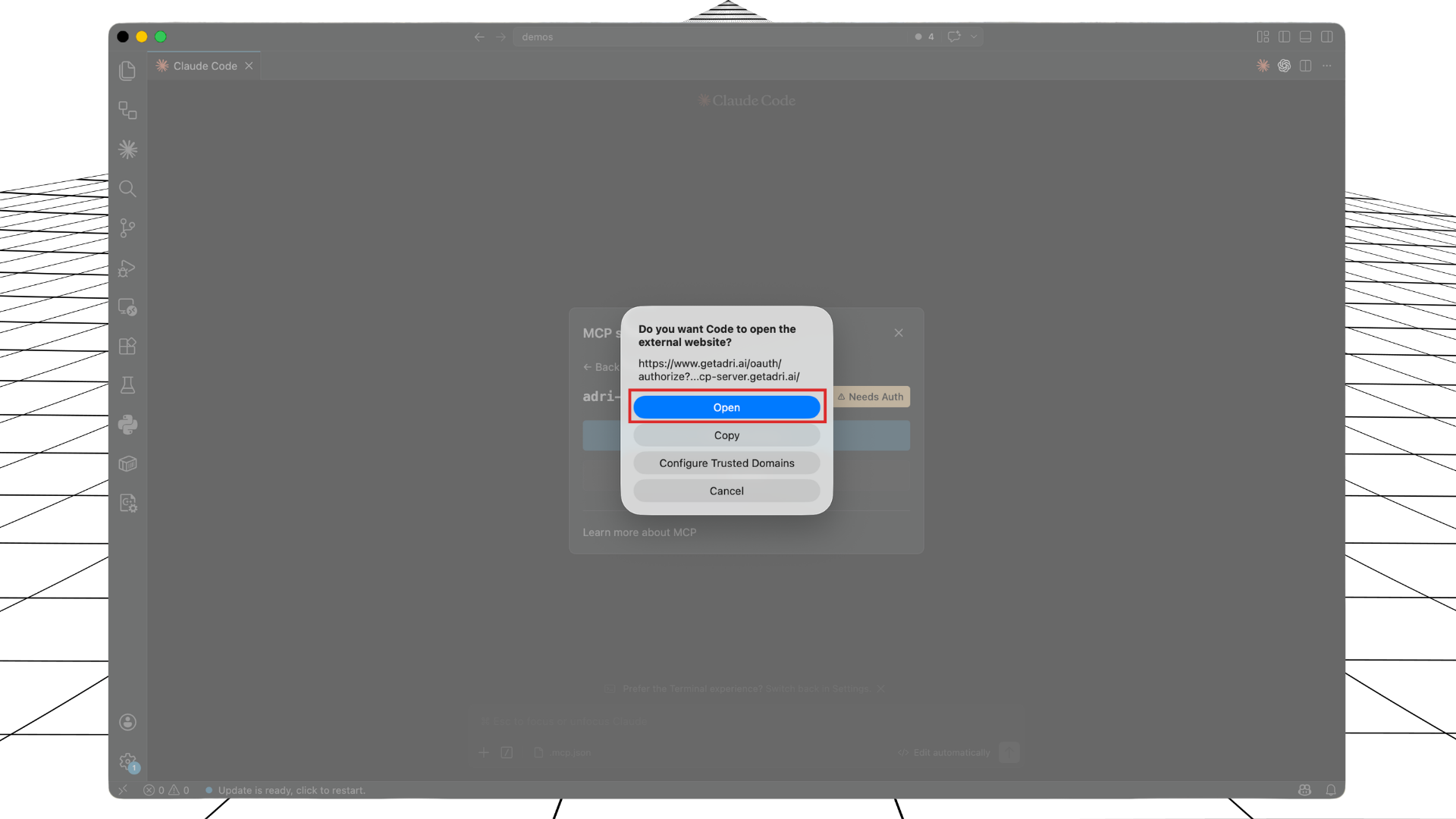
- When prompted, click Open to launch browser auth.
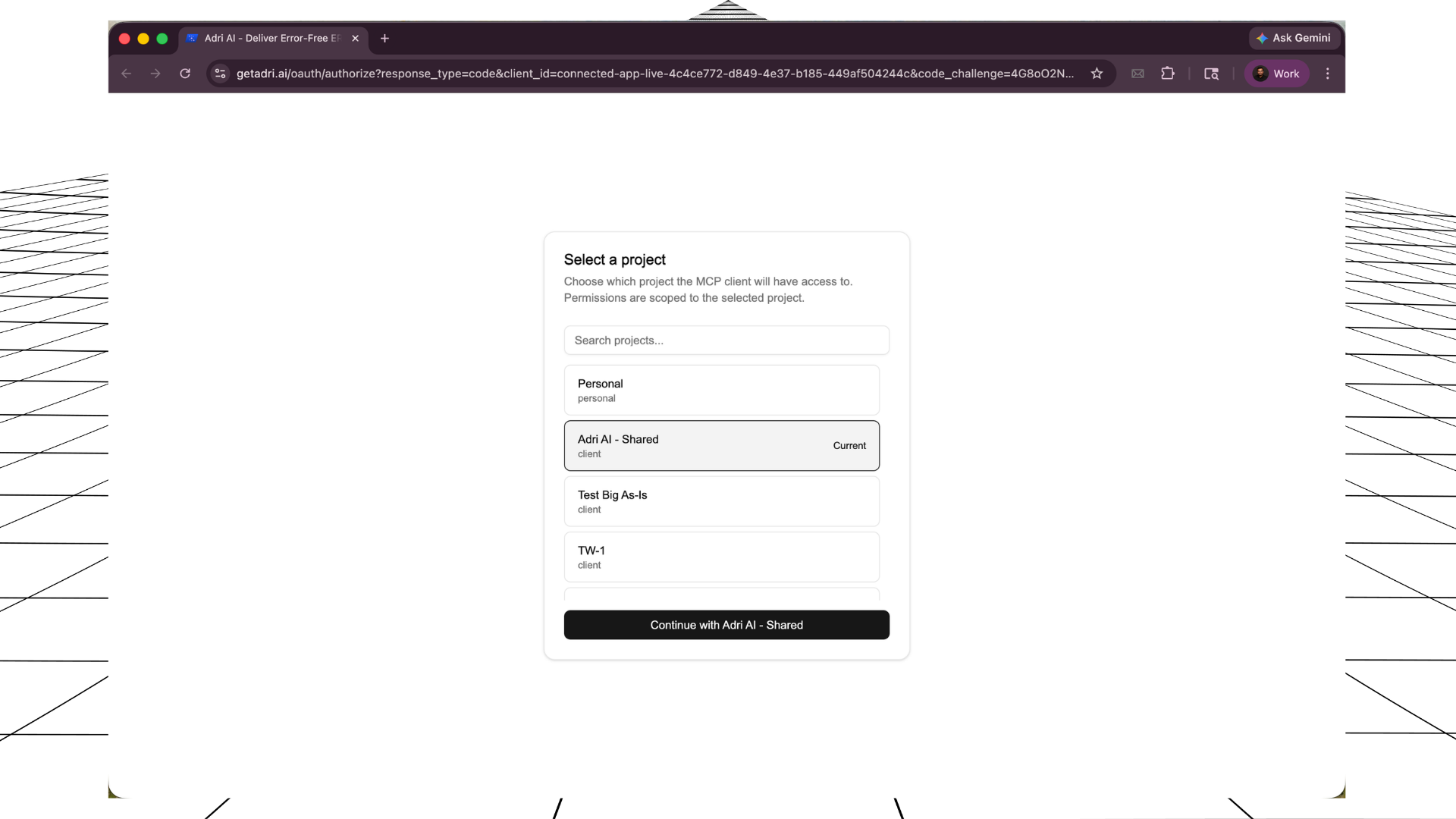
- In the browser, select the Adri project you want and continue.
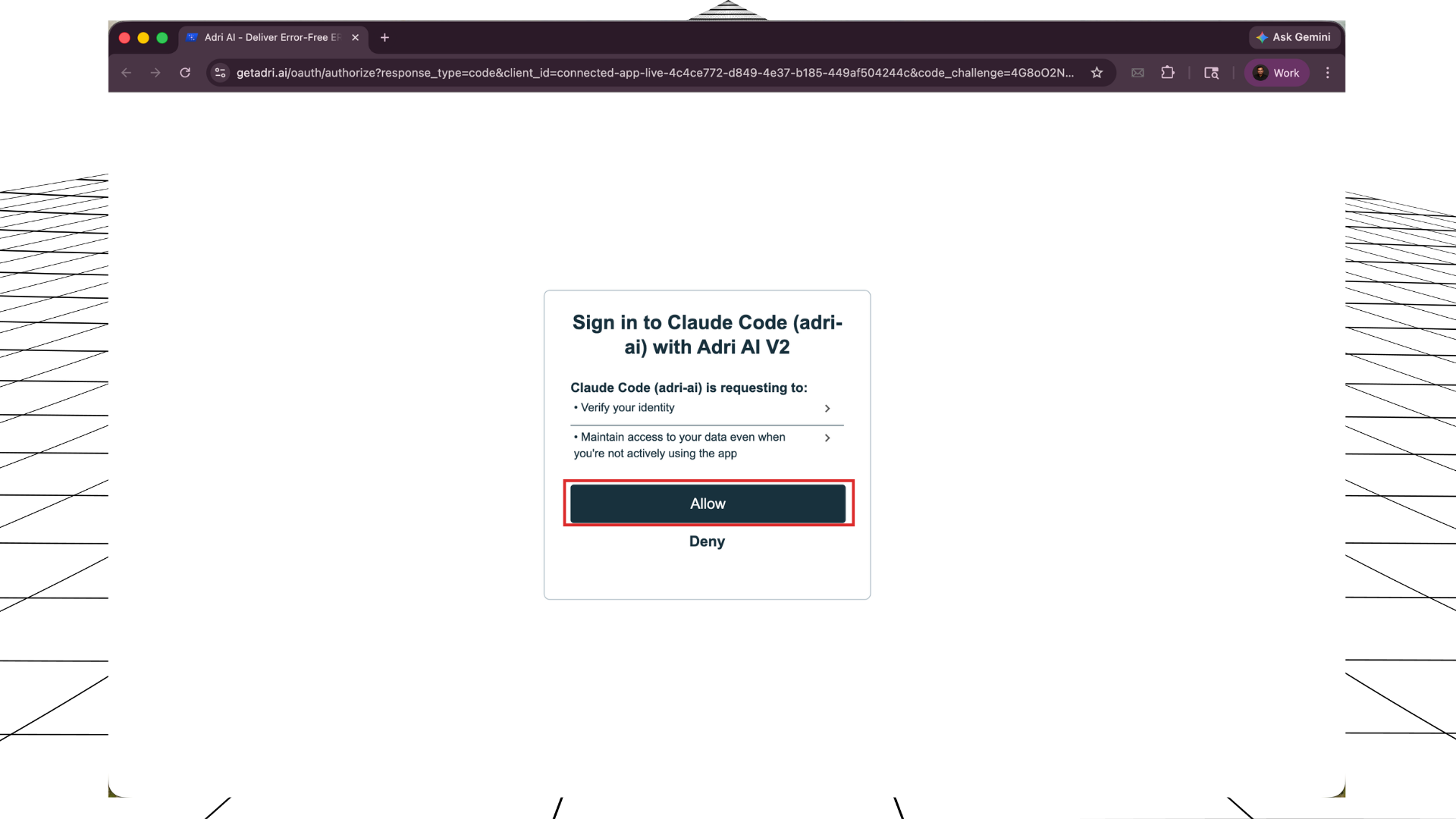
- Click Allow.
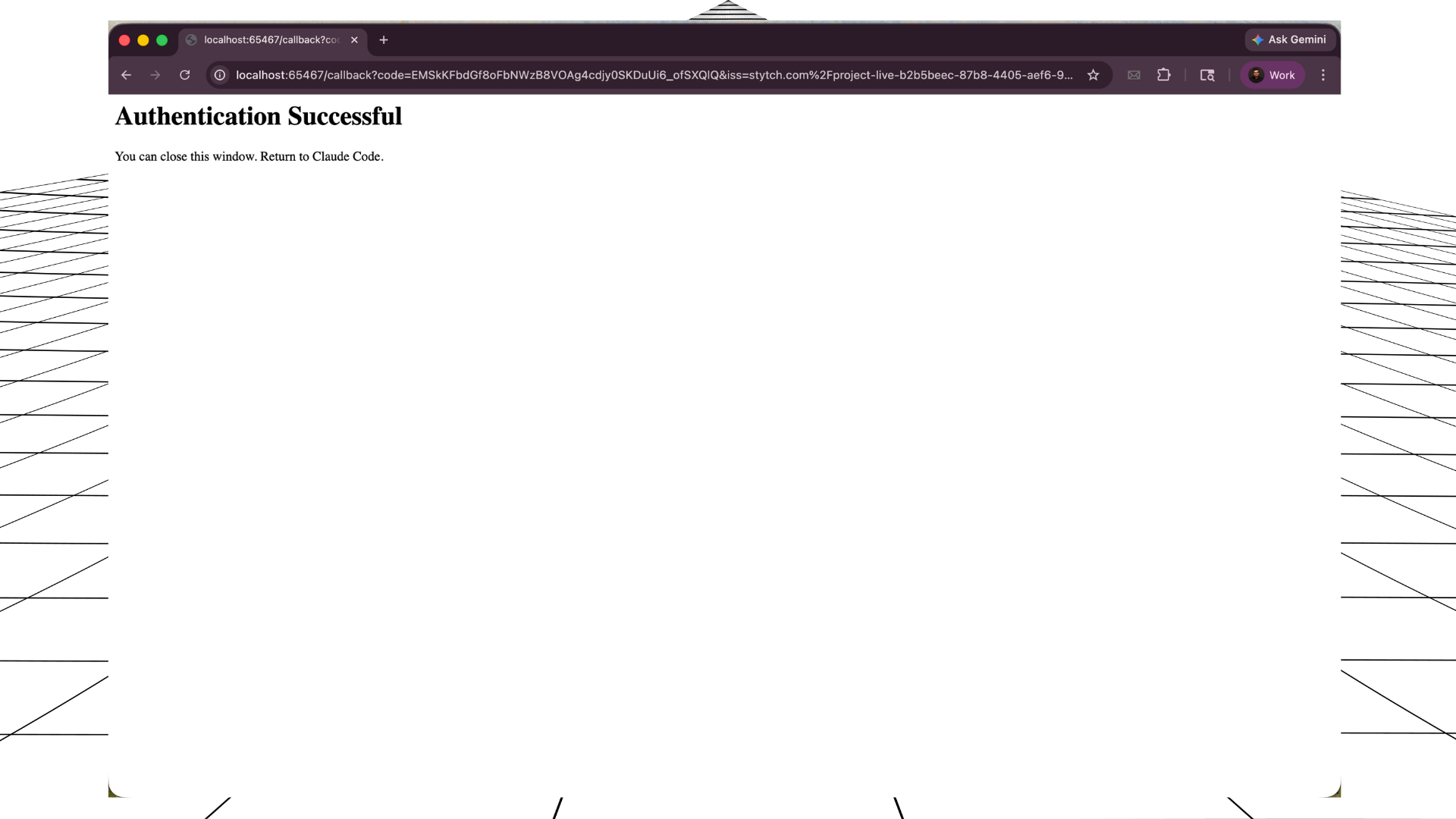
- After Authentication Successful, return to VS Code.
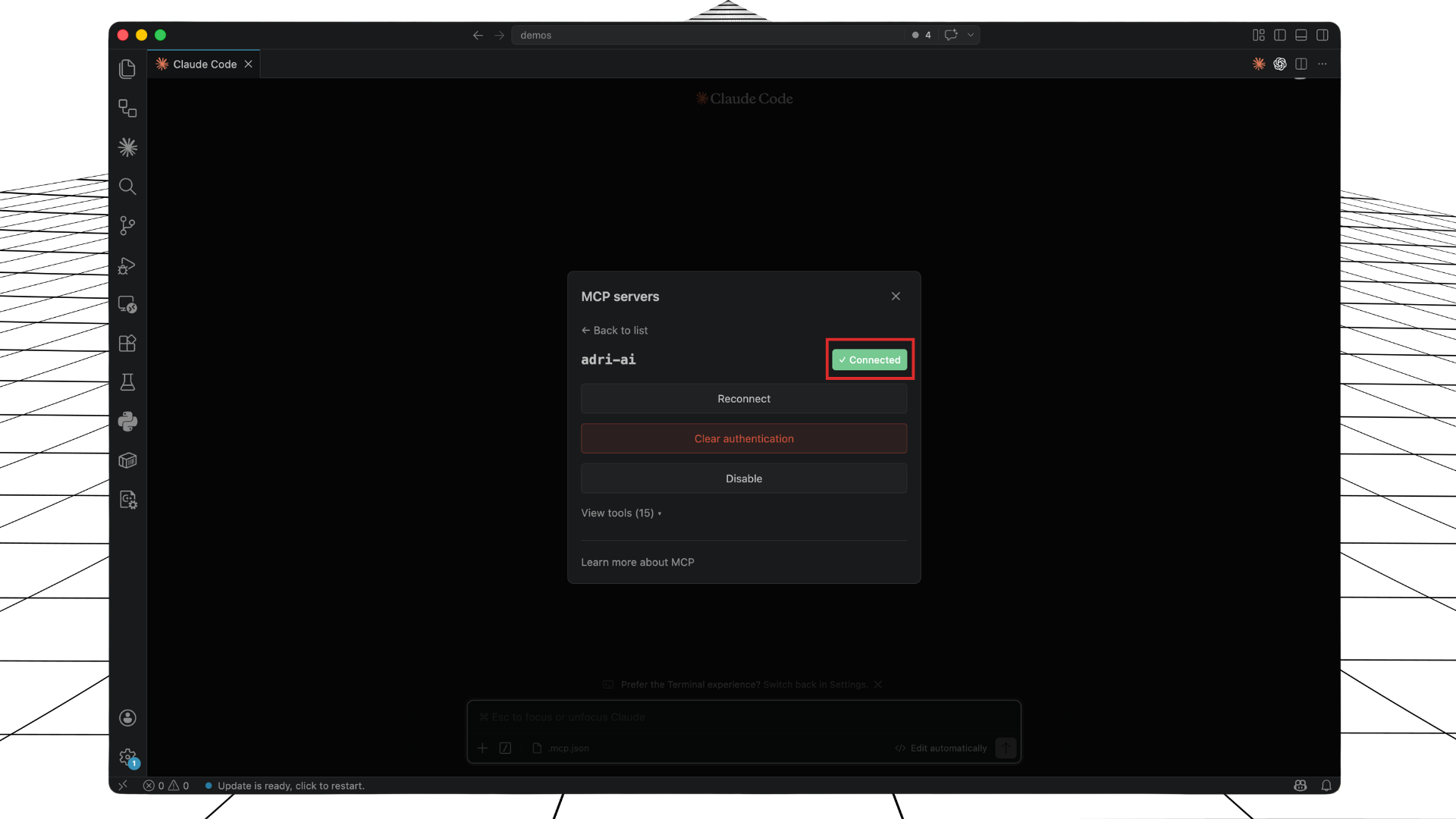
- Confirm
adri-aishows Connected.
4. Run your first prompt
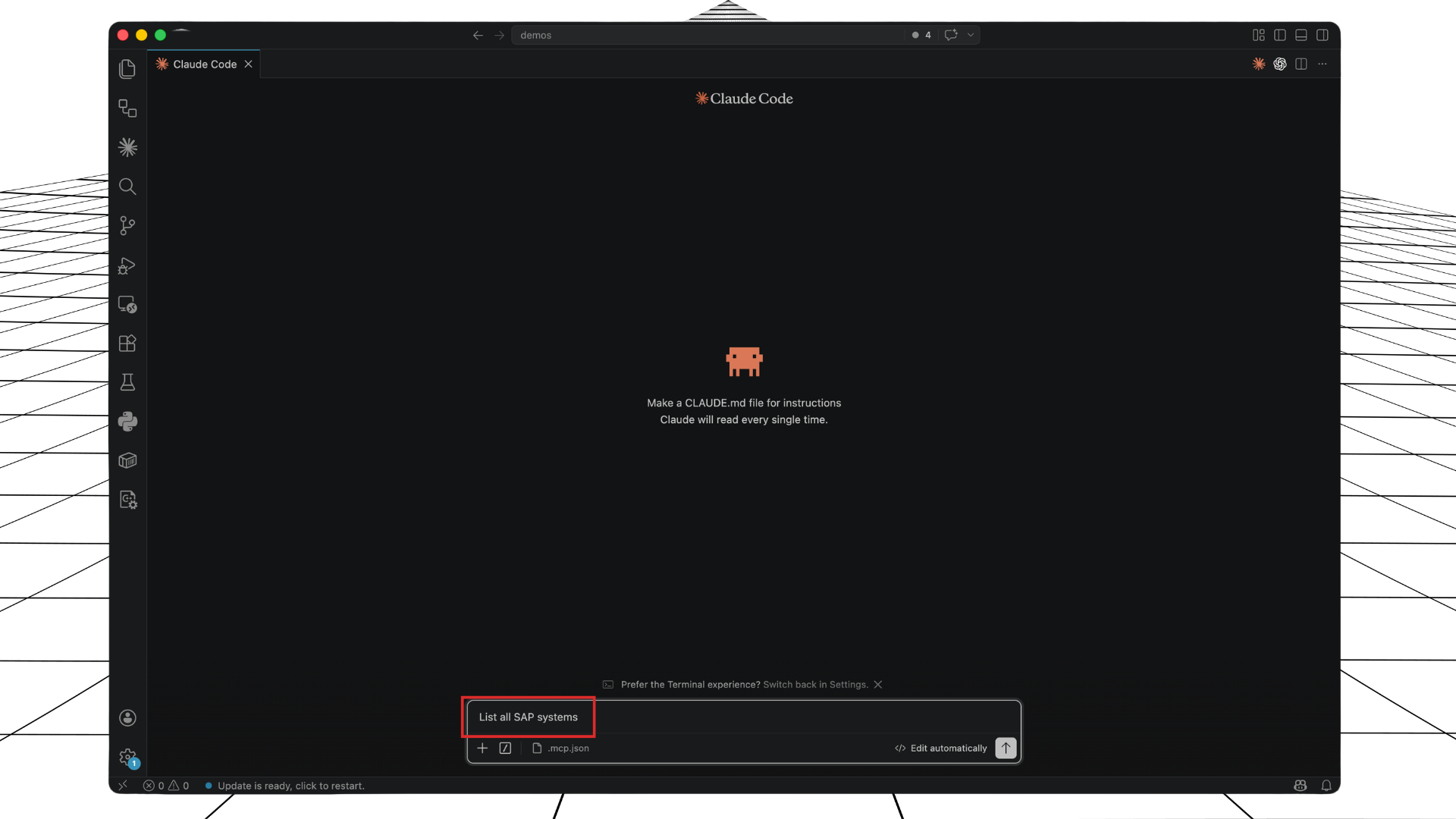
- Ask Claude:
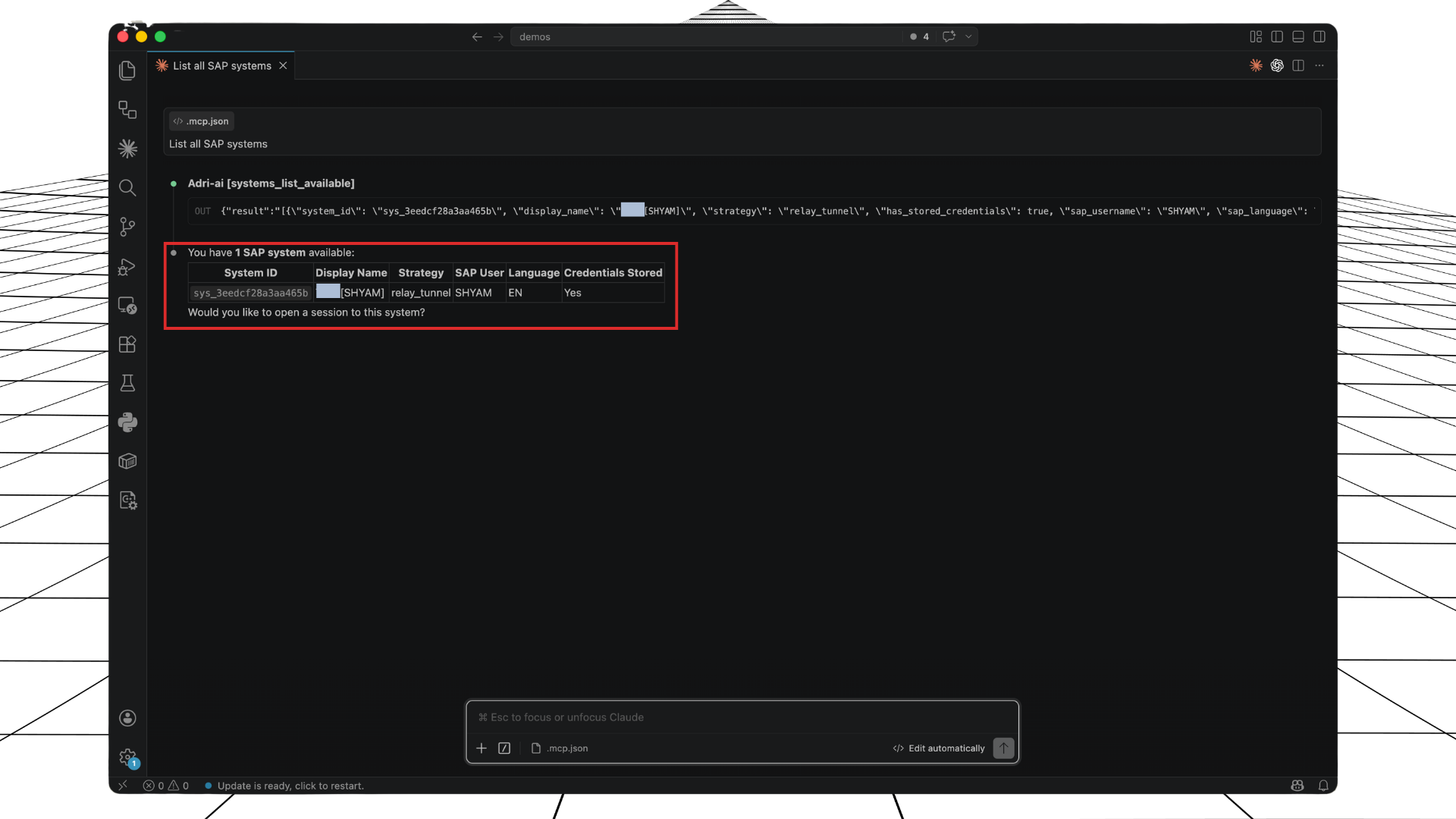
List all SAP systems.
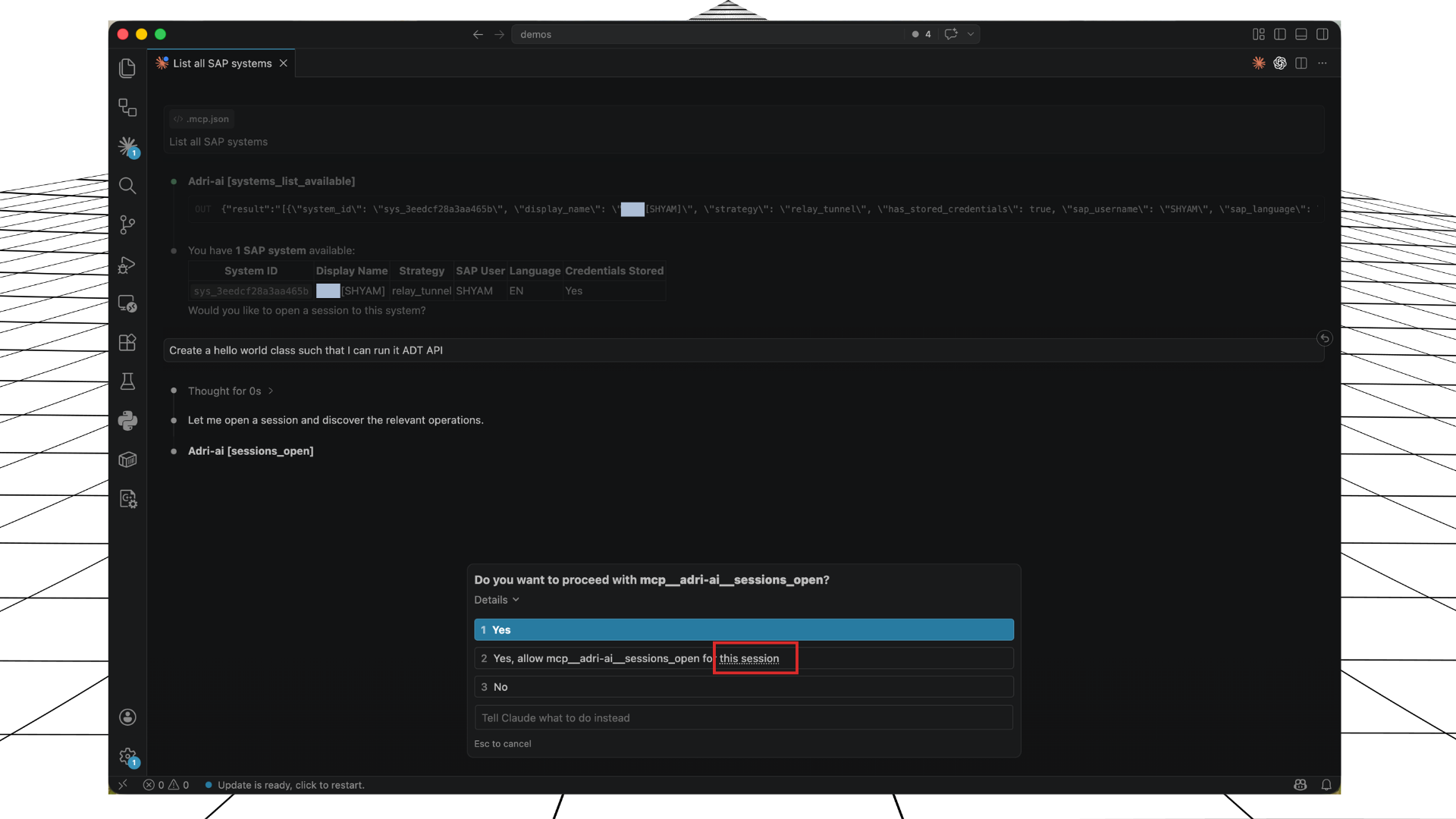
- When tool permission appears, choose the option that allows
mcp__adri-ai__...for all projects.
Important:
- If the prompt shows this session, click this session and change it to all projects.
- Then select Yes, allow ... for all projects.
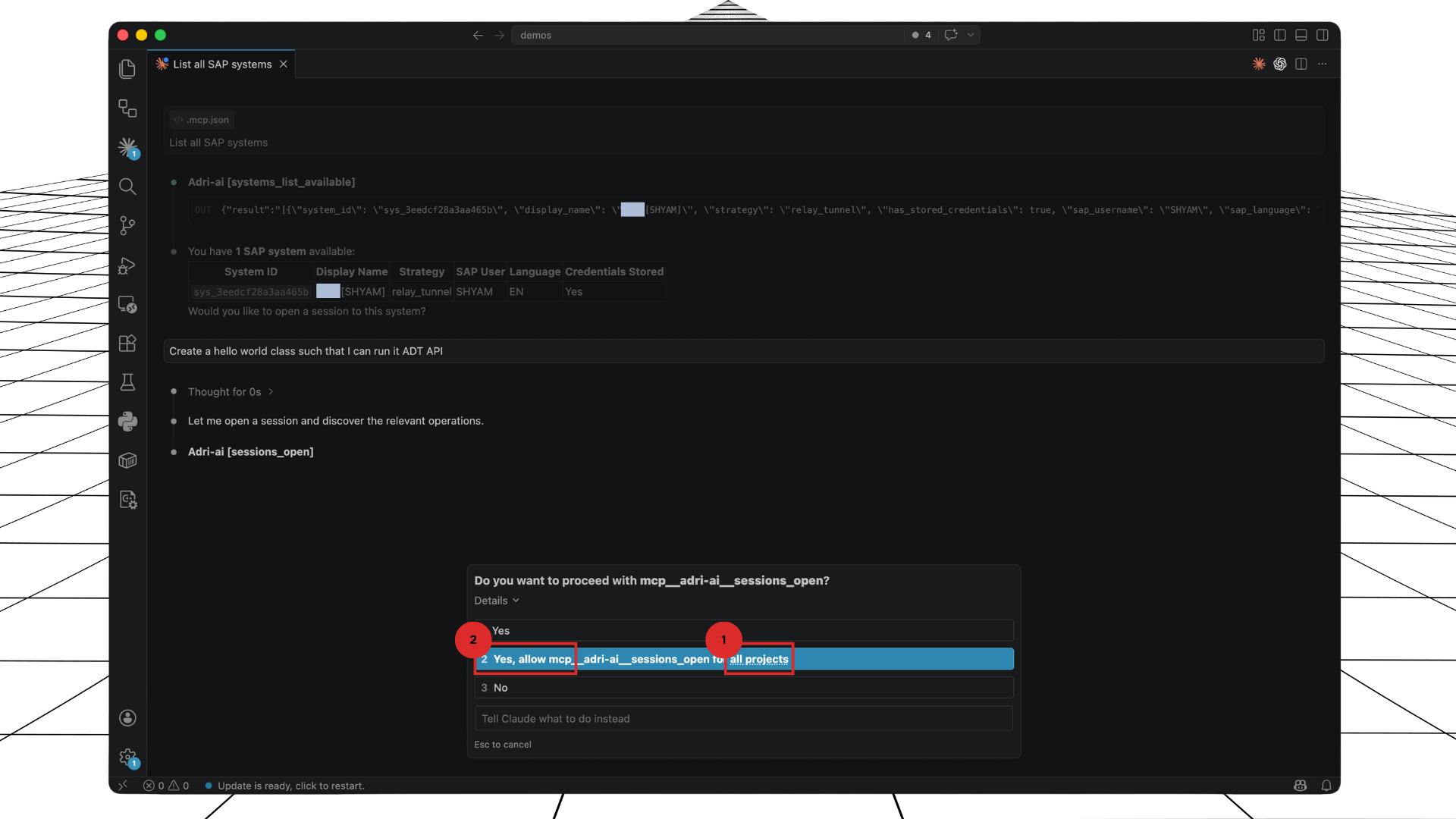
- Verify Claude returns the SAP systems list.