Sign In to Adri AI
Signing in links the VS Code extension to your Adri AI account and project so it can list SAP systems, install the MCP server, and access shared resources.
In every screenshot, the red box shows where to focus.
1. Start sign-in from the SAP ADT Explorer
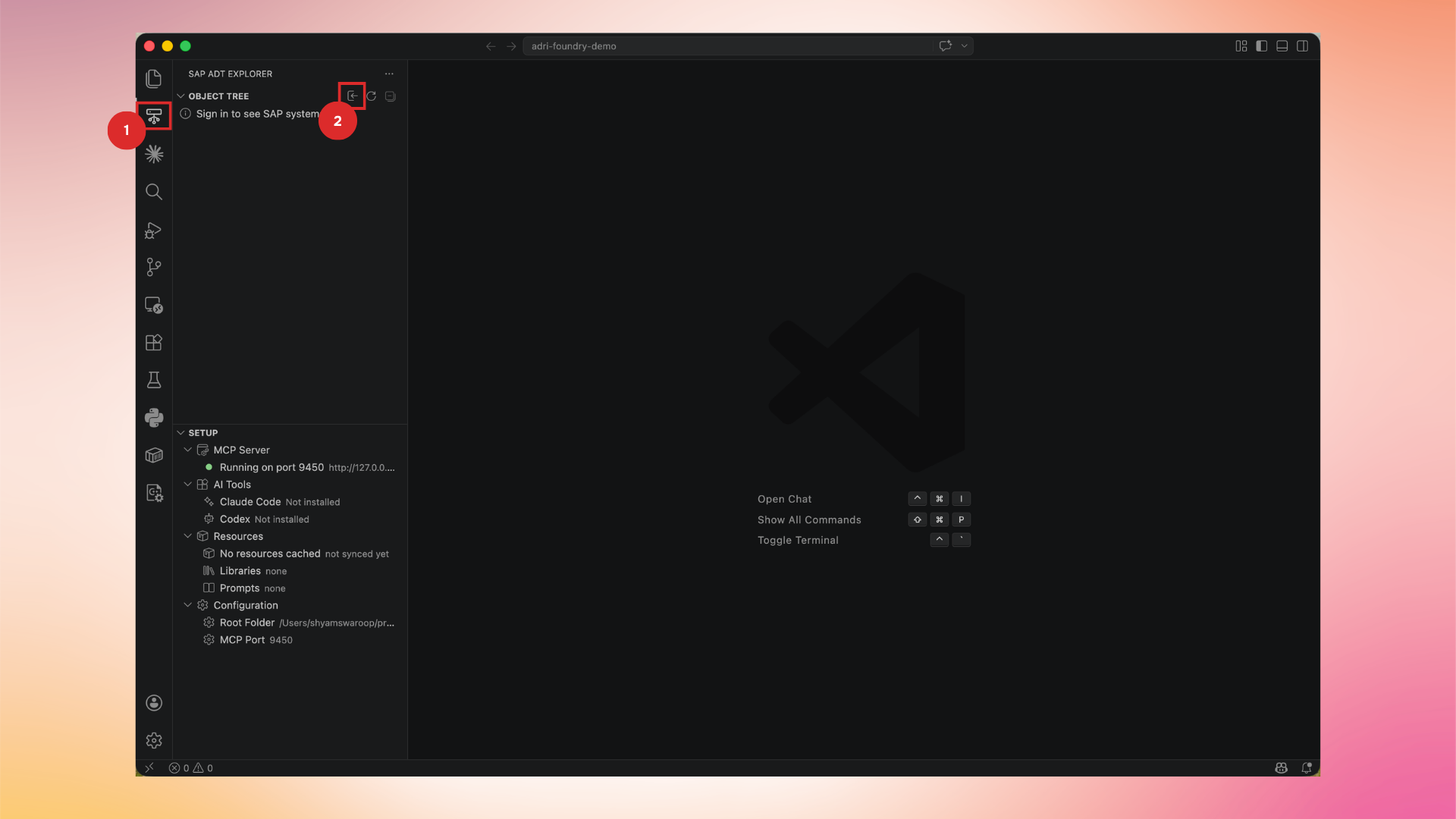
Open the SAP ADT Explorer view in the Activity Bar. Under Object Tree, click the Sign In icon next to Sign in to see SAP systems.
2. Allow VS Code to open the browser
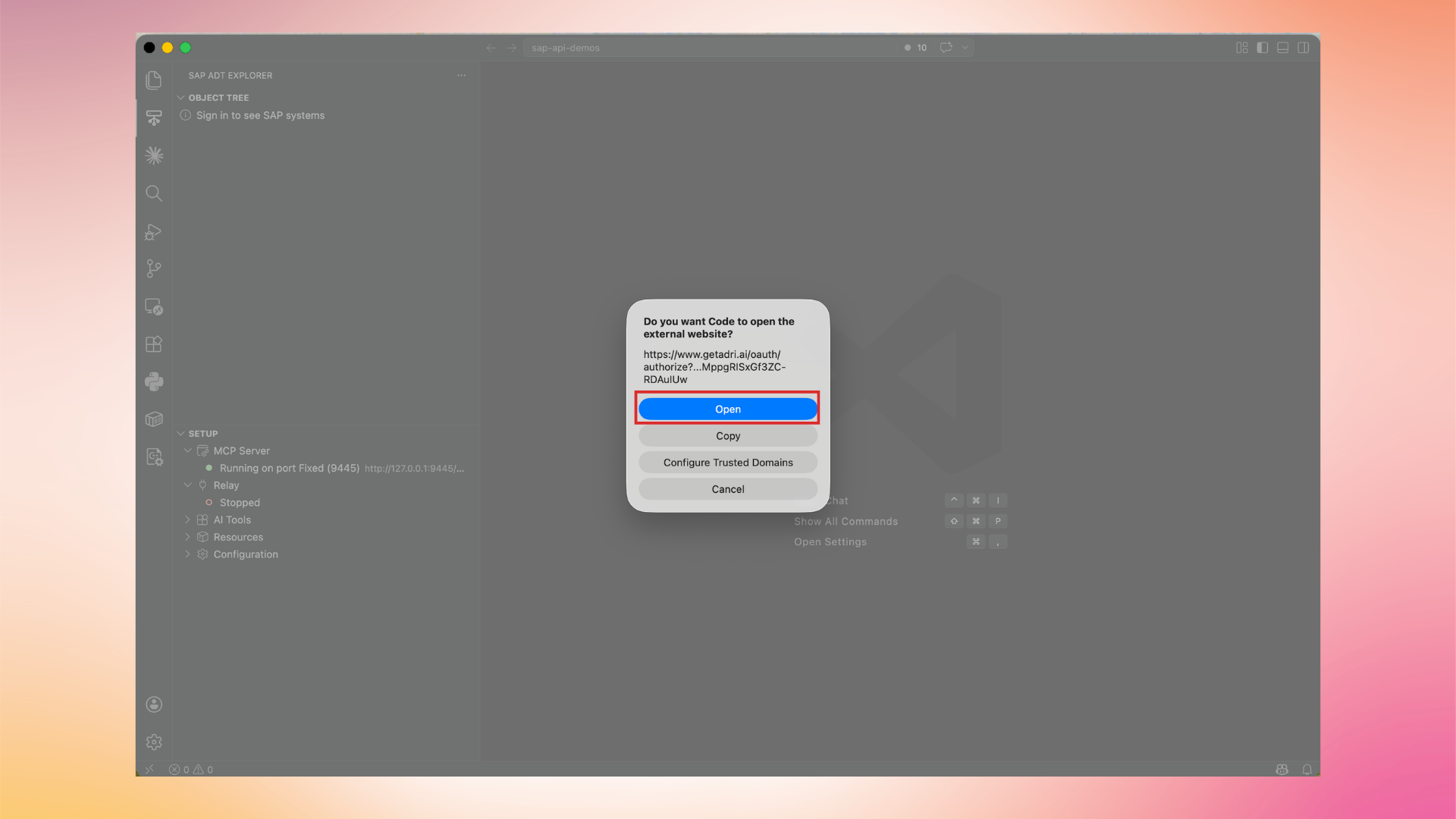
VS Code prompts you to open the Adri AI authorization URL in your default browser. Click Open.
3. Authorize the extension
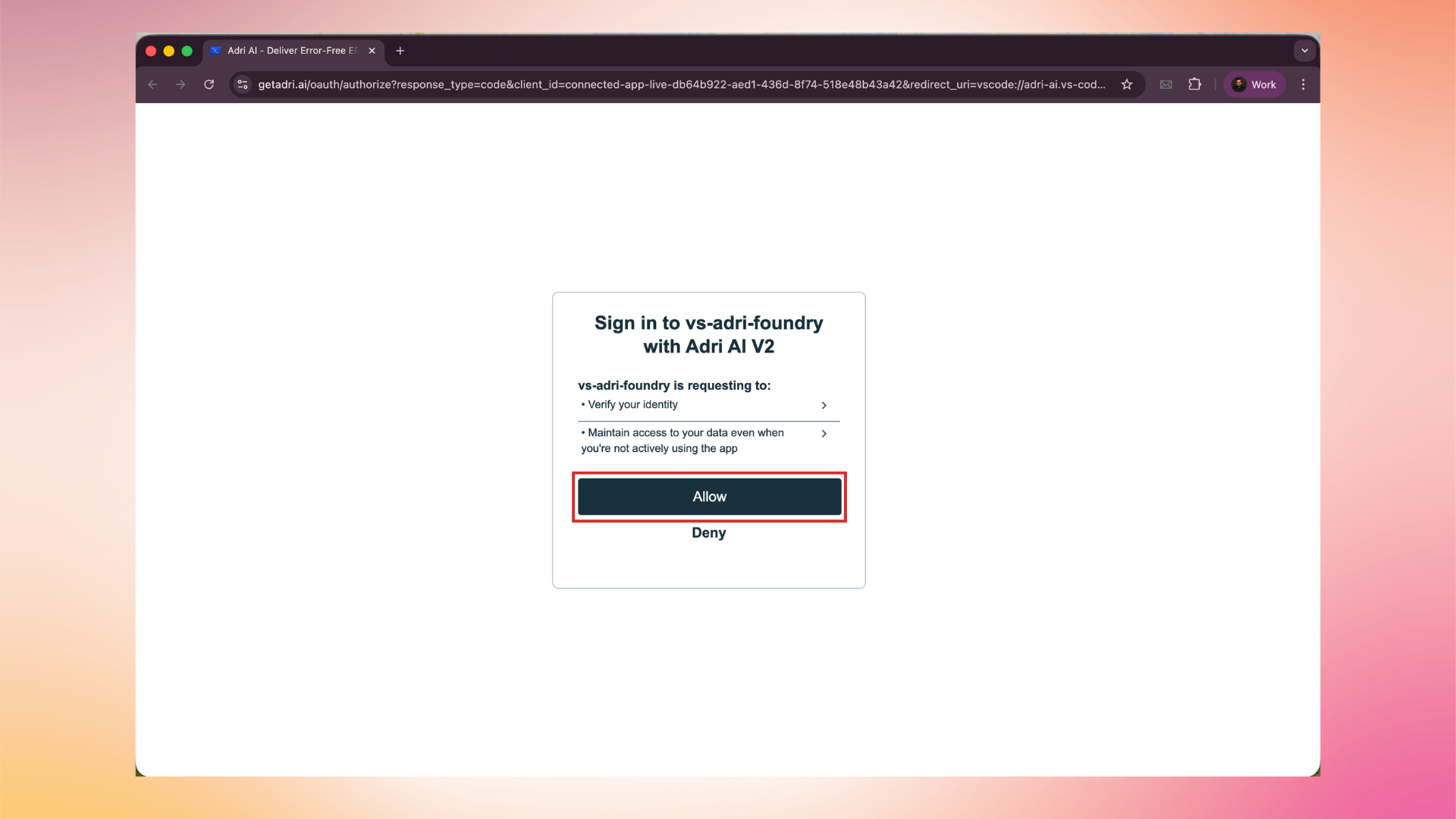
In the browser, review the requested permissions and click Allow.
4. Select a project
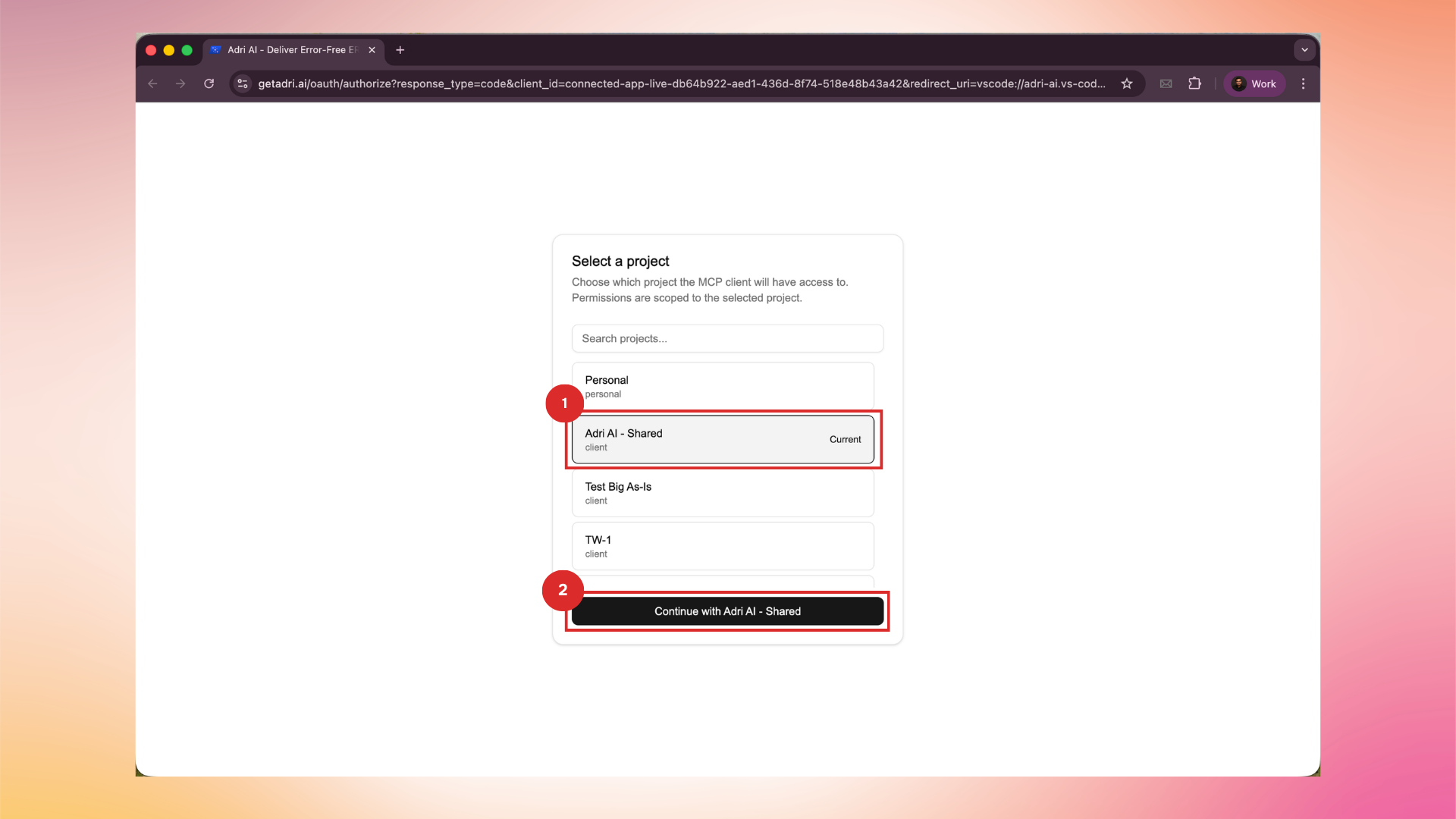
Pick the Adri AI project this VS Code workspace should use, then click Continue. Permissions are scoped to the selected project.
5. Return to VS Code
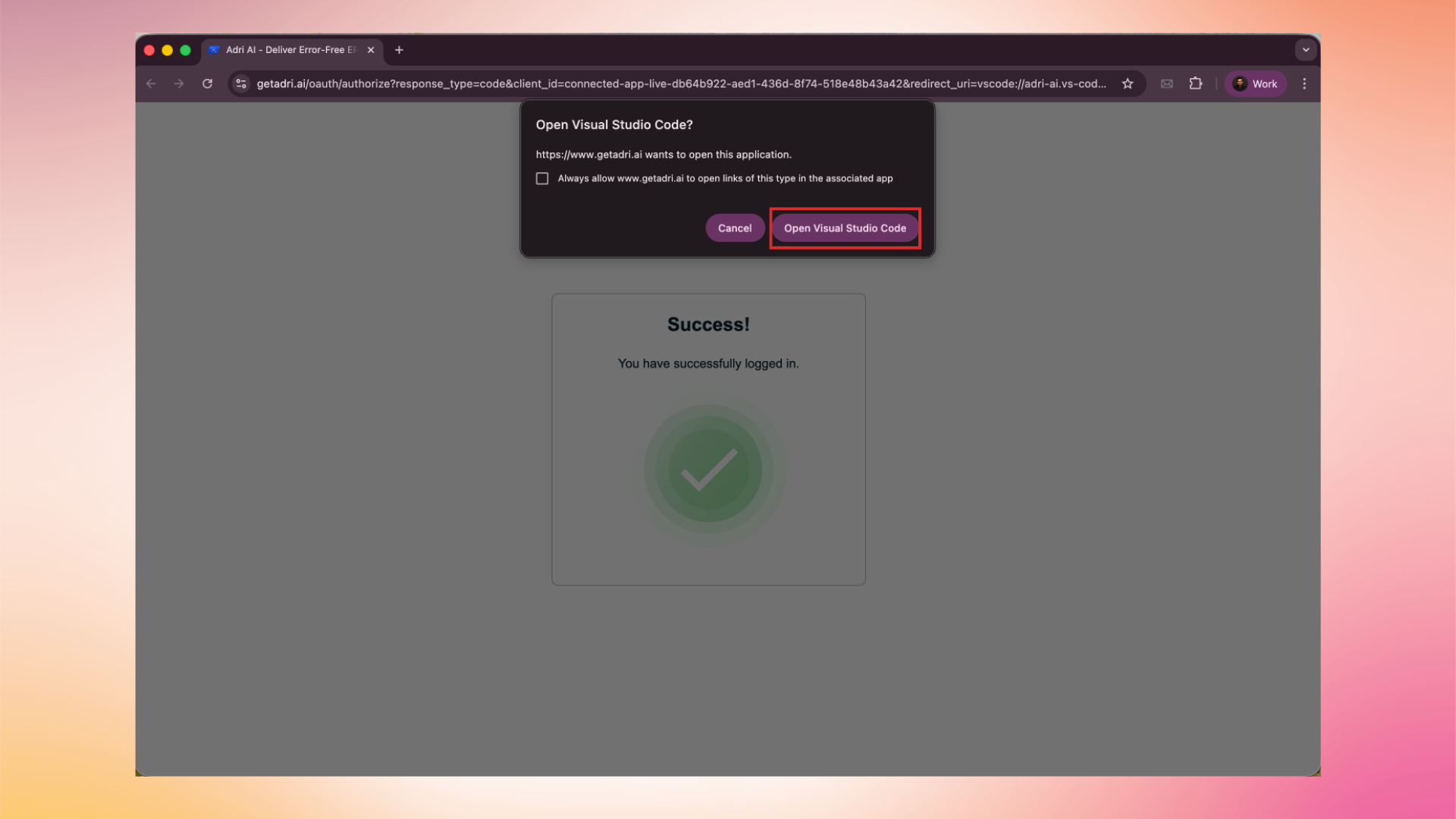
After successful authorization the browser shows a Success! page and asks to open VS Code. Click Open Visual Studio Code.
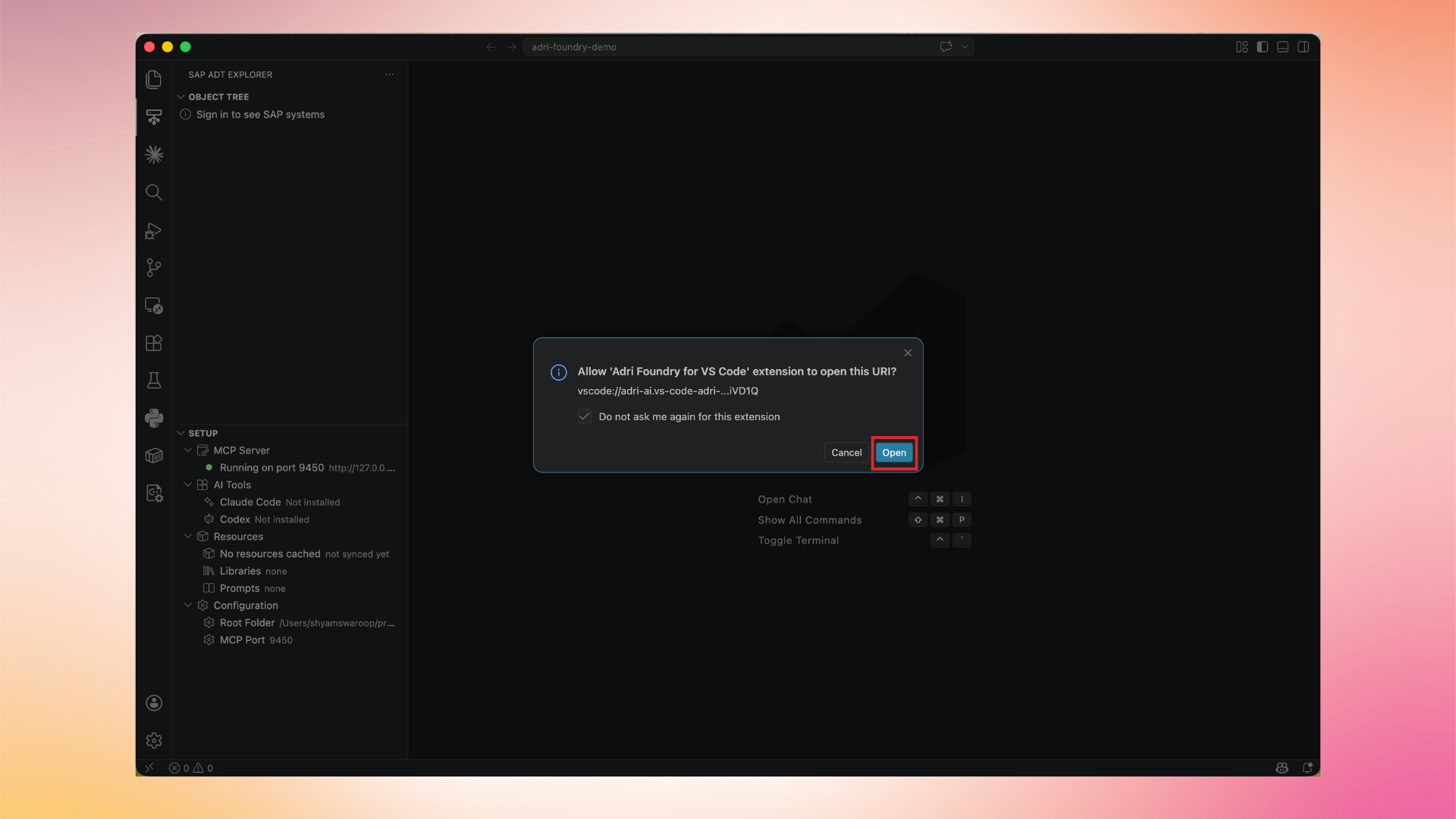
VS Code asks to allow the Adri Foundry for VS Code extension to open the URI. Click Open.
6. Confirm you are signed in
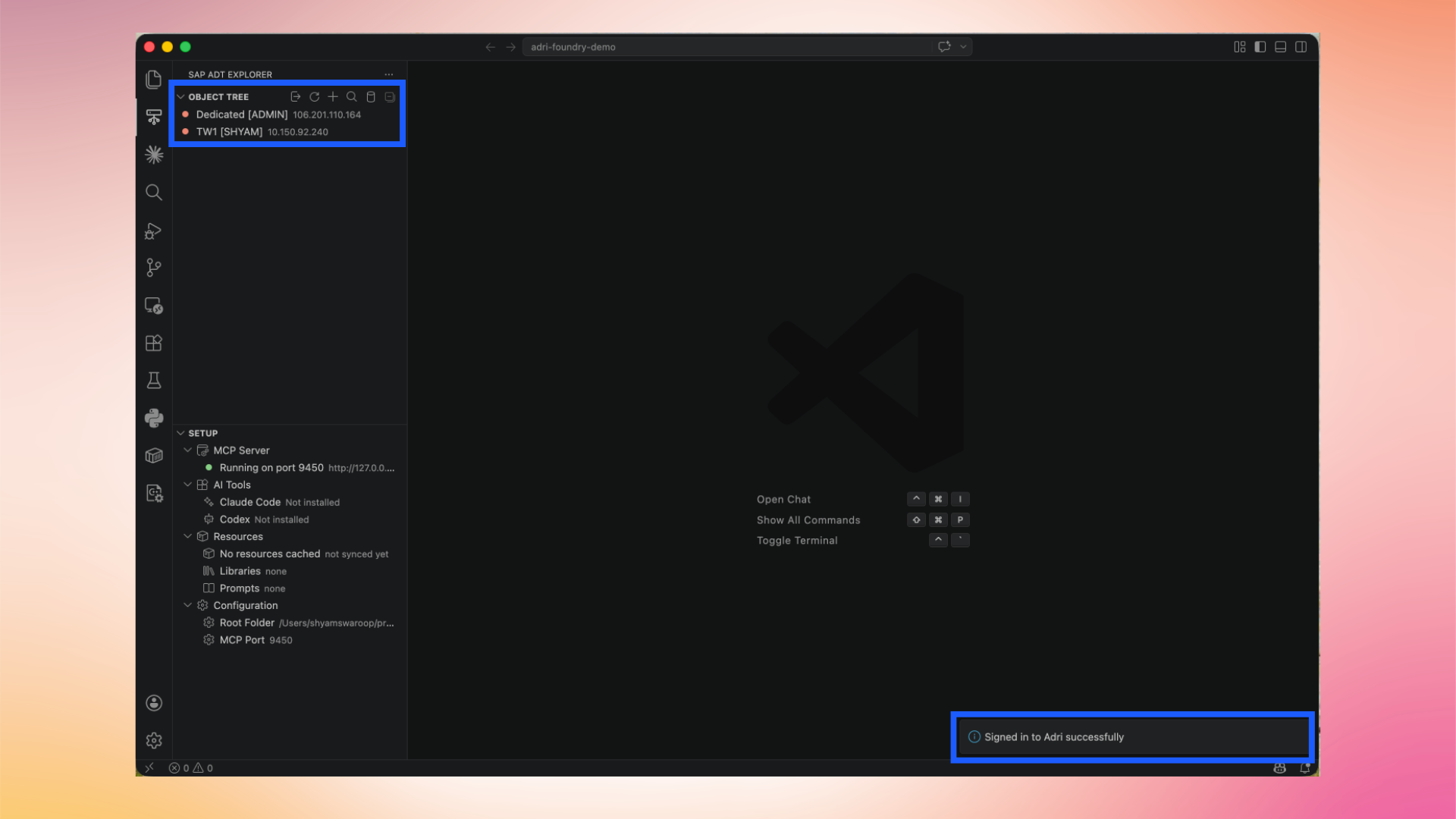
The Object Tree now lists the SAP systems available to your project, and a status bar message shows Signed in to Adri successfully.
You can now connect to a system.