Connect SAP BTP Cloud Foundry
In Adri Basecamp, open My settings > Connections and scroll to SAP BTP Connections. Create an authentication profile first, then bind it to a Cloud Foundry target.
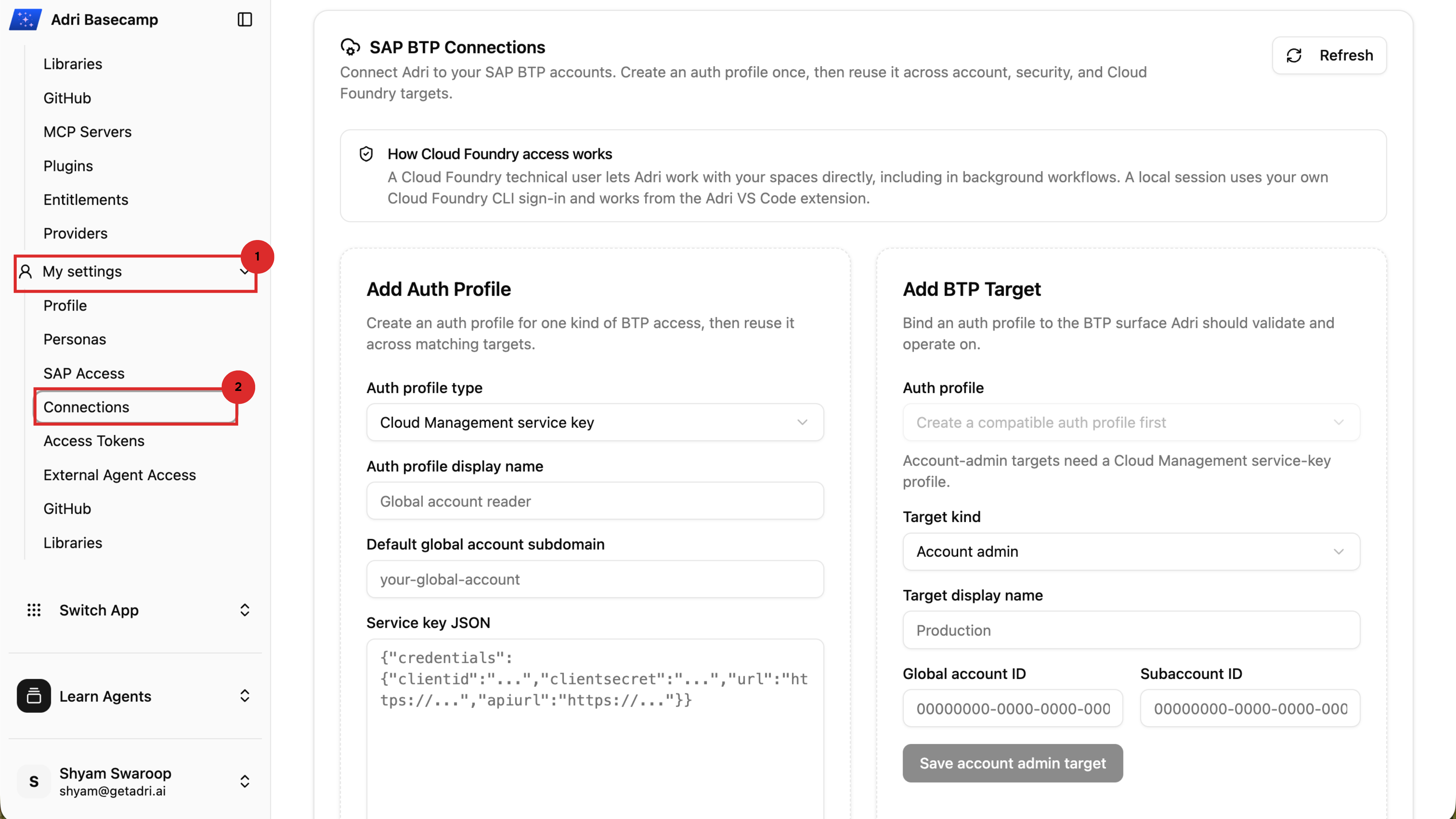
Create an authentication profile
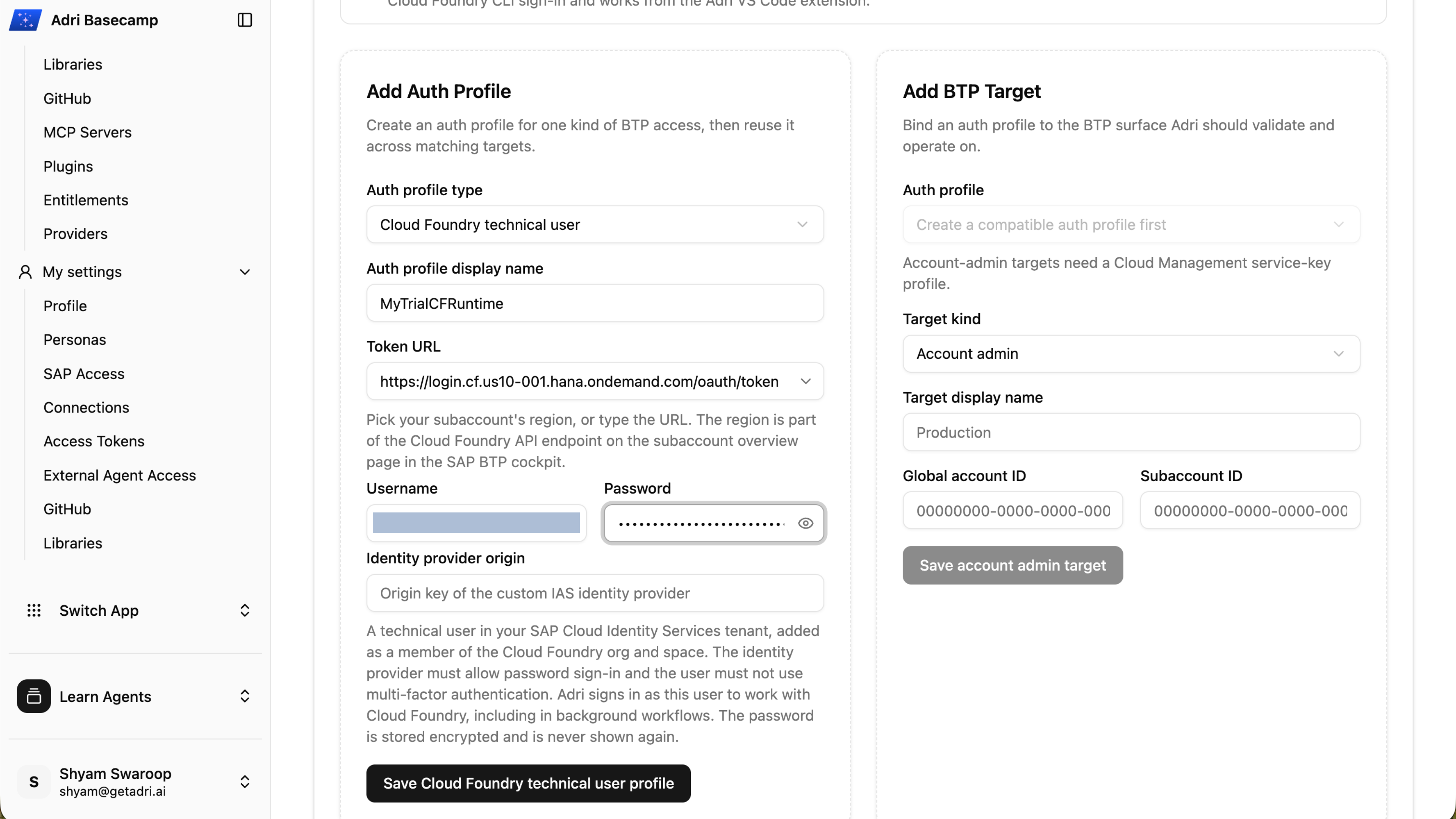
- Select Cloud Foundry technical user as the profile type.
- Enter a display name.
- Select or enter the token URL for the subaccount region.
- Enter the technical user's username and password.
- Add the identity-provider origin only if you use a custom identity provider.
- Select Save Cloud Foundry technical user profile.
The technical user must support password sign-in and must not require multi-factor authentication. Adri stores its password encrypted and does not display it again.
Create and validate the target
- Select the authentication profile.
- Select Cloud Foundry as the target kind.
- Enter a target display name, Cloud Foundry API URL, organization, and space.
- Select Save cloud foundry target.
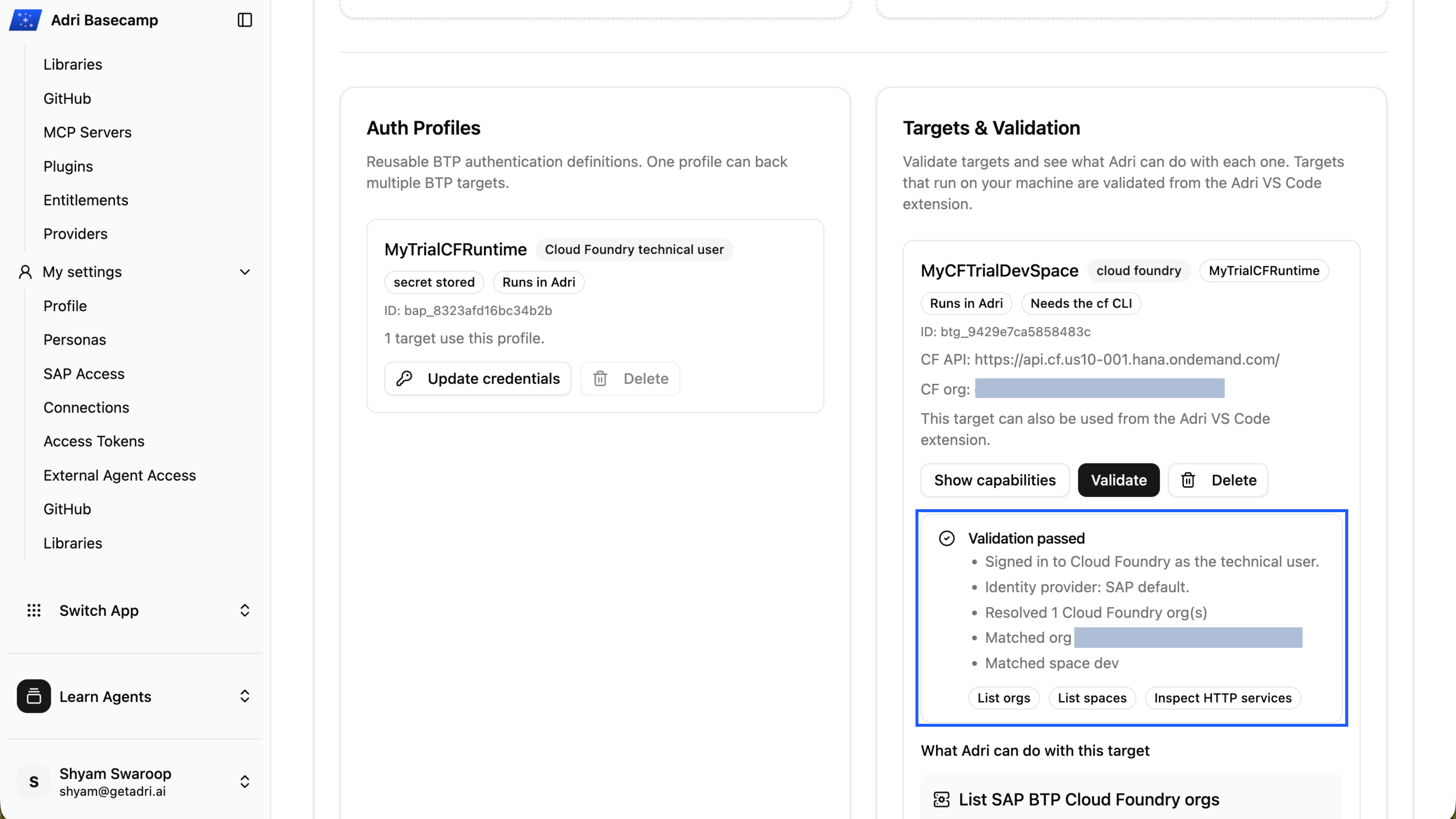
- Select Validate on the saved target.
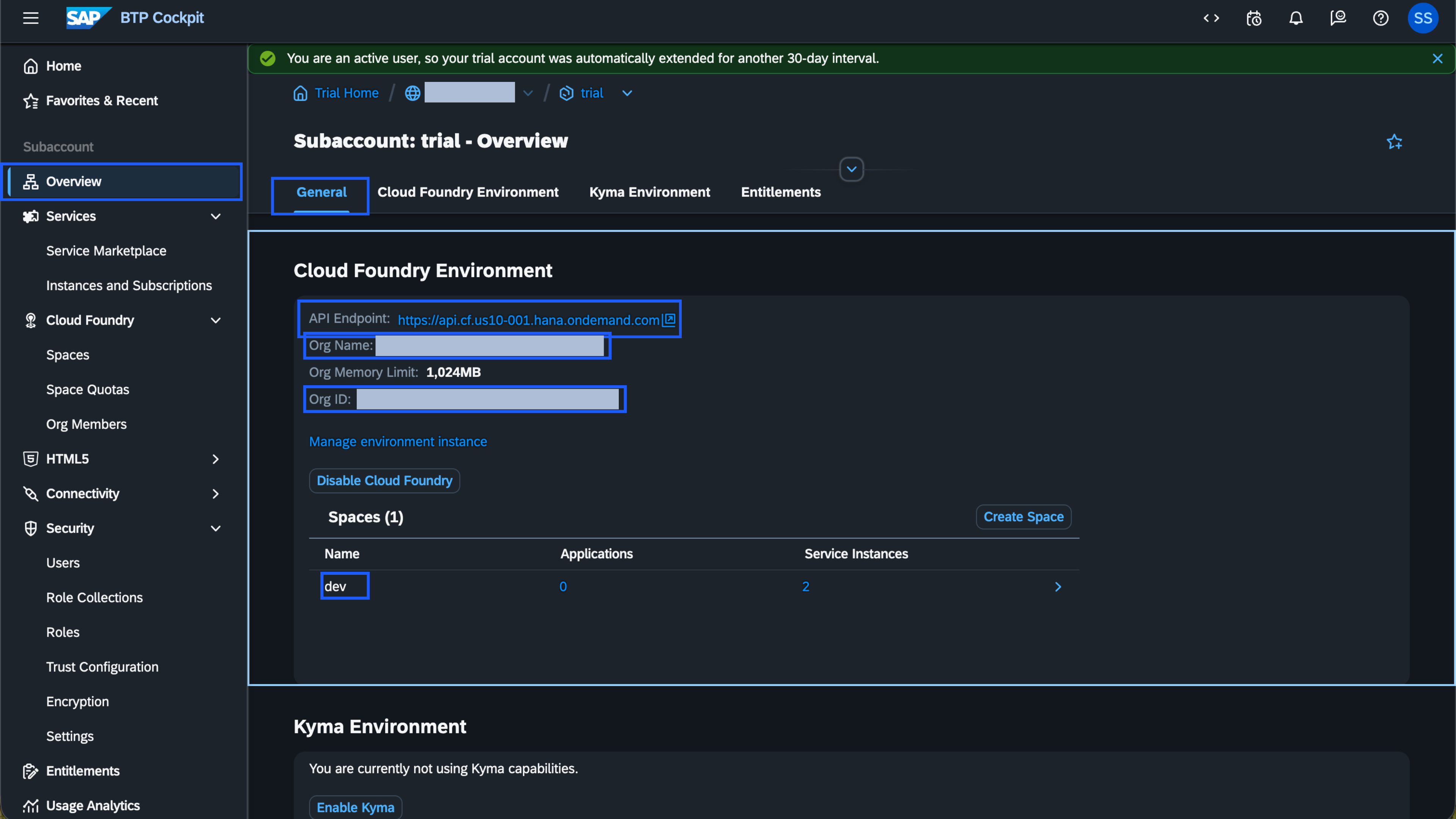
The SAP BTP Cockpit subaccount overview shows the API endpoint, organization, and spaces.
Continue only after the target displays Validation passed.
Refresh the target in VS Code
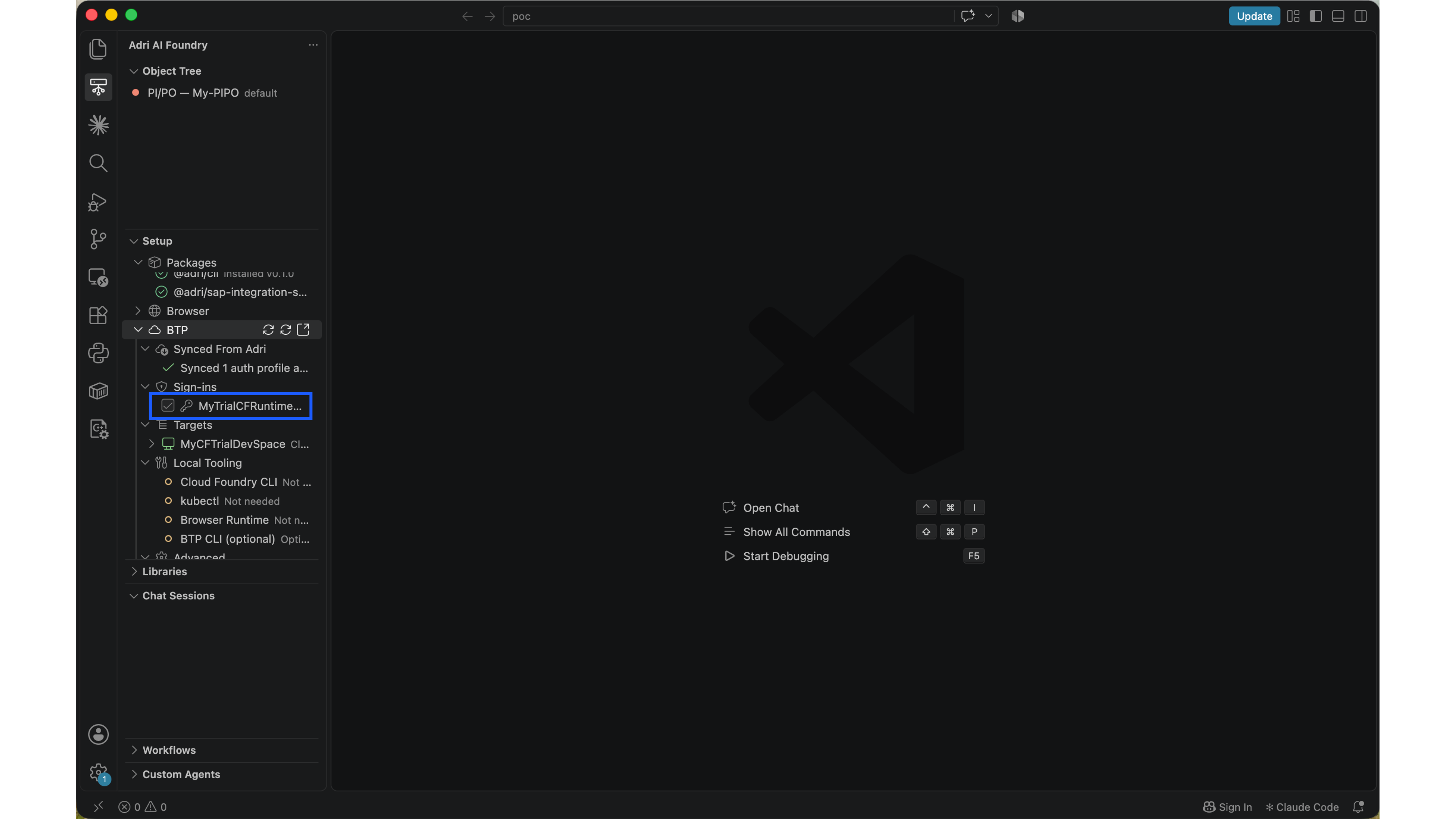
In Adri AI Foundry, expand BTP and select Refresh. Confirm that the authentication profile and target appear under Synced From Adri, Sign-ins, and Targets.
Next, develop a new integration or migrate a PI/PO interface.