Set up PI/PO to Integration Suite migration
Use this guide to prepare Adri AI for:
- migrating interfaces from SAP PI/PO to SAP Integration Suite;
- developing new integrations in SAP PI/PO; and
- developing new integrations in SAP Integration Suite.
You will create an Adri project, request the required access, connect PI/PO and SAP BTP Cloud Foundry, prepare Adri AI Foundry for VS Code, and send your first migration request to the Code Agent.
Before you begin
You need:
- the URL and credentials for your PI/PO system;
- an SAP BTP Cloud Foundry technical user that can sign in with a password and does not require multi-factor authentication;
- the Cloud Foundry API endpoint, organization, and space for the target runtime; and
- VS Code on your computer.
1. Sign up and create a project
First, sign up and complete your profile. Then create a project. The project keeps the access, connections, packages, and agent sessions for this migration together.
2. Request a free trial
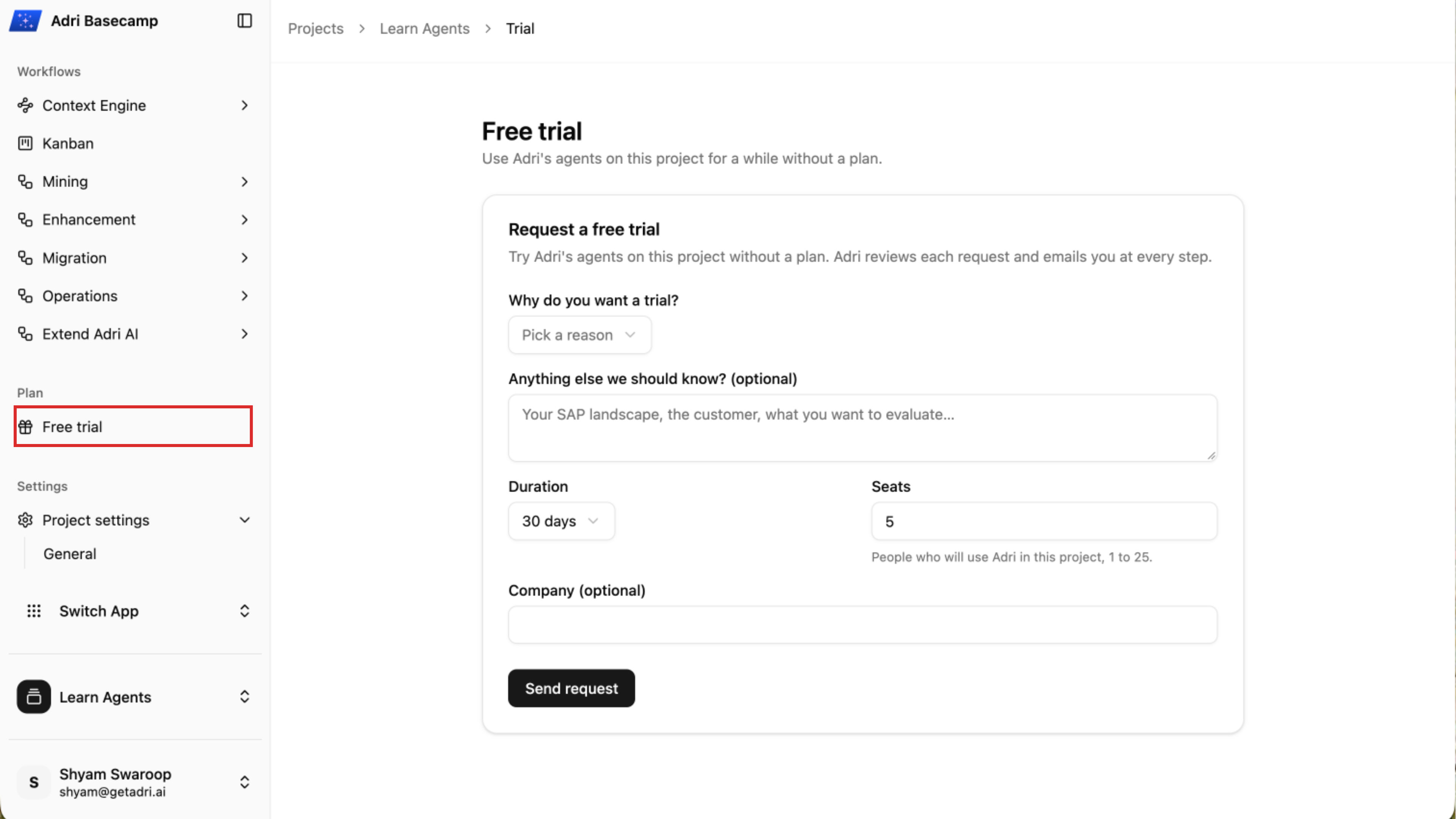
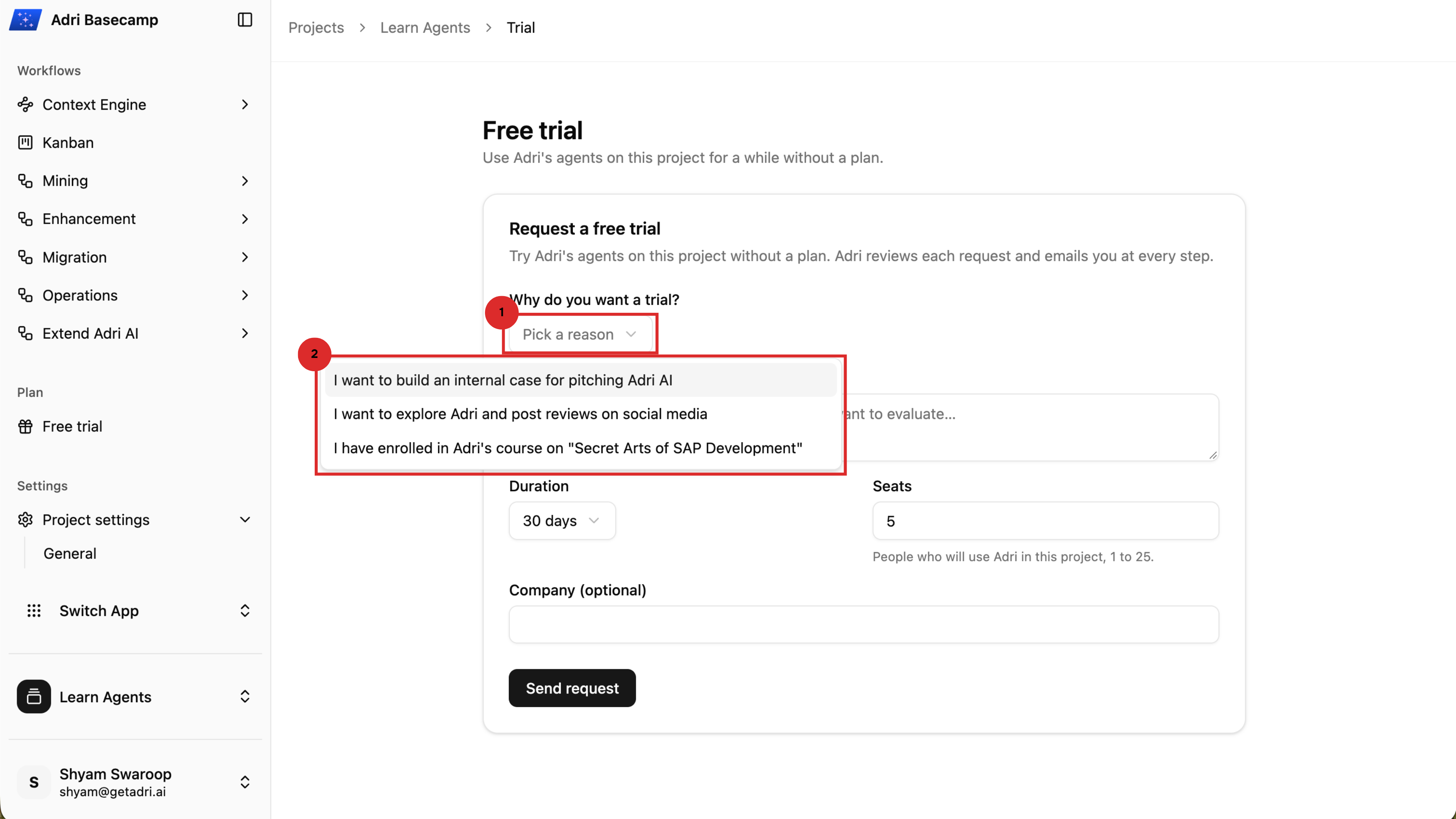
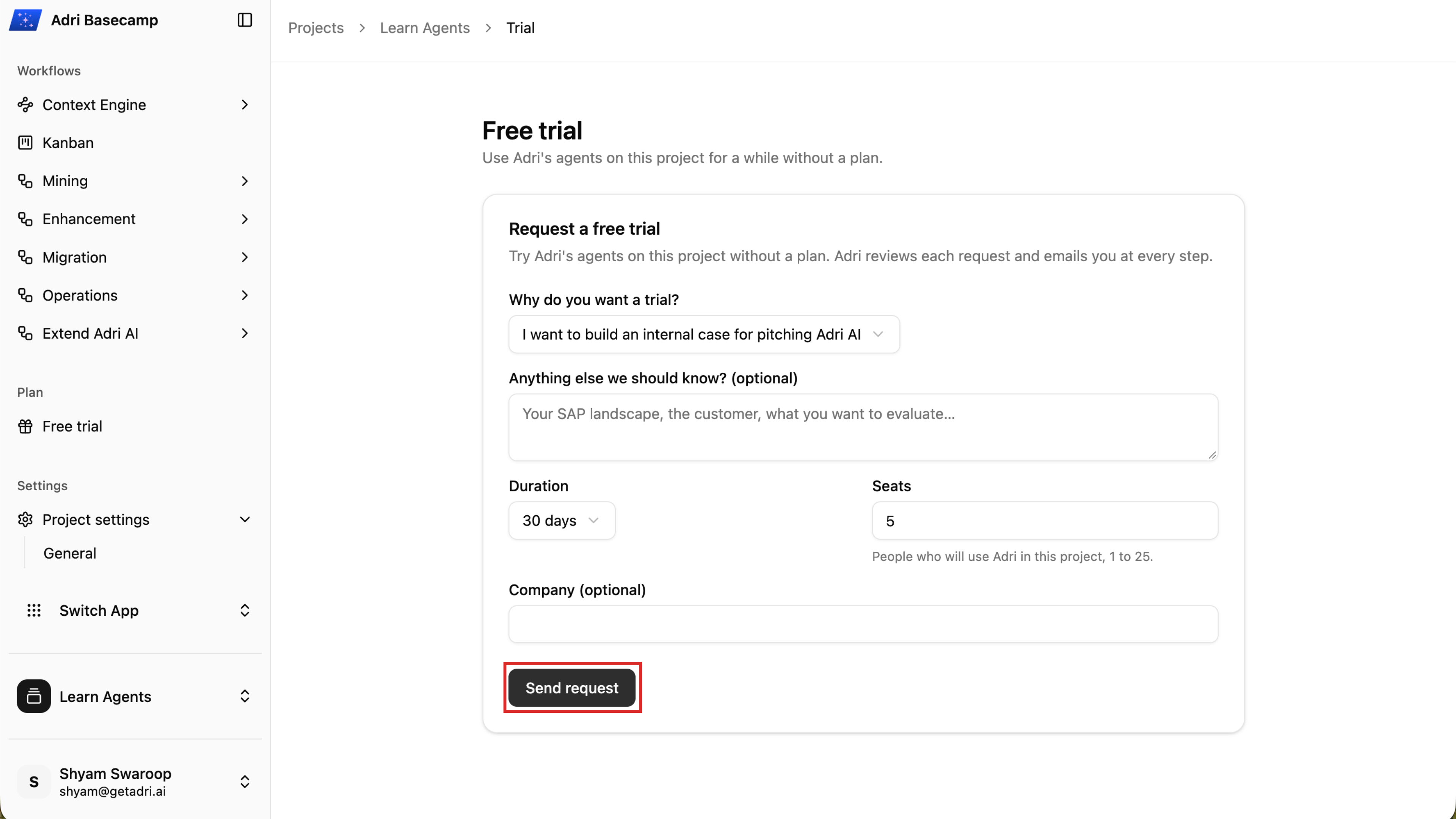
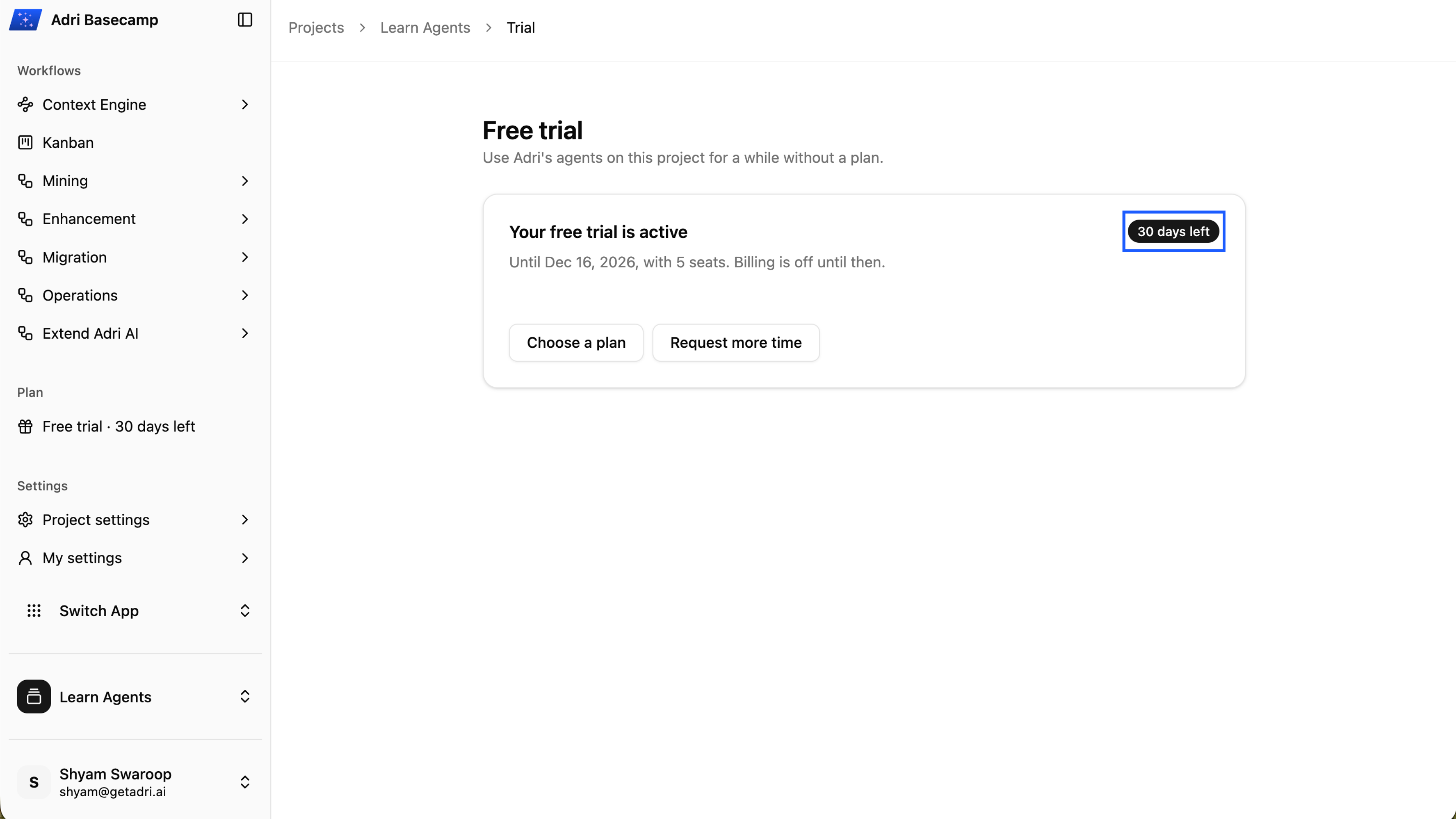
In Adri Basecamp, select Free trial. Choose the reason for the trial, enter any useful details, select the duration and number of seats, and select Send request.
The page shows that your request is with Adri. You can withdraw it while it is pending, and Adri also sends you an email notification.
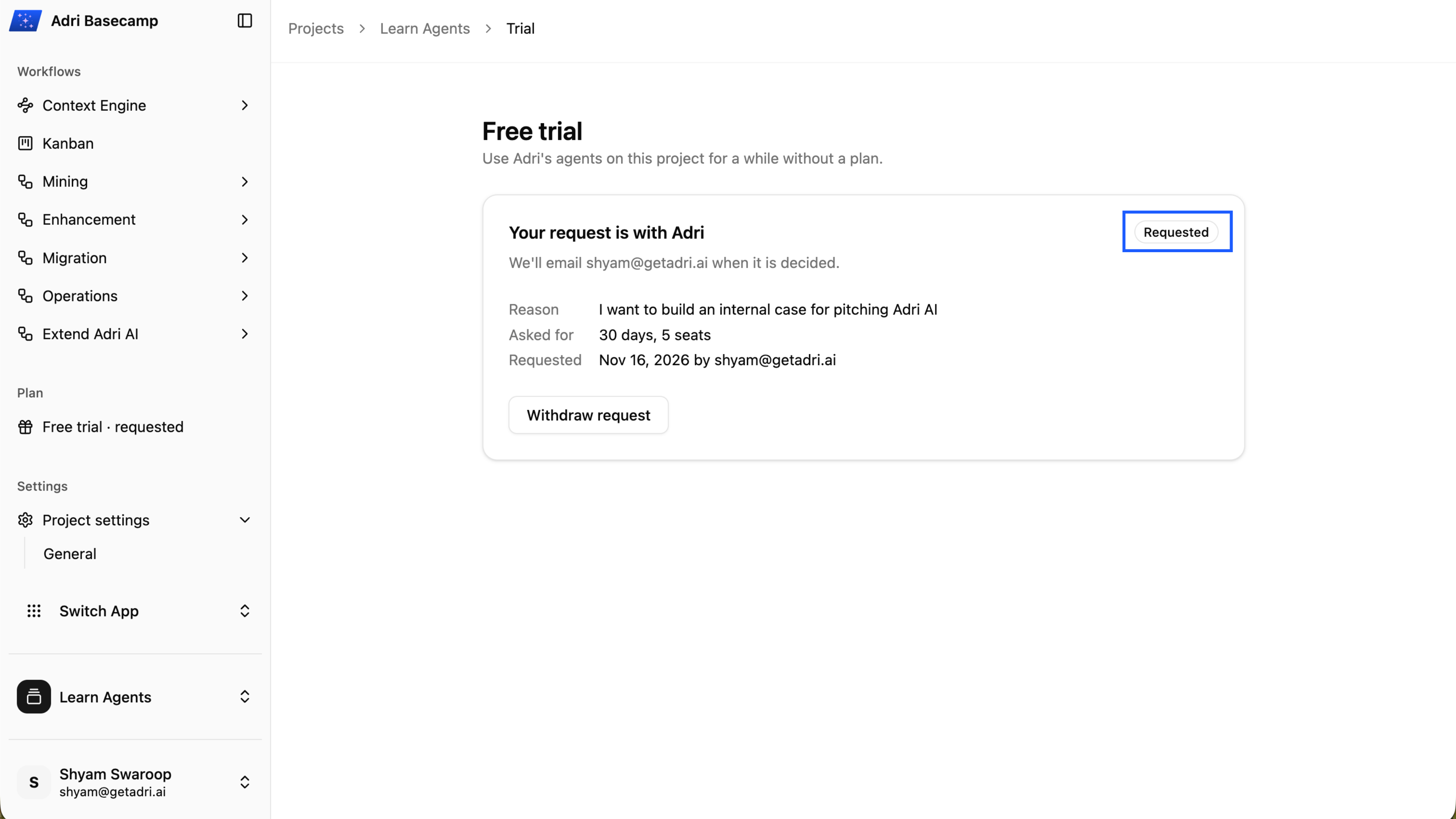
You no longer need to email the Adri team for a trial or entitlement. Submit the request in Adri Basecamp. The Adri team resolves requests within 24 hours.
After approval, the Free trial page displays the active period and remaining days.
3. Request the SAP Integration Suite Toolkit entitlement
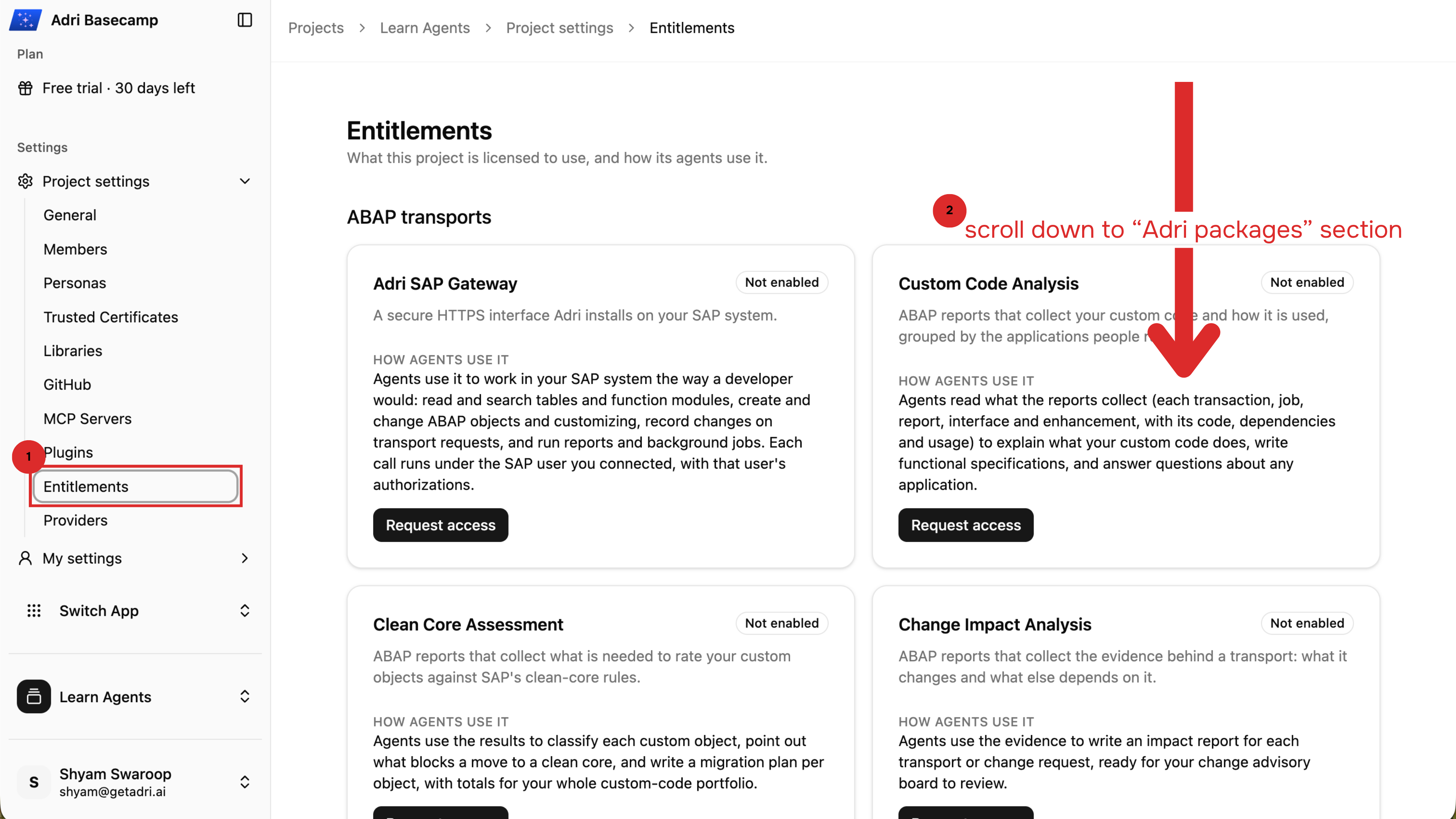
Open Project settings, select Entitlements, and scroll to Adri packages.
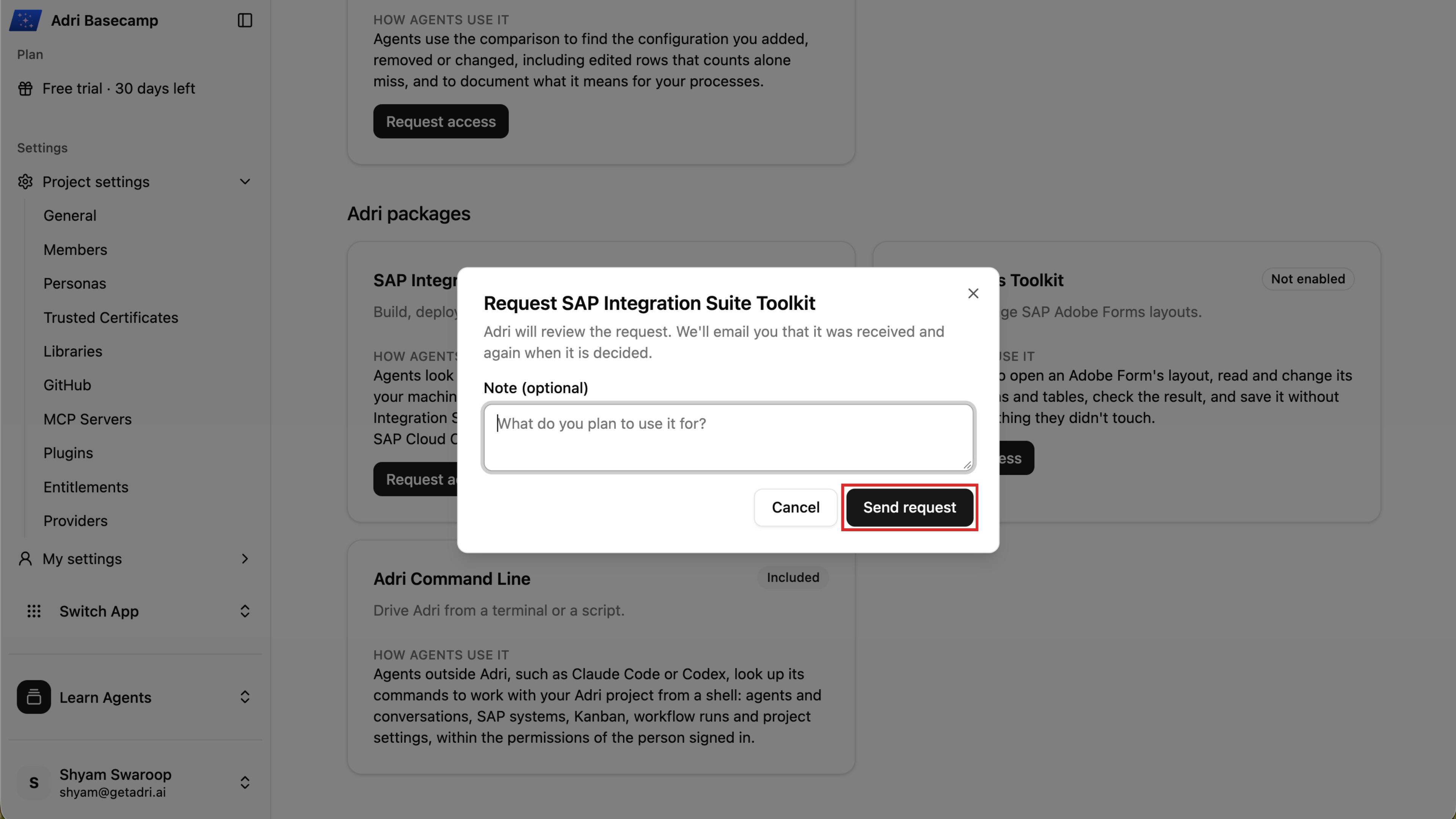
On the SAP Integration Suite Toolkit card, select Request access. Add an optional note and select Send request.
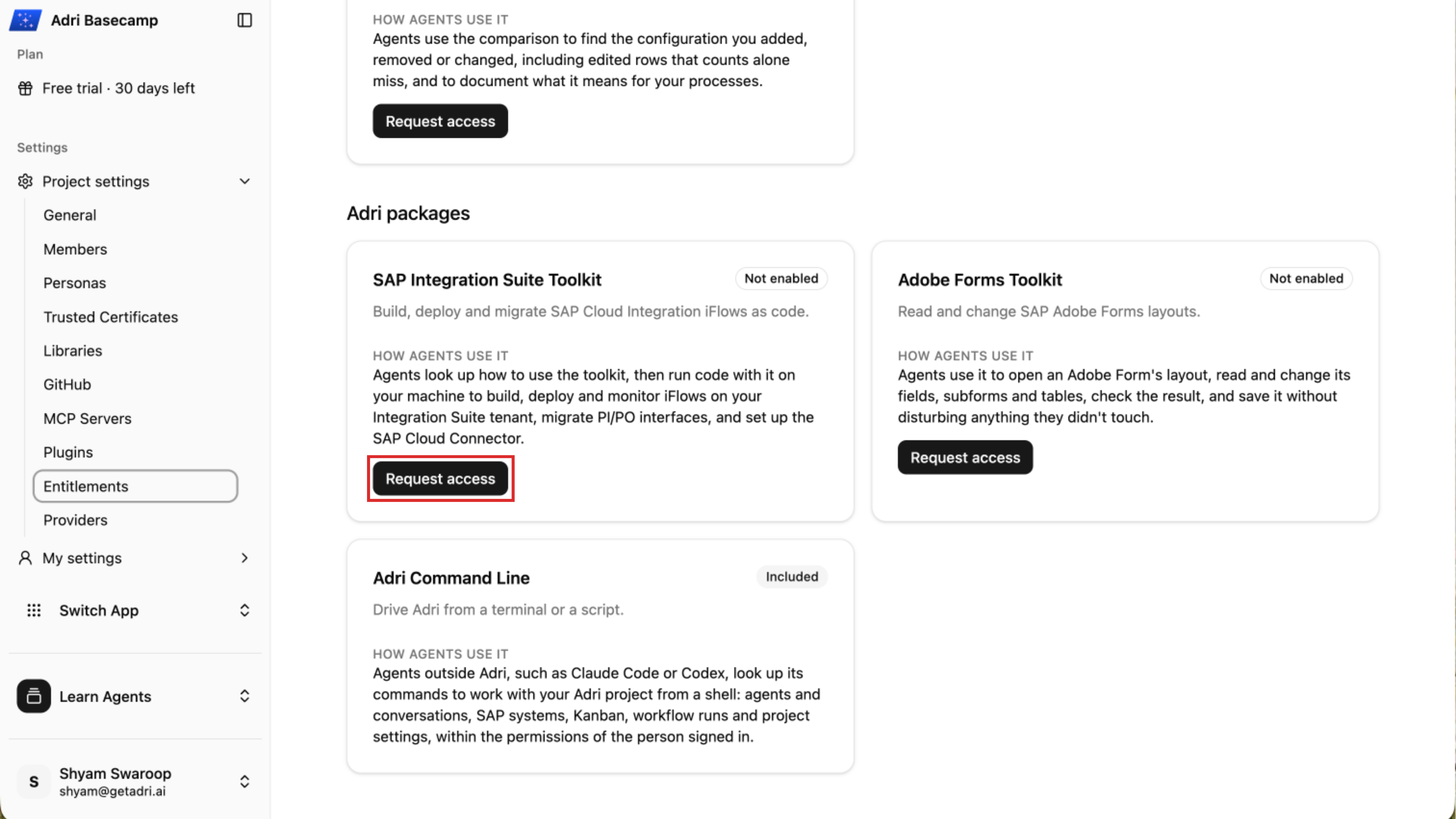
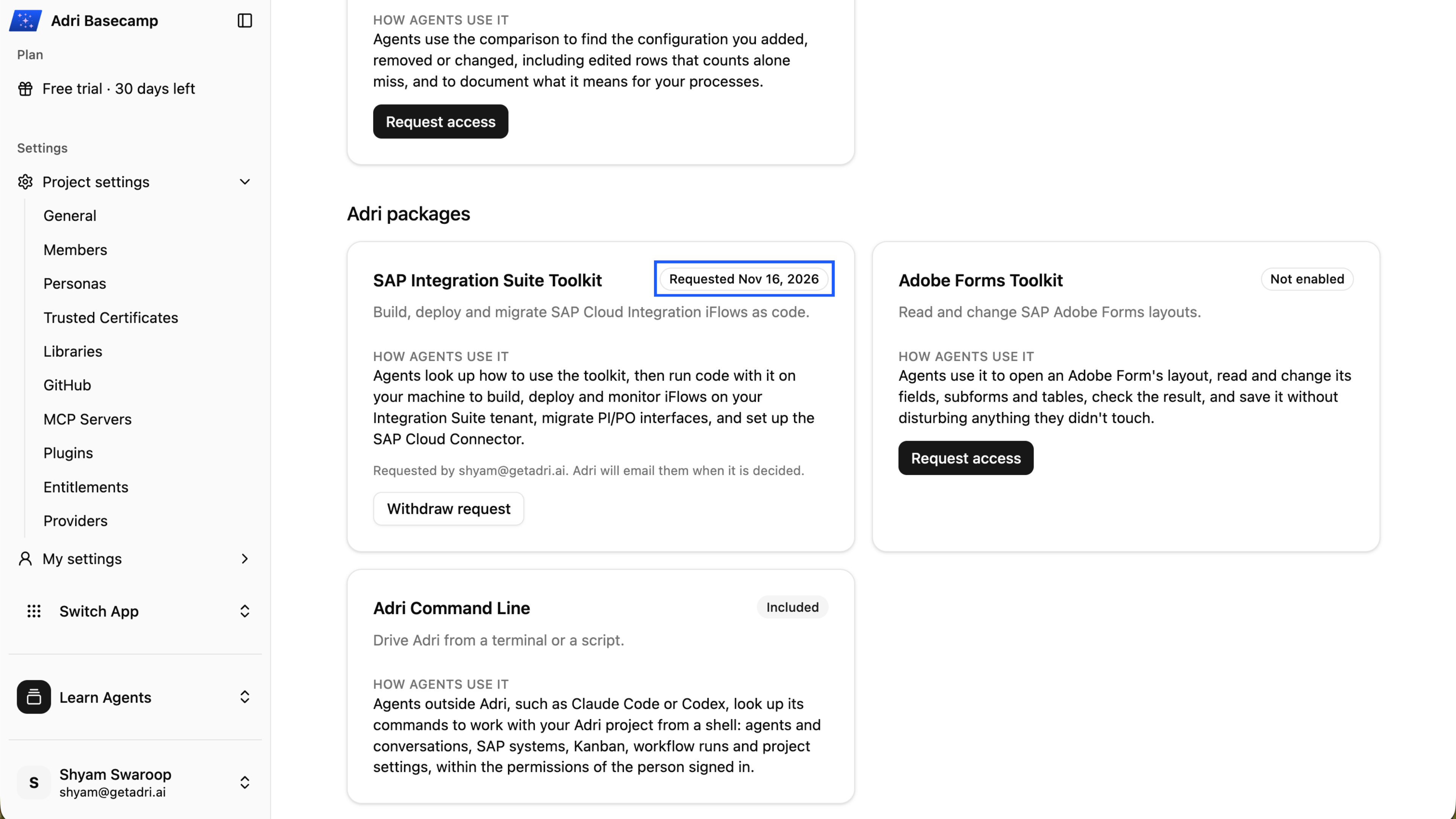
The card displays the request date while approval is pending. You can withdraw the request from the same card.
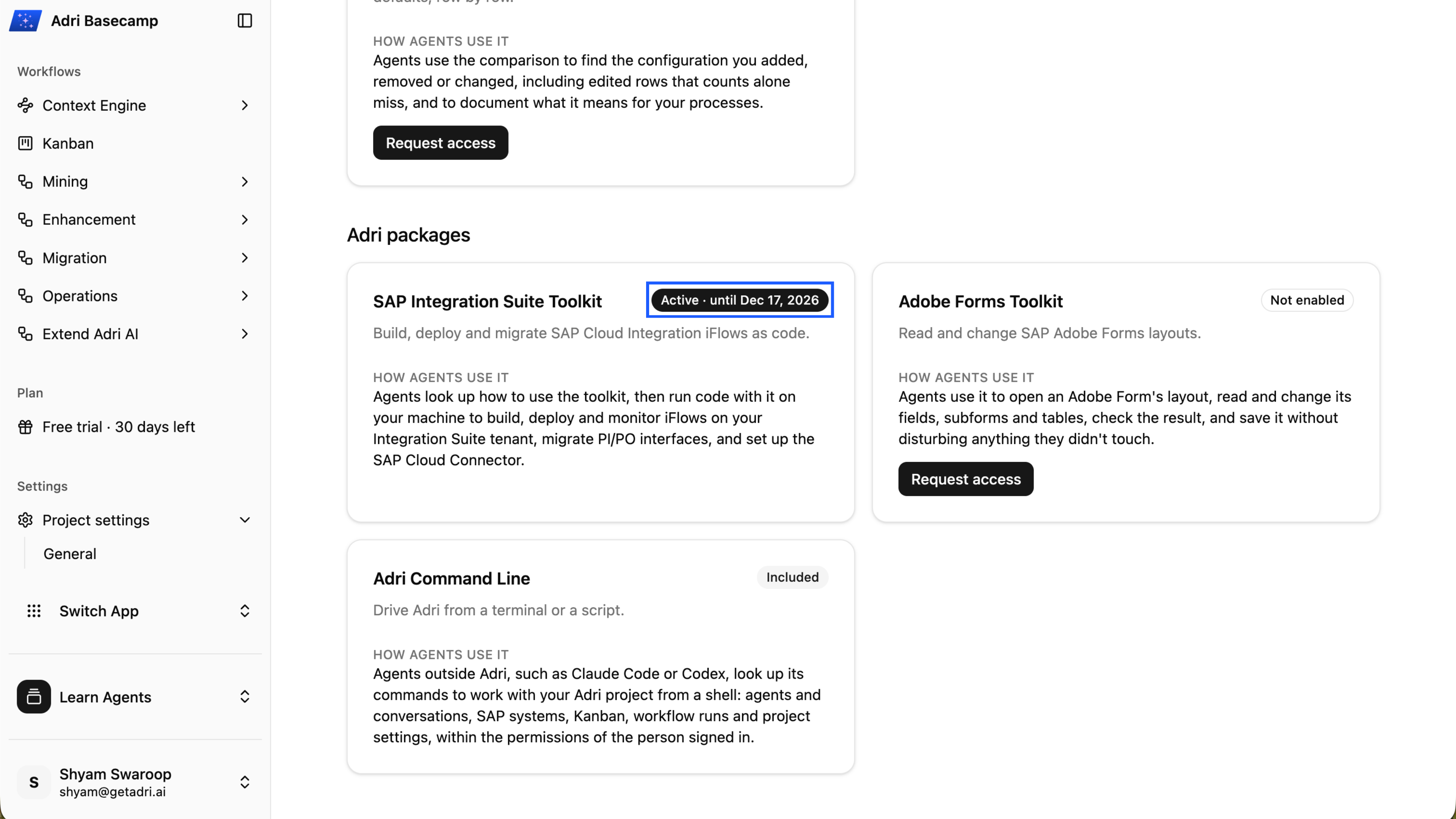
After approval, the card displays Active and the entitlement end date.
4. Install and sign in to Adri AI Foundry
Complete these existing setup guides in order:
Use a dedicated workspace folder for the migration so that the toolkit and generated integration artifacts remain together.
5. Add the SAP Integration Suite package to the workspace
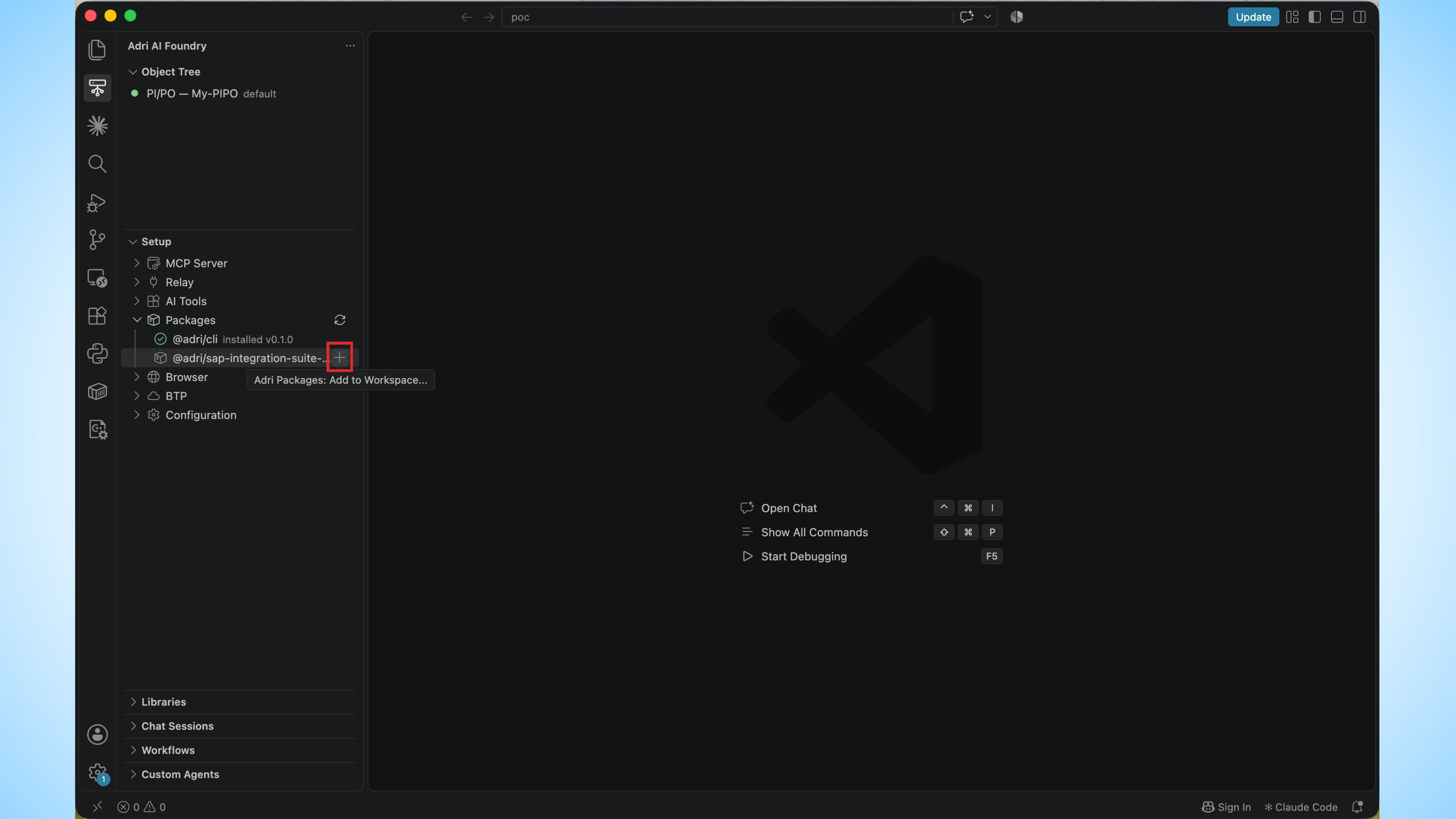
In Adri AI Foundry, expand Setup and Packages. Select the Add to Workspace icon beside the SAP Integration Suite package.
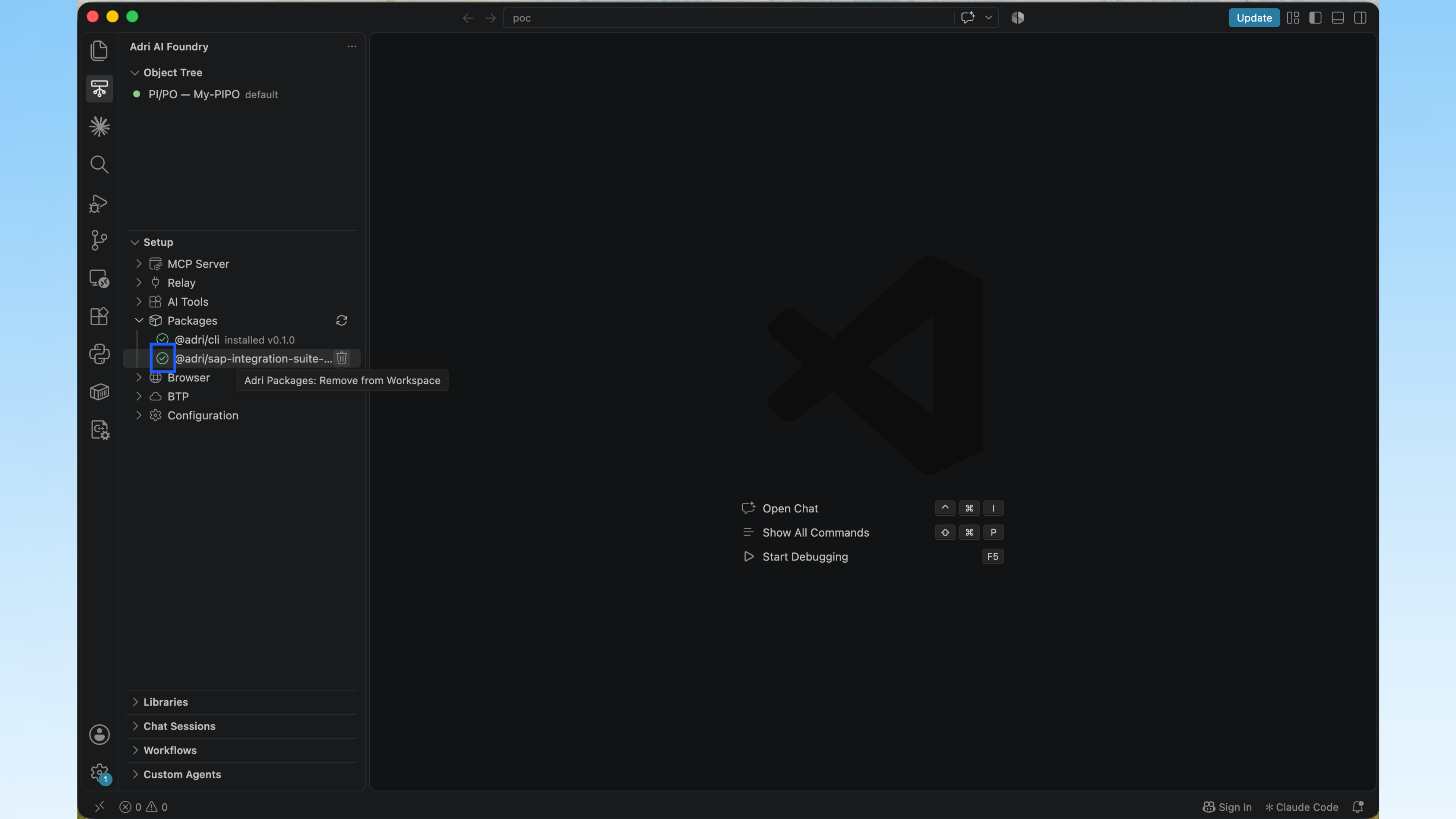
A green check confirms that the package is available in the workspace.
6. Add your PI/PO connection
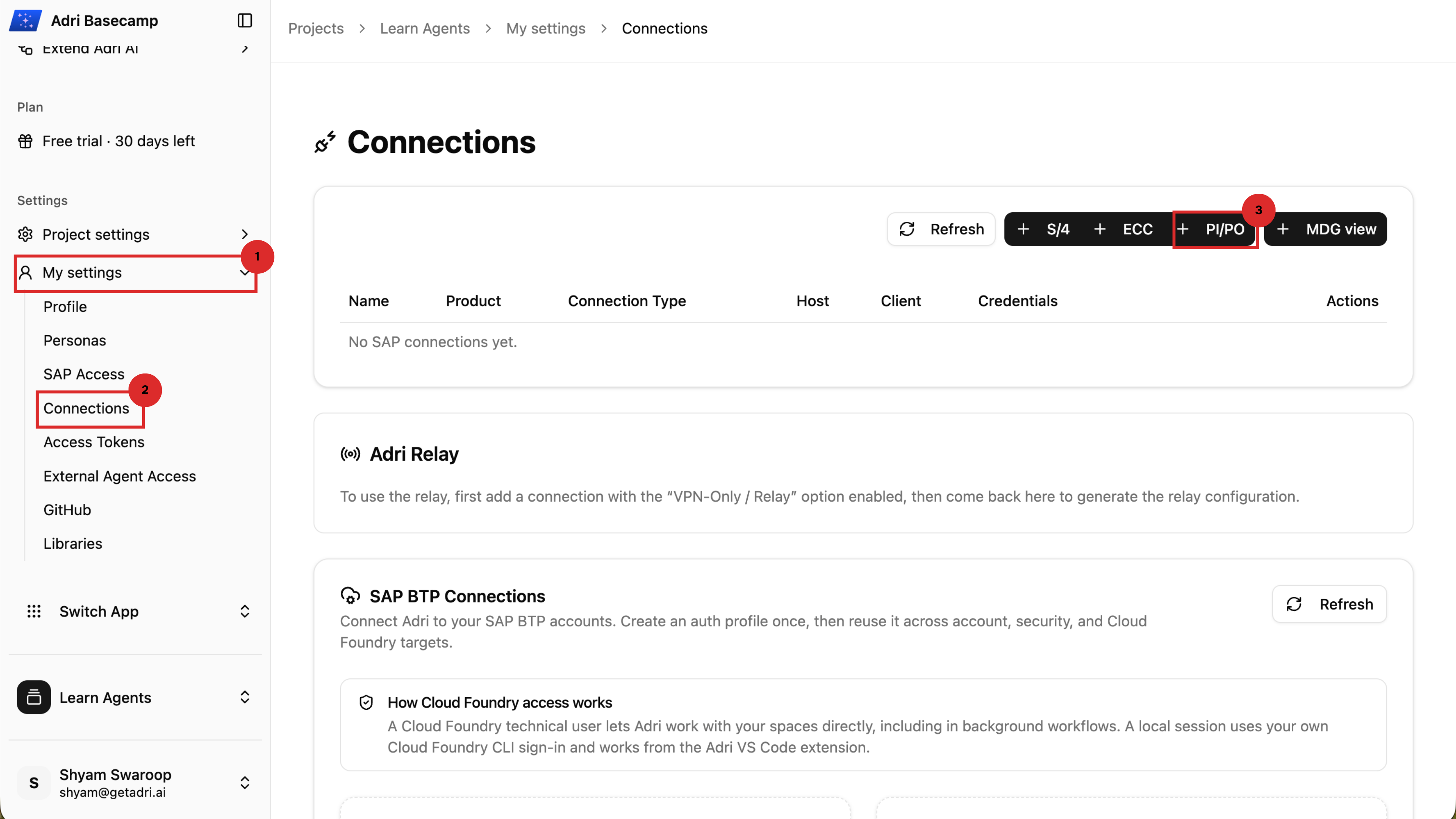
In Adri Basecamp, open My settings > Connections, then select + PI/PO.
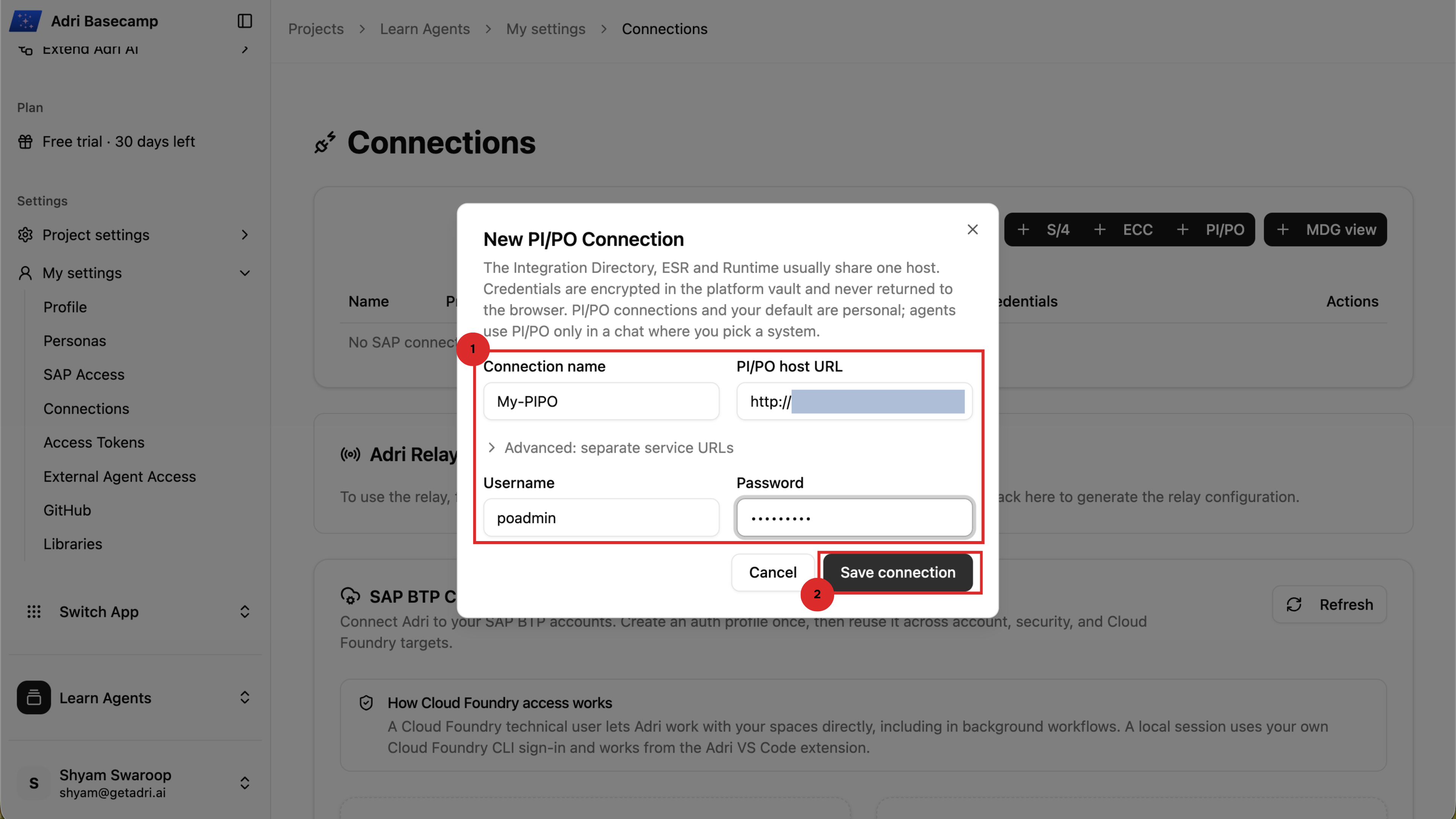
Enter a connection name, the PI/PO host URL, username, and password. If the Integration Directory, ESR, and Runtime use different URLs, expand Advanced: separate service URLs. Select Save connection.
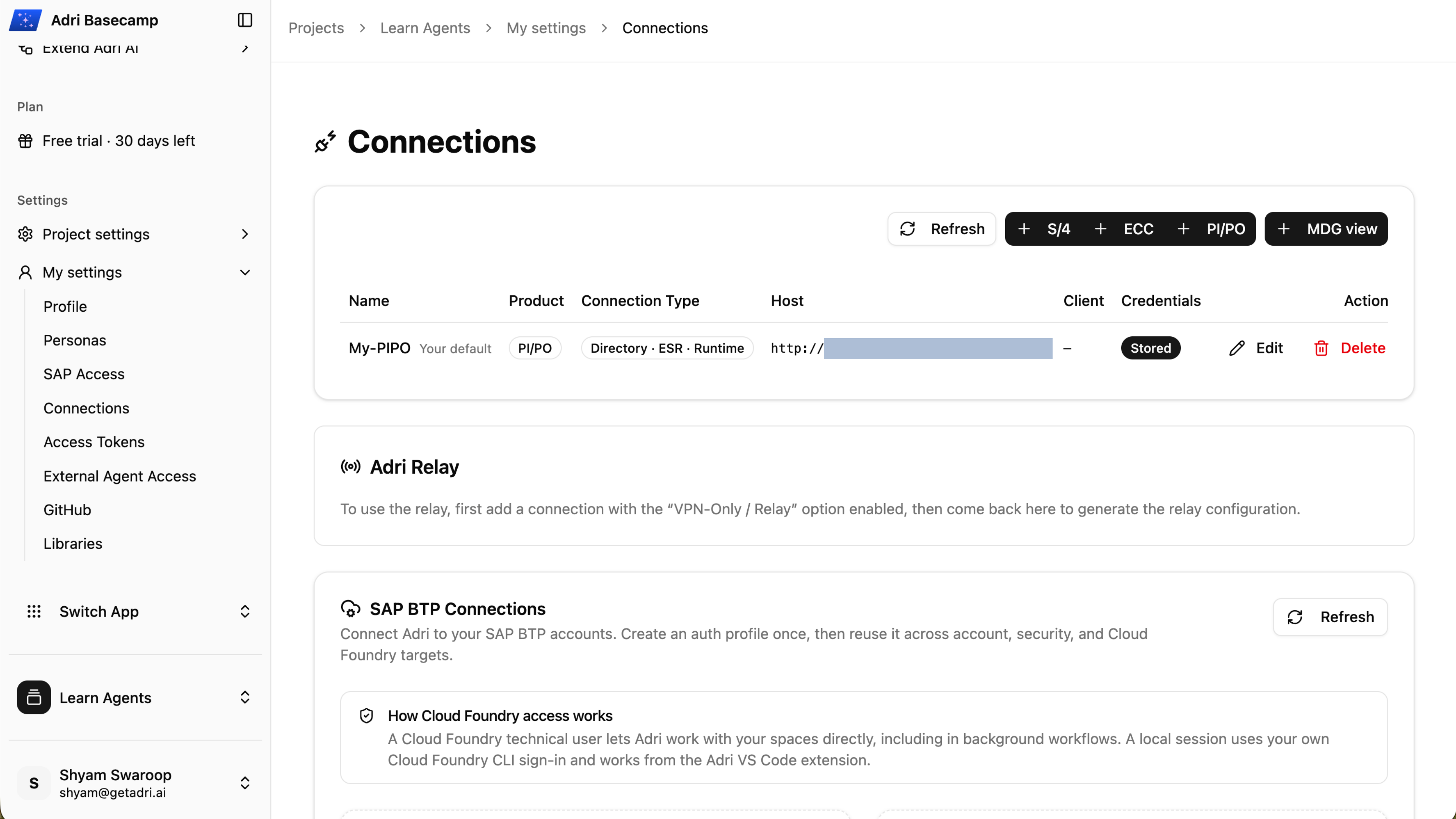
The saved system appears in the connections list. PI/PO connections and the default selection are personal to you; agents use a PI/PO system only after you link it to a chat.
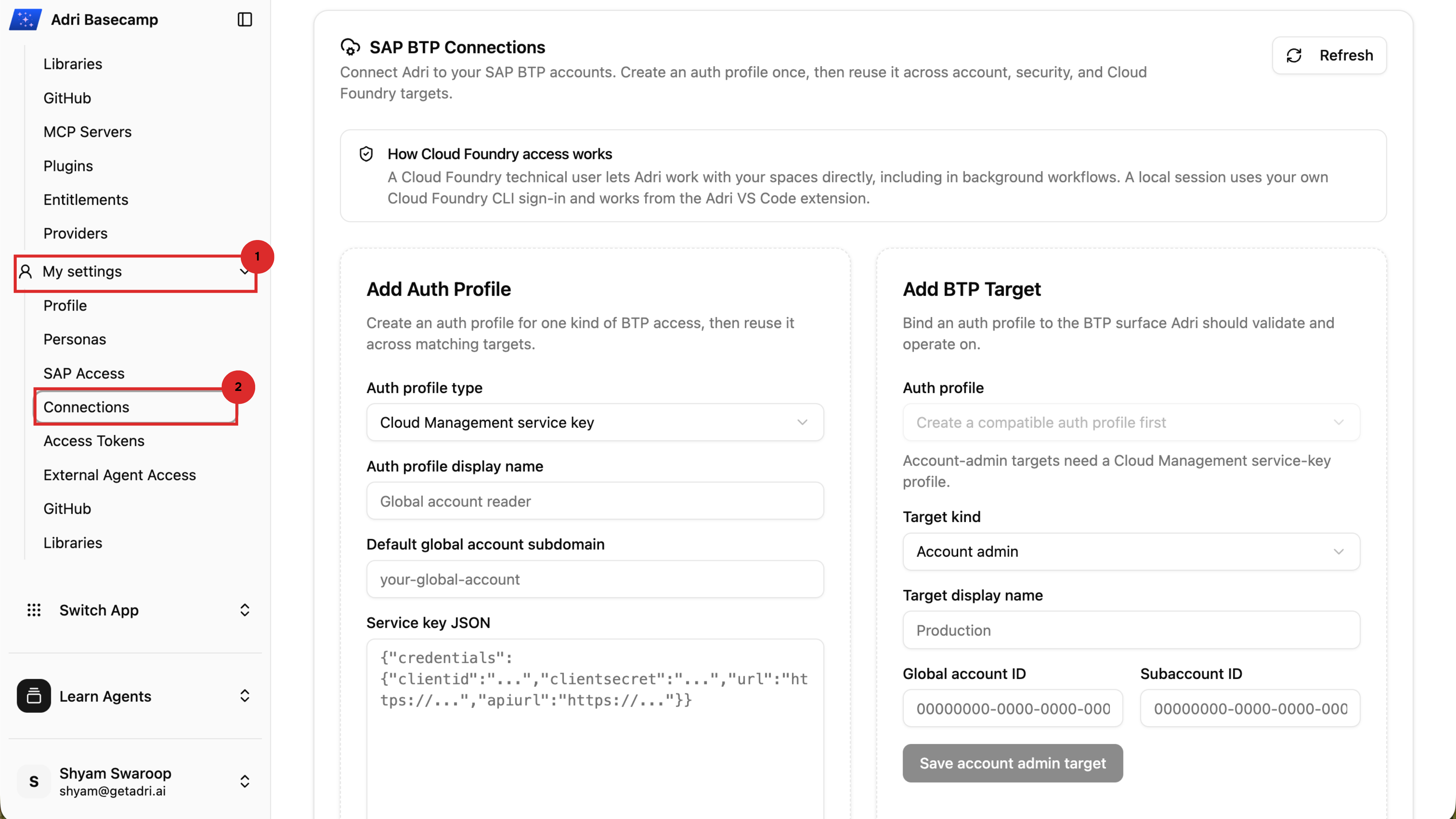
7. Add the SAP BTP Cloud Foundry connection
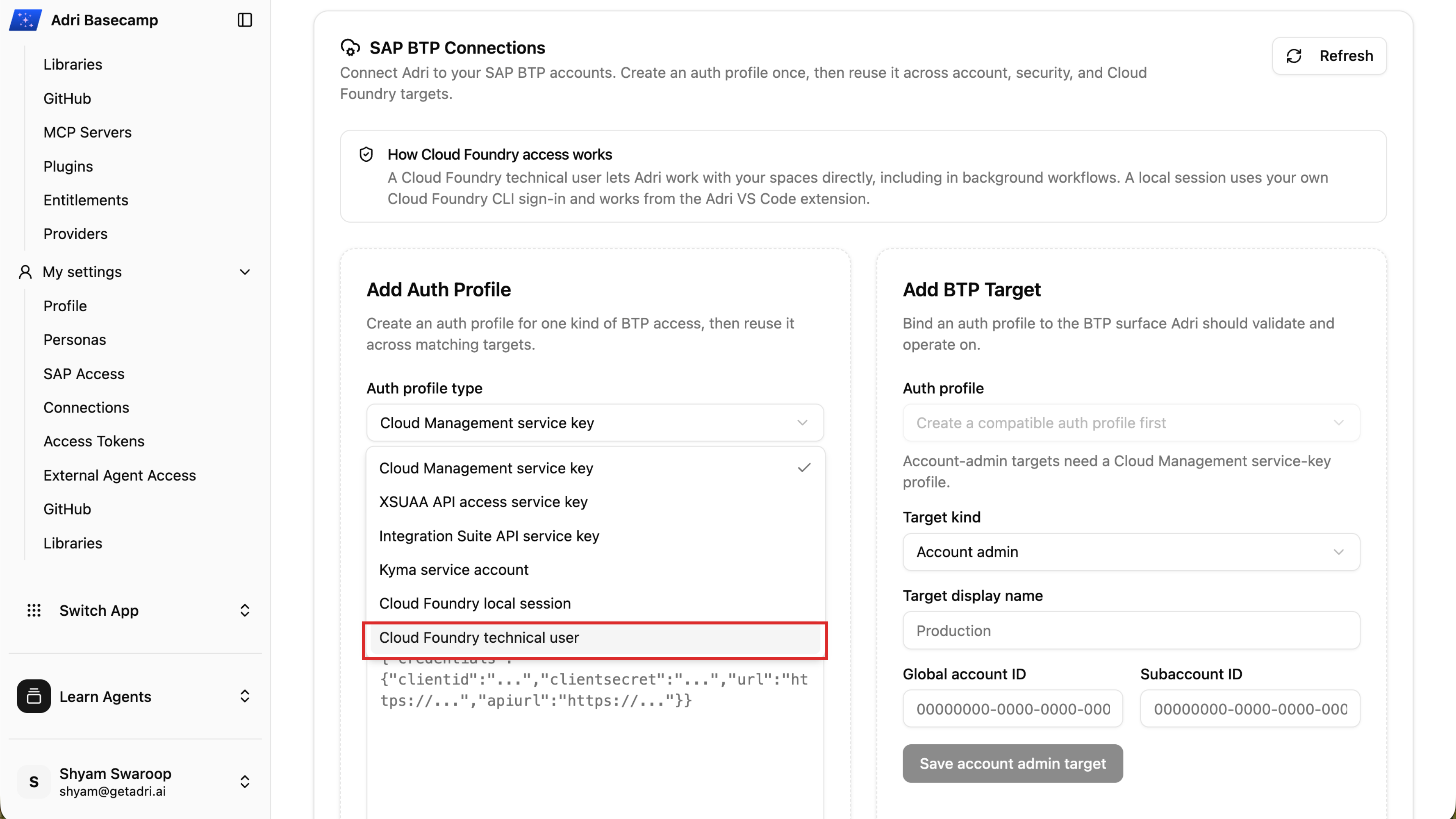
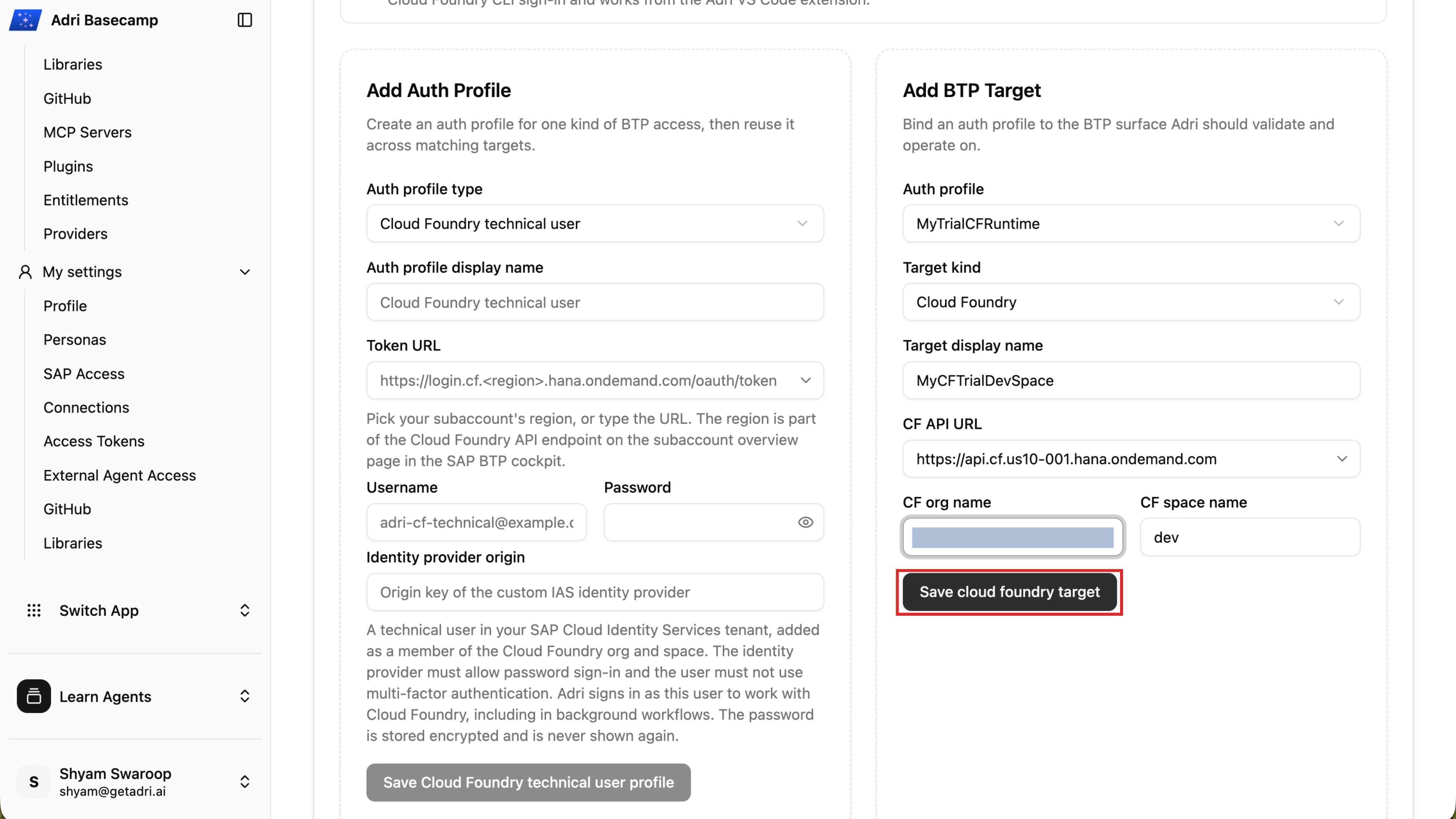
On the same Connections page, scroll to SAP BTP Connections. First create an authentication profile, then create a target that uses it.
Create the authentication profile
- For Auth profile type, select Cloud Foundry technical user.
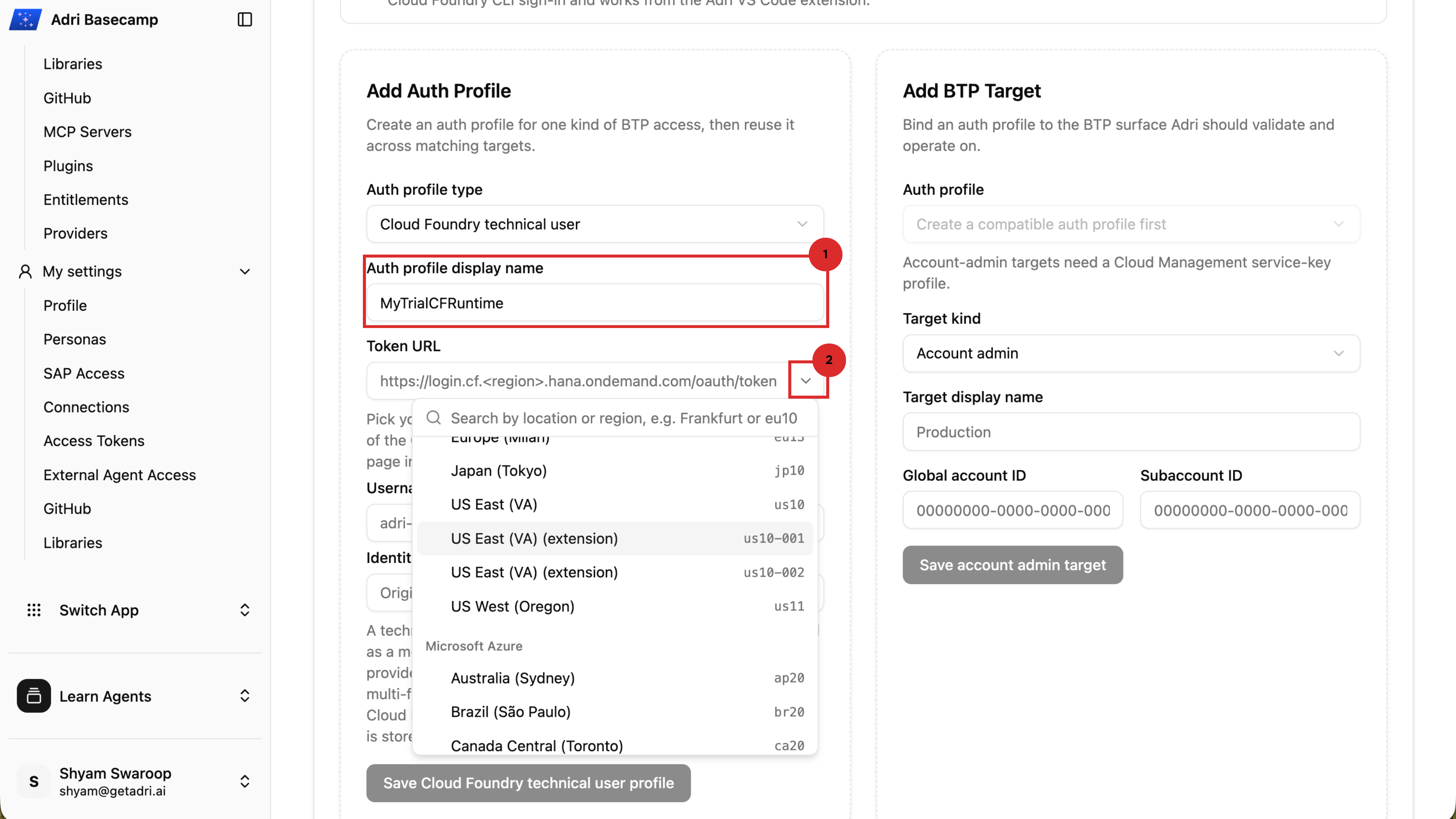
- Enter a recognizable display name.
- Select or enter the token URL for the subaccount region.
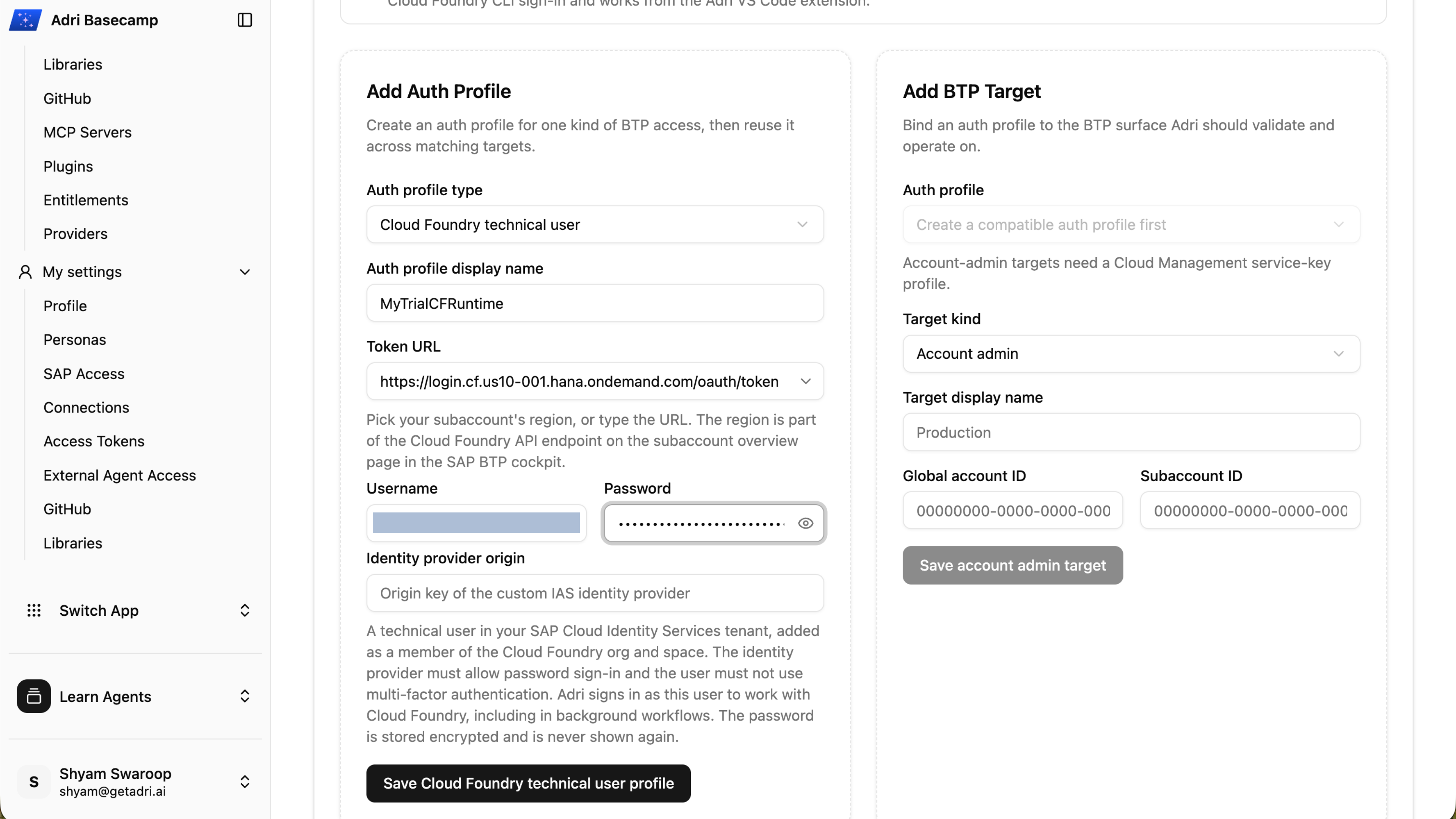
- Enter the technical user's username and password. Add the identity-provider origin only when you use a custom identity provider.
- Select Save Cloud Foundry technical user profile.
Create and validate the Cloud Foundry target
- Select the authentication profile you created.
- For Target kind, select Cloud Foundry.
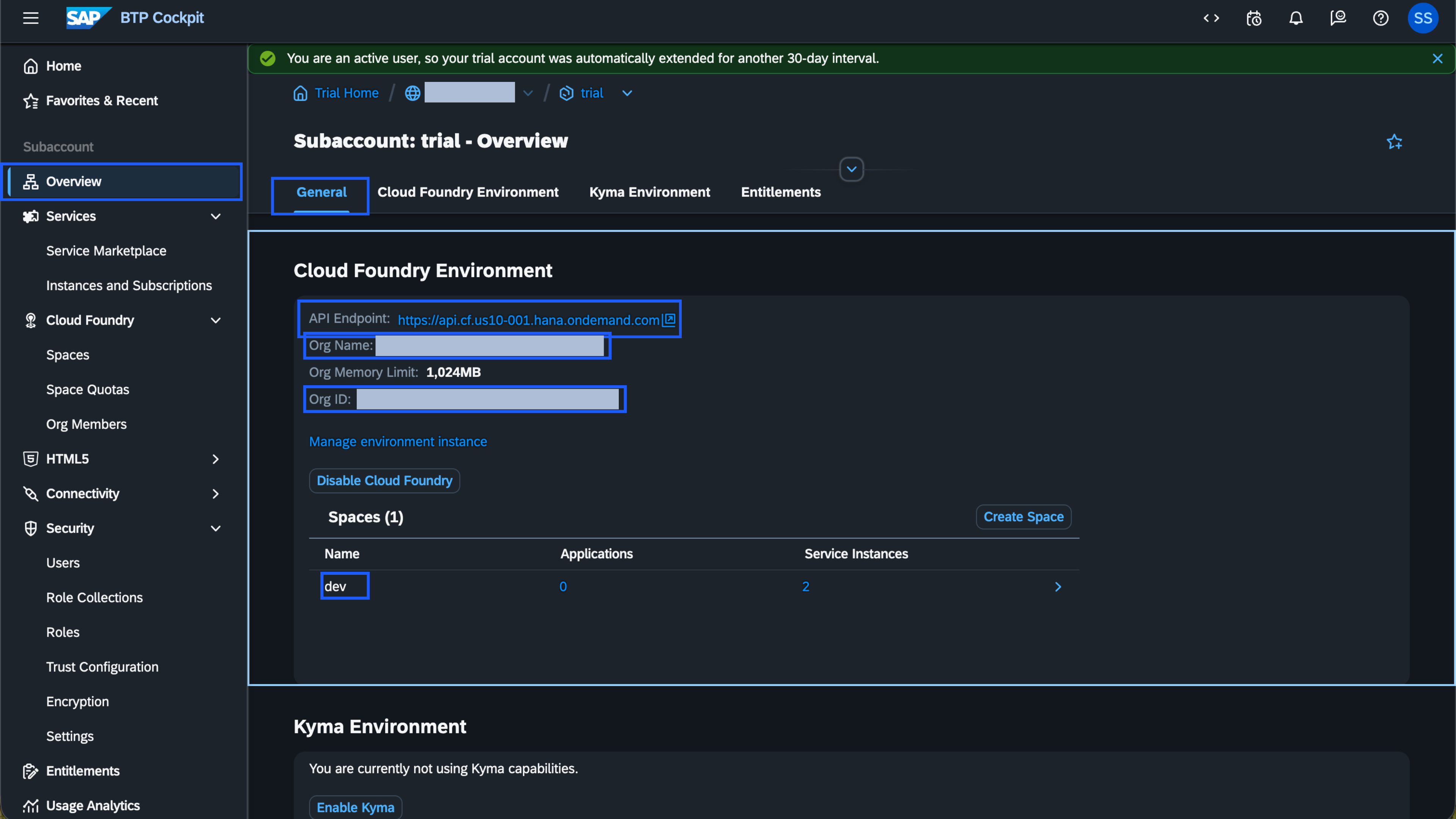
- Enter a target display name, Cloud Foundry API URL, organization name, and space name.
- Select Save cloud foundry target.
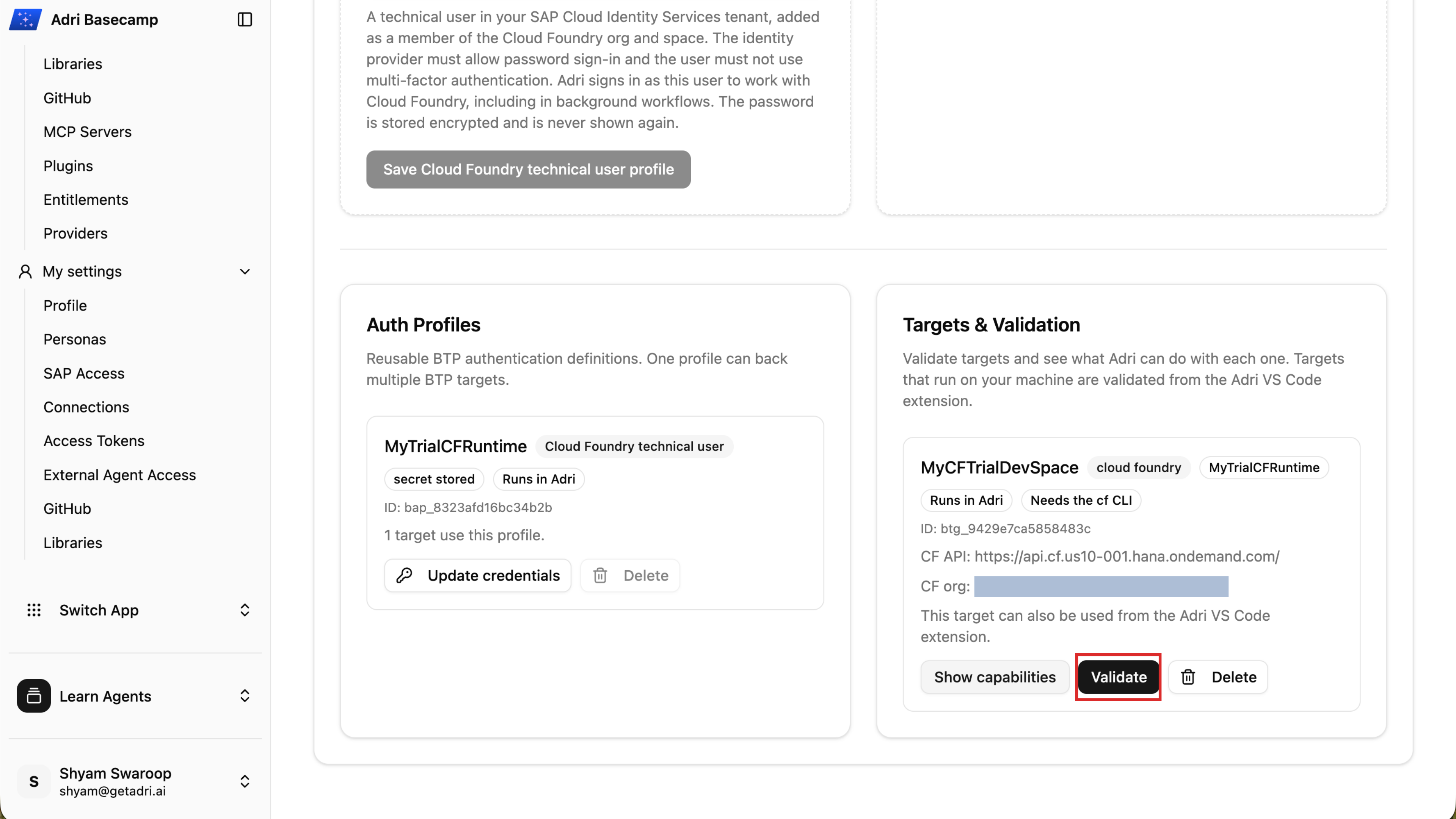
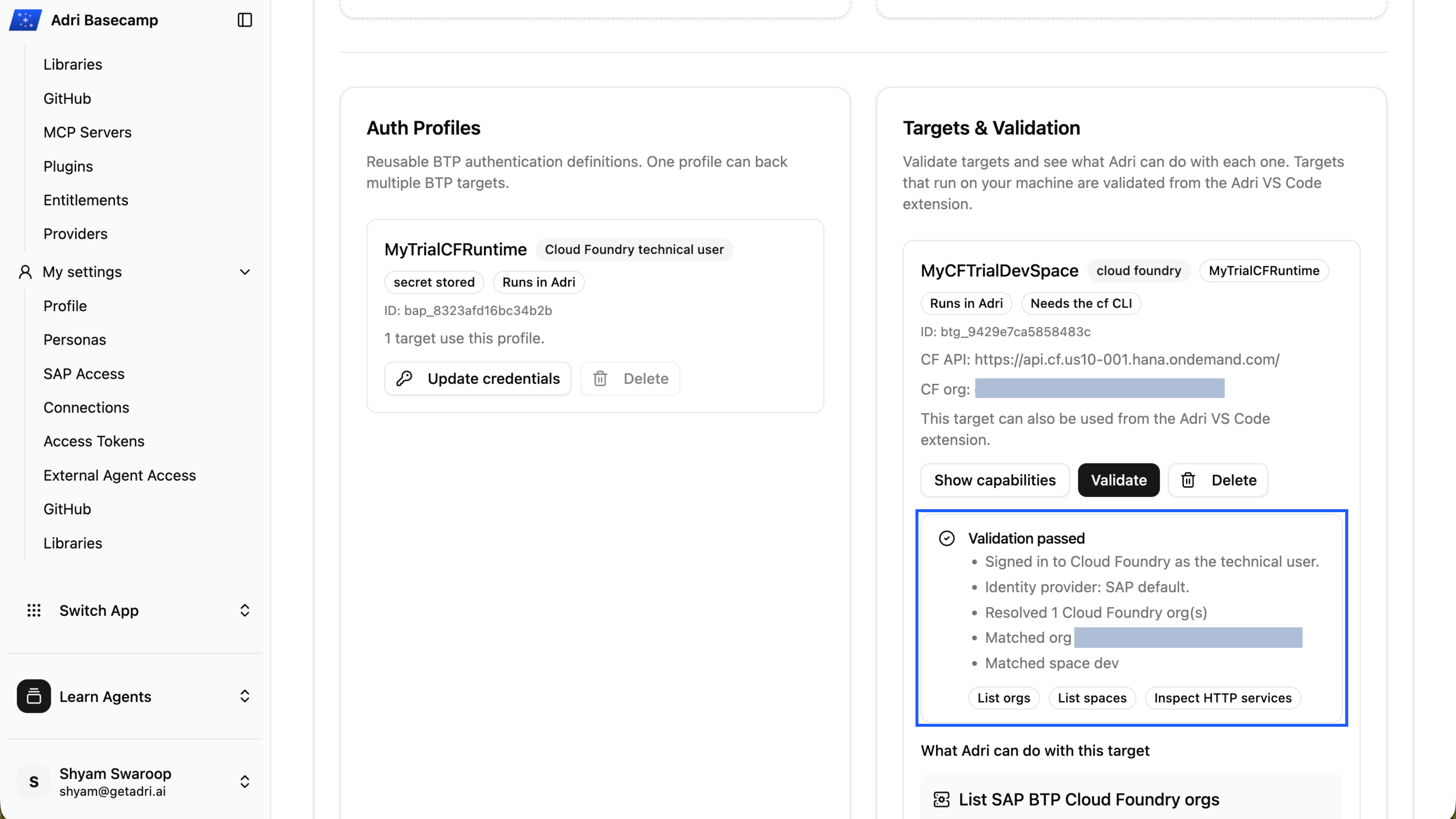
- On the saved target, select Validate. Continue only after Validation passed appears.
You can find the API endpoint, organization, and space on the subaccount overview page in SAP BTP Cockpit.
8. Refresh the BTP targets in VS Code
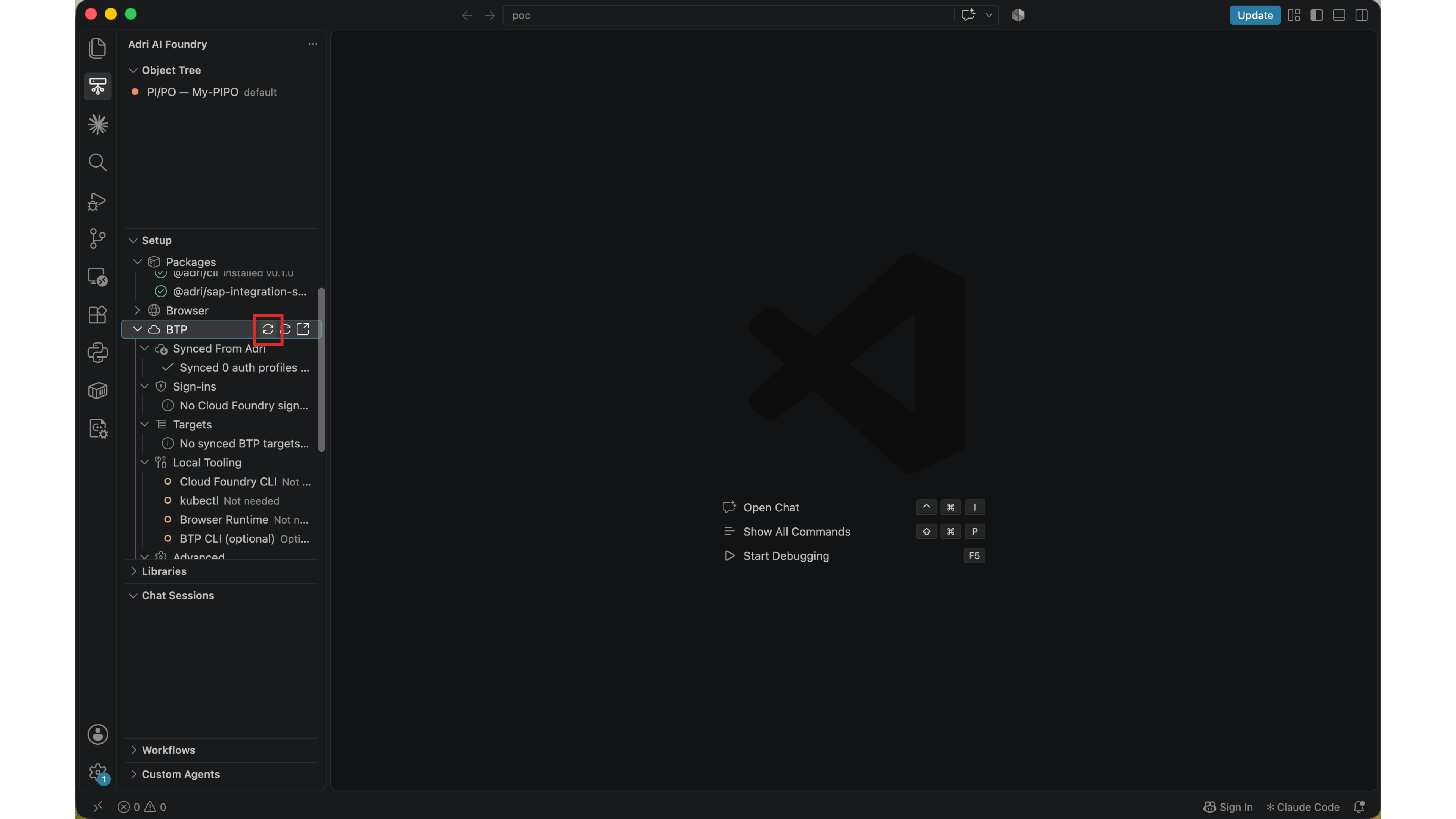
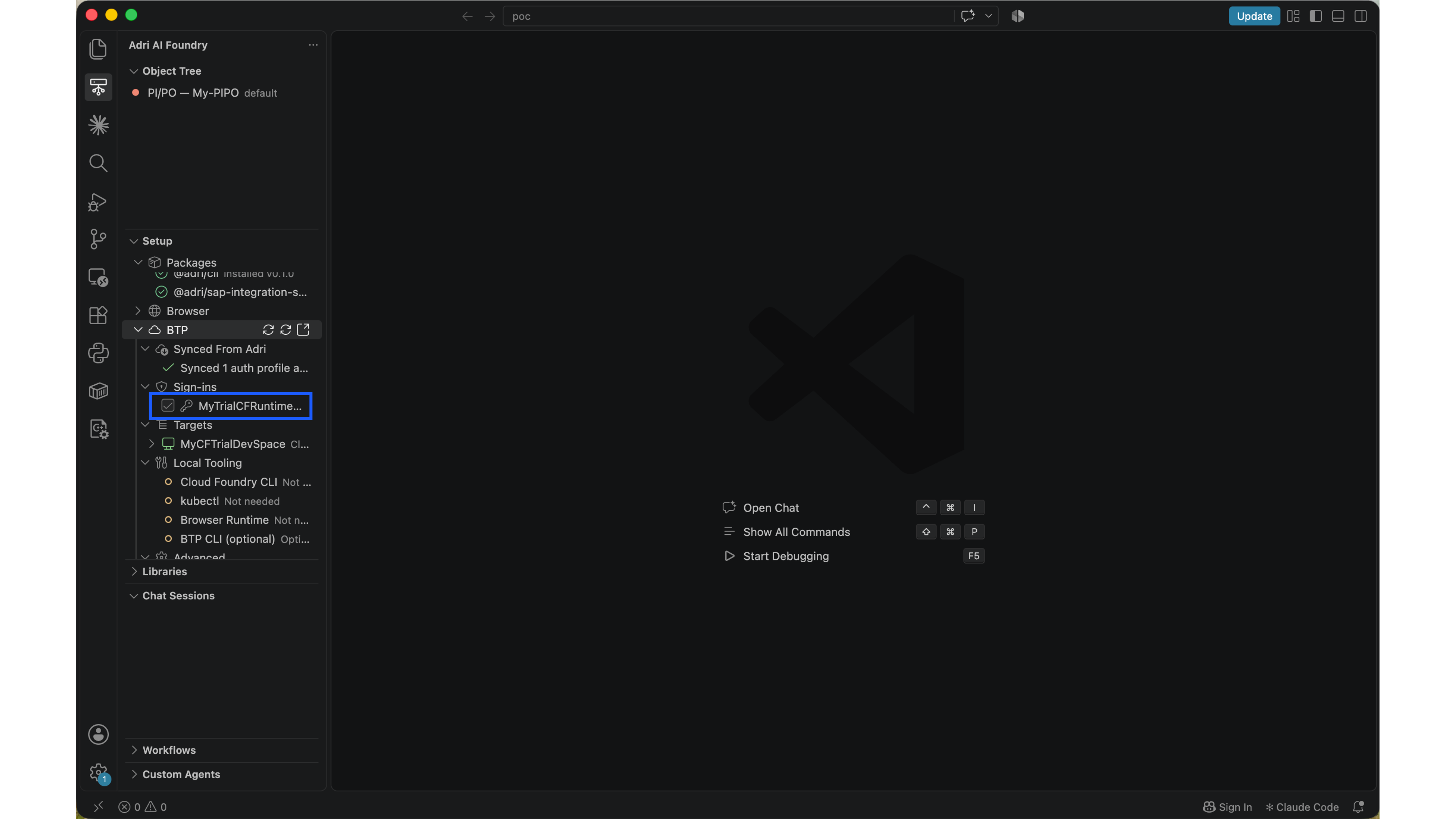
Return to VS Code. In Adri AI Foundry, expand BTP and select Refresh. The authentication profile and target created in Adri Basecamp appear under Synced From Adri, Sign-ins, and Targets.
9. Connect PI/PO and start an agent session
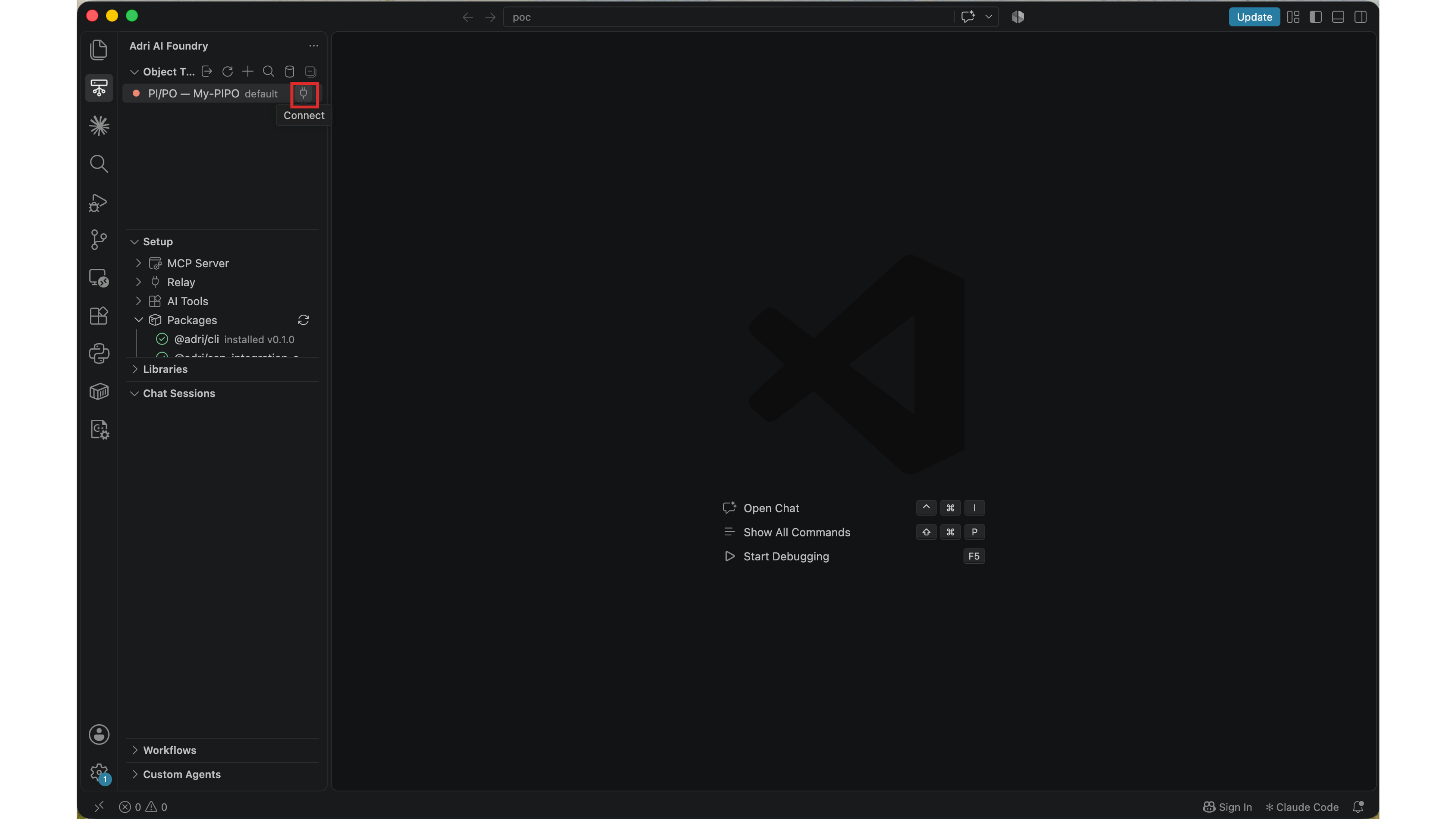
In the Object Tree, select the connect icon beside your PI/PO system. When the status turns green, Adri can browse the PI/PO design-time and runtime objects available to your user.
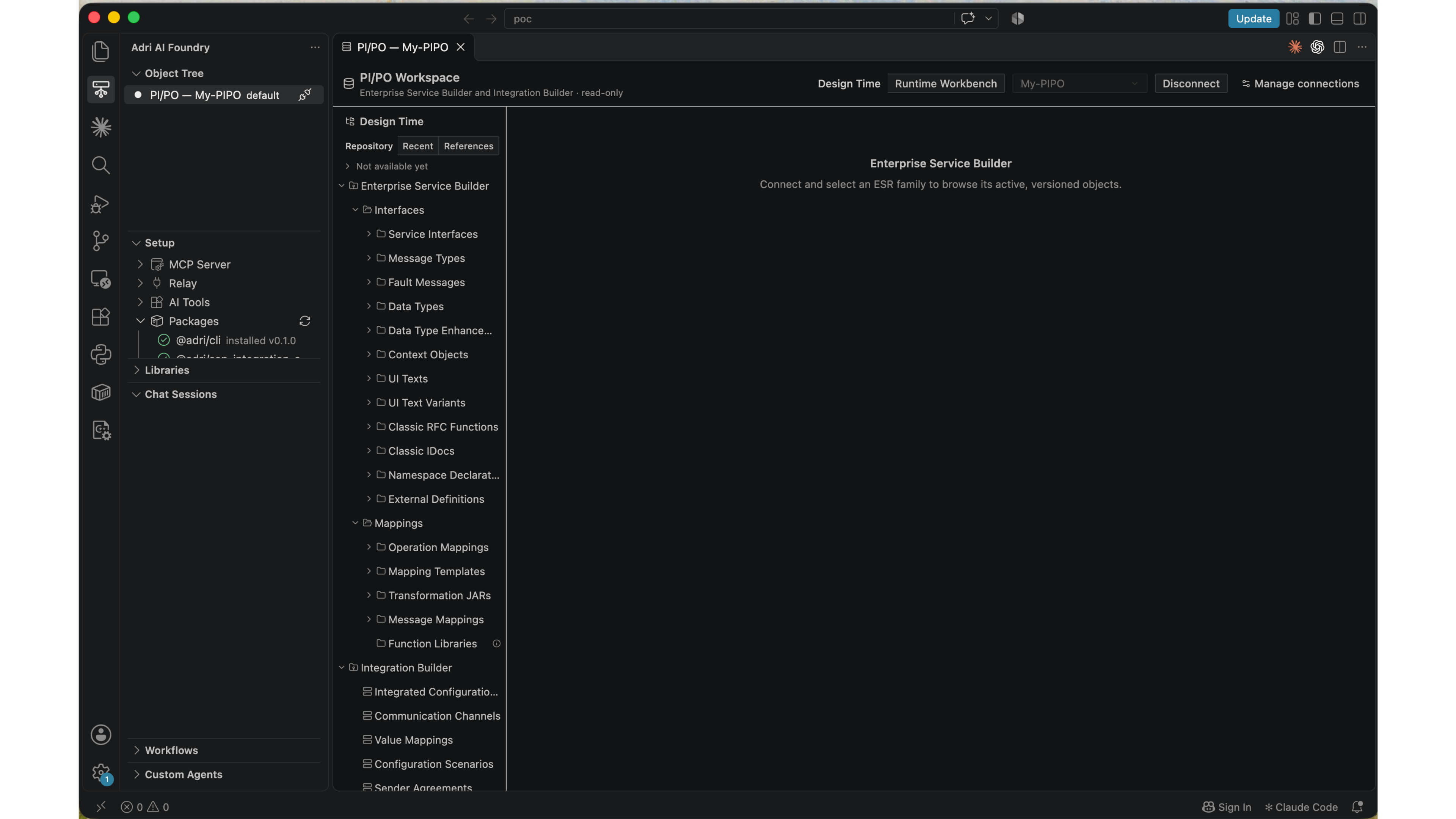
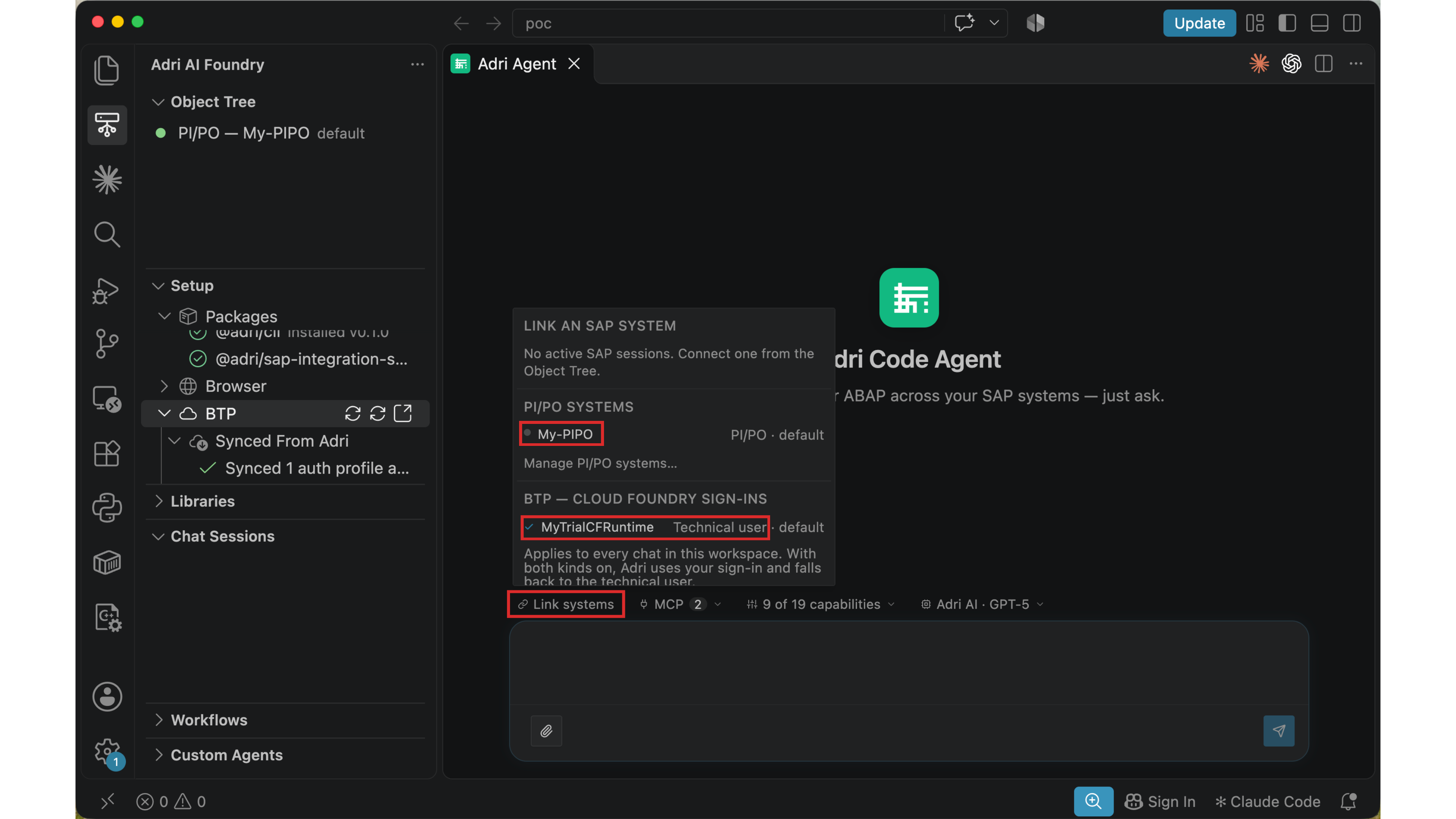
Create or open an Adri Code Agent session. Select Link systems, enable the PI/PO system and the Cloud Foundry sign-in, and apply the selection.
10. Send your first migration request
Describe the interface you want the agent to migrate and the desired outcome. For example:
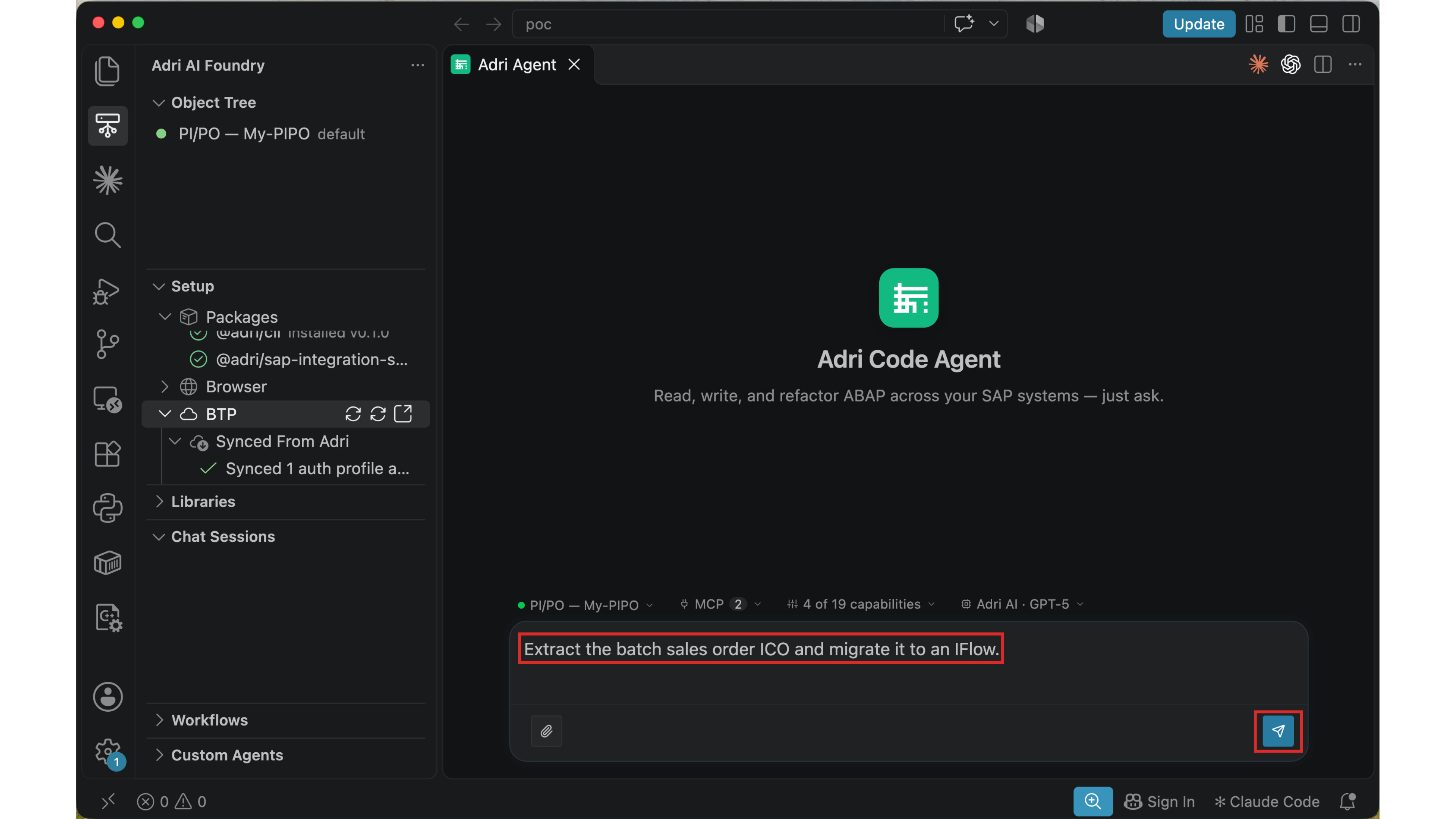
Extract the batch sales order ICO and migrate it to an iFlow.
Review the linked PI/PO system, Cloud Foundry target, capabilities, and model shown above the message box, then select Send.
The same setup also supports greenfield development. Instead of asking the agent to migrate an existing interface, describe the new integration you want it to build in PI/PO or SAP Integration Suite.